 By James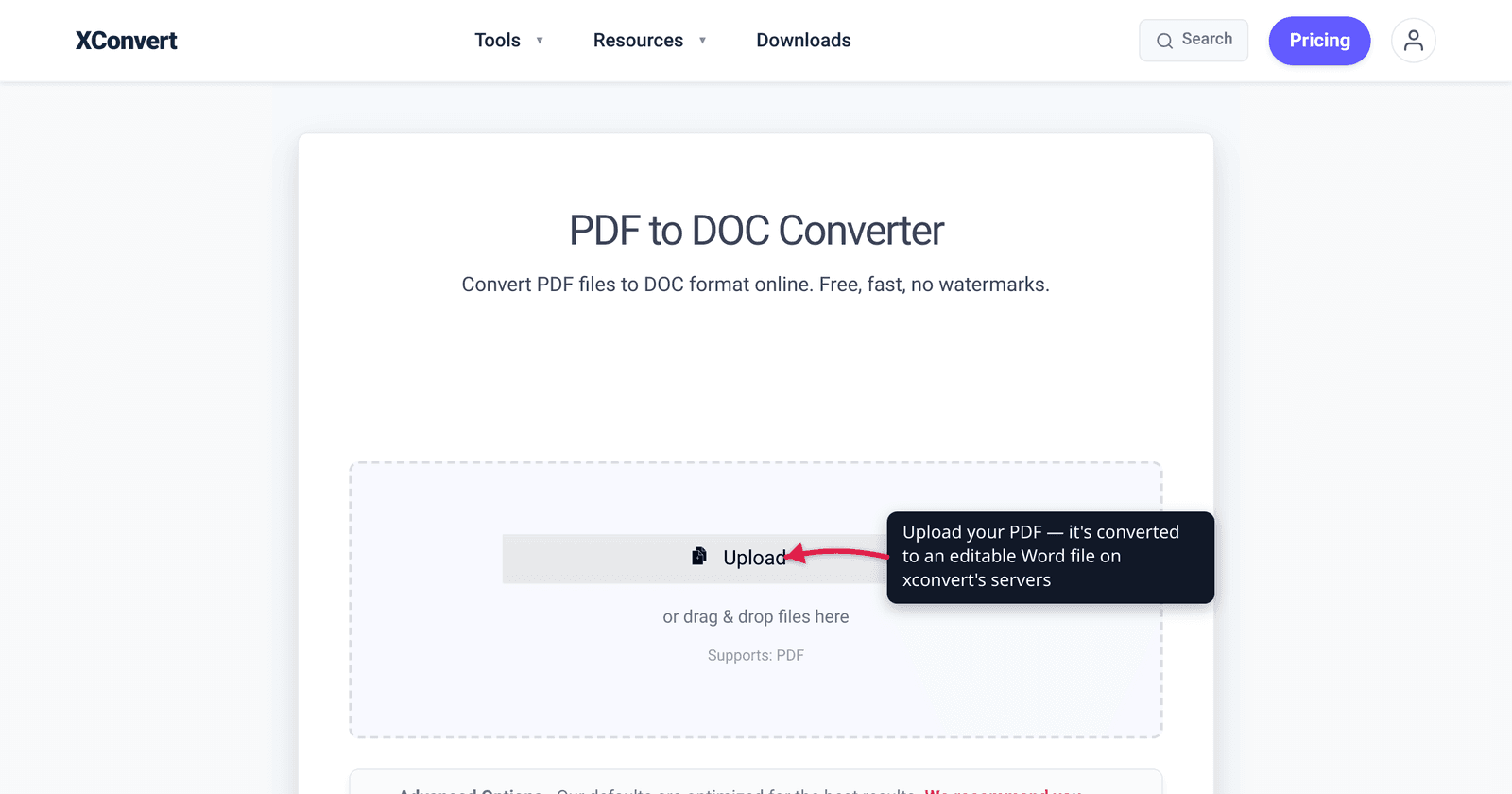
You exported a report to PDF, sent it off, and now someone needs it back as an editable Word file. Whether that works cleanly comes down to one thing most “PDF to Word” pages won’t tell you: what kind of PDF you actually have. A PDF created digitally — from Word, Google Docs, or “Print to PDF” — carries a real text layer and converts to editable text reasonably well. A scanned PDF is just a photograph of a page with no text inside it; nothing can turn that into editable text without OCR, and OCR is never perfect. This guide explains the difference, sets honest expectations on formatting fidelity, and shows you exactly how to convert. We verified the format facts against Microsoft’s own docs and the behavior of the converter itself.
Quick answer: If your PDF has selectable text (created from a document, not a scan), it converts to an editable Word file — though complex layouts, columns, and tables can shift. If it’s a scanned/photographed PDF, it has no text layer; converting it without OCR gives you page images inside a Word file, not editable text. Choose .docx (the modern default since Office 2007) unless an old system specifically needs the legacy .doc binary format.
Jump to a section
- The one question that decides everything: is your PDF text or a scan?
- How editable is the result? Honest fidelity expectations
- .doc vs .docx — which to choose
- Convert a PDF to Word on xconvert
- FAQ
- Sources
The one question that decides everything: is your PDF text or a scan?
Two files that both end in .pdf can be completely different things inside.
- A text-based (digitally created) PDF has a real text layer — the actual characters are stored in the file. This is what you get when you export from Word or Google Docs, or use “Print to PDF” from any app. A converter reads those characters directly and rebuilds them as editable Word text.
- A scanned or image-only PDF is a picture of a page. Scan a paper document or photograph it with your phone, and the PDF contains an image — no characters inside, just pixels that look like text. There is nothing for a converter to extract.
The 5-second test: open the PDF and try to select a paragraph with your cursor, the way you’d highlight text on a web page. If words highlight, you have a text layer and conversion will produce editable text. If nothing highlights — if your cursor just draws a box over the whole page — it’s a scan, and you’ll need OCR (below) before any editing is possible.
This distinction is also why scanned PDFs are so large compared to text PDFs: every page is a full image. If your scanned PDF is huge, that’s expected — see why is my scanned PDF so big for the why and the fix.
What OCR is, and why it’s a separate step
OCR (Optical Character Recognition) looks at the image of a page and tries to recognize the shapes as letters, producing a new text layer — it’s how a scanned page becomes editable. But OCR is a best-effort guess: accuracy depends on scan resolution, contrast, skew, and font, and smudges, faint photocopies, unusual fonts, and tables routinely produce errors you’ll proofread and fix by hand. Treat OCR output as a strong first draft, never a finished document.
Important: xconvert’s PDF-to-Word tool does not perform OCR. If you feed it a scanned PDF, it will place the page images into a Word document rather than give you editable text. To get editable text from a scan, run it through a dedicated OCR tool first (Adobe Acrobat, and most “PDF OCR” web tools, do this), then convert the resulting text-PDF to Word.
How editable is the result? Honest fidelity expectations
Even with a clean text-based PDF, PDF→Word is a rebuild, not a copy — and rarely pixel-perfect. The reason is structural: a PDF is a fixed layout, a snapshot where every character sits at exact coordinates, while a Word document is reflowable, built from paragraphs, styles, and tables that adjust to page size and edits. Converting means reverse-engineering a snapshot back into a flowing document, and some interpretation is unavoidable.
What that means in practice:
- Plain, single-column text (letters, articles, simple reports) usually converts cleanly and is fully editable.
- Multi-column layouts (newsletters, academic papers) often reflow into a single column or break in odd places — columns are visual in a PDF, not structural.
- Tables are the hardest case. A PDF often “draws” a table with lines and positioned text rather than storing a real table structure, so rows and columns can merge, split, or land in the wrong cells.
- Fonts may substitute if the original font isn’t embedded or installed on your machine, changing spacing and line breaks.
- Headers, footers, and page numbers sometimes import as floating text boxes you’ll need to clean up.
So set expectations accordingly: you’ll get an editable document, but complex layouts will need touch-up. A one-page memo lands near-perfect; a multi-column report full of tables means time spent fixing formatting. If your real goal is a faithful visual copy rather than editable text, converting PDF to JPG is often a better fit.
.doc vs .docx — which to choose
Two Word extensions, and the choice is easy in 2026:
- .docx is the modern, Open XML format — the default since the 2007 Office release, and still the recommended default across all supported Office versions. It’s an XML-based, automatically compressed package: Microsoft notes files can be up to ~75% smaller than the old format and are more resilient to corruption. Choose .docx unless you have a specific reason not to.
- .doc is the older Word 97–2003 binary format. Pick it only when you must hand the file to a very old application that genuinely can’t open
.docx; for everyday use it offers no advantage and larger files.
xconvert’s tool is labeled “PDF to DOC Converter,” and the output opens directly in Microsoft Word, Google Docs, LibreOffice, and Pages. If you specifically need the .docx extension, you can re-save from within Word once the file is open (File → Save As → Word Document).
Convert a PDF to Word on xconvert
The xconvert PDF to Word converter handles text-based PDFs in a few clicks:
- Open xconvert.com/convert-pdf-to-doc and click Upload to add your PDF (from your computer, Google Drive, or Dropbox) — or drag and drop it onto the page.
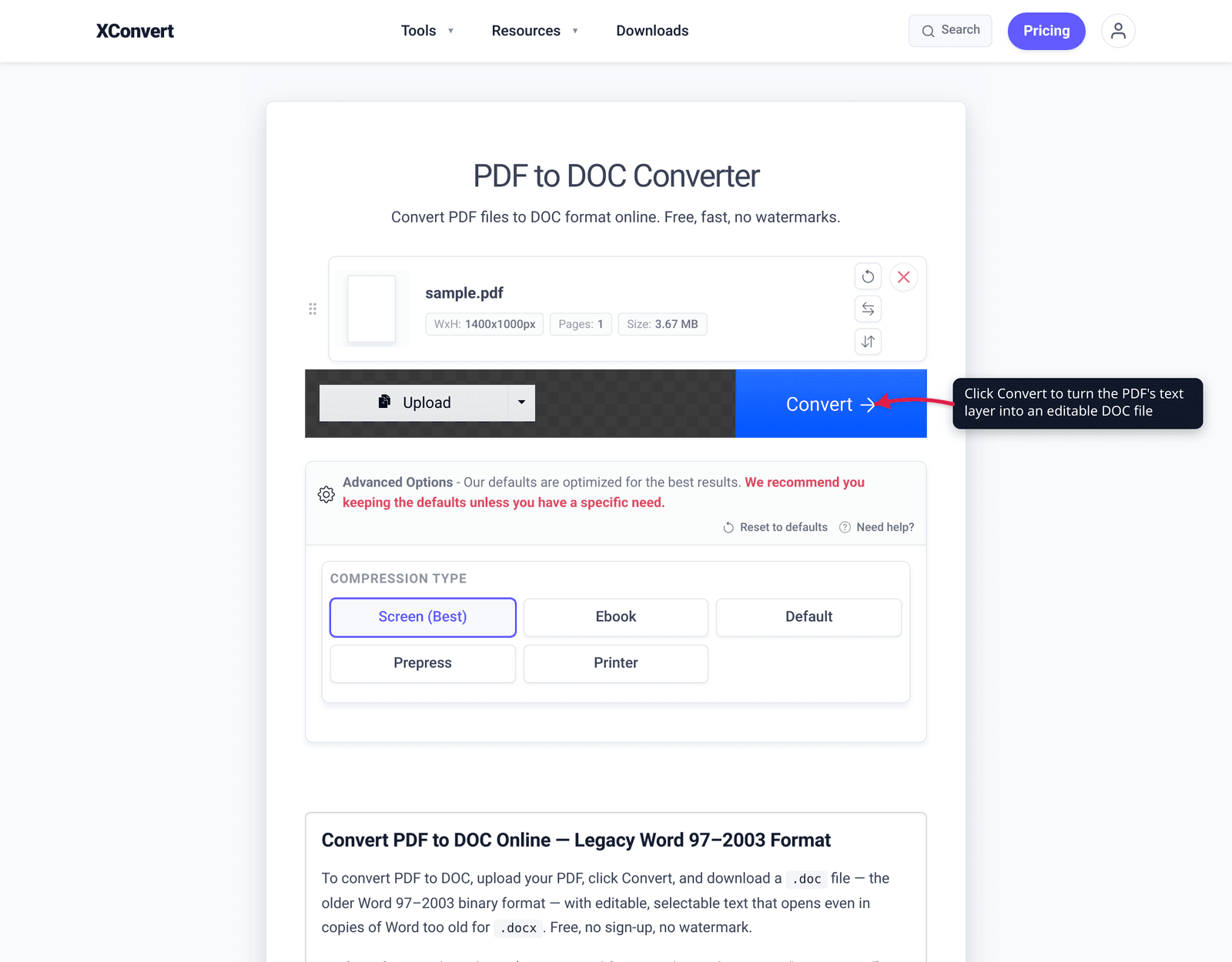
- (Optional) Open Advanced Options (the gear icon) to set the Compression Type — Screen (Best) for the smallest file, through Ebook, Default, Prepress, and Printer for progressively higher fidelity. Leave it at Default if you’re unsure.
- Click Convert and wait for processing to finish.
- Download the Word file and open it in Word, Google Docs, or LibreOffice.
- Before you trust it, proofread the formatting — check tables, columns, and any spots where the original layout was complex, and fix anything that shifted.
A reminder on what this tool does and doesn’t do: it converts the PDF’s existing text layer into Word text. It does not run OCR, so a scanned/image-only PDF will come through as page images, not editable text — OCR that file elsewhere first.
Your file uploads over an encrypted connection, is processed on our servers, and is deleted automatically a few hours later. Nothing stays around. If after converting you need to email a large result, see how to email a large PDF file.
FAQ
Will the converted Word file be editable, or just a picture of the page?
It depends on the PDF. If your PDF has selectable text (created from Word, Google Docs, or Print to PDF), the output is editable text you can change in Word. If it’s a scanned or photographed PDF with no text layer, the converter places the page images into the Word document rather than editable text — you’d need to OCR the file first to make it editable. Test by trying to highlight text in the PDF: if nothing highlights, it’s a scan.
Why did my tables and columns get messed up after converting?
Because a PDF is a fixed visual layout, not a structured document. A PDF often “draws” a table with lines and positioned text instead of storing a real table, and columns are visual rather than structural — so converters have to guess the structure when rebuilding it in Word. Simple, single-column text converts cleanly; multi-column layouts and tables are the most likely to shift and usually need manual cleanup.
Can I convert a scanned PDF to editable Word text?
Not directly, and not with this tool — a scan has no text layer, and xconvert’s converter does not run OCR. To make a scan editable, first process it through an OCR tool (such as Adobe Acrobat or a dedicated “PDF OCR” web service), which recognizes the image as text, then convert that searchable PDF to Word. Expect to proofread OCR output — it’s accurate but imperfect, especially on low-quality scans, unusual fonts, or tables.
Should I choose .doc or .docx?
Choose .docx in almost all cases. It’s the modern Open XML format that Microsoft has made the default since the 2007 Office release, it produces smaller files, and it’s recommended across all current Office versions. Only pick the legacy .doc (Word 97–2003 binary) format if you must support a very old application that can’t open .docx.
Is there a way to convert PDF to Word with perfect formatting?
No converter guarantees pixel-perfect editable Word output, because PDF and Word are fundamentally different document models — a fixed layout versus a reflowable one. Plain text converts near-perfectly; complex layouts always need some touch-up. The cleaner and simpler your source PDF, the better the result. If you only need a faithful visual copy rather than editable text, consider converting the PDF to images instead.
Does converting a PDF to Word change the file size?
Usually yes. A text-based PDF often becomes a smaller .docx because Open XML is compressed. A scanned PDF that comes through as page images can stay large, since the images travel with it. If your converted document is unexpectedly big, the original was probably image-heavy — see why is my scanned PDF so big.
Sources
Last verified 2026-06-25.
- Microsoft Support — Open XML Formats and file name extensions — .docx is the default Word format since the 2007 Office release; Open XML files are automatically compressed (up to ~75% smaller) and more resilient to corruption.
- Microsoft Support — Learn about file formats —
.docxis the recommended default format across supported Office versions;.docis the legacy Word 97–2003 binary format. - Adobe Acrobat — How to convert PDF to Word with OCR — text-based PDFs convert directly; scanned/image-only PDFs require OCR to extract editable text first.
- Smallpdf — Common PDF to Word conversion issues — why fixed-layout PDFs lose table/column structure and substitute fonts when rebuilt as a reflowable Word document.
- xconvert PDF to DOC Converter — the live tool: Upload, Advanced Options (Compression Type: Screen/Ebook/Default/Prepress/Printer), Convert; no OCR, so scanned PDFs convert as page images.