 By Stephanie Taylor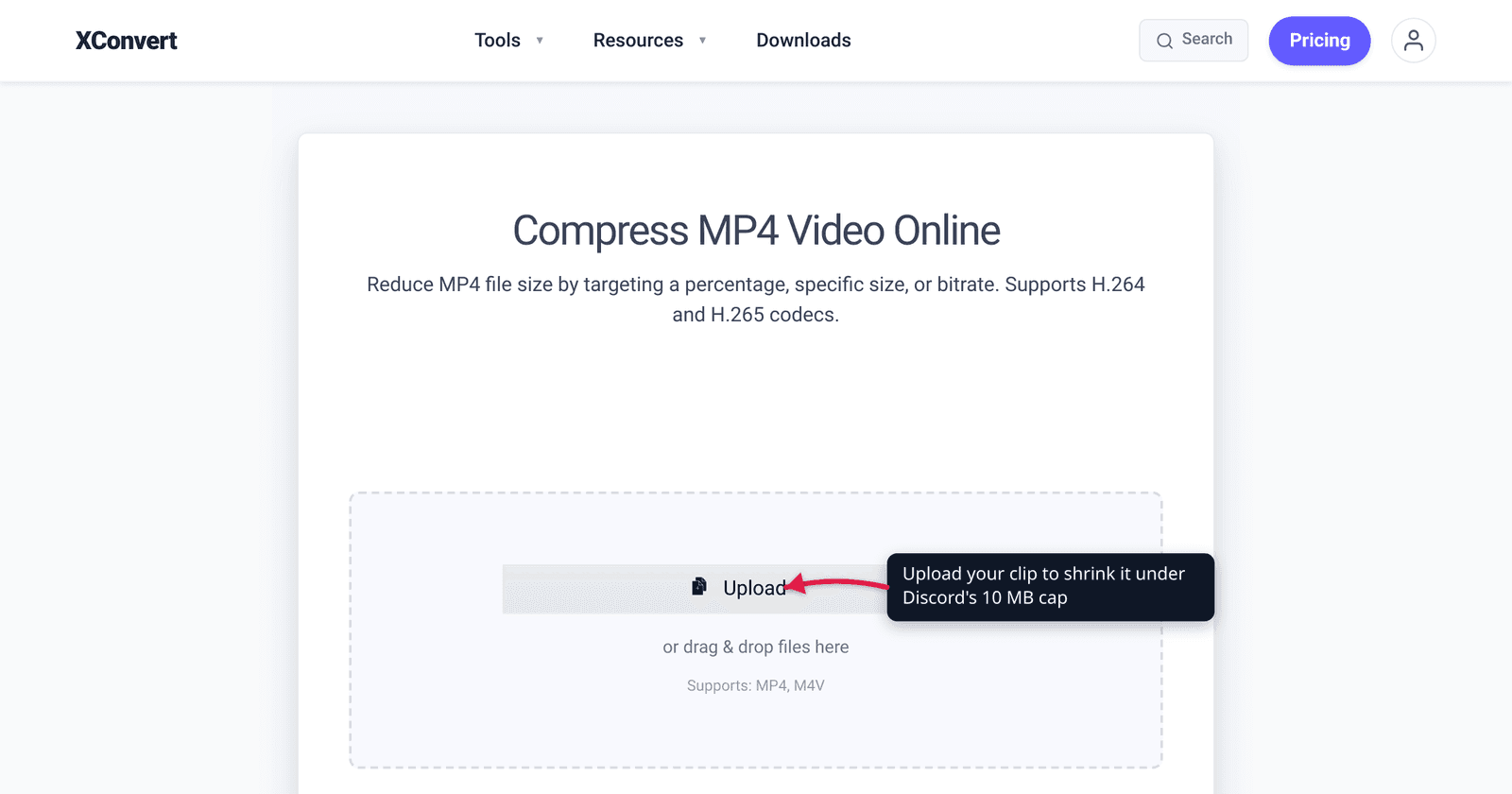
You hit record on a clutch gameplay moment, drag the clip into Discord, and the upload bar stops cold: “Your files are too powerful.” On a free account that wall is 10 MB — and a single minute of screen-recorded 1080p can be ten times that. The fix is not Nitro; it is matching the video’s bitrate to the 10 MB you have. This guide gives you the exact target-size workflow plus the bitrate math, and we verified Discord’s current free, Nitro Basic, and Nitro caps against Discord’s own help — including the September 2024 cut that dropped the free limit from 25 MB to 10 MB.
Quick answer: Discord’s per-file upload cap is 10 MB for free accounts, 50 MB on Nitro Basic, and 500 MB on full Nitro (verified on Discord’s File Attachments FAQ). To fit a video under 10 MB without Nitro, compress it as MP4 (H.264) and use a target-size mode: aim for ~9 MB to leave headroom. The bitrate that lands you there is
(target MB × 8192) ÷ seconds = total kbps; subtract ~96–128 kbps for audio and the rest is your video bitrate. xconvert’s compressor does this for you when you type the size you want.
Jump to a section
- Discord’s real upload limits (free, Nitro Basic, Nitro)
- Why your video is over 10 MB
- The bitrate math that fits 10 MB
- Settings that matter: codec, resolution, trim
- Compress a video for Discord on xconvert
- FAQ
Discord’s real upload limits (free, Nitro Basic, Nitro)
Discord checks file size per upload, and the cap depends on your subscription tier. As stated on Discord’s File Attachments FAQ:
| Tier | Per-file upload cap |
|---|---|
| Free / no Nitro | 10 MB |
| Nitro Basic | 50 MB |
| Nitro | 500 MB |
Two things people get wrong here:
- The free cap is 10 MB, not 25 MB. Discord raised it to 25 MB in April 2023, then reverted it to 10 MB on September 5, 2024, citing storage cost (“our data shows that the majority of users stay well under 10 MB”). A lot of older tutorials still say 8 MB or 25 MB — both are stale. Treat anything written before late 2024 with suspicion.
- Server Boost can raise the cap, separately from your account. A boosted server raises the upload limit for everyone in it: Level 2 (7 boosts) → 50 MB, Level 3 (14 boosts) → 100 MB. Level 1 does not raise it. When you upload, Discord uses the larger of your personal cap and the server’s Boost cap. So a free user in a Level 3 server can post a 100 MB file in that server — but only 10 MB in DMs and unboosted servers.
If you are sharing a voice clip or song rather than video, the same tier numbers apply to audio — see Compress audio for Discord for the bitrate/sample-rate settings. For animated clips that you want to loop inline, compress a GIF under 10 MB for Discord covers the palette and frame-drop tricks GIFs need.
Why your video is over 10 MB
File size for video is almost entirely bitrate × duration. A clip’s size in megabytes is roughly its average bitrate (in megabits per second) times its length in seconds, divided by eight. Screen recorders and phones default to bitrates built for archival quality, not for a 10 MB ceiling:
- A 1080p60 game capture commonly records at 8–20 Mbps, which is 1–2.5 MB per second — so a 15-second clip is already 15–35 MB.
- iPhone 4K video runs higher still.
That is why “shorten the clip” and “lower the bitrate” are the two levers that actually work. Resolution and codec help, but they help by reducing the bitrate you need for a given quality — the size equation is always bitrate × time.
The bitrate math that fits 10 MB
To land a video at a target size, work backwards from the size to a total bitrate:
total kbps = (target MB × 8192) ÷ duration in seconds
video kbps = total kbps − audio kbps
(8192 = 8 bits × 1024 kilobits per megabit, using 1 MB = 1024 KB.) Pick an audio bitrate first — 96–128 kbps is plenty for speech and most game audio — then give everything else to video.
Worked example — a 30-second clip for the free 10 MB cap. Target 9 MB (not 10) so you never bump the wall:
- total = (9 × 8192) ÷ 30 ≈ 2,458 kbps
- minus 128 kbps audio → ~2,330 kbps video
At 720p, ~2,300 kbps of H.264 looks clean for most content. For a 60-second clip at the same 9 MB you only get ~1,100 kbps of video — noticeably softer, which is the real argument for trimming. Halve the duration and you double the bitrate (and the quality) at the same file size. This is why a tight 20-second highlight beats a rambling two-minute one for Discord.
You do not have to run this by hand. xconvert’s target-size modes take the MB you want and solve for the bitrate automatically — that is the whole point of the workflow below.
Settings that matter: codec, resolution, trim
Three choices do most of the work once you have a target size:
- Codec: H.264 (MP4). Discord plays H.264 MP4 inline so the clip previews and loops in the chat without a download. It is also the most space-efficient option that every device can play. (H.265/HEVC is smaller still but Discord’s inline player and many viewers’ browsers won’t decode it reliably — keep distribution clips on H.264.)
- Resolution: drop to 720p for short clips. At a fixed 10 MB budget, 720p gives each pixel more bitrate than 1080p, so it usually looks better, not worse, once you are this compressed. 4K and 1080p only make sense if the clip is very short.
- Trim ruthlessly. Cutting dead air at the start and end is the single highest-leverage move — every second you remove is bitrate you give back to the part that matters.
Aim a little under the cap (~9 MB for 10, ~45 MB for 50). Container overhead and metadata mean a file that compresses to “exactly 10.0 MB” can read as 10.2 MB and bounce.
Compress a video for Discord on xconvert
The xconvert MP4 compressor lets you type the exact size you want and works out the bitrate for you:
- Open xconvert.com/compress-mp4 and click Upload to add your clip — From my Computer, From Google Drive, or From Dropbox.
- Open Advanced Options (the gear icon).
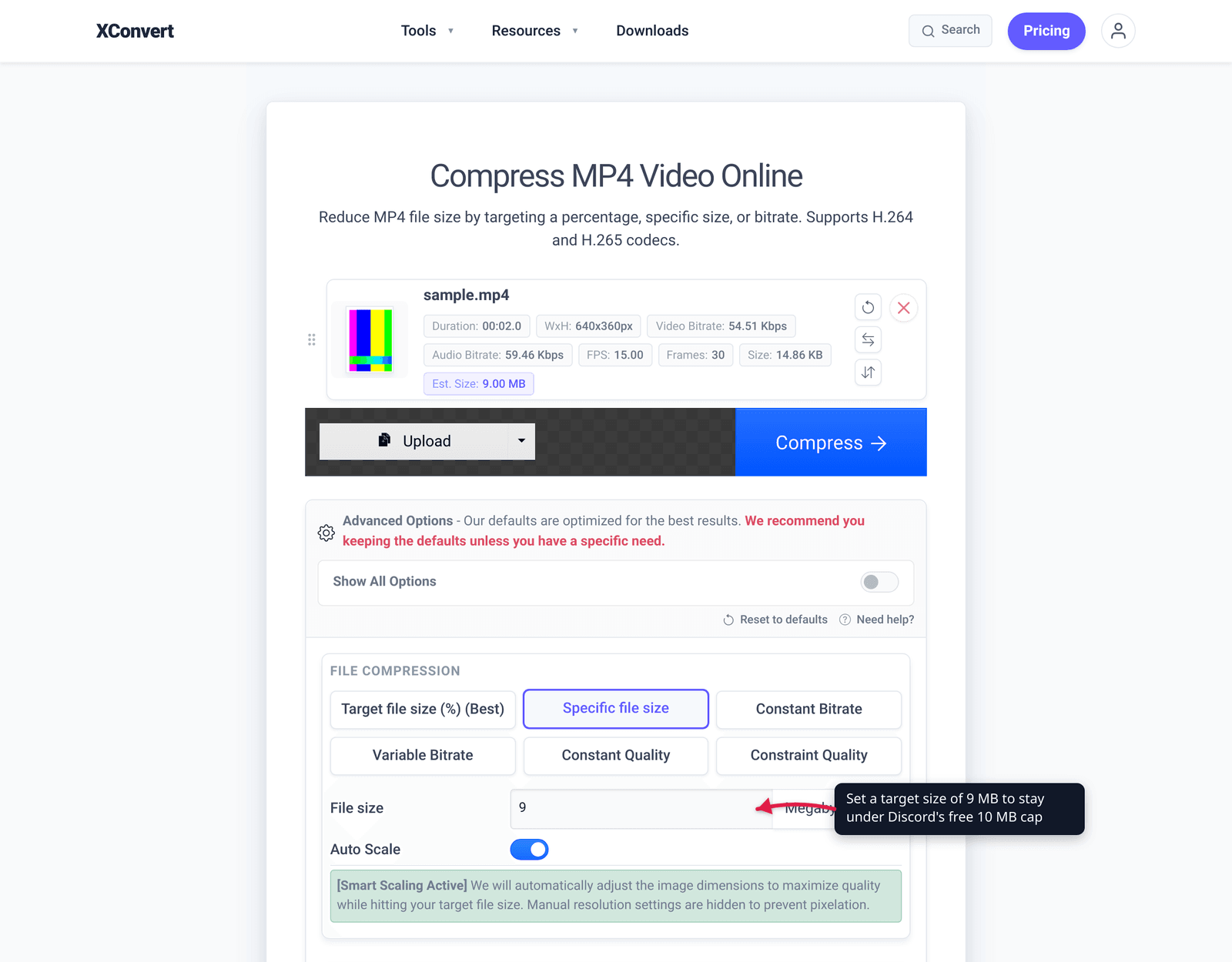
- Choose a size mode. For Discord, pick Specific file size and enter your target — 9 MB for the free 10 MB cap, or 45 MB on Nitro Basic. (The Target file size (%) mode, marked Best, instead shrinks to a percentage of the original.)
- Leave the codec on H.264 / MP4 so the clip plays inline in Discord. If the source is long, use Trim → Time Range to keep only the seconds that matter — fewer seconds means a higher bitrate at the same file size.
- Optionally keep Auto Scale on to let the tool reduce resolution (toward 720p) when needed to hit your size cleanly.
- Click Compress, then download and drag the result into Discord.
Your file uploads over an encrypted connection, is processed on our servers, and is deleted automatically a few hours later. Nothing is kept.
FAQ
What is the maximum video size you can upload to Discord?
10 MB on a free account, 50 MB on Nitro Basic, and 500 MB on full Nitro, per Discord’s File Attachments FAQ. The free limit dropped from 25 MB to 10 MB on September 5, 2024. A boosted server can raise the cap for everyone in it — 50 MB at Boost Level 2, 100 MB at Level 3 — and Discord applies whichever is larger, your account cap or the server cap.
How do I compress a video to under 10 MB for Discord without Nitro?
Re-encode it as MP4 (H.264) with a target size of about 9 MB. Use a target-size compressor like the xconvert MP4 compressor so you can type “9 MB” and let it calculate the bitrate, or trim and drop to 720p first. Aim under the cap (9, not 10) to leave room for container overhead.
Why does Discord say my video is “too powerful” or “too large”?
That error means the file exceeds your tier’s per-file cap — 10 MB free, 50 MB Nitro Basic, 500 MB Nitro — or the server’s Boost cap, whichever applies. The fix is to compress the video below that number, not to retry. A 15-second 1080p screen recording can easily be 20–30 MB straight out of the recorder, so it needs compressing.
What’s the best format and resolution for a Discord video?
MP4 with the H.264 codec, because Discord previews and loops it inline without a download. For short clips under the 10 MB cap, 720p is the sweet spot — at that file budget it usually looks better than 1080p because each pixel gets more bitrate. AAC audio at 96–128 kbps leaves the most room for the picture.
Does trimming the clip really help that much?
Yes — file size is bitrate times duration, so halving the length doubles the bitrate you can afford at the same file size. A tight 20-second highlight at 10 MB looks far cleaner than a 90-second clip squeezed into the same 10 MB. Trim first, compress second.
Can I just send a bigger file by boosting a server?
Yes, within that server. Boost Level 2 raises the cap to 50 MB and Level 3 to 100 MB for every member of the boosted server. But that only applies inside that specific server — in DMs and unboosted servers you are still on your account cap (10 MB free). Compressing is the only fix that works everywhere.
Sources
Last verified 2026-06-25.
- Discord — File Attachments FAQ — official current caps: 10 MB free, 50 MB Nitro Basic, 500 MB Nitro, plus Boost-level upload sizes.
- Discord — What are Nitro & Nitro Basic? — confirms the 50 MB (Nitro Basic) / 500 MB (Nitro) upload perks per tier.
- TechRadar — Discord lowers free upload limit to 10 MB — dates the free-cap revert (25 MB → 10 MB) to September 5, 2024.
- Dexerto — Discord lowers free upload limit to 10 MB — independent corroboration of the date and Discord’s stated reasoning.