 By James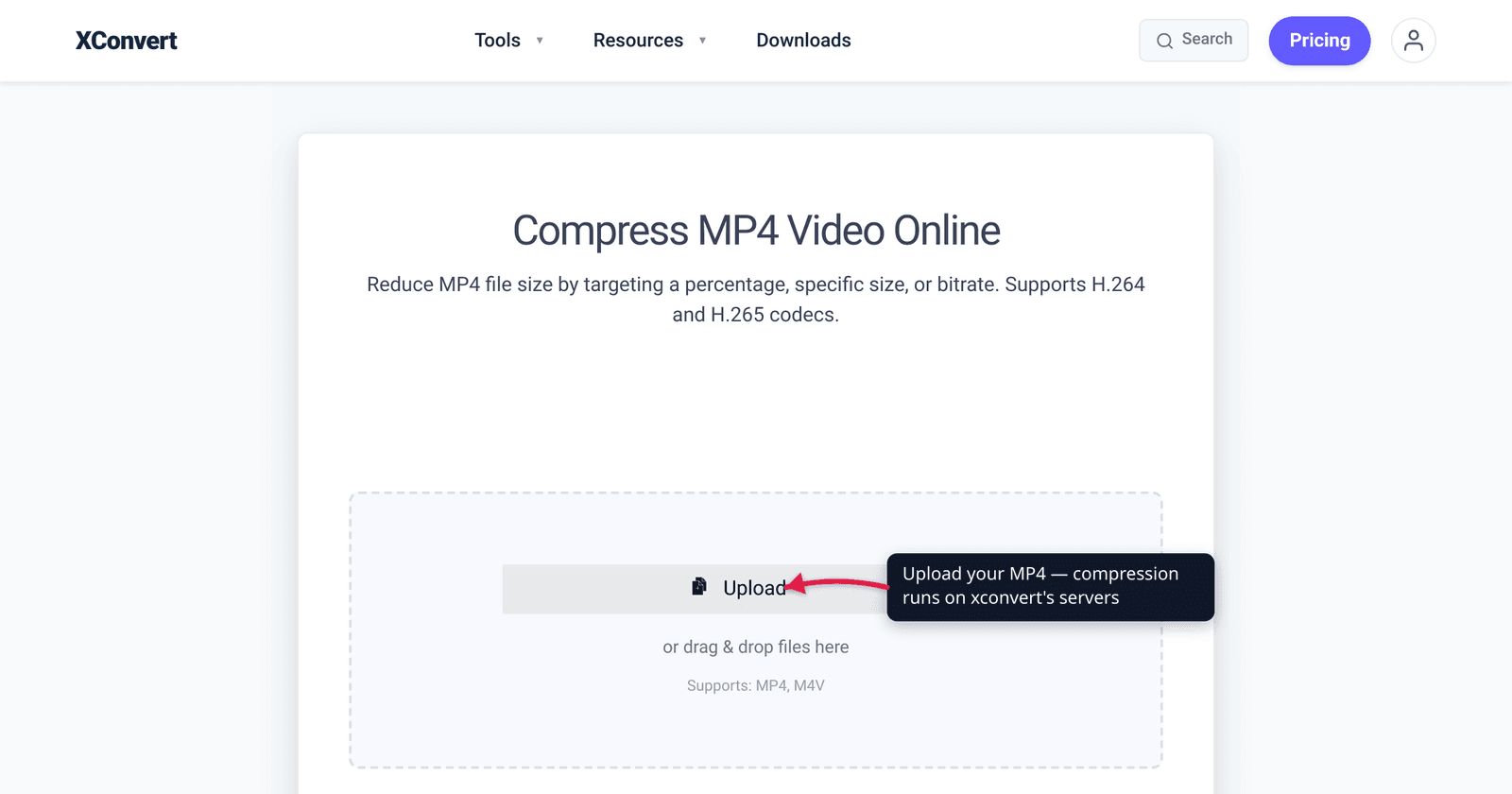
You need this clip under exactly 25 MB for an email, or under 10 MB for a chat upload — not “smaller,” but under a hard line that bounces the file if you miss it. The slow way is to compress, check the size, compress again, and repeat. The fast way is to tell the tool the target up front: xconvert’s Specific file size mode takes a number in MB and works backward to the bitrate that lands there. This guide shows you that one-click path, then the simple math underneath it — size ≈ bitrate × duration — so you understand why it works and can sanity-check any tool. We verified the tool’s modes against the live page and the size-bitrate arithmetic against standard video calculators.
Quick answer: Open the xconvert MP4 compressor, upload your video, open Advanced Options, and choose the Specific file size mode — type your target in MB and it picks the bitrate (and, with Smart Auto Scale, the resolution) to hit it. If you’d rather understand the math: total bitrate = (target MB × 8) ÷ duration in seconds, then subtract your audio bitrate to get the video bitrate. Aim a little under a hard cap (e.g. enter 23–24 MB for a 25 MB limit) so container overhead doesn’t push you over.
Jump to a section
- Why “a specific size” is its own problem
- The one setting that targets an exact MB
- The size↔bitrate math (with a worked example)
- Hitting common caps without restating them
- Compress to a specific size on xconvert
- FAQ
Why “a specific size” is its own problem
Most “compress” controls give you a quality knob, not a size knob. You set a CRF value or a quality percentage, the encoder does its thing, and the final size is whatever it turns out to be. That’s fine when you just want smaller. It’s the wrong tool when you have a hard ceiling — an attachment cap, an upload limit, a submission portal that rejects anything over N megabytes.
To hit a number, you have to flip the relationship around. Instead of “pick a quality, get a size,” you want “pick a size, get the quality that fits.” That’s a different mode, and it relies on one fact about video files: size is governed almost entirely by bitrate and duration. Once you can compute the bitrate that fits your budget, hitting a target stops being trial-and-error.
The one setting that targets an exact MB
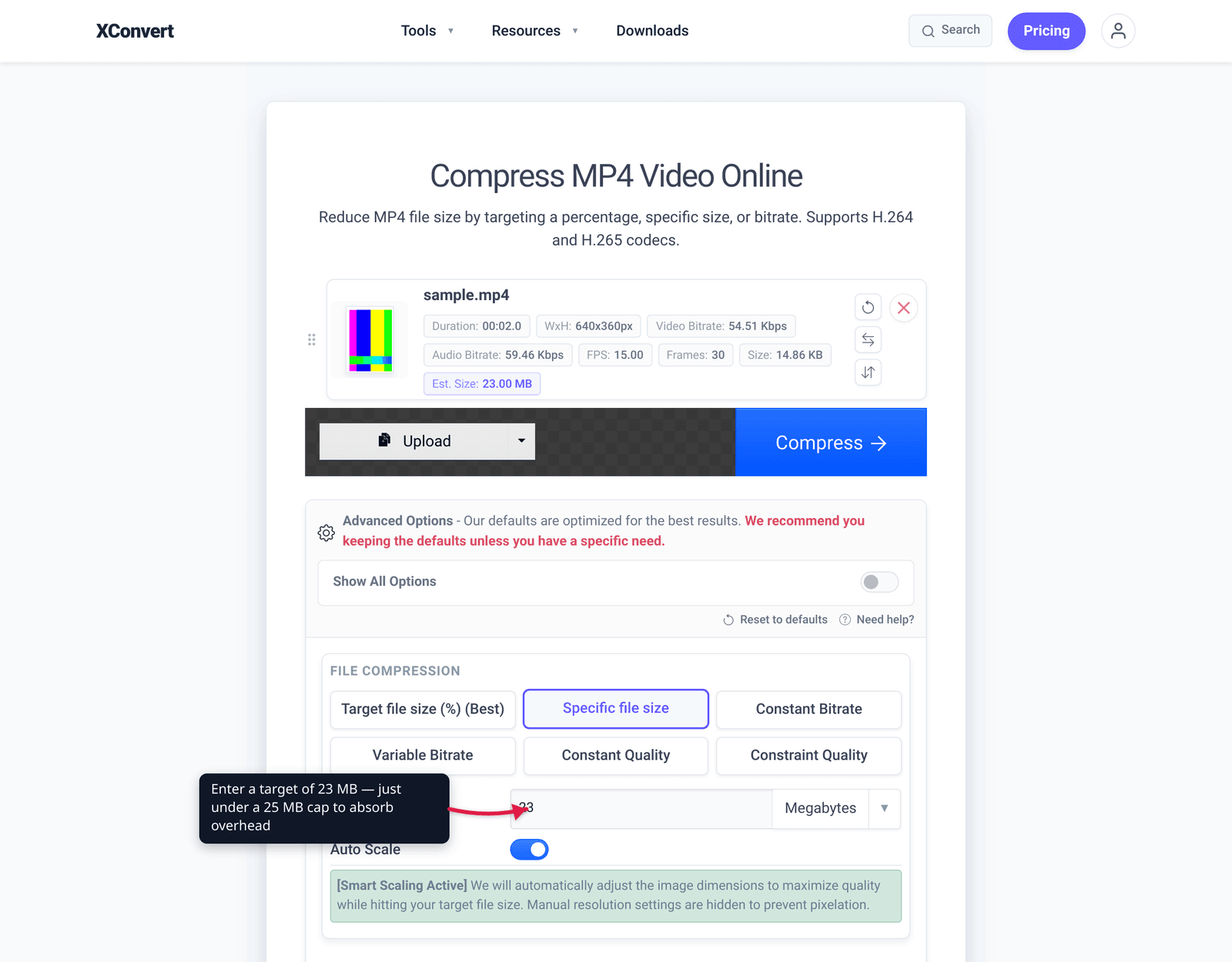
On the xconvert MP4 compressor, open Advanced Options (the gear) and you’ll see several ways to control the output:
| Mode | What you set | Use it when |
|---|---|---|
| Target file size (%) | A percentage of the original (a 1–100 slider), marked “Best” | You want it smaller and don’t have a hard number |
| Specific file size | An exact target in MB | You have a hard cap to hit (email, upload, portal) |
| Constant Bitrate | A fixed kbps | You want predictable, even bitrate |
| Variable Bitrate | A target kbps that flexes per scene | Best quality-per-byte at a rough size |
| Constant Quality / Constraint Quality | A CRF-style quality level | You care about quality, not a number |
For an exact target, Specific file size is the mode you want. You type the number of megabytes you need, and the tool back-solves the bitrate for you — exactly the math in the next section, done automatically. xconvert’s Smart Auto Scale can also step the resolution down when the target is small enough that bitrate alone would look bad, so a tight cap doesn’t turn into a blocky mess. You don’t have to touch a calculator; the value goes in, the file comes out at (or just under) size.
The size↔bitrate math (with a worked example)
Here’s the whole idea in one line, the same relationship every video calculator uses:
file size ≈ bitrate × duration
Bitrate is how many bits of data each second of video carries; multiply by the number of seconds and you get the total bits, which is the file size. To go the other direction — from a target size to the bitrate you need — rearrange it:
total bitrate (kbps) = (target MB × 8 × 1000) ÷ duration in seconds
The × 8 converts bytes to bits (1 byte = 8 bits). The × 1000 converts megabits to kilobits (and megabytes to kilobytes), so you land in the kbps units that encoders use. One more step: that total has to cover both video and audio, so subtract your audio bitrate to get the video bitrate to enter.
Worked example — a 3-minute clip under 25 MB:
- Duration: 3 minutes = 180 seconds. Target: 25 MB.
- Total budget: 25 × 8 × 1000 = 200,000 kilobits, over 180 s = 1,111 kbps total.
- Subtract audio. A stereo AAC track at 128 kbps is the common default. 1,111 − 128 = ~983 kbps video bitrate.
- Set the encoder to ~980 kbps video + 128 kbps audio and the 3-minute file lands right around 25 MB.
Sanity check: (983 + 128) kbps × 180 s = 199,980 kilobits ÷ 8 = ~24,998 KB ≈ 25 MB. ✓
A 128 kbps audio track works out to roughly 1 MB per minute on its own (128 × 60 ÷ 8 ÷ 1000 ≈ 0.96 MB), which is a handy figure to keep in your head when budgeting. And always aim a little under the cap: container/metadata overhead and bitrate-estimation slack mean you should target ~23–24 MB to guarantee you stay under 25. When you use the Specific file size mode, the tool does all of this for you — but now you know what it’s doing, and you can spot a result that looks wrong.
Hitting common caps without restating them
The reason people need an exact size is almost always a platform limit — an email attachment cap, a chat upload limit, a form-submission ceiling. Gmail, for example, attaches files up to 25 MB before it switches to a Google Drive link instead (Google’s own help page). Other platforms set their own numbers, and those numbers change, so we won’t restate a table of caps that goes stale.
What’s worth knowing is the method, which is identical no matter the cap: find the limit from the platform’s own page, subtract a safety margin, and enter that as your target. For the email case specifically — which provider caps what, and how to fit a clip comfortably — see how to compress a video for email. For the desktop-tool routes (HandBrake, FFmpeg, VLC) when you’d rather not use a browser, see how to compress an MP4 on Windows.
Two extra levers when bitrate alone can’t get you small enough at an acceptable quality:
- Switch the codec to H.265 (HEVC). At the same quality it targets roughly 25–50% smaller files than H.264, which means you can hit a tighter cap at a higher effective quality — at the cost of narrower playback support. (See H.264 vs H.265 for when that trade-off is worth it.)
- Drop the resolution. Going from 1080p to 720p removes a huge share of the pixels, so the bitrate you have left stretches much further. Smart Auto Scale does this automatically for small targets.
Compress to a specific size on xconvert
- Open xconvert.com/compress-mp4 and click Upload to add your video (from your computer, Google Drive, or Dropbox).
- Open Advanced Options (the gear icon).
- Choose the Specific file size mode and type your target in MB — enter a value a little under any hard cap (e.g. 23 for a 25 MB limit) to leave room for overhead.
- (Optional) Set the video codec — H.264 for maximum compatibility, or H.265/HEVC to fit a tighter target at higher quality on modern devices.
- (Optional) If the target is very small, lower the resolution, or let Smart Auto Scale handle it so quality stays as high as the budget allows.
- Click Compress, then download. Check the result; if a hard cap rejects it, re-run with a target a megabyte or two lower.
Your file uploads over an encrypted connection, is processed on our servers, and is automatically deleted a few hours later. Nothing stays around.
FAQ
How do I compress a video to an exact file size like 25 MB?
Use a tool with a target-size mode rather than a quality slider. On the xconvert MP4 compressor, open Advanced Options, pick Specific file size, and type 25 (or a touch lower, like 23–24, to stay safely under). The tool back-solves the bitrate for you. To do it by hand: total bitrate (kbps) = target MB × 8 × 1000 ÷ duration in seconds, then subtract your audio bitrate.
What bitrate do I need to hit a target size?
Total bitrate (kbps) = (target MB × 8 × 1000) ÷ duration in seconds. For a 5-minute (300 s) video at 50 MB: 50 × 8 × 1000 ÷ 300 = ~1,333 kbps total. Subtract ~128 kbps for stereo AAC audio and set the video bitrate to ~1,200 kbps. Always round the target down a little to absorb container overhead.
Why is my video slightly over the size I targeted?
Bitrate is a rate, not an exact byte count, so encoders estimate, and the file also carries container and metadata overhead on top of the audio and video streams. That’s why the honest rule is to aim a little under a hard cap — target ~23 MB if the real limit is 25 — rather than exactly on it.
Does compressing to a specific size hurt quality?
It can, because you’re trading quality for size: a smaller target means a lower bitrate, and at some point that shows as softness or blockiness. Two ways to soften the blow at a given target — use H.265 (more quality per byte than H.264) and/or drop the resolution so the bitrate covers fewer pixels. A larger or more generous target always looks better.
How do I compress a short clip to fit a 10 MB chat upload?
Same method, smaller number: choose Specific file size, enter ~9 MB (under the 10 MB line), and let Smart Auto Scale lower the resolution if needed. For a one-minute 720p clip that’s usually easy; for longer or higher-resolution footage, expect to drop to 720p or switch to H.265 to keep it watchable at that size.
Is it better to target a percentage or an exact MB?
Use Target file size (%) when you just want the file smaller and don’t have a hard number — it’s the simplest “make it smaller” knob. Use Specific file size when a platform will reject anything over a fixed cap; only an exact-MB target guarantees you land under the line.
Sources
Last verified 2026-06-25.
- xconvert MP4 compressor — the live tool; verified the Specific file size, Target file size (%), Constant/Variable Bitrate, and Constant/Constraint Quality modes, plus Smart Auto Scale, on the page.
- Google — Gmail attachment size limit — Gmail attaches files up to 25 MB, then switches to a Google Drive link.
- toolstud.io — video file-size calculator — confirms
size = bitrate × durationand 8 bits per byte. - FitToMB — video bitrate calculator —
bitrate_kbps ≈ (MB × 8000) ÷ seconds, with audio subtracted from the total budget to get video bitrate.