 By Stephanie Taylor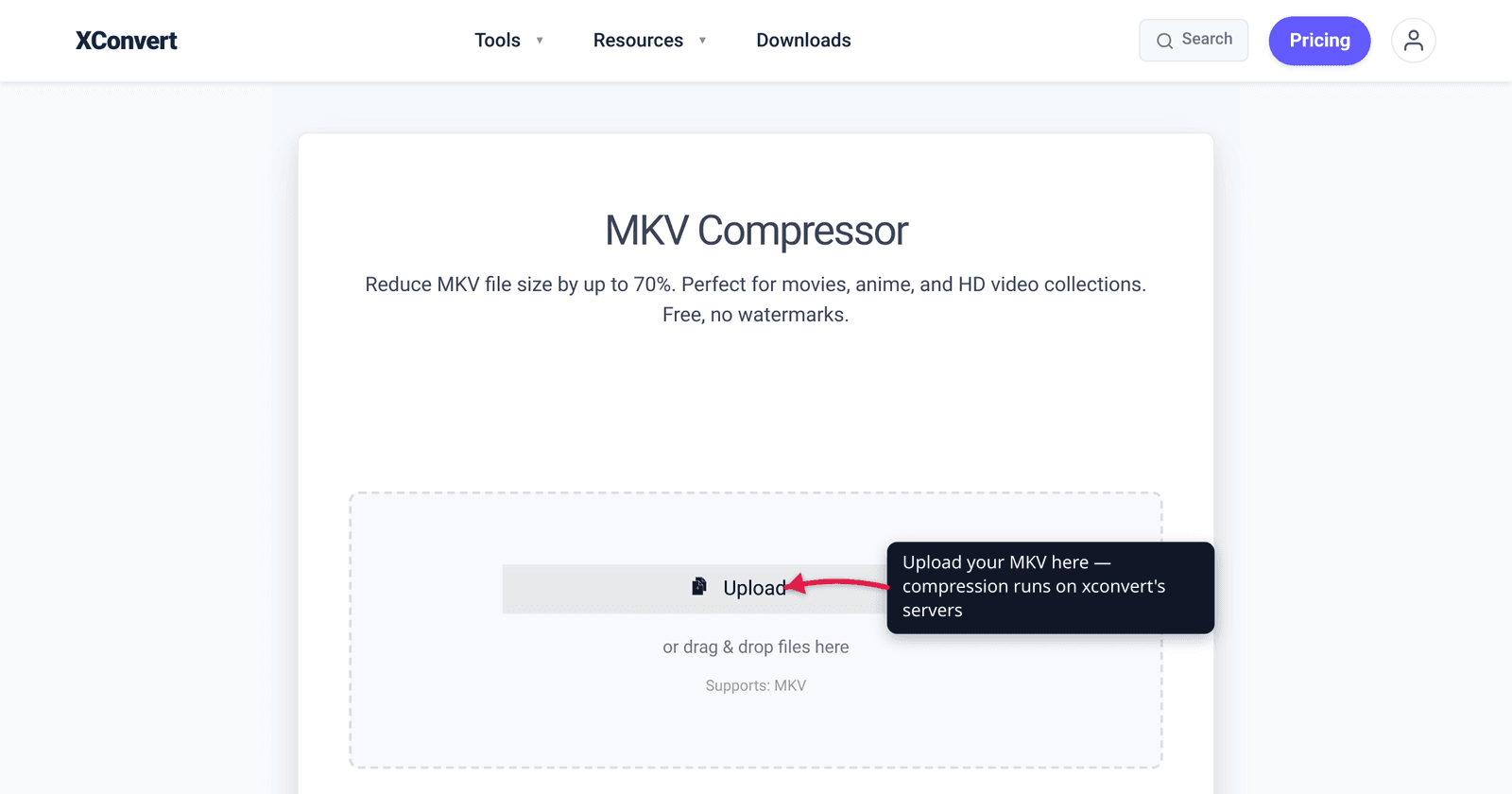
A 2-hour movie rip in MKV can easily run several gigabytes, and a screen-recorded gameplay session can be larger still. The reason is rarely the container itself — it’s what the container is holding: high-bitrate, high-resolution video, often alongside several audio tracks and a stack of subtitle languages. MKV is one of the most flexible containers there is, so you have real levers to pull: re-encode to an efficient codec, lower the bitrate or quality, scale the resolution, and drop tracks you don’t need — all while keeping the file as MKV. We verified the Matroska container facts against matroska.org and the codec-efficiency numbers against the standards institutes.
Quick answer: MKV is a container, not a codec — it’s usually large because of what’s inside it, not the wrapper. To shrink it: re-encode the video to a more efficient codec (H.265/HEVC is ~50% more efficient than H.264; AV1 is more efficient again), lower the bitrate or raise the CRF, reduce the resolution, and drop extra audio/subtitle tracks you don’t need. The file stays MKV the whole time — compressing is not the same as converting to MP4.
Jump to a section
- Why MKV files get so big
- The four levers that shrink an MKV
- Compress vs. convert: MKV stays MKV
- Which lever to pull when
- Compress an MKV on xconvert
- FAQ
Why MKV files get so big
Matroska (MKV) is a container format, not a compression format. As matroska.org puts it plainly, it is “NOT a video or audio compression format (codec)” but rather “an envelope in which there can be many audio, video, and subtitles streams.” It’s built on EBML (Extensible Binary Meta Language), a binary cousin of XML, and it’s designed to hold a complete multimedia production — video, multiple audio languages, multiple subtitle tracks, chapters, and metadata — in one file.
That flexibility is exactly why MKV files balloon. The size comes from two places:
- The video stream. Almost always the dominant cost. A long, high-resolution, high-bitrate video — a movie, a 4K recording, a long gameplay capture — carries an enormous amount of data. If it was encoded with an older codec like H.264 at a generous bitrate, there’s a lot of slack to recover.
- Extra tracks. MKV is the container of choice for media that bundles everything, so a single file commonly carries several audio tracks (original language, dub, commentary) and a pile of subtitle tracks. If you only ever watch one of each, the rest are dead cargo.
So “compress an MKV” really means “shrink what’s inside the MKV.” The container barely matters to the size; the streams do.
The four levers that shrink an MKV
There are four independent levers, and you can combine them.
1. Re-encode the video to a more efficient codec. The biggest lever for most files. Matroska can hold a broad range of video codecs — H.264/AVC, H.265/HEVC, AV1, VP9, MPEG-4, and more — and the newer the codec, the more quality it packs into each bit:
- H.265 / HEVC targets roughly 50% bit-rate reduction at the same subjective quality versus H.264 — the design goal the standards community quotes (Fraunhofer HHI, one of the institutes behind the standard). In practice the saving is a range — commonly 25–50%, closer to 50% on detailed 4K footage.
- AV1 is more efficient again. The Alliance for Open Media positions AV1 at around 30% better compression than the previous generation, and it’s royalty-free — at the cost of much slower encoding and narrower hardware-decoder support today.
If your MKV is already H.264, switching to H.265 or AV1 is often the single highest-impact change. (For the codec decision itself, see H.264 vs H.265: which to use.)
2. Lower the bitrate, or raise the CRF. Even within the same codec, you control how many bits the video gets. A lower target bitrate produces a smaller file; constant-quality (CRF) encoding lets you target a perceptual quality level and let the bitrate float — a higher CRF number means a smaller file and lower quality. This is the precision lever: nudge it until size and quality balance where you want them.
3. Reduce the resolution. A 4K source downscaled to 1080p drops the pixel count to a quarter, which slashes the bitrate needed for the same visual sharpness on a normal screen. If nobody’s watching on a 4K display, downscaling is free size savings.
4. Drop extra audio and subtitle tracks. This one is unique to multi-track containers like MKV, and it’s pure savings with zero video-quality cost. If your file carries five audio languages and a dozen subtitle tracks and you only need one of each, removing the rest shrinks the file with no re-encoding artifacts at all.
Compress vs. convert: MKV stays MKV
A common point of confusion: people often “compress” an MKV by converting it to MP4. That reduces size, but it’s a different operation with a catch.
Compressing an MKV keeps it as an MKV — same container, smaller streams. Converting MKV to MP4 changes the container, and because MP4 doesn’t support every track type MKV does, some content can be lost. MKV’s rich subtitle support (SSA/ASS styled subtitles, multiple text and bitmap formats) and its easy multi-audio handling don’t all carry cleanly into MP4 — which is often why an MP4 ends up smaller: it left tracks behind.
So:
- Want a smaller MKV with all its tracks intact? Compress it (re-encode/bitrate/resolution/track-pruning) and keep the output as MKV.
- Want maximum playback compatibility — phones, browsers, smart TVs, editors? That’s a container question, and MP4 wins it. See How to convert MKV to MP4, and MKV vs MP4 for the full comparison.
Compressing is about size; converting to MP4 is about compatibility. You can do both — compress, then convert — but know which one you’re after.
Which lever to pull when
- Just want it smaller, no quality fuss? Re-encode to H.265/HEVC — for most H.264-sourced MKVs the single biggest win, and natively supported on Apple devices and modern phones.
- Want the absolute smallest file and modern players? Use AV1 — more efficient than HEVC, royalty-free — and accept a slower encode.
- Need a specific size (to fit a drive or upload limit)? Target an exact output size and let the tool work out the bitrate.
- Quality is sacred, size secondary? Use constant-quality (CRF) encoding — best quality-per-byte, no bits wasted on simple scenes.
- Fat because of extra tracks, not the video? Drop unused audio and subtitle tracks first — lossless for the video, and sometimes that alone is enough.
- Not watching on a 4K display? Downscale the resolution; you’ll barely notice and the size drops sharply.
In practice these stack: a 4K H.264 MKV with five audio tracks might go to H.265, downscale to 1080p, and shed four audio tracks — each lever multiplying the last.
Compress an MKV on xconvert
The xconvert MKV compressor keeps the output as MKV and exposes every lever above in one place:
- Open xconvert.com/compress-mkv and click Upload to add your file — From my Computer, From Google Drive, or From Dropbox.
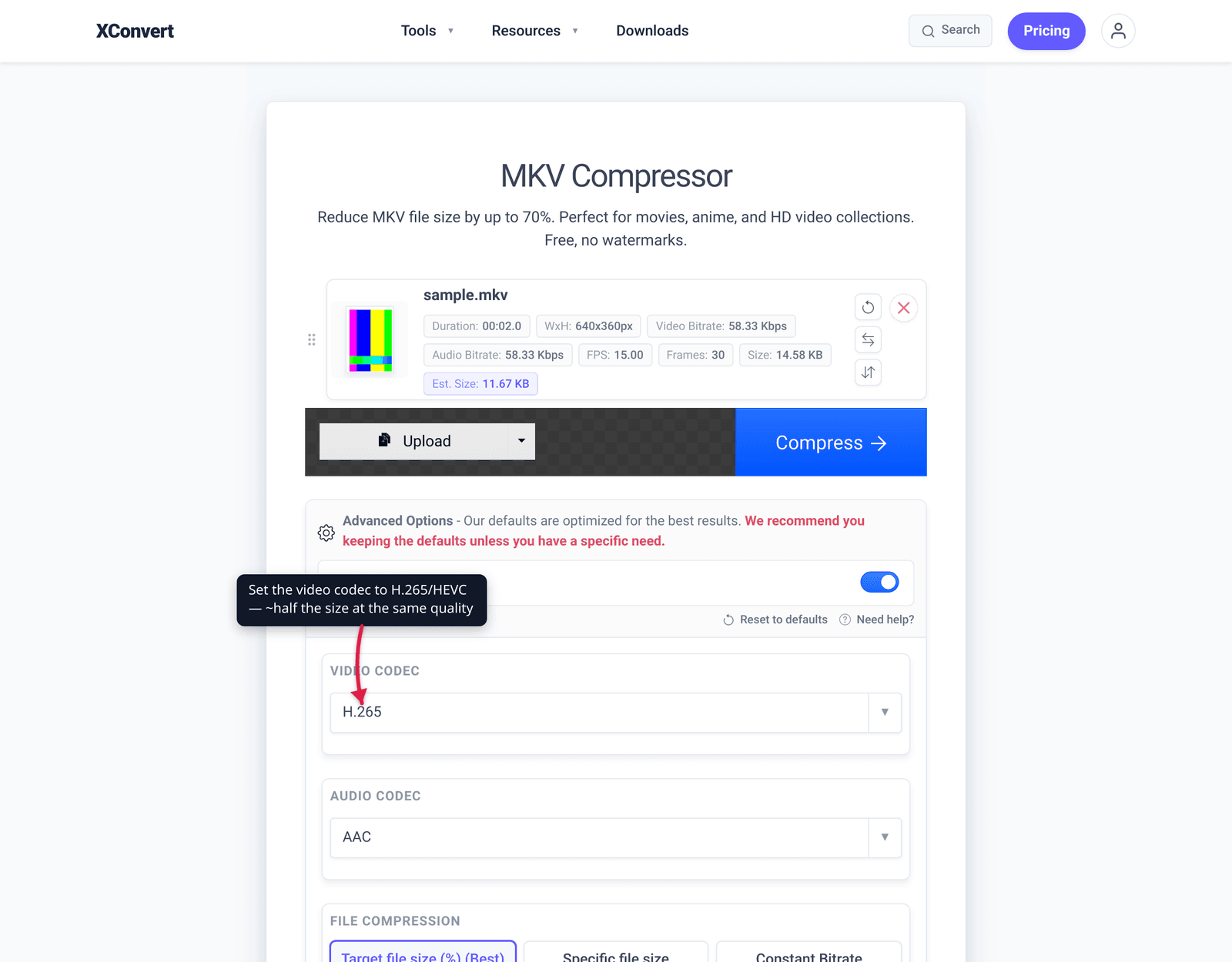
- Open Advanced Options (the gear icon), or Show All Options to reveal everything.
- Choose how to control size: Target file size (%) (the default “Best” mode) or Specific file size for an exact target; or pick a quality method — Constant Quality, Constant Bitrate, or Variable Bitrate.
- Pick the video codec if you want to change it — H.264 for compatibility, H.265/HEVC for ~50% smaller at the same quality, or AV1 for the smallest output on modern players.
- Optionally use Auto Scale to downscale the resolution, and Trim (Time Range) if you only need part of the video. Multi-audio and subtitle tracks are preserved as long as the output stays MKV.
- Click Compress, then download your smaller MKV. H.265 and AV1 encode slower than H.264, so allow extra time.
Your file uploads over an encrypted connection, is processed on our servers, and is automatically deleted a few hours later. Nothing stays around.
FAQ
How do I reduce the size of an MKV file without losing quality?
The biggest no-perceptible-loss win is to re-encode the video to a more efficient codec — moving an H.264 MKV to H.265/HEVC can roughly halve the size at the same visual quality. After that, drop audio and subtitle tracks you don’t need (lossless for the video), and if you’re not on a 4K screen, downscale the resolution. For fine control, use constant-quality (CRF) encoding.
Does compressing an MKV convert it to MP4?
No. Compressing keeps the file as MKV — same container, smaller streams. Converting to MP4 is a separate operation that changes the container, and MP4 can’t carry every track type MKV supports (some subtitle and multi-audio content can be dropped). If you need broad playback compatibility, see convert MKV to MP4; if you just want a smaller MKV, compress it and keep the container.
Why is my MKV file so big?
MKV is a container, not a codec, so its size comes from what’s inside it: a high-bitrate, high-resolution video stream (the dominant cost), plus the multiple audio and subtitle tracks MKV is famous for bundling. A movie rip with several language tracks and subtitle sets carries a lot of extra weight beyond the video itself.
What’s the best codec to compress an MKV to?
For most people, H.265/HEVC — about 50% more efficient than H.264 at the same quality, and natively supported on Apple devices and modern phones. If all your devices are modern and you want the smallest possible file, AV1 is more efficient still (and royalty-free), at the cost of a slower encode. Stay on H.264 only if you need older-hardware playback.
Can I make an MKV smaller by removing audio or subtitle tracks?
Yes — and it’s lossless for the video. MKV commonly holds several audio languages, a commentary track, and many subtitle tracks. If you only watch one audio track and one subtitle language, removing the rest shrinks the file with no re-encoding and no quality cost. Sometimes that alone gets you the savings you need.
Will compressing the MKV keep my subtitles and multiple audio tracks?
Yes, as long as the output stays MKV. Matroska is built to hold many audio and subtitle streams, so a same-container compression preserves the tracks you keep. It’s only when you convert to a different container like MP4 that some track types may not carry over.
Sources
Last verified 2026-06-25.
- Matroska — technical basics — MKV is a container (“NOT a video or audio compression format”), an “envelope” for many audio/video/subtitle streams, based on EBML.
- Matroska — codec specs — the broad range of video (H.264, H.265, AV1, VP9, MPEG-4…), audio, and subtitle codecs MKV can contain.
- Fraunhofer HHI — H.265 / HEVC — “HEVC achieves about 50% bit-rate reduction at the same subjective video quality” vs. H.264/AVC.
- Alliance for Open Media — AV1 features — AV1’s ~30% better compression and royalty-free positioning.