 By James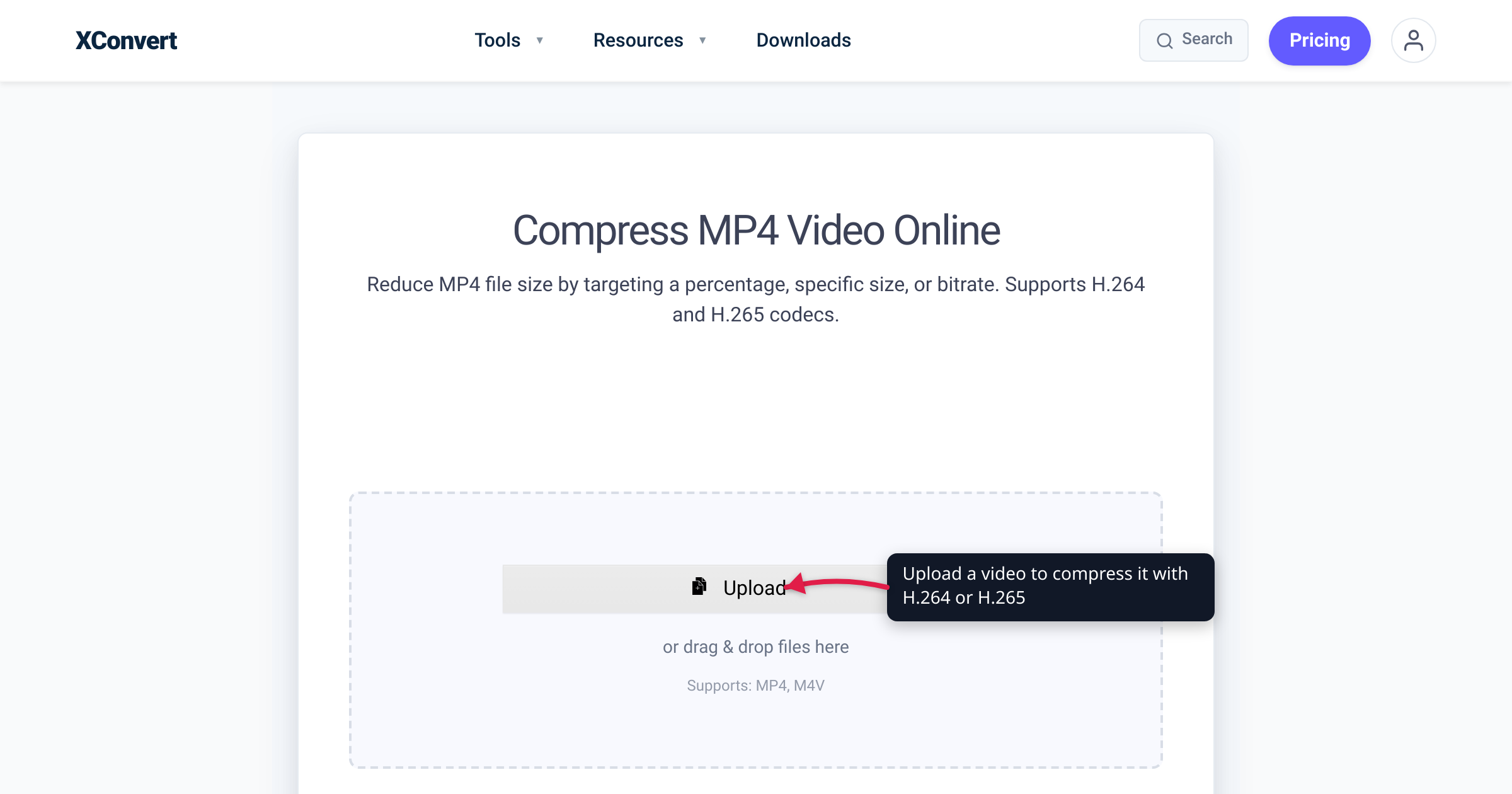
You downloaded a movie and it’s an .mkv file — but your phone won’t play it, the TV app rejects it, and you can’t drag it into your video editor. So you reach for MP4. Here’s the part most “MKV vs MP4” articles get wrong: neither is a video codec, and neither makes your video look better or worse. They’re both containers — boxes that hold the same H.264 or H.265 video and AAC audio inside. The real difference is what each box can carry and where it will open. We verified the container specs against the Matroska project and the ISO standard, and confirmed the browser-support picture against MDN.
Quick answer: Use MP4 when the file has to play or share anywhere — phones, browsers, social media, video editors, smart TVs. It’s the ISO-standard, universally supported container. Use MKV when you’re building a local movie library or archive that needs multiple audio tracks, multiple subtitle tracks, and chapters in one file. Both hold the same video/audio codecs, so picture quality is identical — and converting between them is usually a fast, lossless remux (a container swap, no re-encoding), not a quality-losing conversion.
Jump to a section
- Containers, not codecs: what MKV and MP4 actually are
- Tracks, subtitles, and chapters: where MKV wins
- Compatibility: where MP4 wins
- Quality and file size: it’s a tie (and here’s why)
- The decision framework
- Convert MKV to MP4 on xconvert
- FAQ
Containers, not codecs: what MKV and MP4 actually are
A container (or “wrapper”) is the file format that bundles your video stream, audio stream(s), subtitles, and metadata into one file. The codec is the separate thing that actually compresses the video (H.264, H.265/HEVC, AV1) and audio (AAC, Opus). A container is the box; the codec is what’s inside it. This is the single most important fact in the MKV-vs-MP4 debate, because it means both containers can hold the exact same video — so the video itself looks identical either way.
- MP4 — formally MPEG-4 Part 14, standardized as ISO/IEC 14496-14. It’s built on the ISO Base Media File Format (ISO/IEC 14496-12), which itself descends from Apple’s QuickTime format. That ISO pedigree is why MP4 became the industry-standard wrapper for video on the web, mobile, and broadcast.
- MKV — short for Matroska Video. The Matroska project describes it as “the extensible, open source, open standard Multimedia container” — an envelope that can hold many audio, video, and subtitle streams, plus chapters and full metadata, in a single file. It’s royalty-free and the spec is openly published. (WebM, the open web-video format, is actually a restricted subset of Matroska.)
So the headline isn’t “which compresses better” — they don’t compress anything. It’s what each box is good at carrying, and where each box will open.
Tracks, subtitles, and chapters: where MKV wins
This is Matroska’s reason to exist. The project’s stated goal is a container that can hold a large number of video, audio, picture, and subtitle tracks in one file — and the official feature list bears that out:
- Selectable subtitle / audio / video streams — multiple of each in one file
- Chapter entries — DVD/Blu-ray-style chapter navigation
- Full metadata (tags) support
- Menus (“like DVDs have”)
- Error resilience — “can recover playback even when the stream is damaged”
- Fast seeking and streamability over HTTP/local networks
That’s why MKV is the de-facto format for archival movie libraries and home media servers. A single .mkv can hold the film, a director’s-commentary audio track, the original-language and dubbed audio, and a dozen subtitle languages — all switchable in the player. MP4 can carry multiple audio and timed-text tracks too, but in practice players and tools handle MKV’s rich multi-track, soft-subtitle setups far more reliably, and MKV supports subtitle and audio formats (like SSA/ASS styled subtitles or lossless audio) that MP4 doesn’t officially wrap.
If you’re ripping a Blu-ray to keep on a Plex/Jellyfin server, MKV is the natural home. If you’re handing someone a single clip to watch, that richness is wasted weight.
Compatibility: where MP4 wins
Here MP4 is in a class of its own. Per MDN’s container guide, MP4 is supported in “All browsers,” and MDN’s explicit recommendation is: if you can only ship one video format, choose MP4 because it’s “available on the broadest selection of devices and browsers.” MP4 plays natively on:
| Environment | MP4 (H.264/AAC) | MKV (Matroska) |
|---|---|---|
Chrome / Firefox / Safari / Edge (HTML5 <video>) | Supported | Not a native HTML5 video container |
| iPhone / iPad / Apple ecosystem | Native | Not natively supported (needs VLC/3rd-party) |
| Android | Native | Often plays, device-dependent |
| Smart TVs / set-top boxes | Near-universal | Hit-or-miss, model-dependent |
| Social media uploads (Instagram, X, etc.) | Accepted | Usually rejected |
| Video editors (Premiere, Final Cut, etc.) | First-class | Often unsupported / needs conversion |
MKV is not a container browsers play natively — there’s no caniuse entry for MKV in HTML5 <video> because it was never a web format. The web inherited WebM (a Matroska subset) instead. So for anything that has to embed on a web page, upload to a social platform, drop into a timeline, or “just play” on someone else’s device, MP4 is the safe default.
For the web specifically, if you want a smaller open-codec option, compare MP4 vs WebM for web video.
Quality and file size: it’s a tie (and here’s why)
Because the container doesn’t touch the video data, MKV and MP4 of the same video are the same quality and roughly the same size. A 1080p H.264 movie at a given bitrate is identical bytes whether you wrap it in MKV or MP4 — the only difference is a few kilobytes of container overhead. If your file got bigger or smaller after “converting MKV to MP4,” what actually changed was the codec or bitrate, not the container.
The right way to think about size and quality is at the codec level — see H.264 vs H.265: which to use, where the choice genuinely halves (or doesn’t) your file. The container is downstream of that decision.
This also means converting between MKV and MP4 is usually a lossless remux: the tool copies the existing video and audio streams bit-for-bit into the new box without re-encoding, so there’s no generation loss and it finishes fast. The one caveat: MP4 doesn’t wrap every audio format MKV does. If an MKV holds DTS, Dolby TrueHD, or FLAC audio, that audio track has to be re-encoded (typically to AAC) on the way into MP4 — the video still copies losslessly, only the unsupported audio is converted.
The decision framework
One question settles it: is this file for keeping, or for sharing?
Choose MP4 when:
- It needs to play on a phone, browser, smart TV, or someone else’s unknown device.
- You’re uploading to social media, embedding on a website, or emailing it.
- You’re importing into a video editor.
- You want maximum, no-surprises compatibility — the universal default.
Choose MKV when:
- You’re archiving a movie or building a local/home-server library.
- You need multiple audio tracks (languages, commentary) and/or multiple soft-subtitle tracks in one file.
- You want chapters, menus, or rich metadata.
- You’re keeping advanced subtitle styles or lossless audio that MP4 won’t wrap.
- Compatibility doesn’t matter because you control the playback (VLC, Plex, Kodi, Jellyfin all love MKV).
Rule of thumb: archive in MKV, share in MP4. And since the conversion is usually a lossless remux, you lose nothing by keeping the MKV master and exporting an MP4 copy whenever you need to send one.
Convert MKV to MP4 on xconvert
The xconvert MKV to MP4 converter handles the container swap for you, with optional controls if you also want to compress or resize:
- Open xconvert.com/convert-mkv-to-mp4 and click + Add Files to upload your MKV (From my Computer, From Google Drive, or From Dropbox).
- To convert straight across, you don’t need to change anything — the default produces an MP4. For a pure remux-style result, leave the quality settings alone.
- If you also want to shrink or resize, open Advanced Options (the gear icon).
- Under File Compression, choose how to control size — Quality Preset, Specific file size, Constant Bitrate, Variable Bitrate, or Constant Quality — and optionally set a Video resolution (Keep original, Preset Resolutions, or Width × Height).
- Click Convert, then download your MP4. (Use Reset to defaults if you want to start over.)
Your file is uploaded over an encrypted connection, processed on our servers, and deleted automatically a few hours later — nothing lingers.
Going the other direction, or weighing the web-codec option? See MP4 vs WebM and H.264 vs H.265.
FAQ
Is MKV better than MP4?
Neither is universally “better” — they’re built for different jobs. MKV is better for local archival libraries that need multiple audio/subtitle tracks and chapters in one file. MP4 is better for compatibility and sharing — it plays virtually everywhere, in every browser and on every phone. Since both hold the same video and audio codecs, the picture quality is identical; the choice is about where the file needs to play, not how it looks.
What’s the difference between MKV and MP4?
Both are containers (wrappers), not codecs — they hold the same video (H.264, H.265) and audio (AAC). The differences: MKV (Matroska) is an open standard that can pack many audio tracks, subtitle tracks, chapters, and menus into one file, favored for movie archives. MP4 (ISO/IEC 14496-14) is the universally supported industry standard, favored for sharing, streaming, and editing. MP4 wins compatibility; MKV wins multi-track flexibility.
Does converting MKV to MP4 reduce quality?
Usually no. When the video codec inside the MKV (commonly H.264 or HEVC) is also supported by MP4, the conversion is a lossless remux — the streams are copied bit-for-bit into the new container without re-encoding, so there’s zero quality loss and it’s fast. The exception is audio: if the MKV uses DTS, Dolby TrueHD, or FLAC (which MP4 doesn’t wrap), that audio track gets re-encoded to AAC, while the video still copies losslessly.
Why won’t my MKV file play on my phone or in my browser?
Because MKV was never a native web or mobile playback format. Browsers play MP4 and WebM in HTML5 <video>, not Matroska; iPhones don’t play MKV without a third-party app like VLC. Converting to MP4 fixes this for almost any device. Apps like VLC, Plex, and Kodi play MKV fine — but anything outside those needs MP4.
Is MP4 or MKV smaller?
They’re essentially the same size for the same video — the container adds only negligible overhead. File size is determined by the codec and bitrate inside, not the wrapper. If one looks much smaller, the actual difference is the encoding settings. To genuinely shrink a video, change the codec or bitrate — see our H.264 vs H.265 guide.
Can MP4 have multiple audio tracks and subtitles like MKV?
Technically yes, but MKV does it far more reliably. MP4 supports multiple audio tracks and timed-text subtitles, but player and editor handling is inconsistent, and MP4 doesn’t officially wrap some formats MKV supports (styled SSA/ASS subtitles, certain lossless audio). For rich multi-track movies with switchable languages, commentary, and soft subtitles, MKV is the dependable choice.
Sources
Last verified 2026-06-25.
- Matroska — official homepage — describes Matroska as “the extensible, open source, open standard Multimedia container”; lists
.mkv,.mka,.mks,.mk3dextensions. - Matroska — What is Matroska — official feature list: selectable subtitle/audio/video streams, chapter entries, full metadata, menus, error resilience, fast seeking, streamable.
- ISO/IEC 14496-14:2003 — MP4 file format — the ISO standard that defines MP4 (MPEG-4 Part 14).
- MDN — Media container formats guide — MP4 supported in “All browsers” and recommended as the broadest-compatibility video container; WebM is “based on Matroska.”
- Wikipedia — MP4 file format — MP4 derived from ISO Base Media File Format (ISO/IEC 14496-12), descended from QuickTime; cross-reference for the standards lineage.