 By Stephanie Taylor
You dropped a PNG in your site root, named it favicon.ico, and the browser tab still shows a blank page icon. The problem is the format: renaming a PNG doesn’t make it an ICO, and a JPEG favicon comes out with an ugly solid box behind it because JPEG can’t store transparency. ICO is a Windows icon container — one file that can hold several sizes at once — and it’s still the universal fallback every browser will request. This guide covers what ICO is, why a transparent PNG is the right source, which sizes to pack in, and how to make the file. We verified the format facts and favicon behavior against MDN and the ICO specification.
Quick answer: Start from a square PNG with a transparent background (not a JPEG — JPEG has no transparency, so the favicon gets a solid backing). Convert it to ICO and pack the standard favicon sizes — 16×16, 32×32, and 48×48 — into the single file. Put the result at your site root as
/favicon.ico. Modern browsers also accept PNG and SVG favicons via<link rel="icon">, butfavicon.icoremains the universal fallback, so keep it. A single ICO image maxes out at 256×256.
Jump to a section
- What ICO is (and why favicons use it)
- Why your source should be a transparent PNG, not a JPEG
- Which sizes to put in the favicon
- ICO vs PNG vs SVG favicons in 2026
- Convert an image to ICO on xconvert
- FAQ
What ICO is (and why favicons use it)
ICO is the image file format for computer icons in Microsoft Windows. Its defining trick is that a single .ico file is a container: per Wikipedia’s spec summary, “ICO files contain one or more small images at multiple sizes and color depths, such that they may be scaled appropriately.” Internally the file is an ICONDIR (“icon directory”) holding one ICONDIRENTRY per image — so one favicon.ico can carry a crisp 16×16 for the tab, a 32×32 for the taskbar/bookmarks, and a 48×48 for larger surfaces, and the OS or browser picks the best match.
That container design is why favicon.ico became the web’s default site icon. When a browser loads a site, it will request /favicon.ico from the site root even if your HTML doesn’t link one — so a well-formed ICO at the root is the safe baseline that works in essentially every browser. MDN defines a favicon as “a tiny icon included along with a website, which is displayed in places like the browser’s address bar, page tabs and bookmarks menu,” noting it is “usually 16×16 pixels in size and stored in the GIF, PNG, or ICO file format.”
Two hard limits worth knowing:
- A single ICO image maxes out at 256×256 pixels. Win32 introduced support for icon images “up to 16.7 million colors (TrueColor) and up to 256×256 pixels in dimensions.” There’s no 512×512 ICO entry — for larger app icons you use PNG.
- ICO supports full alpha transparency (32-bit color with an alpha channel), which lets a favicon sit cleanly on a light or dark tab.
Why your source should be a transparent PNG, not a JPEG
This is the single most common favicon mistake. JPEG cannot store transparency — every JPEG has an opaque background. So if you convert a JPEG logo to ICO, whatever was “white space” around your logo becomes a literal rectangle baked into the icon. On a browser tab using a dark theme, that box looks broken.
The fix is to start from a PNG with a real transparent background (or an SVG exported to transparent PNG). PNG supports an alpha channel, so the transparency carries through into the ICO and your icon’s shape — not a square — is what shows.
Two more source rules that save grief:
- Make it square. Favicons render in square slots; a non-square source gets letterboxed or distorted, so crop to 1:1 first.
- Start big, then downscale. A high-resolution square source (256×256, ideally larger) downsamples to crisp 16/32/48 layers far better than upscaling a tiny image.
You can convert a JPEG to ICO — fine for an opaque, photo-style icon — but if your logo has any transparent area, convert the PNG version; we have a dedicated PNG-to-ICO tool for that. If your only copy is a JPEG, convert it to PNG first and re-add transparency before making the icon.
Which sizes to put in the favicon
Because ICO is multi-size, you don’t pick one size — you pack a few. The standard for a clean favicon.ico:
| Size | Where it shows |
|---|---|
| 16×16 | Browser tab, address bar, bookmark lists — the smallest, most-used layer |
| 32×32 | Higher-DPI tabs, Windows taskbar, some bookmark bars |
| 48×48 | Windows site shortcuts and larger icon surfaces |
A minimal modern favicon.ico should contain at least 16×16 and 32×32; adding 48×48 covers Windows shortcut surfaces. For a single-size file, 32×32 (or 48×48) is the safe choice — but the whole point of ICO is that you don’t have to choose.
What you do not put in the ICO are the large platform icons: the Apple Touch Icon (180×180 PNG) and Android/PWA manifest icons (commonly 192×192 and 512×512 PNG) are separate PNG files referenced from your HTML/manifest — they exceed ICO’s 256×256 ceiling anyway.
ICO vs PNG vs SVG favicons in 2026
Modern browsers don’t require ICO anymore. Using <link rel="icon"> you can serve a PNG or SVG favicon, and the browser picks among them: per MDN, “if there are multiple <link rel="icon">s, the browser uses their media, type, and sizes attributes to select the most appropriate icon,” and “if several icons are equally appropriate, the last one is used.” A robust setup links an SVG (scales perfectly, tiny file), a PNG fallback, and keeps favicon.ico for everything else:
<link rel="icon" href="/favicon.ico" sizes="any">
<link rel="icon" type="image/svg+xml" href="/icon.svg">
<link rel="apple-touch-icon" href="/apple-touch-icon.png">| Format | Transparency | Scales | Best for |
|---|---|---|---|
| ICO | Yes (alpha) | No (bitmap, multi-size) | The universal favicon.ico fallback at site root |
| PNG | Yes (alpha) | No (bitmap) | Apple Touch / Android / manifest icons; modern fallback |
| SVG | Yes | Yes (vector) | Crisp modern favicon at any DPI (modern browsers only) |
The practical takeaway: keep favicon.ico as the baseline — browsers request it from the root and it never fails to display — and layer PNG/SVG on top via <link> for sharper rendering on modern clients. ICO isn’t obsolete; it’s the floor everything else stands on. (One gotcha: the old rel="shortcut icon" is non-conforming per MDN — use plain rel="icon".)
Convert an image to ICO on xconvert
The xconvert JPEG-to-ICO converter and its PNG-to-ICO sibling turn your square image into a ready-to-use icon. Use the PNG tool if your logo has transparency, the JPEG tool for an opaque photo-style icon.
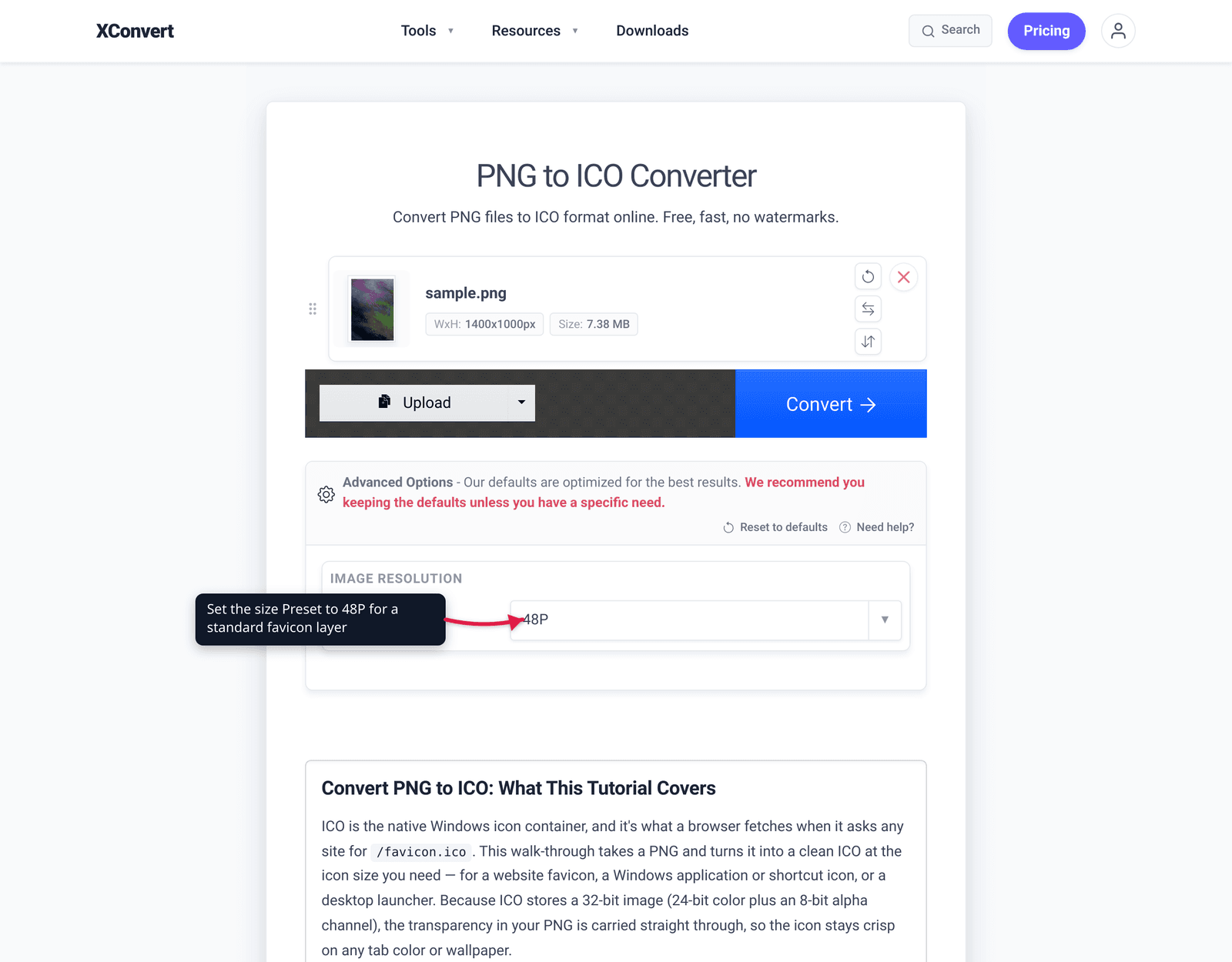
- Open xconvert.com/convert-png-to-ico (or
/convert-jpeg-to-ico) and click Upload to add your square image — from your computer, Google Drive, or Dropbox. - Open Advanced Options. The page notes its defaults are optimized for the best results, so you can skip this for a standard favicon.
- To set the icon dimensions, use the size Preset dropdown (it defaults to 256P). Available presets include 16, 32, 48, 64, 128 and 256 pixels, or enter a custom width × height. For a favicon, 48×48 or 32×32 is a safe single-size pick.
- Click Convert. The file is processed on our servers and downloads as a
.ico. - Rename it
favicon.ico, drop it in your website’s root directory, and (optionally) add the<link rel="icon">tags above for PNG/SVG fallbacks.
Your file uploads over an encrypted connection, is processed on our servers, and is deleted automatically a few hours later. Nothing lingers.
For related image prep: convert PNG to JPG (and back) when you need to swap formats before making the icon.
FAQ
What format should a favicon be?
For maximum compatibility, ICO — saved as favicon.ico at your site root, because browsers request that file by default and every browser can display it. Modern browsers also accept PNG and SVG favicons via <link rel="icon">, which render sharper at high DPI, but you should still keep the ICO as the universal fallback. Per MDN, favicons are typically stored in GIF, PNG, or ICO format.
Can a single ICO file hold multiple sizes?
Yes — that’s the whole point of ICO. One .ico file is a container that can store several images at different sizes and color depths (commonly 16×16, 32×32, and 48×48), and the browser or OS picks the best match for where the icon is shown. A single ICO image can be up to 256×256 pixels.
Should I use a JPEG or a PNG to make a favicon?
Use a PNG with a transparent background. JPEG can’t store transparency, so a JPEG-sourced favicon gets a solid rectangle baked behind your logo, which looks wrong on themed tabs. PNG (or an SVG exported to transparent PNG) preserves the icon’s real shape. JPEG is only fine for an opaque, photo-style icon with no transparency.
What size should a favicon be?
The classic favicon layer is 16×16, but a good favicon.ico packs 16×16, 32×32, and 48×48 together. If you want a single size, 32×32 or 48×48 is the safe choice. Large platform icons (Apple Touch 180×180, Android/PWA 192×192 and 512×512) are separate PNG files, not part of the ICO.
Where do I put the favicon.ico file?
In your website’s root directory, named exactly favicon.ico. Browsers automatically request /favicon.ico from the root even if your HTML doesn’t reference it, so placing it there guarantees a baseline icon. You can additionally point to it (and to PNG/SVG icons) with <link rel="icon" href="/favicon.ico"> in your <head>.
Is favicon.ico obsolete now that browsers support PNG and SVG?
No. ICO is no longer the only option, but it’s still the universal fallback: browsers request /favicon.ico from the root, and it displays everywhere including older clients. Best practice is to keep favicon.ico as the floor and layer a PNG and/or SVG on top via <link rel="icon"> for crisper modern rendering.
Sources
Last verified 2026-06-25.
- MDN — Favicon (Glossary) — definition of a favicon; “usually 16×16 pixels … stored in the GIF, PNG, or ICO file format.”
- MDN — rel=“icon” (HTML rel attribute) — how browsers select among multiple
<link rel="icon">by media/type/sizes; last-equally-appropriate rule;shortcutis non-conforming. - Wikipedia — ICO (file format) — ICO as the Windows icon format; multi-image container (ICONDIR/ICONDIRENTRY); 256×256 maximum and up to 16.7M-color/32-bit-alpha support.
- xconvert — JPEG to ICO converter and PNG to ICO converter — live tool UI (Upload, Advanced Options, size Preset dropdown, Convert) and favicon size guidance.