 By James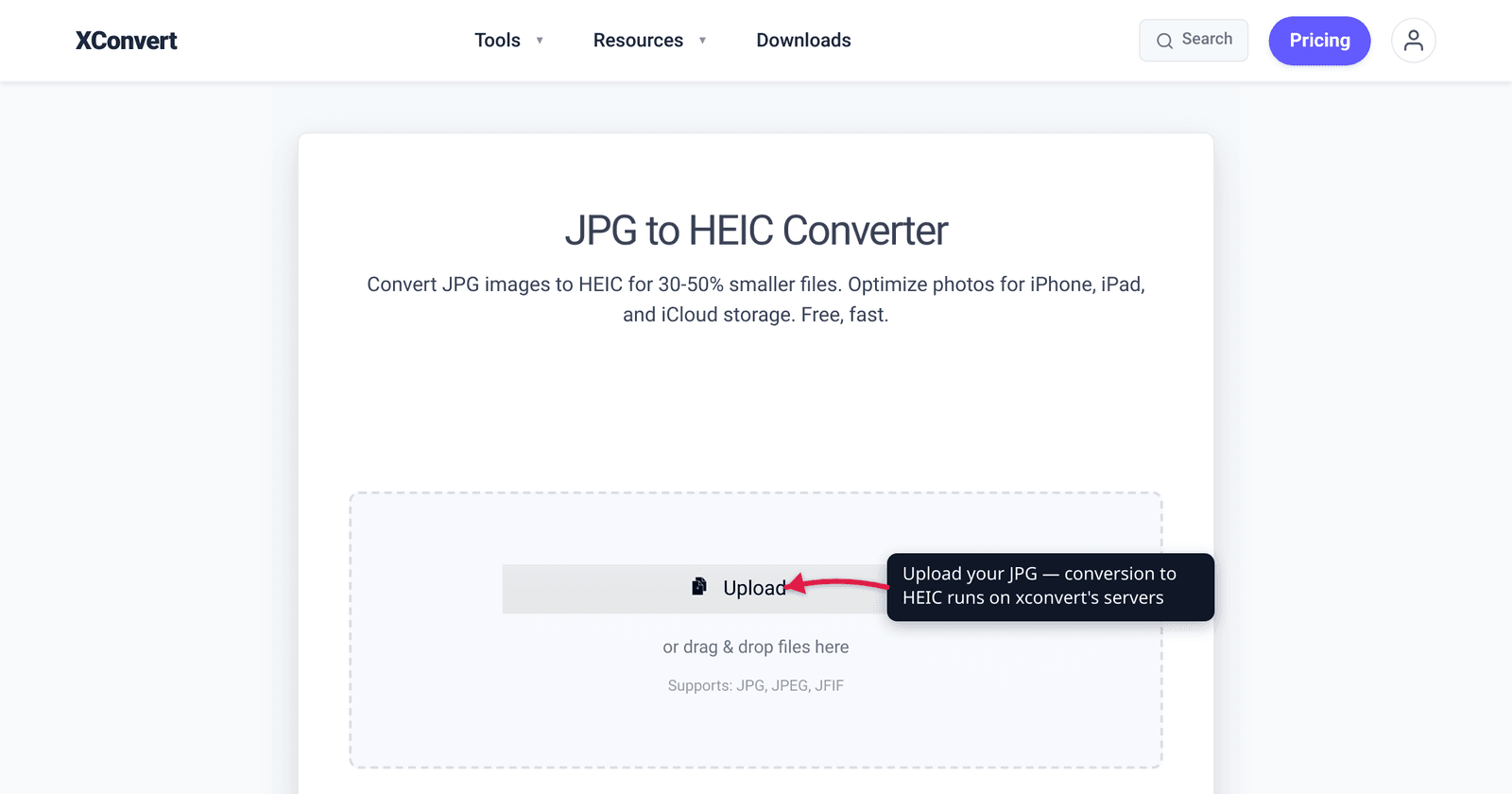
You have a folder of JPGs and you’ve heard HEIC files are half the size — so converting them looks like free storage savings. Sometimes it is. But most of the time JPG → HEIC is the wrong direction, and it’s worth understanding why before you batch-convert a photo library you might regret. The short version: HEIC really is more efficient than JPEG, but it’s an Apple-centric format that much of the world can’t open without extra software — and re-encoding an already-lossy JPG can’t recover quality it never had. We verified the compression figures against the format’s own technical spec, and the support state against caniuse, Apple, and Microsoft.
Quick answer: Convert JPG → HEIC only if you’re staying in the Apple ecosystem (iPhone, iPad, Mac) and want to reclaim storage — HEIC is roughly 40–60% smaller than JPEG at similar quality and supports 16-bit color and transparency. Everywhere else it’s a liability: only Safari displays HEIC in a browser, and Windows needs a paid codec to open it. And converting an existing JPG does not improve quality — the JPEG’s lost detail is gone for good; you’re just re-compressing (a second lossy step) into a smaller, less-compatible file. For most people, the better move is the opposite conversion: HEIC → JPG.
Jump to a section
- What HEIC actually is
- The efficiency case: why HEIC is smaller
- The honesty part: converting JPG → HEIC won’t improve quality
- Compatibility: where HEIC opens and where it doesn’t
- Should you do it? A decision guide
- Convert JPG to HEIC on xconvert
- FAQ
What HEIC actually is
HEIC is a file using the HEIF container (High Efficiency Image File Format) with image data compressed by HEVC / H.265 — the same video codec discussed in H.264 vs H.265, applied to still frames. Apple adopted it as the default camera format on iPhone and iPad starting with iOS 11 and macOS High Sierra (10.13) in 2017, on iPhone 7 and later. If you’ve ever AirDropped a photo with a .heic extension, that’s this.
It’s not just “JPEG but smaller.” The format is genuinely more capable: up to 16-bit per sample color depth (JPEG is locked to 8-bit), transparency (alpha channel) support that JPEG has never had, and lossy or lossless storage in one container that can also hold image sequences and depth maps. For the broader format breakdown, see What is HEIC?. Here we focus on one operation: turning a JPG into one.
The efficiency case: why HEIC is smaller
This is the real reason to want HEIC. The format’s own technical documentation (Nokia, which authored the HEIF spec) reports that to match HEVC-coded HEIF at the same objective picture quality, JPEG needs on average 139% higher bitrate — about 2.39× the file size. That works out to HEIF being roughly 55–60% smaller than JPEG in that comparison.
In everyday use the saving is a range, not a fixed number, because it depends on the image content and the encoder settings. The commonly quoted real-world figure is about 25–50% smaller, with Apple positioning HEIF as offering “superior compression compared to JPEG while maintaining visual quality.” So a fair headline is: HEIC commonly lands 40–60% smaller than an equivalent-quality JPEG, with the bigger wins on detailed, high-resolution photos.
If you shoot on an iPhone set to High Efficiency rather than Most Compatible, you’re already getting this for free — the camera writes HEIC directly. That matters for the next section.
The honesty part: converting JPG → HEIC won’t improve quality
Here’s the trap. JPEG is a lossy format: the moment a photo was saved as a JPG, detail was permanently discarded. Converting that JPG to HEIC cannot bring any of it back. What actually happens is:
- The HEIC encoder decodes your JPG to pixels (already missing the data JPEG threw away).
- It re-compresses those pixels with HEVC — a second lossy pass, which discards a little more.
This is generation loss — the same reason a photocopy of a photocopy looks worse. The result is a smaller file, not a better one. HEVC is efficient enough that the extra loss is usually small and hard to spot at a high-quality setting, but the direction is clear: you trade away nothing you can recover for a file fewer devices can open. HEIC’s headline efficiency is most real at capture time, when the camera compresses raw sensor data once — converting old JPGs gives you the storage saving but not the quality ceiling.
Compatibility: where HEIC opens and where it doesn’t
HEIC’s weakness is the mirror image of its strength. Support is strong on Apple platforms and thin everywhere else.
| Environment | Can it open HEIC? |
|---|---|
| iPhone / iPad (iOS 11+) | Native |
| Mac (macOS High Sierra 10.13+) | Native |
| Safari (desktop & iOS, v17+) | Supported — the only browser that displays HEIC |
| Chrome / Edge / Firefox | Not supported — no native HEIC image display |
| Windows 10 / 11 | Needs the HEIF Image Extensions plus the HEVC Video Extensions (the HEVC one is a paid ~$0.99 Store add-on) |
| Android | Modern versions can view HEIC, but app support varies |
| Most editors / uploaders / web forms | Frequently reject .heic outright |
Two things stand out. First, in a web browser, only Safari can render a HEIC image — Chrome, Firefox, and Edge show nothing. caniuse puts native HEIC support around 14% globally, essentially all of it Safari’s share. Second, on Windows, opening an iPhone HEIC in the Photos app prompts “you need an extension to use this file,” and Microsoft’s own guidance is that you must install both the HEIF and HEVC extensions — and the HEVC one carries a small fee because the codec is patent-licensed. That friction is exactly why so many people search for HEIC → JPG instead.
If your goal is for everyone to be able to open the file, see HEIC vs JPG for iPhone photos — JPG is the universal-compatibility choice.
Should you do it? A decision guide
One question settles it: will these files ever leave the Apple ecosystem?
Convert JPG → HEIC when:
- You live on iPhone / iPad / Mac and want to reclaim storage on a large photo library.
- The files stay in Apple Photos, iCloud, or AirDrop between your own devices.
- You specifically need 16-bit color or transparency that JPEG can’t store (note: it can’t recover either from a JPG, only preserve future edits without an 8-bit ceiling).
Don’t convert JPG → HEIC when:
- The photos will be emailed, embedded on a website, or shared with non-Apple users — they may simply fail to open.
- You’re hoping to improve quality — you can’t; the JPEG loss is permanent.
- You need them to work in older editors, Windows without the codec, or most web upload forms.
- You’d be converting your only copy. Keep the JPGs.
Rule of thumb: capture in HEIC, distribute in JPG. The efficiency win is real when the camera does it once; converting existing JPGs is mostly worth it only for private, Apple-only archives. For the common opposite need, JPG is the safe, universal format.
Convert JPG to HEIC on xconvert
If you’ve read the above and HEIC is genuinely the right call for your Apple-only workflow, the xconvert JPG to HEIC converter does it in a few steps (it handles PNG and JPEG inputs too):
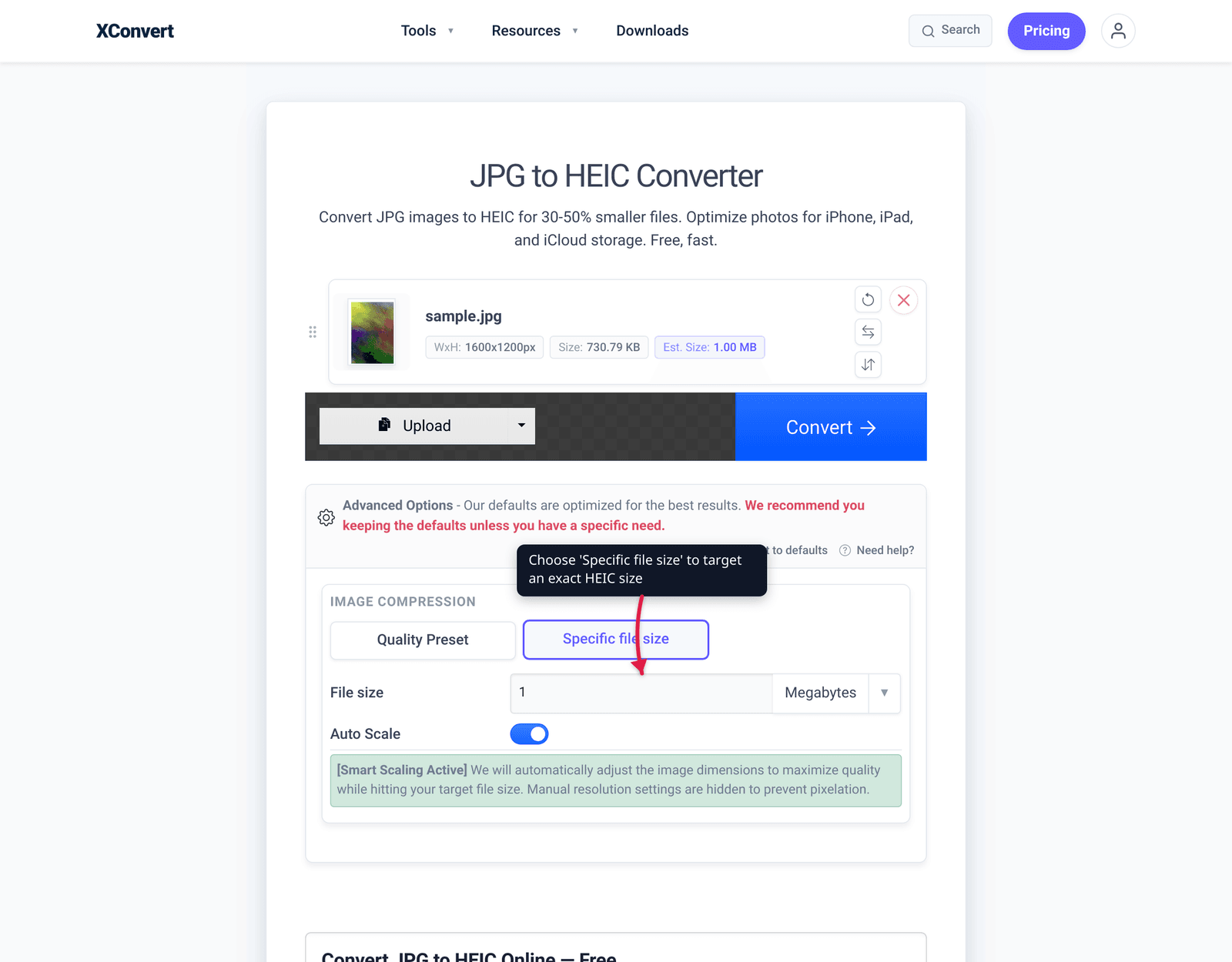
- Open xconvert.com/convert-jpg-to-heic and click Upload (or drag and drop your files — you can add several at once for batch conversion).
- Open Advanced Options (the gear icon) to control quality.
- Under Image Compression, pick a Quality Preset — it defaults to Very High (Recommended); keep it high so the second lossy pass costs you as little detail as possible. Or choose Specific file size if you’re targeting an exact size.
- Optionally use Image resolution → Resolution Percentage to downscale, or leave it on Keep original.
- Click Convert, then download your files individually or as a single ZIP.
Your files upload over an encrypted connection, are processed on our servers, and are deleted automatically a few hours later — nothing is kept. (If you decide HEIC was the wrong direction after all, the same site does HEIC → JPG to get back to universal compatibility.)
FAQ
Does converting JPG to HEIC improve image quality?
No. JPEG is lossy, so any detail it discarded is gone permanently — converting to HEIC can’t restore it. The conversion decodes your JPG and re-compresses it with HEVC, which is a second lossy step. You get a smaller file, not a better-looking one. HEIC’s quality advantage only applies when an image is captured or first saved in HEIC, not when it’s converted from an existing JPG.
Is HEIC smaller than JPG?
Yes — typically 40–60% smaller at similar quality. The HEIF spec’s own measurements show JPEG needing about 2.39× the file size to match HEVC-coded HEIF at equal objective quality. Real-world savings vary with content and settings (commonly cited as 25–50%), but HEIC is meaningfully more efficient than JPEG.
Why won’t my HEIC file open on Windows or in Chrome?
Windows has no built-in HEIC support — you must install Microsoft’s HEIF Image Extensions and the HEVC Video Extensions (the latter is a paid ~$0.99 Store add-on), because HEIC’s image data uses the patent-licensed HEVC codec. In browsers, only Safari displays HEIC; Chrome, Firefox, and Edge can’t show it at all. That poor compatibility is the main reason to think twice before converting JPGs to HEIC.
Should I convert my whole photo library from JPG to HEIC?
Only if it stays inside Apple’s ecosystem. If the photos will be emailed, uploaded, or shared with Windows/Android/non-Safari users, converting to HEIC will cause “can’t open this file” problems. And never convert your only copy — keep the originals. For most people the storage saving isn’t worth the compatibility cost on already-lossy JPGs.
Can I convert PNG to HEIC too?
Yes — the same converter accepts PNG and JPEG inputs. PNG is lossless, so the HEVC pass is the only quality-affecting step, but the same caveat applies: the resulting HEIC is far less compatible than the PNG you started with. Convert only if you need HEIC specifically (e.g., an Apple-only library); if you just want a smaller file, WebP or AVIF may serve better.
Is HEIC better than JPEG overall?
Technically yes, practically it depends. HEIC compresses better and supports 16-bit color and transparency, but JPEG opens on virtually everything while HEIC is essentially Apple-only outside installed codecs. JPEG wins on compatibility; HEIC wins on efficiency. Pick based on whether the file needs to travel beyond Apple devices.
Sources
Last verified 2026-06-25.
- Nokia HEIF — Technical Information — format authors’ spec: “JPEG would require on average 139% higher bitrate than HEVC (i.e. 2.39 times the file size)”; 16-bit sample support; alpha-plane transparency; built on HEVC/H.265.
- Apple Support — About HEIF and HEVC media — HEIF introduced in iOS 11 / macOS High Sierra; iPhone 7+; “superior compression compared to JPEG”; “Most Compatible” captures JPEG instead.
- caniuse — HEIF/HEIC image format — only Safari (17+) displays HEIC natively; Chrome, Firefox, and Edge unsupported; ~14% global support.
- Microsoft Support — HEIF and HEVC files in the Photos app — Windows needs both HEIF Image Extensions and HEVC Video Extensions to open HEIC; the HEVC extension is a paid Store add-on (~$0.99).
- Apple Support — Camera format settings — High Efficiency vs Most Compatible capture options; HEIF saves storage space.