 By Stephanie Taylor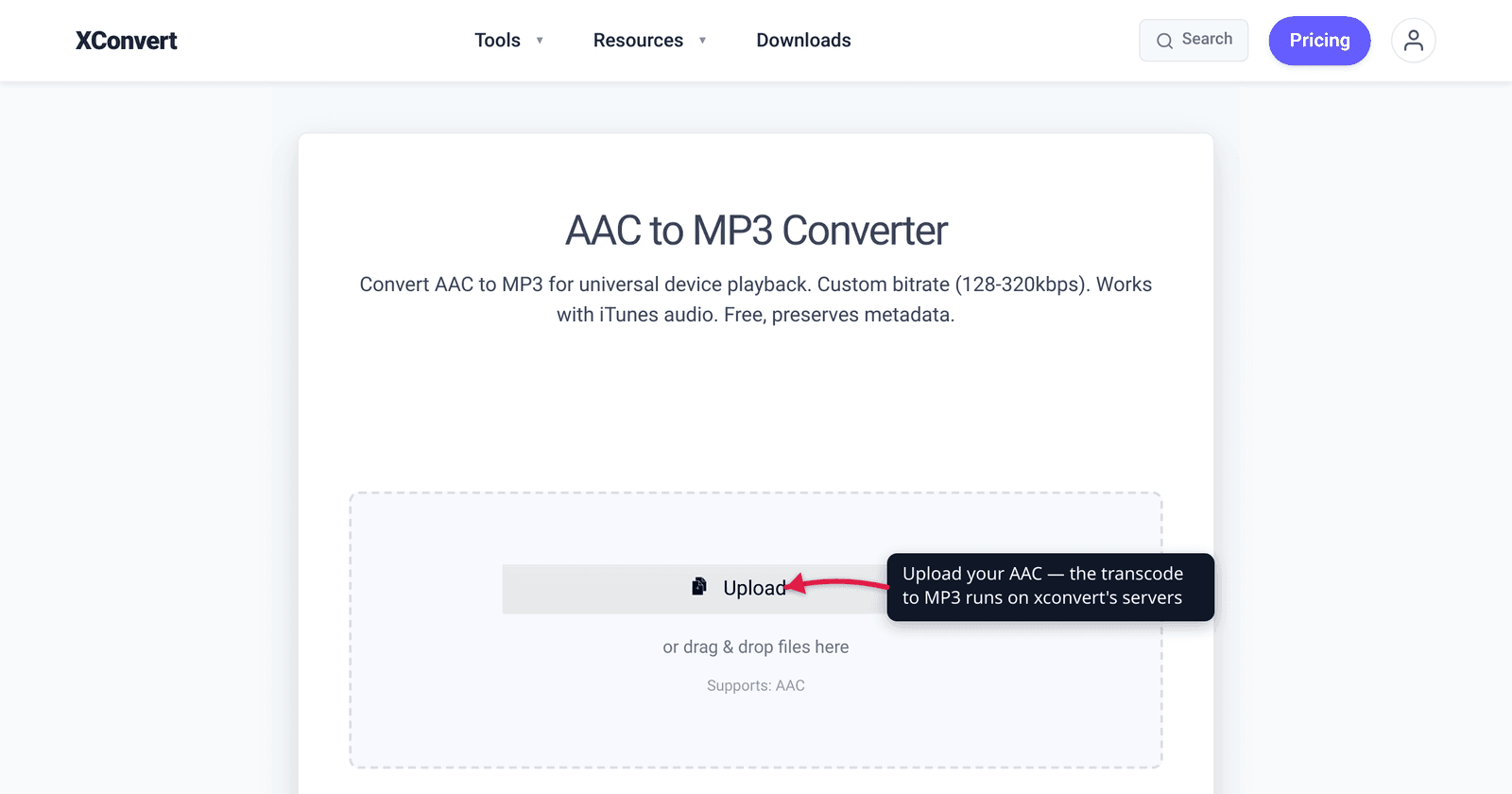
Your phone records voice memos and your iTunes library plays back fine, but the old car stereo, the gym treadmill’s USB port, or that cheap MP3 player from a drawer just won’t touch an AAC file. The fix is to convert AAC to MP3 — the one audio format that plays on essentially everything ever built. This guide is honest about what that conversion is and isn’t: it’s a compatibility move, not a quality or size upgrade. AAC is the newer, more efficient codec, so re-encoding it to MP3 adds a second round of lossy compression and usually lands you a similar-or-larger file. We verified the codec facts, the efficiency claim, and the generation-loss behaviour against MDN and Hydrogenaudio before writing a word.
Quick answer: Convert AAC to MP3 only for compatibility — old car stereos, basic MP3 players, DJ gear, or anything that refuses AAC. MP3 plays everywhere; AAC doesn’t. But understand the trade: AAC is more efficient than MP3, so this is lossy → lossy re-encoding (a second generation of quality loss you can’t undo) and the MP3 is typically the same size or larger at matched quality. Encode at a high bitrate (256–320 kbps) to keep the loss inaudible. If every device you use already plays AAC, there’s no reason to convert.
Jump to a section
- AAC vs MP3: what you’re actually trading
- Why the MP3 isn’t smaller — and isn’t better
- When converting AAC to MP3 makes sense
- What bitrate to choose
- Convert AAC to MP3 on xconvert
- FAQ
AAC vs MP3: what you’re actually trading
Both AAC and MP3 are lossy audio codecs — they shrink audio by permanently discarding sound the encoder judges you won’t hear. They are not interchangeable in age or efficiency.
- AAC — Advanced Audio Coding. Defined as part of the MPEG-4 standard (MPEG-4 Part 3, and MPEG-2 Part 7). MDN describes it plainly: AAC was “designed to be able to provide more compression with higher audio fidelity than MP3,” which is why it became “the format used for songs purchased from online vendors including iTunes,” and the standard for Blu-ray and HDTV audio. AAC usually lives inside an
.m4aor.mp4container — so an iTunes song, a YouTube audio track, or an iPhone voice memo is typically AAC under the hood. - MP3 — MPEG-1/2 Audio Layer III. The older codec (1990s), less efficient, but with one decisive advantage: it plays on literally everything. Every phone, browser, car stereo, smart speaker, DJ controller, and media player made in the last 25 years reads MP3.
So the conversion swaps a more efficient, less universal codec for a less efficient, universally-playable one. That’s the whole transaction.
Why the MP3 isn’t smaller — and isn’t better
This is the part most “AAC to MP3” pages get wrong, so be clear-eyed about it.
It’s a second generation of loss. Your AAC file already threw away data when it was first encoded. Converting it to MP3 decodes that AAC back to raw audio and re-encodes it with MP3’s (older, less efficient) algorithm — a process called transcoding. Hydrogenaudio, the audio-encoding community’s reference wiki, is blunt: “Every time you encode with a lossy encoder, the quality will decrease. There’s no way to gain quality back even if you transcode your 128 kbps MP3 into a 320 kbps MP3,” and “Transcoding between lossy formats is therefore generally not recommended. The sound quality of the result will always be worse than the (lossy) source file.” You cannot un-discard the detail AAC already removed; a bigger MP3 bitrate can mask the seam but never recover it.
The MP3 is usually the same size or larger. Because AAC packs more quality into each kilobit, matching its perceived quality in MP3 takes more bits. MDN’s own recommended minimums show the gap: AAC’s recommended minimum for stereo is 96 kbps, while MP3’s is 128 kbps — AAC reaches comparable quality at a lower bitrate. So to keep your converted file sounding as good as the AAC original, you’ll often pick a higher MP3 bitrate and end up with a file that’s no smaller (frequently a touch bigger). If your goal is a smaller file, AAC→MP3 is the wrong direction.
The honest summary: you convert AAC to MP3 to make it play somewhere, not to improve it. If you want the format trade-offs side by side, see AAC vs MP3 (and M4A).
When converting AAC to MP3 makes sense
Do it when a device or piece of software you need won’t play AAC:
- Older car stereos and head units — many read only MP3 (and WMA) from a USB stick or SD card.
- Basic / older MP3 players and fitness equipment with USB audio.
- DJ controllers and legacy software that predate or never added AAC support.
- Cross-platform sharing where you don’t know the recipient’s device — MP3 is the safe lowest common denominator.
- A tool that only accepts
.mp3(some upload forms, ringtone makers, or embedded players).
Skip the conversion when every device in your chain already plays AAC — modern phones, computers, recent car systems, and streaming setups all handle it natively. In that case converting only costs you quality for nothing. Since AAC most often arrives as an .m4a file (iTunes, voice memos), the same compatibility logic applies there — see convert M4A to MP3.
What bitrate to choose
Because you’re adding a second lossy pass, don’t skimp on bitrate — give the MP3 encoder enough room that the transcoding artifacts stay below the threshold of hearing:
- 256–320 kbps (recommended): the safe choice for music. At 320 kbps CBR the second generation of loss is, for most listeners on most material, inaudible. This is the setting to use when you care about the result.
- 192 kbps: acceptable for spoken-word, podcasts, or casual listening where a tiny file matters more than fidelity.
- Below 128 kbps: avoid for transcoded music. You’re stacking lossy-on-lossy at low bitrate, and the artifacts compound audibly.
A rough perceptual guide from the encoding community: 128 kbps AAC sits somewhere around 160–192 kbps MP3 in perceived quality. So if your source AAC is modest-bitrate, encoding the MP3 at 256–320 kbps comfortably preserves what’s there — you don’t need to “match” the AAC number, you need enough headroom to avoid adding new audible damage.
Convert AAC to MP3 on xconvert
The xconvert AAC to MP3 converter handles the transcoding on our servers and lets you set the output bitrate so you keep the loss inaudible:
- Open xconvert.com/convert-aac-to-mp3 and click + Add Files to upload your AAC — From my Computer, From Google Drive, or From Dropbox (or drag and drop).
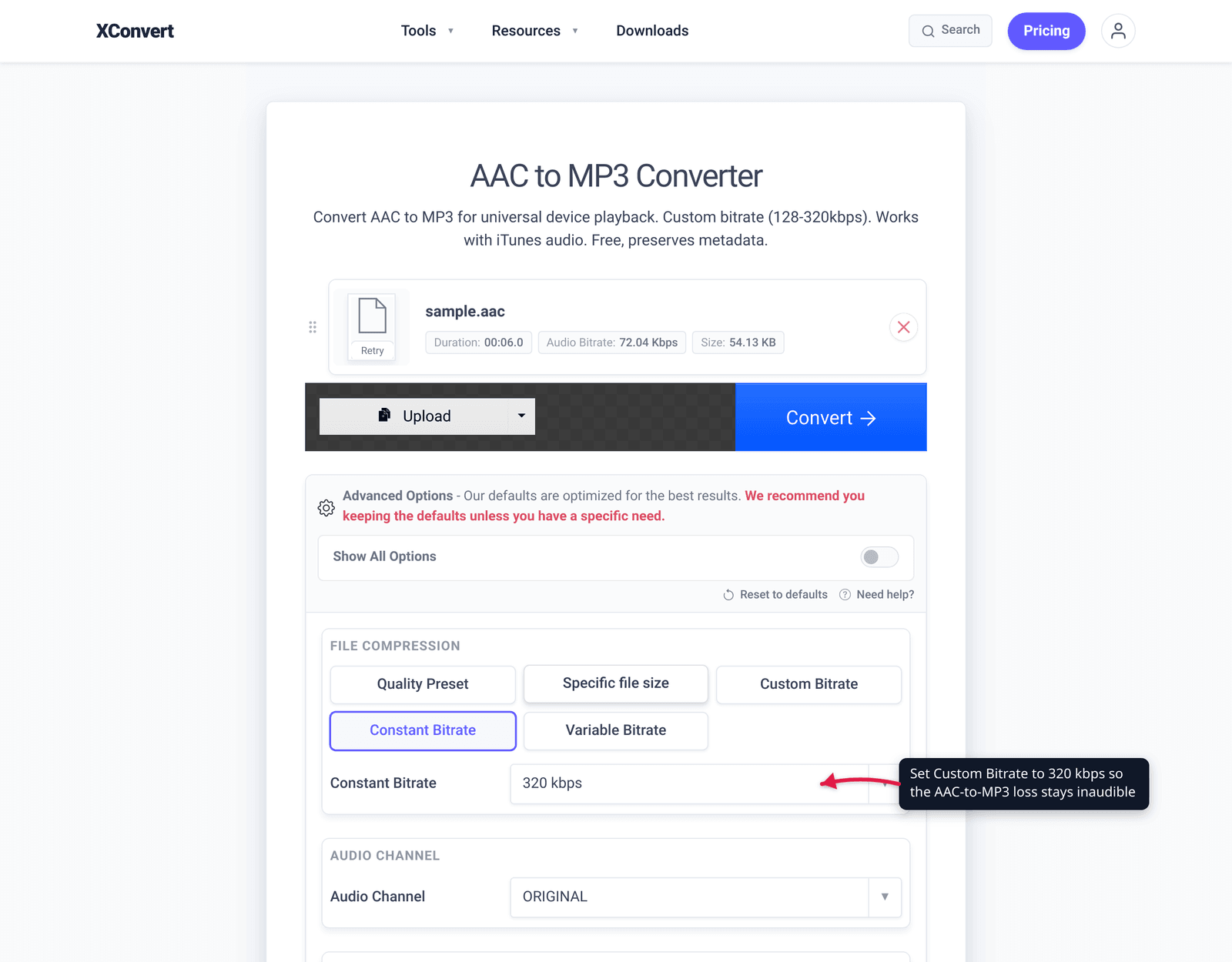
- Open Advanced Options (the gear) to control the output. The defaults are tuned for good results, but for music you’ll want to set the bitrate yourself.
- Choose Constant Bitrate and pick a high value (256 or 320 kbps) so the second-generation loss stays inaudible — or use the Quality Preset dropdown set to Highest.
- Leave Audio Channel and Audio Sample Rate on ORIGINAL to preserve the source (stereo, 44.1/48 kHz) unless you specifically need to change them.
- Click Convert, then download your MP3.
Your file is uploaded over an encrypted connection, processed on our servers, and deleted automatically a few hours later — nothing lingers.
For related conversions: AAC vs MP3 (which format to keep), and convert M4A to MP3 (the same job when AAC arrives as an .m4a file).
FAQ
Does converting AAC to MP3 lose quality?
Yes — it’s a second round of lossy compression. Your AAC was already lossy, and re-encoding it to MP3 discards more detail that can’t be recovered (this is called generation loss). Encode the MP3 at a high bitrate (256–320 kbps) to keep the additional loss inaudible, but understand you can’t make it better than the AAC source — only equal-ish or worse.
Is MP3 better than AAC?
No — AAC is the more efficient, more modern codec. At the same bitrate AAC generally sounds at least as good as MP3, and better at low bitrates, which is why iTunes, YouTube, and most streaming use AAC. MP3’s only advantage is universal compatibility: it plays on virtually every device ever made. Convert to MP3 for reach, not for quality.
Will the MP3 file be smaller than the AAC?
Usually not — it’s often the same size or larger. Because AAC packs more quality per kilobit, matching its sound in MP3 takes more bits. If you choose a high MP3 bitrate to preserve quality, the file commonly ends up similar or slightly bigger. AAC→MP3 is a compatibility conversion, not a way to shrink a file.
Why won’t my AAC / M4A file play in my car or on my MP3 player?
Many older car stereos, basic MP3 players, and DJ controllers only support MP3 (and sometimes WMA), not AAC. AAC is newer and these devices predate or never added support for it. Converting to MP3 at 256–320 kbps gets the audio playing while keeping quality high.
What bitrate should I use for AAC to MP3?
256–320 kbps for music, 192 kbps for spoken-word or podcasts. Because you’re transcoding lossy-to-lossy, a generous bitrate gives the encoder room to keep artifacts below what you can hear. Going below 128 kbps for music stacks audible loss — avoid it.
Is it better to convert from the original file instead of the AAC?
Yes, if you still have a lossless original (WAV, FLAC, ALAC), encode the MP3 from that rather than from the AAC. Hydrogenaudio’s guidance is to keep lossless source files so you can re-encode without compounding loss. Going lossless → MP3 is a single generation of loss; AAC → MP3 is two. If the AAC is all you have, that’s fine — just use a high bitrate.
Sources
Last verified 2026-06-25.
- MDN — Web audio codec guide (AAC and MP3) — AAC defined in MPEG-4 Part 3 / MPEG-2 Part 7; “designed to be able to provide more compression with higher audio fidelity than MP3”; both codecs lossy; recommended minimum stereo bitrate 96 kbps (AAC) vs 128 kbps (MP3); AAC patent/Firefox notes; MP3 patent-free in the US as of April 16, 2017.
- Hydrogenaudio Knowledgebase — Transcoding — lossy-to-lossy transcoding always degrades quality; “no way to gain quality back even if you transcode your 128 kbps MP3 into a 320 kbps MP3”; keep lossless source files and re-encode from them.
- xconvert blog — AAC vs MP3 (and M4A) — companion comparison of efficiency, size, and compatibility; codec-vs-container distinction.