 By Stephanie Taylor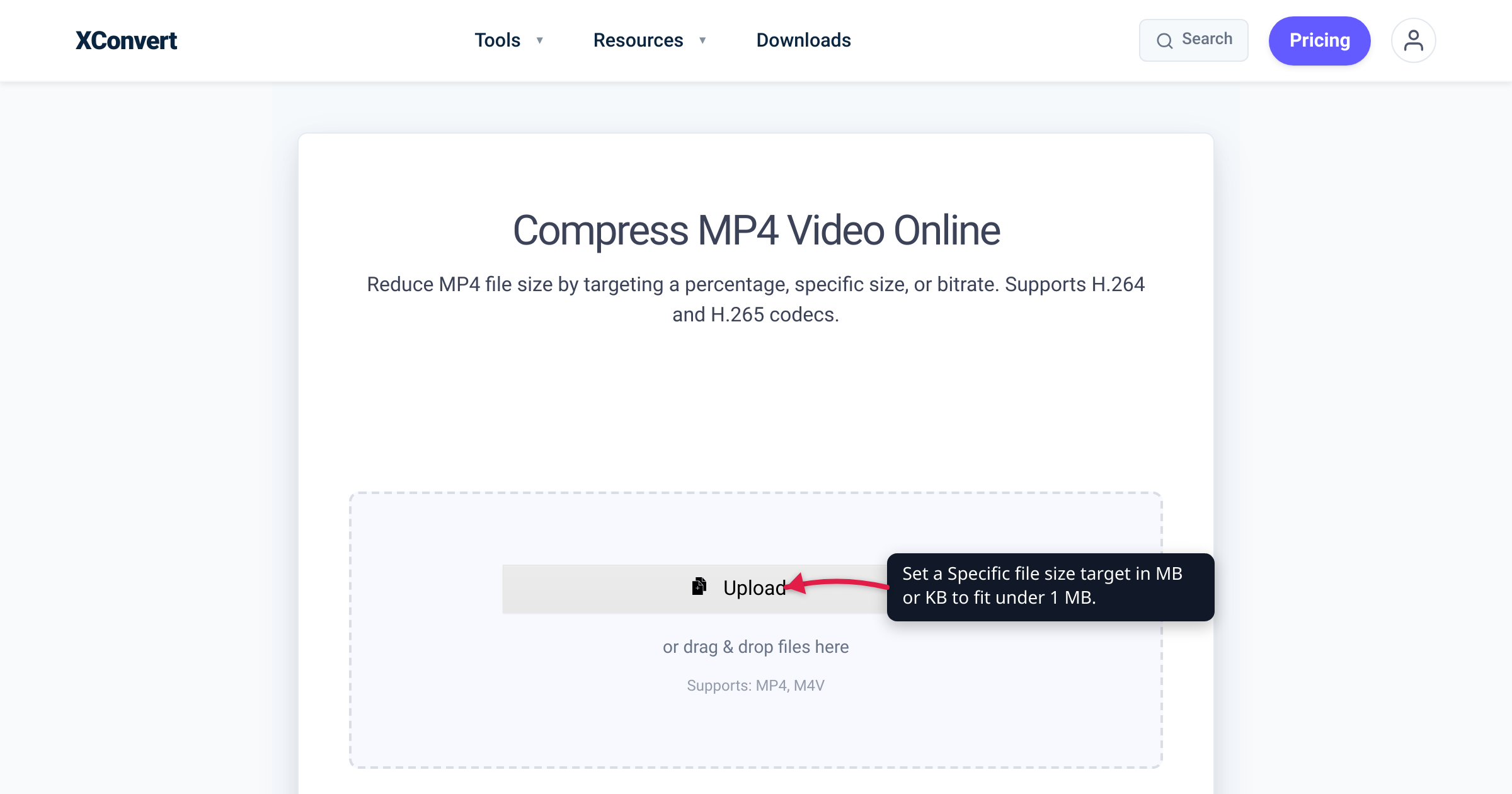
A job portal rejects anything over 1 MB. An old ticketing system won’t take your clip. Somewhere, someone is searching “video converter to 200 KB” and hoping a two-minute 1080p recording will survive the trip — it won’t, not at that size and still look good. But a short clip genuinely can go under 1 MB, and one line of arithmetic tells you which videos fit. This guide shows that math, the levers that actually move file size (in order of impact), what “under 1 MB” realistically looks like, and when to stop compressing and share a link instead. We verified the size-bitrate math against a standard video calculator and every control against the live tool page.
Quick answer: File size ≈ bitrate × duration, and 1 MB ≈ 8 megabits of budget. So under 1 MB is only realistic for short and/or low-resolution clips: a 10-second clip gets ~800 kbps to spend; a 60-second clip only ~130 kbps (very blocky). The levers, most effective first: trim it shorter, drop the resolution (480p → 360p → 240p), lower the bitrate, and reduce or drop the audio. A 2-minute 1080p video cannot look good under 1 MB — share a link for that. For the doable version, open the xconvert MP4 compressor, pick Specific file size, switch the unit to Kilobytes if needed, and let Auto Scale downsize to hit the target.
Jump to a section
- Can you really get a video under 1 MB?
- The budget math: 1 MB = 8 megabits
- The levers, in order of impact
- What “under 1 MB” actually looks like
- When to stop compressing and share a link
- Compress toward a tiny target on xconvert
- FAQ
Can you really get a video under 1 MB?
Yes — but only if the clip is short, low-resolution, or both. Video isn’t a photo you nudge down with a quality slider; it’s a stream of frames, and every second carries data. Push the total low enough and you’re not trading a little sharpness, you’re starving the picture of the bits it needs to look like anything.
First, sanity-check whether you truly need it this small. Most modern chat apps allow far more than 1 MB — Discord’s free (no-Nitro) limit is 10 MB per file, per Discord’s File Attachments FAQ, so a Discord DM almost never needs anything under 1 MB (see how to compress a video for Discord to use the whole 10 MB). The genuine sub-1-MB cases are narrower:
- Strict web forms — job-application portals, support tickets, or school/government forms that cap a single field at 1 MB or 2 MB.
- Multimedia text (MMS) — once a message crosses between carriers it’s often re-compressed to a few hundred kilobytes. The exact limit varies by carrier and isn’t consistently published, so aim small.
- Legacy or embedded systems — old forums, avatar/signature slots, kiosks, or hardware that hasn’t moved its limits in a decade.
If one of those is your target, the math below tells you exactly what’s possible.
The budget math: 1 MB = 8 megabits
Here’s the whole idea in one line, the same relationship every video calculator uses:
file size ≈ bitrate × duration
A byte is 8 bits, so 1 megabyte is about 8 megabits of budget (toolstud.io’s calculator shows the same: a 10 Mbps clip for 60 s = 600 megabits ÷ 8 = 75 MB). Flip it around to get the bitrate you’re allowed:
total bitrate (kbps) ≈ (target MB × 8000) ÷ duration in seconds
That budget covers both video and audio. Here’s what 1 MB (≈ 8000 kilobits) leaves you, by clip length:
| Clip length | Total bitrate for 1 MB | Reality |
|---|---|---|
| 5 seconds | ~1,600 kbps | Comfortable even at 480p |
| 10 seconds | ~800 kbps | Fine for 360p–480p |
| 30 seconds | ~270 kbps | Soft; drop to 240p–360p |
| 60 seconds | ~130 kbps | Very blocky; near the floor |
| 120 seconds | ~65 kbps | Not realistically watchable |
Want 200 KB? That’s only ~1,600 kilobits total — a fifth of the above. A 10-second clip gets ~160 kbps for everything, so you’ll likely drop the audio and fall to 240p just to keep the frames intact.
Two things fall straight out of this. Duration dominates: halve the length and you double the bitrate (and quality) at the same size. And audio isn’t free — a stereo AAC track at 128 kbps eats most of a 60-second 1 MB budget by itself, which is why tiny targets often mean cutting audio to mono, low-bitrate, or nothing.
A note on “1 MB”: under the SI definition NIST uses, 1 MB = 1,000,000 bytes, but Windows labels 1,048,576 bytes (a mebibyte) as “1 MB.” Because a cap may be enforced either way — and container overhead adds a little on top — aim under: target ~0.9 MB (900 KB) when the limit is “1 MB.”
The levers, in order of impact
When a tool re-encodes your video, these moves actually shrink it — ranked by how much size they buy:
- Shorten it (trim). The biggest lever, because size scales directly with duration. Cutting a 60-second clip to 15 seconds hands the surviving quarter four times the bitrate. Trim first, everything else second.
- Drop the resolution. Pixel count scales with the square of resolution: 1080p ≈ 2.07M pixels, 720p ≈ 0.92M, 480p ≈ 0.41M, 360p ≈ 0.23M, 240p ≈ 0.10M. Going 1080p → 480p removes ~80% of the pixels, stretching your bitrate five times further. 480p or 360p is the sweet spot for sub-1-MB work; 240p for very tight targets.
- Lower the bitrate. The direct size knob — but at these budgets you’re already near the floor, so this is really about letting the tool set the lowest bitrate that hits your size after you’ve trimmed and downscaled.
- Reduce or drop the audio. At 1 MB and below, a full-quality track is a luxury; mono, a low bitrate, or muting frees real room for the picture.
- Use a more efficient codec. H.265/HEVC or AV1 pack more quality into the same bits than H.264, at the cost of narrower playback on older devices.
Notice bitrate is fourth. People grab the bitrate slider and get a blocky mess, when trimming and downscaling would have done the real work with far less damage.
What “under 1 MB” actually looks like
A tiny file isn’t a smaller version of your video — it’s a lower-fidelity one. Here’s the realistic outcome for common combinations at under 1 MB:
| Clip | Under 1 MB? | What you’ll see |
|---|---|---|
| 5–10 s, 360p–480p, quiet/muted audio | Yes | Watchable; fine for a form or MMS |
| 15–30 s, 240p–360p | Marginal | Soft, some blockiness on motion |
| 60 s, any resolution | Poor | Heavy blocking, smeared detail |
| 2 min, 1080p | No | Cannot look acceptable at this size |
The pattern is consistent: the shorter and smaller the frame, the better a sub-1-MB clip holds up. A ten-second 360p reaction clip looks fine at under 1 MB; a two-minute 1080p walkthrough at the same size looks underwater. If your source is long and high-resolution and the cap is truly 1 MB, the choice is real: trim it hard and accept low resolution, or don’t attach it at all.
When to stop compressing and share a link
Sometimes the right move is to stop squeezing. If the clip must stay full-length and full-quality — a demo, a memory, a deliverable — no bitrate math fits it under 1 MB without wrecking it. Share a link instead:
- Upload it to a host and paste the URL — Google Drive, OneDrive, Dropbox, or a video host give you a shareable link with no size ceiling beyond your storage and no quality loss.
- Let the platform do it — Gmail swaps an over-cap attachment for a Drive link; Outlook prompts for OneDrive. (Email caps sit far above 1 MB anyway; for hitting an exact MB target, see how to compress a video to a specific size.)
Use the link route when full quality or length is non-negotiable. Compress only when the recipient needs the actual file and the clip is short enough that a low-resolution version still does the job.
Compress toward a tiny target on xconvert
The xconvert MP4 compressor lets you type the exact size you want — in MB or KB — and works backward to hit it, dropping resolution automatically when the target is tight.
- Open xconvert.com/compress-mp4 and click Upload to add your video.
- Trim first. Open the Trim → Time Range option and keep only the seconds you need (or cut the clip before uploading). Fewer seconds is the biggest single win for a tiny target.
- Open Advanced Options (the gear). Under File Compression, choose Specific file size. Type your target — and for very small files, switch the unit dropdown from Megabytes to Kilobytes: enter 0.9 MB (or 900 kB) for a “1 MB” cap, or 200 kB for a 200 KB cap. Aim a little under any hard limit.
- Leave Auto Scale on — the [Smart Scaling Active] note means the tool lowers resolution automatically to hit a tight target while keeping quality as high as the budget allows. To choose the resolution yourself, switch File Compression → Constant Quality, which reveals the Video resolution group; open Preset Resolutions and pick 480p, 360p, or lower.
- (Optional) Set the codec — H.264 for the widest playback, or H.265/HEVC or AV1 to fit more quality into the same tiny file on modern devices.
- Click Compress, then download. Check the size; if a hard cap still rejects it, trim more or step the resolution down again.
Your video is processed on our servers and deleted automatically a few hours later — nothing is kept.
FAQ
Can you actually compress a video to under 1 MB?
Yes, but only for short and/or low-resolution clips. Size ≈ bitrate × duration, and 1 MB is about 8 megabits of budget: a 10-second clip gets ~800 kbps (fine at 360p–480p), a 60-second clip only ~130 kbps (very blocky). Trim the clip and drop to 480p/360p and a short video fits comfortably; a long, high-resolution one can’t look good this small.
How do I get a video down to 200 KB?
200 KB is roughly 1,600 kilobits — about a fifth of a 1 MB budget. Realistically you need a very short clip (a few seconds), a low resolution (240p–360p), and little or no audio. On the xconvert compressor, pick Specific file size, switch the unit to Kilobytes, and enter 200; Auto Scale drops the resolution to try to hit it. Expect a soft, low-detail result — that’s the physics of the size, not the tool.
Why does my video look so blocky under 1 MB?
Because it’s bitrate-starved: too few bits per second to describe every pixel and motion, so the encoder groups detail into blocks and smears movement. The fix isn’t a magic setting — give those bits fewer things to describe by trimming the clip shorter and lowering the resolution so each remaining pixel gets more of the budget.
Do I really need a video under 1 MB?
Often not. Most chat apps allow far more: Discord’s free limit is 10 MB and email caps are typically 20–25 MB. A true sub-1-MB requirement usually comes from a strict web form, an MMS, or an old/embedded system. Confirm the real limit first — you may have far more room, in which case a lightly compressed, better-looking file will do.
What’s the smallest a 1-minute video can be and still look okay?
Under 1 MB, a 60-second clip has only ~130 kbps total to split between video and audio — a rough 240p at best. A watchable minute realistically wants a few MB, not one. If the cap is genuinely 1 MB, either trim the minute to the 15–20 seconds that matter (quadrupling your bitrate) or accept low resolution and minimal audio.
Is it better to share a link than to compress this hard?
When full length and quality matter, yes. Upload the video to Google Drive, OneDrive, Dropbox, or a video host and share the URL — no size ceiling, no quality loss, and the recipient streams it. Compress only when the recipient needs the actual file and the clip is short enough that a low-resolution version still does its job.
Sources
Last verified 2026-07-16.
- xconvert — MP4 Compressor — verified the Specific file size mode with its Megabytes/Kilobytes unit toggle, Auto Scale / [Smart Scaling Active] auto-downscaling, the Constant Quality mode that reveals the Video resolution / Preset Resolutions group (down to 480p/360p/240p/144p), the Trim → Time Range control, the H.264 / H.265 (HEVC) / AV1 codec options, and the Upload and Compress buttons.
- toolstud.io — video file-size calculator — confirms
size = bitrate × durationand 8-bits-per-byte (a 10 Mbps clip for 60 s = 600 megabits ÷ 8 = 75 MB), i.e. ~8 megabits per megabyte. - NIST — Prefixes for binary multiples — 1 MB (SI) = 1,000,000 bytes, while 2^20 = 1,048,576 bytes is a mebibyte (MiB); explains why OS-reported “MB” varies and why to aim under a hard cap.
- Discord — File Attachments FAQ — free (no-Nitro) upload limit is 10 MB per file, the basis for “most chat apps allow far more than 1 MB.”