 By James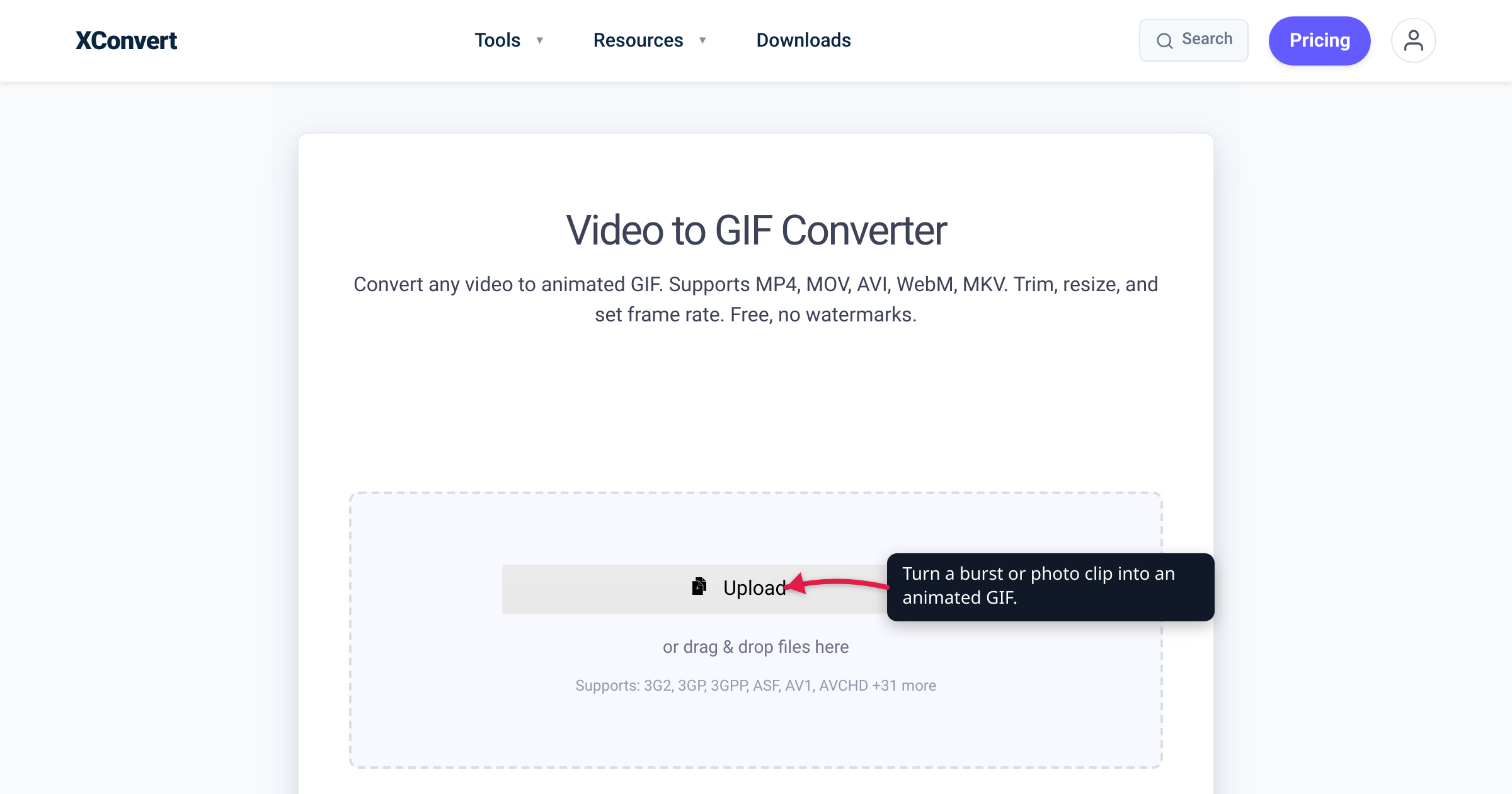
You shot a burst of your dog mid-jump, or you have a folder of numbered timelapse frames — and you want the little looping animation everyone can see inline, no video player, no app. That’s a GIF. The catch nobody tells you up front: one photo can never become an animation — a GIF that moves is a sequence of frames, so a converter needs several images to work with, and the frame order is yours to set. This guide covers which tool to point at which source, how to order the frames, how fast to play them, and the color tradeoff behind how photo GIFs look — every capability and number checked against the live tools and the GIF89a specification.
Quick answer: An animated GIF is a sequence of frames shown in order, so you need more than one image — feed a converter a single still and all it can write is a one-frame, static
.gif. For loose photos, upload them all to the xconvert Image to GIF converter and leave Combine? on its default, Single animation: it stitches every uploaded image into one looping GIF, with Framerate deciding how long each frame holds. (Switch Combine? to Individual files to get one GIF per photo instead.) If your moment is already a clip — an iPhone Live Photo, an Android Motion Photo, a phone video — send it to the Video to GIF converter instead. Both open on File Compression → Quality preset (High (Recommended)), with the palette and resolution knobs one click away under Custom.
Jump to a section
- What actually turns a stack of photos into animation
- iPhone bursts, Live Photos & Android Motion Photos
- Loose stills: get the frame order right
- Frame rate, speed, and looping
- The 256-color tax: why photo GIFs look banded
- Make your animated GIF on xconvert
- FAQ
What actually turns a stack of photos into animation
A GIF that moves is a stack of images (frames) shown one after another, each held on screen for a set moment. The GIF format stores that timing per frame: the GIF89a Graphic Control Extension carries a Delay Time field that, per the W3C specification, “specifies the number of hundredths (1/100) of a second to wait before continuing” to the next frame. In other words, animation is nothing more than frames plus per-frame delays — a miniature video.
That single fact tells you what a converter needs: more than one frame. Hand it one image and one frame is all it can write — a static .gif, which is a perfectly good thing to want but isn’t animation. Hand it several and it has a sequence to time.
xconvert’s Image to GIF converter sits exactly on that line, and which side you land on depends on how many files you upload:
- Several images → the Combine? control, which is set to Single animation by default, merges every uploaded photo into one animated GIF. The page’s own note spells it out: “Select Single animation to combine all uploaded images into a single animation. Use Individual files to create a separate animation for each individual file.” Framerate sets how long each frame holds.
- One image → nothing to sequence, so you get a single-frame, static GIF. That’s the right tool when some form or app simply demands a
.gifextension.
So there are two honest routes to a moving GIF, and the one you take depends on what your “photos” already are. Loose stills go straight to the image converter. A moment that’s already a clip goes to the video converter. The spec is blunt about the ceiling either way, noting GIF “is not intended as a platform for animation, even though it can be done in a limited way.”
The good news: most of the “photos” people want to animate are already sequences under the hood.
iPhone bursts, Live Photos & Android Motion Photos
Three of the most common “I want a GIF of this” sources are already motion clips or rapid sequences:
- iPhone Live Photo. Per Apple, a Live Photo records “1.5 seconds before and after” you press the shutter — a roughly 3-second motion clip bundled with the still. On iOS you can Save as Video (or share it as a video), which gives you a clean file to convert.
- Android Motion Photo (Pixel, Samsung Galaxy). Same idea — a still paired with a short video clip. Save or export the video portion.
- iPhone Burst. Per Apple, Burst mode captures “multiple high-speed photos” in rapid succession and stores them as a stack. Those frames are milliseconds apart — exactly what an animation wants — and they stay individual stills, which is fine: they go straight to the image converter.
That splits the three cleanly. A Live Photo or Motion Photo saves as a video in one tap, so send it to the Video to GIF converter. A burst is already a stack of frames — select them all, drop them into the Image to GIF converter, and leave Combine? on Single animation. (Apple’s Shortcuts app also has a “Burst to GIF” gallery action with a seconds-per-photo setting, which is quicker on the phone but gives you less control over frame rate, size, and palette; there’s no native Android equivalent.)
Loose stills: get the frame order right
If your frames are genuinely separate files — timelapse exports, render_0001.png … render_0500.png, a set of product angles, a photo-a-day series — hand them all to the Image to GIF converter in one upload and leave Combine? on Single animation. No slideshow-assembly step in between. Two things then decide whether the animation plays in the sequence you meant.
First: frames follow the order of the cards on the page, and that list is drag-sortable. Every uploaded file becomes a card; grab one and drag it up or down and you’ve changed the frame order. Whatever order the browser hands your picker selection over in is only the starting point — the final say is yours, so scan the list top to bottom before you hit Convert.
Second: a consistent naming scheme makes that starting order predictable, so you’re nudging one or two cards instead of rebuilding the whole sequence.
- Zero-padded numbers just work.
frame_0001throughframe_0500sort the same alphabetically as numerically, so timelapse and render exports tend to land in the right order already. - Camera filenames may not.
IMG_209.jpgsorts beforeIMG_2031.jpgbecause text sorts character by character, not by the moment captured. If sequence matters, rename with a consistent zero-padded prefix —01_,02_,03_… — before you upload. Two minutes of renaming beats dragging fifty cards.
Frame rate, speed, and looping
Two controls decide how your GIF feels: how fast frames advance, and whether it repeats.
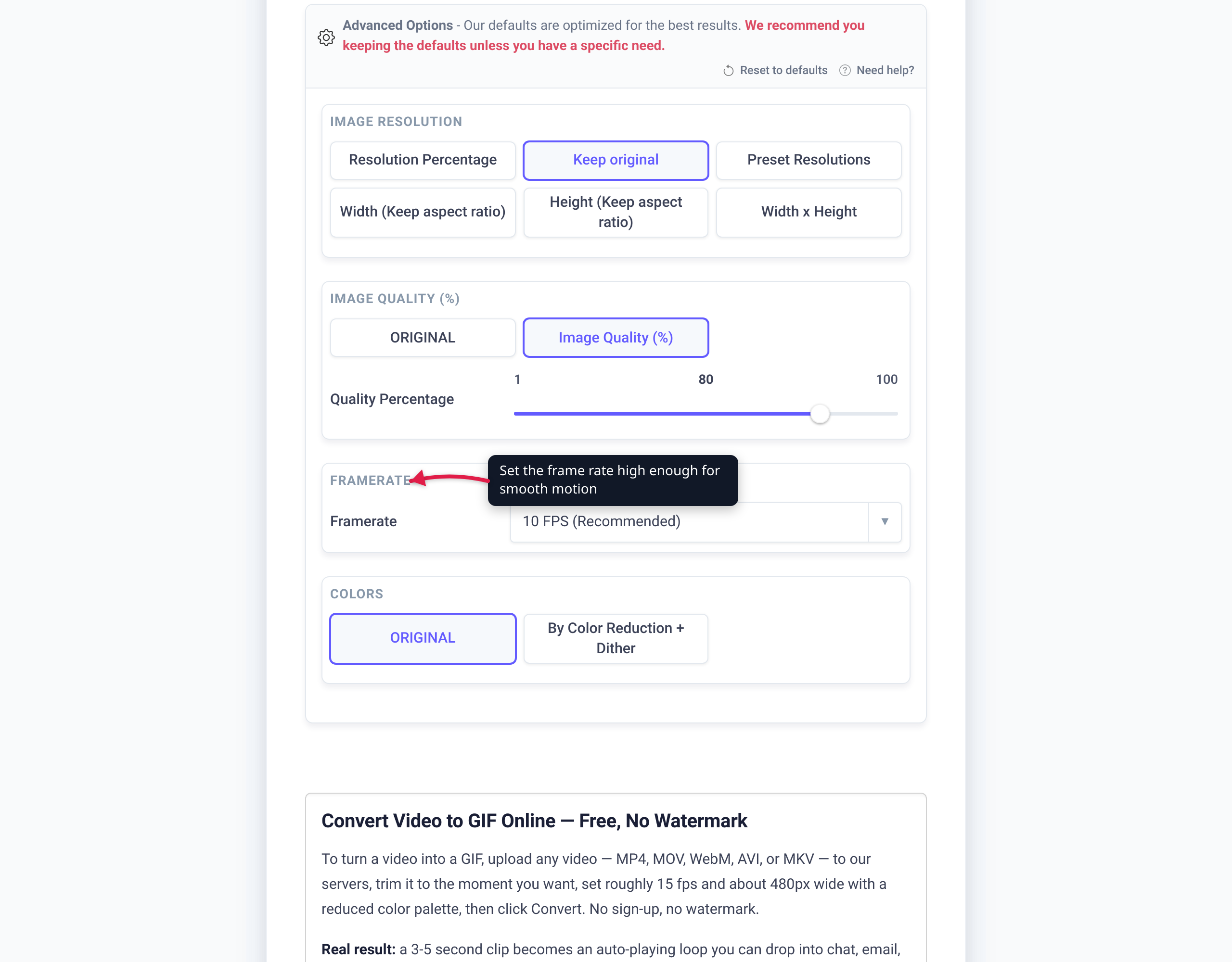
Frame rate. Because GIF timing is a per-frame delay in hundredths of a second (see above), “frame rate” really means “how long each frame shows,” quantized to those 1/100-second steps — which is why converters offer fixed presets, not a free slider. For motion that reads as smooth without bloating the file, 10–15 frames per second is the practical sweet spot. xconvert’s Framerate control — the same dropdown on both the image and video converters, and visible without opening anything else — runs from 1 FPS (Slideshow) and 2 FPS (Slow) through 10 FPS (Recommended) to 30 FPS (Smooth) and 50 FPS (Max Speed). Pick a low value for a deliberate slideshow flip, 10–15 for a burst or clip that should look like continuous motion. More frames per second means a bigger file.
Looping. Here’s a subtlety most guides get wrong: the GIF89a specification itself defines no looping — only per-frame delays and disposal methods. Continuous repetition is a later add-on, the Netscape Application Extension, which stores a loop count where 0 means repeat forever; per the format’s history, it first appeared in Netscape Navigator 2.0 and every browser adopted it. In practice that’s why GIFs autoplay and loop endlessly by default — you rarely have to set anything.
The 256-color tax: why photo GIFs look banded
This is the tradeoff to make peace with before you convert. A GIF stores at most 256 colors per frame — 8 bits per pixel, per the W3C GIF89a spec — chosen from the full 24-bit RGB space. Your photos can hold up to 16.7 million colors, so the converter has to quantize: pick a 256-color palette and snap every pixel to the nearest match.
For photographs that shows up as banding — skies, skin tones, and gradients break into visible steps, because 256 slots can’t render a continuous ramp. The quickest lever against it is File Compression → Quality preset, which opens on High (Recommended) on both converters — step it up to Very High or Highest and the quantizer gets more room. For hand control, switch File Compression to Custom: that reveals Colors, where By Color Reduction + Dither scatters adjacent palette colors to fake the in-between shades. Dithering softens banding at the cost of a grainier, larger file, but never removes it entirely. GIF transparency is binary too — a pixel is fully opaque or fully clear, with no soft alpha edges.
So set expectations: a photo-realistic clip always looks better, and weighs far less, as MP4 or WebP — a short clip that’s a couple of megabytes as MP4 can balloon to tens of megabytes as the same-size GIF (our GIF vs MP4 file size breakdown covers why). You choose GIF anyway for one reason: it’s the only animated image format that plays inline, as a plain image, in essentially every browser, chat app, email client, and CMS — no player, no plugin. That universal reach is the point; photographic fidelity isn’t.
Make your animated GIF on xconvert
Pick the converter that matches what you’re holding. Both share the same options panel — File Compression and Framerate on screen, everything else behind Custom.
From loose photos (bursts, timelapse frames, a photo series):
- Open xconvert.com/convert-image-to-gif and click Upload, selecting all your photos at once — the picker is multi-select, and you can drag a whole set onto the page.
- Check the card order in the list and drag any frame that’s out of sequence into place. This is the order the animation plays in.
- Leave Combine? on Single animation — that’s the setting that merges the uploads into one moving GIF. (Individual files would give you one GIF per photo instead.)
- Set Framerate — 10 FPS (Recommended) is a good default; drop to 2 FPS (Slow) or 1 FPS (Slideshow) for a deliberate photo-flip, raise toward 15 for smoother motion.
- Leave File Compression on Quality preset → High (Recommended), or step it to Very High / Highest for photographic frames. If the GIF has to fit a size limit, choose Max file size and set Size limit — type a number under Custom size value, or take the Discord (10 MB max) / Email (25 MB max) / Forum (2 MB max) presets; you name the target and the converter searches for settings that land at or under it.
- Want the knobs? Set File Compression to Custom to reveal Image resolution (Width (Keep aspect ratio) is the big size saver), Image quality (%) (starts at 80), and Colors (ORIGINAL or By Color Reduction + Dither).
- Click Convert, then download your looping
.gif.
From a clip (Live Photo, Motion Photo, phone video): open the Video to GIF converter instead and follow steps 4–7 above — the panel is identical minus the Combine? control. One difference worth knowing: there’s no trim control on the converter, so cut the clip to the two or three seconds worth keeping in the video cutter first. Length is still the single biggest lever on file size. For the full frame-rate/width/colors budget, our MP4 to GIF high-quality guide walks through it.
Your files upload over an encrypted connection, are processed on our servers, and are deleted automatically a few hours later.
Just need one photo saved as a .gif file? Upload a single image to the same Image to GIF converter — with nothing to sequence, you get one static frame, which is exactly what a form or app demanding the .gif extension wants. (If the destination accepts PNG, that keeps every color and is the better choice for a non-animated graphic.)
FAQ
How do I make a GIF from a series of photos?
Upload them all at once to the Image to GIF converter and leave Combine? on its default, Single animation — that merges every uploaded photo into one animated GIF, with Framerate setting how long each frame holds. Drag the file cards into the order you want before converting; that list order is the frame order. You don’t need to assemble a video first. If your “photos” are already a clip — a Live Photo saved as video, an Android Motion Photo, a phone recording — use the Video to GIF converter instead. Upload just one image and there’s nothing to sequence, so you get a static, one-frame GIF.
How many photos do I need for a GIF?
Enough frames to read as motion. At 10 frames per second — a smooth default — one second of animation is about 10 frames, two seconds about 20. An iPhone burst captures a rapid stack that’s usually plenty; a dozen-plus frames gives a fluid short loop. Fewer frames plays choppier; more is smoother but a bigger file.
Can I turn iPhone burst photos into a GIF?
Yes. A burst is a rapid stack of stills — exactly the frames an animation needs. Select the whole burst, upload it to the Image to GIF converter, and leave Combine? on Single animation. The quickest on-device alternative is Apple’s Shortcuts app (“Burst to GIF”), which builds the GIF locally and lets you set seconds-per-photo, but it gives you less control over frame rate, dimensions, and palette — and there’s no Android equivalent.
Why does my photo GIF look grainy or banded?
Because GIF caps each frame at 256 colors. Photos hold millions, so smooth gradients in skies and skin collapse into visible steps. The one-click improvement is raising File Compression → Quality preset from High (Recommended) to Very High or Highest; for hand control, switch File Compression to Custom and turn on dithering under Colors, which softens banding by scattering palette colors but never fully removes it. For photo-realistic motion, MP4 or WebP looks better and weighs far less; choose GIF when you specifically need something that autoplays inline everywhere.
Will the photos play in the right order?
Frames follow the order of the file cards on the page, and that list is drag-sortable — so the final say is yours: drag any card up or down before you convert. Filenames only set the starting order, and they can lie: IMG_209 sorts before IMG_2031 because text sorts character by character, not by the moment captured. Zero-padded names (frame_0001, frame_0002 …) start out in the right order on their own; anything else is worth renaming with a 01_, 02_ prefix before you upload.
Does a GIF loop automatically?
Almost always, yes. The GIF89a spec itself defines no looping, but the near-universal Netscape Application Extension stores a loop count where 0 = repeat forever, and virtually every GIF is written that way. So an animated GIF autoplays and loops endlessly in browsers, chat, and email without you setting anything.
Sources
Last verified 2026-08-31.
- W3C — GIF89a Specification — the 256-color / 8-bits-per-pixel palette cap; the Graphic Control Extension “Delay Time” field in 1/100-second units (per-frame timing); the note that GIF “is not intended as a platform for animation”; and that the spec defines no looping mechanism.
- Wikipedia — GIF — the de-facto looping mechanism: the Netscape Application Extension loop count (0 = repeat forever), introduced in Netscape Navigator 2.0, which is not part of the core GIF89a spec.
- Apple Support — Take and edit Live Photos — a Live Photo records 1.5 seconds before and after the shutter (a ~3-second motion clip).
- Apple Support — Capture action shots with Burst mode — Burst captures multiple high-speed photos in rapid succession, stored as a stack of stills.
- xconvert Image to GIF converter — controls verified 2026-08-31 against the live option set: Combine? (Single animation, preselected, “combine all uploaded images into a single animation” / Individual files), Framerate (1 FPS Slideshow → 50 FPS Max Speed; 10 FPS Recommended preselected), and File Compression (Quality preset, default High (Recommended) / Custom / Max file size) render by default; Image quality (%) (default 80), Image resolution and Colors (ORIGINAL / By Color Reduction + Dither) render only in Custom mode. A multi-image upload routes to the animated maker; a single image stays on the still path and produces a one-frame GIF.
- xconvert Video to GIF converter — same panel minus Combine?, verified 2026-08-31. There is no trim control on this page.
- xconvert Video Cutter — the separate tool for shortening a clip before conversion.