 By Stephanie Taylor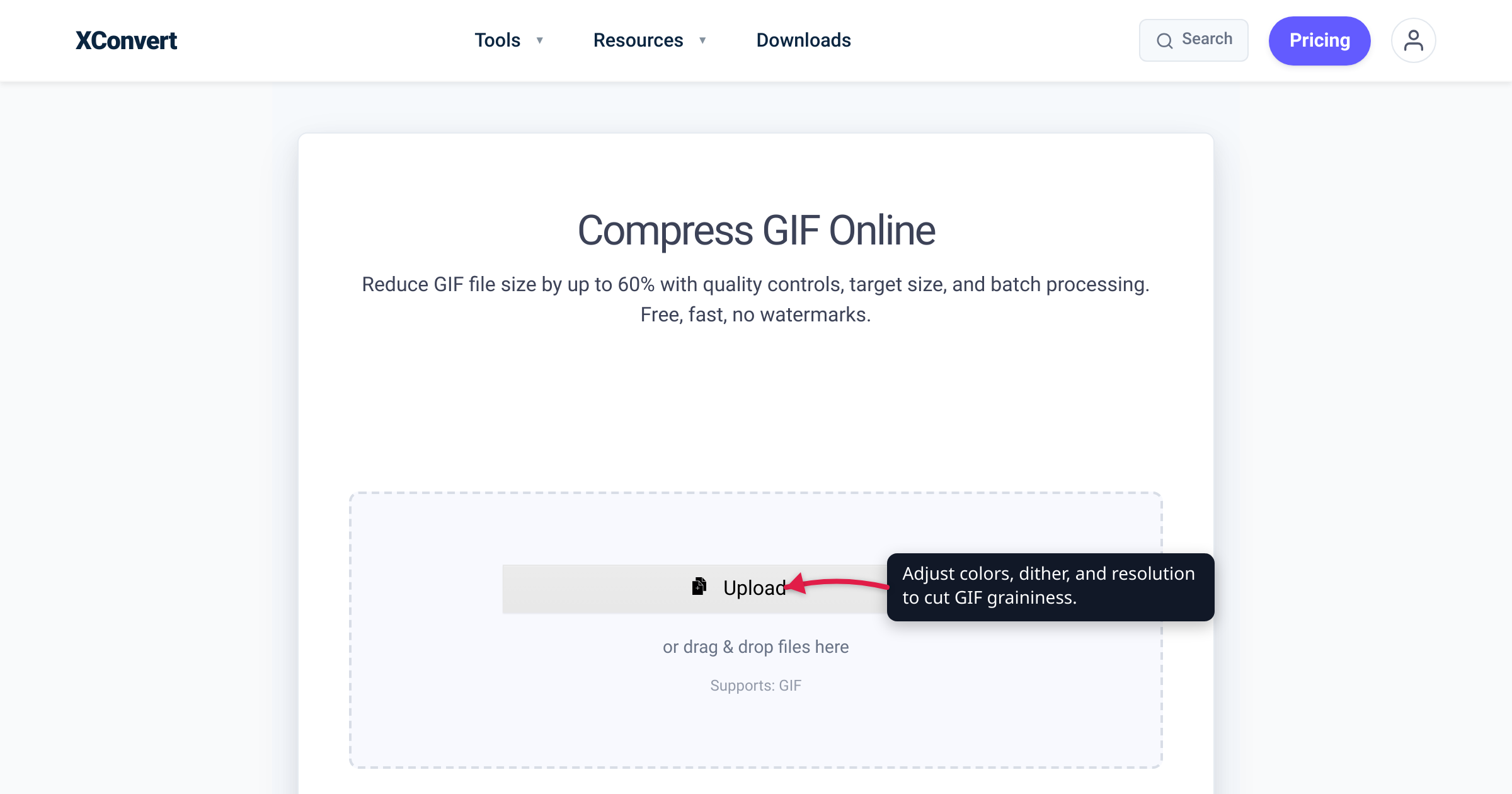
You convert a smooth sunset clip or a glossy logo animation to GIF, and the result is coated in a fine sandy speckle — or the sky breaks into flat, stair-stepped bands. It is not your export settings, your source, or a bad download. It is the GIF format hitting a hard wall: a single GIF frame can hold at most 256 colors, and your full-color source has millions. This guide explains exactly why your GIF looks grainy — every claim checked against the GIF89a specification, MDN, and the original Floyd–Steinberg dithering paper — and what actually reduces the noise (plus the one fix that removes it for good).
Quick answer: A GIF is limited to a 256-color palette per frame (GIF89a spec). When a full-color source — roughly 16.7 million (24-bit) colors — is squeezed into 256, the encoder must either band (snap each region to the nearest palette color, giving flat posterized steps) or dither (scatter palette colors to fake the missing shades). That scattered dither is the “grain” — a high-frequency speckle, usually from Floyd–Steinberg error diffusion. You can soften it (keep the palette full, don’t downscale, reduce colors and motion in the source) but not delete it: 256 colors is the format’s ceiling. The real fix for gradients, video, and photos is to not use GIF at all — MP4, WebM, and animated WebP are full-color and never dither a palette.
Jump to a section
- Why GIF is stuck at 256 colors
- Band or dither: the two ways GIF fakes missing colors
- Grainy, banded, or pixelated? Diagnose the right problem
- How to reduce GIF graininess (and when you can’t)
- Reduce GIF grain on xconvert
- FAQ
Why GIF is stuck at 256 colors
GIF stores color differently from a photo or a video frame. Instead of giving every pixel its own red/green/blue value, GIF builds a small color table and then stores each pixel as a single index number pointing into that table. Per the GIF89a specification, that table is “a sequence of bytes representing red-green-blue color triplets,” and its length is set by a 3-bit size field — so it maxes out at 2⁸ = 256 entries. MDN puts it plainly: “Each pixel in a GIF is represented by a single 8-bit value serving as an index into a palette of 24-bit colors (8 bits each of red, green, and blue)… each palette has 2, 4, 8, 16, 32, 64, or 256 entries” (MDN: Image types).
So a single GIF frame can show at most 256 distinct colors. A typical photo or video frame is stored in 24-bit “true color,” which can represent roughly 16.7 million colors (2²⁴). Turn that source into a GIF and the encoder has to throw away all but 256 colors, then decide how to approximate everything it discarded. Every grainy, speckled, or banded GIF you have seen is the visible residue of that one decision.
Band or dither: the two ways GIF fakes missing colors
When the encoder meets a color that isn’t in its 256-entry palette, it has exactly two strategies, and both leave a mark.
Option 1 — banding (posterization). Snap each pixel to the nearest available palette color. On flat graphics this is invisible; on a smooth gradient — a sky, a shadow, a soft glow — the continuous ramp collapses into a handful of discrete steps. That artifact has a name: posterization is “the conversion of a continuous gradation of tone to several regions of fewer tones, causing abrupt changes from one tone to another,” and “unwanted posterization, also known as banding, may occur when the color depth… is insufficient to accurately sample a continuous gradation of color tone” (Wikipedia: Posterization). You see stripes because there literally aren’t enough colors to draw the in-between shades.
Option 2 — dithering. Instead of snapping, scatter a mix of palette colors in a fine pattern so that, from a normal viewing distance, your eye blends them into the missing shade. MDN notes that in GIF, “to simulate more than 255 or 256 colors, dithering is generally used.” Dithering is formally “an intentionally applied form of noise used to randomize quantization error, preventing large-scale patterns such as color banding” (Wikipedia: Dither). It trades the bands for texture — and that texture is exactly the grain people complain about.
So the speckle is not a bug or a bad setting. It is the encoder deliberately adding noise to hide the fact that it ran out of colors. Here is the tradeoff in one view:
| Strategy | What it does | What you see | Best for |
|---|---|---|---|
| Banding (no/low dither) | Snaps each pixel to the nearest of 256 colors | Flat steps/bands in gradients; posterized look | Flat graphics, logos, few-color art |
| Dithering | Scatters palette colors to fake in-between shades | Fine grain/speckle, worst in smooth areas | Photos, gradients, video frames |
There is no third door in a 256-color format. You are choosing which artifact you can tolerate, not whether you get one.
The most common ditherer is Floyd–Steinberg, “an image dithering algorithm first published in 1976 by Robert W. Floyd and Louis Steinberg” (Wikipedia: Floyd–Steinberg dithering). It works by error diffusion: when it snaps a pixel to the nearest palette color, it measures how far off that was — the “quantization error” — and pushes that error onto neighboring, not-yet-drawn pixels so they compensate. Across a whole frame this scatters the mismatch into a fine, semi-random spray, which is why it is “commonly used… when converting an image from a Truecolor 24-bit PNG format into a GIF format, which is restricted to a maximum of 256 colors.” The grain reads as noise because it is noise, added on purpose to hide the bands. The more pixels the encoder has to spread that error across, the better the illusion holds — which is the key to the fixes below.
Grainy, banded, or pixelated? Diagnose the right problem
“Grainy” gets used for three different defects with three different causes. Fixing the wrong one wastes your time.
| Symptom | Looks like | Actual cause | Lever that helps |
|---|---|---|---|
| Grain / speckle | Fine sandy noise over smooth areas | Dithering faking colors past the 256 limit | Keep palette full; reduce source colors; leave GIF |
| Banding / posterization | Flat stair-steps in gradients | Too few colors and little/no dithering | Allow more colors, or mild dithering |
| Pixelation / blockiness | Chunky, jagged squares | Low resolution or upscaling — a size problem, not a color one | Don’t enlarge; start from a higher-res source |
The tell: grain and banding both live in smooth regions — skies, gradients, skin — and both come from the color limit. Pixelation is different — it is a resolution problem (blocky edges from stretching a small GIF larger) that no palette or dither setting will fix. And if a GIF is both low-resolution and dithered, downscaling and dithering compound into extra noise, which is why the resolution advice below matters.
How to reduce GIF graininess (and when you can’t)
You cannot delete the grain from a GIF — 256 colors is a hard ceiling — but you can manage the tradeoff. In rough order of impact:
- Keep the palette as full as GIF allows. Dithering gets heavier the fewer colors you give the encoder, so reducing a GIF to 64 or 32 colors to save space forces more grain or harder banding. If quality is the goal, keep the palette near the 256 maximum and cut file size some other way. (On xconvert’s compressor the palette control is Colors, which appears once you set File Compression to Custom — the page opens on the size-target mode instead.)
- Don’t downscale a grainy GIF. Dithering needs pixels to spread its error across; shrinking the image resamples the dither pattern and can look muddier or noisier, and enlarging a grainy GIF magnifies every speckle. Keep the native resolution when grain — not size — is your problem.
- Reduce colors and motion at the source. A clip with fewer distinct colors and calmer motion needs less dithering. If you are making the GIF from a video, trimming, cropping to the essential action, and lowering the frame rate all cut the color load per frame — do it at creation time with convert video to GIF rather than cleaning up afterward.
- For gradients, photos, or video: don’t use GIF at all. This is the only fix that truly removes the grain. MP4, WebM, and animated WebP are full-color — they represent millions of colors directly instead of through a 256-entry palette, so they never need to dither one. MDN calls WebP an “excellent choice for both images and animated images” with “support for higher color depths, animated frames, transparency,” and notes that animated GIF “supports only 8-bit indexed color.” If your GIF started life as a video clip, converting it back to video is smaller and smoother — see convert GIF to WebM (and stop using GIFs). Keep an actual
.gifonly where nothing else plays: inline autoplay in email and some legacy chat clients.
If you are also fighting file size, the grain and the bulk come from the same root cause — a 256-color palette plus every frame stored in full. Why your GIF file is so big covers that side, and the levers overlap.
Reduce GIF grain on xconvert
The xconvert GIF compressor exposes the exact levers that govern grain — colors, dithering, and resolution — but they sit one click in. The page opens on File Compression → Max file size, which is the right default when your problem is bytes; when your problem is grain, you want Custom, which is where the palette and dither controls live. Keep one tension in mind either way: it is a compressor, so the settings that shrink the file usually add grain. For a quality-first pass, resist the urge to cut colors and resolution.
- Open xconvert.com/compress-gif and click Upload to add your GIF (from your computer, Google Drive, or Dropbox).
- Open Advanced Options to reveal the controls. File Compression sits on Max file size with a Size limit dropdown — useful when you have a byte ceiling to clear, but it decides the palette and dither for you.
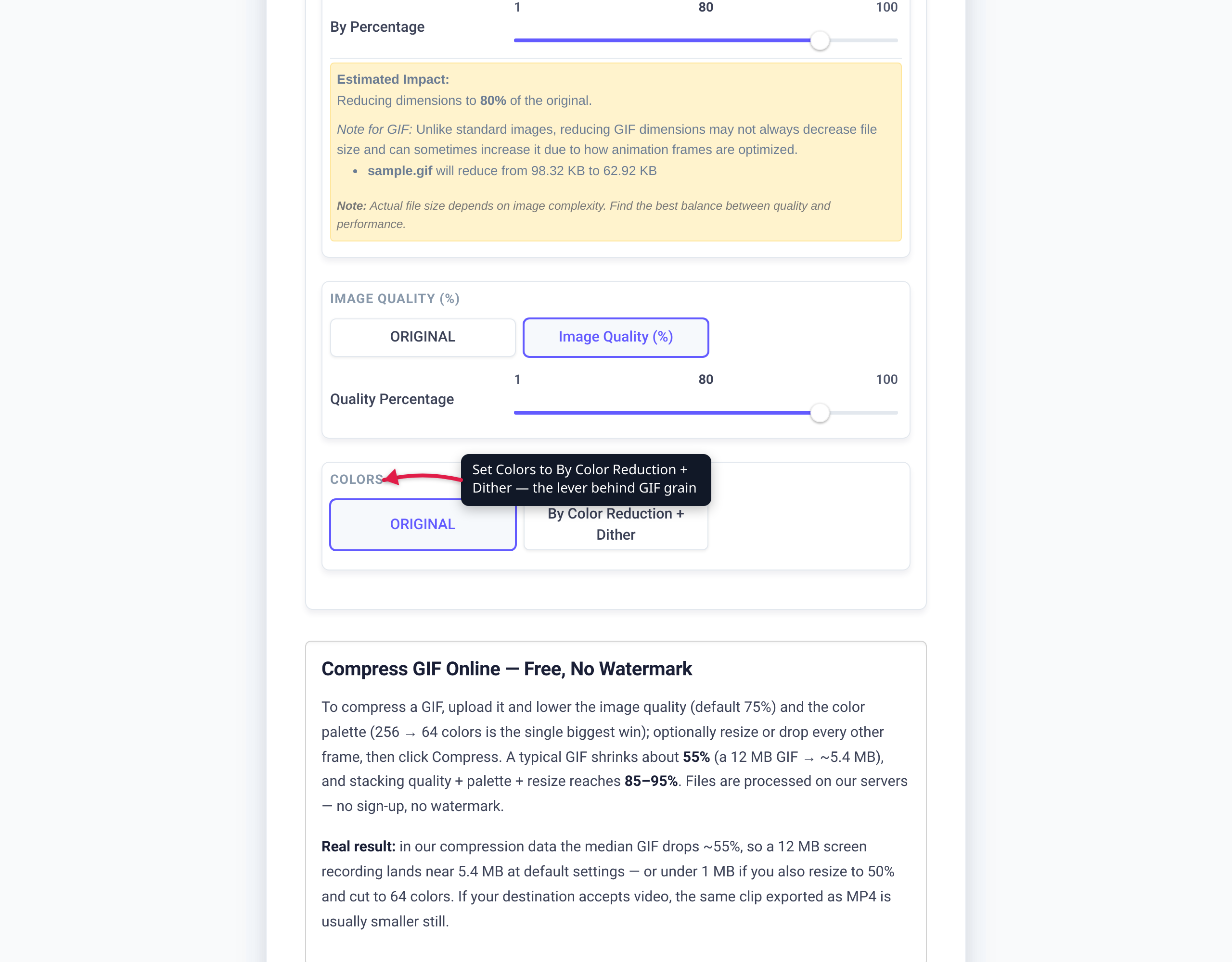
- Switch File Compression to Custom. That’s what reveals the grain levers: Image quality (%), Drop Frames, Image resolution, and Colors.
- Under Colors, you’ll find By Color Reduction + Dither — the palette-size dropdown (256 down to 2) plus a Dither toggle. This is the lever behind the grain. Cutting colors saves bytes but forces more dithering (grain) or harder banding, so for a grainy result keep the reduction light and the palette near 256.
- Leave Image resolution on Keep original when grain is your concern — downscaling resamples the dither and can look noisier. Use Resolution Percentage, Preset Resolutions, or the Width / Height (Keep aspect ratio) fields only if you genuinely need smaller dimensions.
- Adjust Image quality (%) to taste — it starts at 80 — and use Drop Frames (Frames To Drop, which preselects Every 3rd frame) only if you can spare the motion; thinning frames cuts size without touching per-frame grain.
- Click Compress and download. Re-run with different color and resolution settings to compare — grain is a tradeoff, so a couple of passes is normal.
Your file uploads over an encrypted connection, is processed on our servers, and is deleted automatically a few hours later. Nothing stays around.
If the clip is destined for a webpage or chat that accepts video, converting to WebM or MP4 will beat any GIF you can tune — full color, no palette dithering, and a much smaller file.
FAQ
Why does my GIF look grainy or speckled?
Because GIF allows only 256 colors per frame (GIF89a spec), and your source had far more. To fake the missing shades, the encoder dithers — scattering palette colors in a fine pattern that your eye blends from a distance. That scattered pattern is the grain. It is added on purpose to avoid the alternative (flat color banding), so some speckle is unavoidable in any GIF made from a full-color photo or video.
Why is my GIF pixelated, not just grainy?
Pixelation is a different problem from grain. Blocky, jagged squares come from low resolution or upscaling — the GIF was small and got stretched larger — not from the color palette. No dither or color setting fixes it; you need a higher-resolution source and to avoid enlarging. Grain and banding, by contrast, live in smooth areas and come from the 256-color limit.
How do I make a GIF less grainy?
Keep the palette as full as GIF allows (don’t reduce colors to save space — that forces more dithering), don’t downscale (it resamples the dither and can look noisier), and reduce colors or motion in the source before converting. The only way to remove grain entirely is to leave GIF for a full-color format — MP4, WebM, or animated WebP — which never needs to dither a palette.
Should I turn dithering off to fix the grain?
It depends which artifact you prefer. Turning dithering off removes the speckle but replaces it with banding — visible flat steps in gradients — because the encoder now just snaps each pixel to the nearest of 256 colors. Dithering exists specifically to “prevent large-scale patterns such as color banding.” On smooth or photographic content, most people find light dithering less objectionable than hard bands; on flat graphics, no dithering is often cleaner. On xconvert’s compressor the Dither toggle sits under Colors → By Color Reduction + Dither, which appears once you set File Compression to Custom. Worth knowing before you flip it: in our own measurements dithering is not free — an ordered dither costs roughly +12% bytes at 64 colors, and error-diffusion dithers like Floyd–Steinberg cost more still and can flicker frame to frame in an animation.
Can a GIF have more than 256 colors?
Not within a single frame — 256 is the hard cap of the color table in the GIF89a spec. However, an animated GIF can carry a different 256-color table for each frame, and good encoders vary the palette frame to frame (sometimes called temporal dithering) to raise the effective color count across the animation. Any single flat still is still limited to 256, which is why a photo or gradient cannot be shown cleanly as one GIF.
Why does my GIF look worse than the video I made it from?
The video was full color — roughly 16.7 million (24-bit) colors — with efficient compression. Turning it into a GIF throws away all but 256 colors per frame and then dithers or bands to cope, so gradients speckle or step and fine detail muddies. The GIF isn’t “broken”; it is showing the format’s ceiling. If the destination accepts video, keep it as video (WebM or MP4) for full color and a smaller file.
Sources
Last verified 2026-08-31.
- W3C — GIF89a specification — a GIF color table is a sequence of RGB triplets whose length is set by a 3-bit size field, so it holds at most 256 entries, and each pixel is an index into that table.
- MDN — Image file type and format guide — GIF pixels are 8-bit indices into a palette of up to 256 24-bit colors; dithering is used “to simulate more than 255 or 256 colors”; GIF is LZW-lossless 8-bit indexed color, while WebP and APNG support higher color depths and animation.
- Wikipedia — Dither — dithering is intentionally applied noise that randomizes quantization error to prevent color banding; unavailable palette colors are approximated by diffusing available ones, which is the source of GIF grain.
- Wikipedia — Floyd–Steinberg dithering — the 1976 Floyd & Steinberg error-diffusion algorithm pushes a pixel’s quantization error onto its neighbors; commonly used when reducing a 24-bit image to GIF’s 256 colors.
- Wikipedia — Posterization — banding is the collapse of a continuous tonal gradient into discrete steps when the color depth is insufficient (the artifact dithering trades against).
- xconvert — GIF Compressor — control labels and defaults verified 2026-08-31 against the live option set: File Compression renders by default on Max file size (Size limit → Custom size % / Custom size value / Discord (10 MB max) / Email (25 MB max) / Forum (2 MB max)); Custom is the other mode and is what reveals Image quality (%) (default 80), Drop Frames (Frames To Drop, Every 3rd frame preselected), Image resolution, and Colors (Color Palette Size 256–2 plus a Dither toggle). There is no Quality preset on this page.