 By James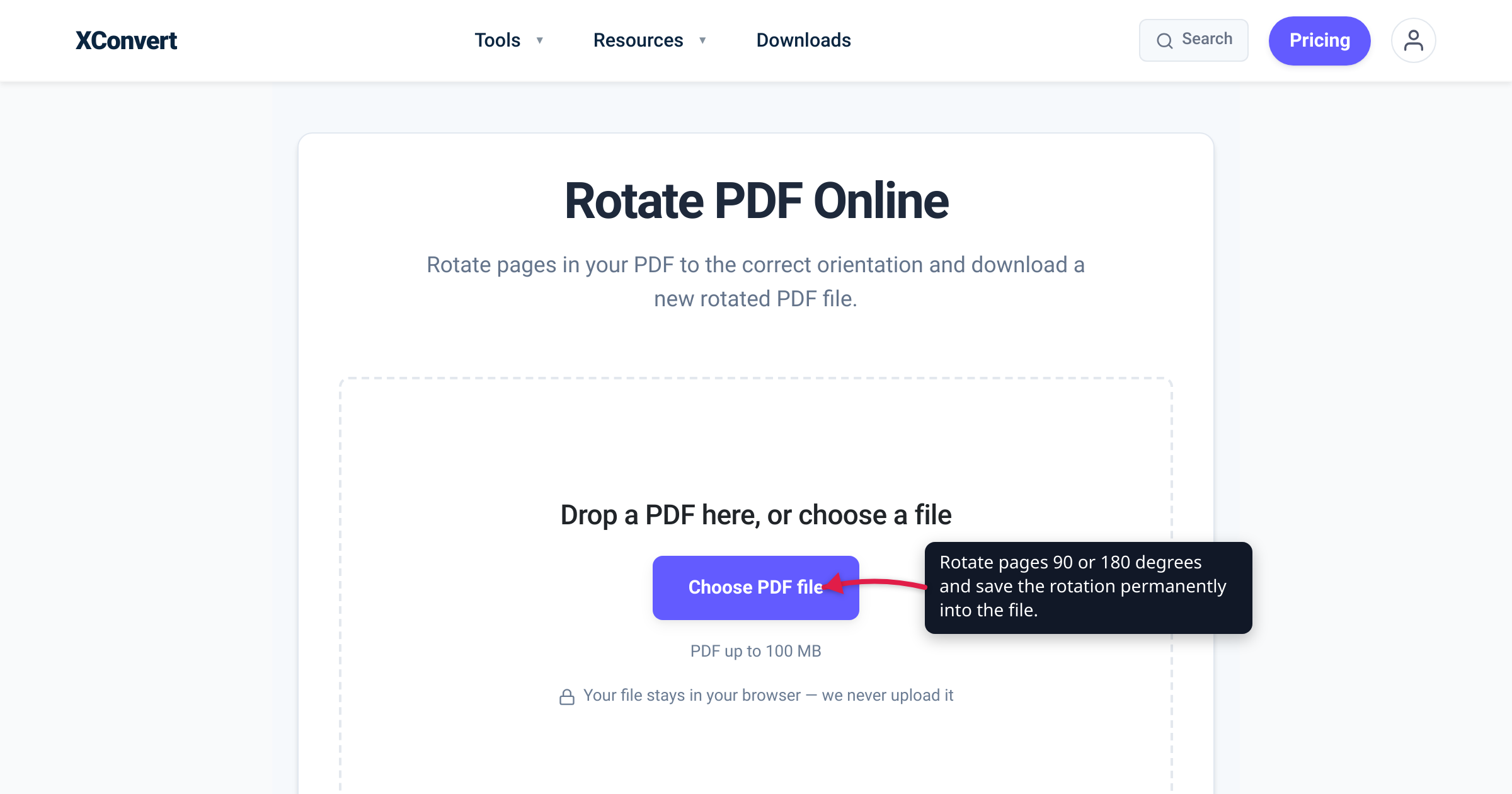
You straighten a sideways scan in Preview or Acrobat, email it to a colleague, and they reply that it is still sideways. Or you drag the pages into the right order on screen, print the file, and the printout comes out in the original jumble. The cause is the same both times: most PDF viewers let you rotate or shuffle the view without ever touching the file. To make either fix stick, the new orientation or page order has to be written into the PDF and saved — so every other viewer, print driver, and downstream tool sees it too. We verified the behavior against the PDF specification (ISO 32000-1) and Adobe’s own documentation, and confirmed the exact steps on xconvert’s live tools.
Quick answer: A viewer’s Rotate View (Acrobat’s View > Rotate View, or Preview’s rotate without saving) only turns the page on screen for the current session — reopen the file somewhere else and it snaps back. A permanent rotation writes a new value into each page’s /Rotate entry and saves it into the file; a permanent reorder rewrites the page tree. Use xconvert’s Rotate PDF to rotate all or specific pages by 90° or 180°, and Reorder PDF to move pages into a new sequence — each hands you a new, downloaded PDF with the change baked in. Only multiples of 90° are legal PDF page rotations.
Jump to a section
- Why a “rotated” PDF opens sideways again
- Rotate pages so it sticks: angles and per-page
- Reorder pages: reverse a scan, move a page to the front
- What survives — and the one gotcha
- Rotate or reorder on xconvert
- FAQ
Why a “rotated” PDF opens sideways again
Most PDF readers offer two different rotate operations, and confusing them is the single most common reason a “rotated” file reverts when someone else opens it.
- View rotation — Acrobat and Reader’s View > Rotate View, or Preview’s rotate buttons when you don’t save afterward. This turns the page on your screen for the current session only. It does not change the document. As an Adobe Community Expert puts it in a thread on exactly this problem, do not confuse “rotate view… without modifying the document, with ‘rotate page’, which is used to modify the document” — and a tell-tale sign is that after Rotate View, the Save menu item stays greyed out because there is nothing to save. Close and reopen the file and the rotation is gone.
- Permanent rotation — Acrobat’s Organize Pages > Rotate (or any tool that writes the file), which changes each page’s stored orientation and is saved into the PDF. Reopen it anywhere — Acrobat, Preview, Chrome, a phone — and the page is upright.
This matters beyond the screen: a PDF page’s stored rotation governs how the page is drawn “when displayed or printed” (ISO 32000-1). So a view-only “fix” still prints, emails, and imports in the original orientation — only a rotation written into the file and saved travels with the document. That is the whole point of the “and save it that way” step, and what the xconvert tools below do.
Rotate pages so it sticks: angles and per-page
Every PDF page carries a /Rotate value in its page dictionary. The specification says that value “shall be a multiple of 90” (ISO 32000-1, Table 30), so the only legal page rotations are 0°, 90°, 180°, and 270° — there is no spec-legal “rotate 7°.” Tools that advertise arbitrary-angle rotation fake it by rasterizing the page — turning crisp vector text into a picture and inflating the file — so sticking to multiples of 90 keeps the rotation lossless. (PDF library vendor iText notes the same limit.)
Match the angle to the symptom:
| The page opens… | Apply | Typical cause |
|---|---|---|
| Sideways, top pointing right | 90° clockwise | Portrait page scanned turned one way |
| Sideways, top pointing left | 90° counter-clockwise (a.k.a. 270° / −90°) | Portrait page scanned the other way |
| Upside down | 180° | Duplex sheet fed face-down, or an upside-down phone scan |
You do not have to rotate the whole document. On xconvert’s Rotate PDF you can apply one angle to all pages, or click an individual page thumbnail to give just that page its own angle — handy when a scanner only flipped a few sheets. There is also a page filter: restrict the rotation to odd pages, even pages, or a custom list like 1, 3, 7-12. The classic use is a double-sided scan where the feeder ran one side face-up and the other face-down, so every even page lands upside down — “even pages only” with a 180° rotation straightens the whole document in one pass.
Reorder pages: reverse a scan, move a page to the front
Page order is not a view setting either — it is baked into the file. A PDF keeps its pages in a /Pages object whose /Kids array lists the pages in display order; there is no separate “show these pages in this order” layer. To change the reading order you rewrite that array, which is precisely what a reorder tool does. The page content is untouched; only the sequence changes.
Two everyday jobs this solves:
- A scan that came out reversed. Sheet-feed scanners sometimes emit pages back-to-front, or shuffle duplex sheets so every other page is out of place — reordering beats re-scanning.
- Moving a page to the front or back. Pull a cover or title page to position 1, push appendices to the end, or walk a stray page up from the middle.
On xconvert’s Reorder PDF the flow is thumbnail-based: after upload, the pages appear as a grid, and each page card has up (↑) and down (↓) arrow buttons — click to nudge a page one slot at a time, repeating until the order is right. The grid updates live, so the sequence you see is the sequence you get.
One honest limitation: reordering keeps every page — it only changes the order. To actually remove pages, use a split step instead (see how to split a PDF into pages). And if the real job is assembling several files into one packet, reorder pairs with a merge step — merge first, then reorder if the pieces landed in the wrong direction.
What survives — and the one gotcha
Because both operations work on the page tree and page metadata rather than re-rendering the pages, your content comes through intact:
- Selectable text and any OCR layer stay selectable — rotation flips the page’s stored orientation, not the text underneath.
- Form fields, links, and bookmarks keep working — they bind to page objects, not page numbers, so they still resolve after a reorder.
- File size barely moves — you are changing a rotation integer or an array order, not rasterizing anything.
The one real gotcha is digital signatures. A signature covers a byte range of the file, so any change — a /Rotate update or a reordered page tree — makes the document differ from what was signed and triggers a “modified since signing” warning. The rule of thumb: rotate and reorder before you sign, never after.
And a small workflow note: you can’t rotate and reorder in a single click, because page order and page rotation live in different parts of the file (the /Kids array versus each page’s /Rotate entry). Do them one after the other — typically reorder first, then run the rotated output through the rotate step. Each pass preserves the other’s work.
Rotate or reorder on xconvert
Both are server-side, no-install tools that hand you a brand-new PDF. Pick the one that matches your problem.
To rotate — xconvert Rotate PDF:
- Open xconvert.com/rotate-pdf and drag and drop your file or click “+ Add Files” to load it (you can add more than one file in the same job).
- Pick a rotation angle — 90° clockwise, 180°, or 90° counter-clockwise — applied to every page, or click an individual page thumbnail to set a different angle just for that page.
- (Optional) Use the Pages filter to limit the rotation to odd pages, even pages, or a custom list like
1, 3, 7-12— the one-click cure for an every-other-page upside-down duplex scan. - Click Rotate and download. The chosen angle is written into each page’s
/Rotateentry, so Acrobat, Preview, Chrome, mobile viewers, and your printer all open it the right way up. (If the PDF has an open password, the tool prompts you for it first.)
To reorder — xconvert Reorder PDF:
- Open xconvert.com/reorder-pdf and add your PDF the same way. Page thumbnails appear as a grid once the file is parsed.
- Use the up (↑) and down (↓) arrows on each page card to move a page one slot at a time — repeat to walk a page to the front, or to reverse a scan that came out backwards.
- The order you see in the grid is the export order; there is no separate “save order” step.
- Click Reorder to download a new PDF with the pages in the displayed sequence. The original file is left untouched.
Your file is processed on our servers and deleted automatically a few hours later. There is no sign-up, and neither tool adds a watermark.
FAQ
How do I permanently rotate a PDF so it stays rotated?
Use a tool or command that writes the rotation into the file and saves it, not your viewer’s on-screen rotate. In Acrobat that is Organize Pages > Rotate (then Save); on xconvert it is the Rotate PDF tool, which writes each page’s /Rotate value and gives you a new file. The key tell that a rotation is only temporary is that the viewer’s Save option stays greyed out — nothing is being changed.
Why does my PDF still open (or print) sideways after I rotated it?
You almost certainly used View > Rotate View (or rotated in Preview without saving). That rotates the display for your session only; the file’s stored orientation never changed. Because a PDF’s rotation value controls how the page is drawn when displayed or printed, the printer and the next person to open the file still see the original. Apply a permanent rotation and save it to fix this for good.
How do I rearrange or reorder pages in a PDF?
Open the file in a tool that rewrites the page order and export a new PDF. On xconvert Reorder PDF, the pages show up as thumbnails after upload; use the up/down arrows on each page to move it a slot at a time, then click Reorder to download. The reorder is written into the file’s page tree, so the new sequence is what everyone sees.
Can I rotate only some pages — like just the even pages?
Yes. xconvert’s Rotate PDF has a page filter for odd pages only, even pages only, or a custom list (e.g. 1, 3, 7-12), and you can also click a single thumbnail to rotate just that page. “Even pages only” with a 180° rotation is the standard fix for a duplex scan where every other sheet came in upside down.
Can I rotate and reorder in the same step?
Not in one click. Page order and page rotation are stored in different parts of the PDF, so run them as two passes — usually reorder first, then rotate the result. Each step preserves the other’s changes, and both keep your text, links, and form fields intact.
Will rotating or reordering break my form fields, links, or signature?
Text, form fields, internal links, and bookmarks come through fine — these operations change page orientation or order, not the page content. The exception is a digital signature: any byte-level change invalidates it, so rotate and reorder before you sign, not after.
Sources
Last verified 2026-07-16.
- xconvert Rotate PDF — live tool: “+ Add Files” upload, 90°/180°/counter-clockwise angles, per-page thumbnails, odd/even/custom page filter, Rotate action; writes the permanent
/Rotatevalue. - xconvert Reorder PDF — live tool: thumbnail grid after upload, up/down arrow buttons per page, Reorder action; keeps all pages.
- ISO 32000-1 (PDF Association) — the PDF specification; the page-object
/Rotateentry (Table 30) “shall be a multiple of 90,” applied when the page is displayed or printed. - Adobe Community — “Adobe PDF will not save rotated pages, why?” — accepted answer from an Adobe Community Expert distinguishing temporary Rotate View (Save greyed out, document unmodified) from a permanent Organize Pages > Rotate.
- iText — rotating a PDF page to an arbitrary angle — confirms the page rotation value only accepts multiples of 90; arbitrary angles must be faked at the content level.