 By Stephanie Taylor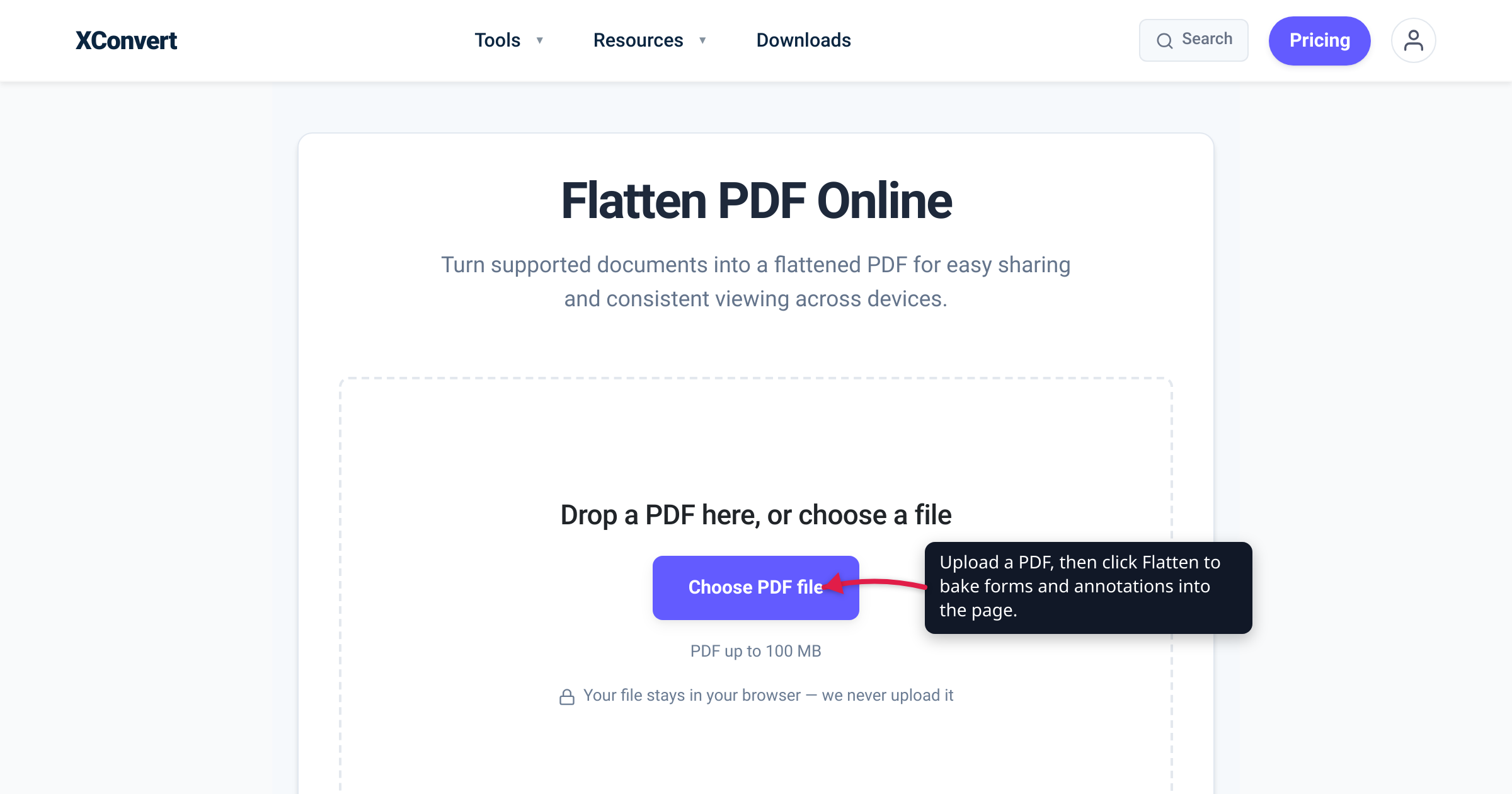
You fill out a PDF form — a W-9, a permission slip, an insurance claim — save it, and email it off. The recipient opens it and every field is blank. Or you spend an hour highlighting and commenting on a contract, send it over, and your notes are nowhere to be seen in their viewer. The fix for both is the same: flatten the PDF before you send it. Flattening merges a PDF’s interactive and overlay layers — form fields, annotations, comments, stamps, and signature appearances — down into the static page content, so what you see is what everyone sees and prints. We verified how flattening behaves against Adobe’s and Foxit’s own documentation and the PDF interactive-form model, and confirmed the exact flow on xconvert’s live tool.
Quick answer: Flattening bakes a PDF’s interactive layers — filled form fields (AcroForm), highlights and comments, stamps, and signature appearances — into the page itself, so they always display and print identically and can no longer be edited or cleared. Flatten before you email a filled form, print, or archive. Don’t flatten if the recipient still needs to fill or edit the fields — flattening is effectively one-way, so keep an unflattened copy. On xconvert: click + Add Files, then Flatten, and download.
Jump to a section
- What “flatten” actually means
- Why your filled form prints blank
- What you lose by flattening — and when not to
- Flatten a PDF on xconvert
- FAQ
What “flatten” actually means
A PDF is not always the single, fixed page it looks like. Interactive and overlay content often sits in separate layers on top of the page:
- Form fields (AcroForm). The PDF specification’s interactive-form mechanism — nicknamed AcroForm — is “a collection of fields for gathering information,” made up of a form dictionary, the form fields themselves, and widget annotations that draw each field’s visible appearance. When you type into a fillable form, your text lives in the field object, not in the page.
- Annotations. Highlights, sticky notes, comments, drawing markups, and stamps are all annotation objects layered over the page.
- Signature appearances. The visible “signed by” block is a widget drawn on top of the page.
Flattening is the process of converting those interactive objects into part of the static page content. As one PDF engine describes it, a flattened field has its appearance “embedded into the page’s content” while “the widget annotations themselves are removed” and “the field itself is removed from the field tree.” Adobe describes the same outcome: flattening merges form fields, annotations, comments, and signature appearances into the page so the file behaves like a printed page rather than an interactive document.
Foxit is blunt about the point of it: flattening makes “comments and form fields permanent so document recipients cannot change them,” and afterwards “all form fields are closed for modification or filling.” The values look identical — they just can’t be tabbed through, clicked, or edited anymore.
Why your filled form prints blank
Here’s the pain that sends most people searching for “flatten PDF.” You fill out a form, it looks perfect on screen, you print it or send it — and the fields come out blank. This isn’t random; it’s a predictable mismatch between two different ways of putting text on a PDF:
- Embedded in the AcroForm field — the correct way. A proper form filler writes your data into the PDF’s form-field structure, and it prints and displays the same everywhere.
- Overlaid as a separate annotation layer — what macOS Preview, some browser PDF viewers, and lightweight mobile apps do. The text is painted on top of the page but never written into the field. On your screen it looks filled; certain print drivers and other viewers render only the base document and skip the overlay, so the form comes out empty. Fill a form in Preview and open it in Adobe Acrobat and the fields can show blank for exactly this reason.
There’s a second, sneakier cause: a form field whose print property is set to “Visible, but doesn’t print.” Adobe’s own community threads document form fields resetting to that state — sometimes after e-signing — so the data shows on screen but is deliberately skipped by the printer.
Flattening fixes both because it stops treating your input as a separate, optional layer. Once the field’s current appearance is drawn into the page content, there’s no overlay to lose and no “doesn’t print” flag to honor — the value is simply part of the page. That’s why “flatten before you print or send” is the reliable cure for vanishing form data.
The same logic applies to annotations: highlights and comments that render in one app can be dropped or shown differently in another. Flattening bakes them into the page so they’re visible in any viewer and on paper.
What you lose by flattening — and when not to
Flattening has one real cost, and it’s the whole point: you lose the interactivity. After flattening, a fillable form is no longer fillable, comments can’t be reopened or deleted, and fields can’t be tabbed through. And it’s effectively one-way — Adobe notes that reversing a flatten to restore the original interactive structure is generally not possible, so keep a copy of the unflattened original if you might need to edit it later.
That trade-off makes the decision simple:
| Situation | Flatten? |
|---|---|
| Emailing a filled, final form (W-9, application, claim) | Yes — lock in the values so they print and display everywhere |
| Printing a form or an annotated document | Yes — avoids blank fields and dropped markups |
| Archiving a finished document for the long term | Yes — one static layer views consistently years later |
| Sending a signed or annotated PDF you don’t want altered | Yes — recipients can’t quietly change baked-in content |
| Recipient still needs to fill in the form | No — flattening removes the fillable fields |
| You’ll need to edit the comments or fields yourself | No — keep it interactive (or work on your saved original) |
A cryptographic digital signature is a special case: flattening preserves how the signature looks, but because flattening rewrites the document it will typically invalidate a real cryptographic signature. Flatten the appearance for consistent sharing and printing — but don’t expect the underlying signature to still validate afterward.
If you’re assembling several filled forms into one packet, merge them into a single PDF first, then flatten the result so nothing shifts.
Flatten a PDF on xconvert
The xconvert Flatten PDF tool does this on our servers in a couple of clicks — there are no settings to wrestle with:
- Open xconvert.com/flatten-pdf and click + Add Files to upload your PDF (drag-and-drop works too, and batch upload is supported).
- There’s nothing to configure. The tool bakes your form fields, annotations and comments, and signature appearances into each page, then rewrites the PDF without the original interactive objects.
- Click Flatten.
- Download your flattened PDF. Its fields and markups are now part of the page, so they’ll display and print the same everywhere.
Because the content is drawn as vector text and shapes rather than rasterized to a flat image, the page stays crisp at any zoom; the file-size change is usually modest and can go either way. If your flattened PDF comes out larger than you’d like, compress it without losing quality.
Your file is processed on our servers and deleted automatically a few hours later.
FAQ
What does it mean to flatten a PDF?
Flattening merges a PDF’s interactive and overlay layers — form fields, annotations, comments, stamps, and signature appearances — into the static page content. The document then behaves like a printed page: everything displays and prints identically in any viewer, and nothing can be edited, cleared, or tabbed through.
Why do my filled-in form fields print or show up blank?
Usually because the text was added as an overlay layer — common when you fill a form in macOS Preview or some browser viewers — rather than written into the PDF’s form fields, so other viewers and print drivers render the original blank page and skip the overlay. A field set to “Visible, but doesn’t print” causes the same thing. Flattening bakes the values into the page, so they can’t be skipped.
Can I undo flattening or edit a flattened PDF?
Generally no — flattening removes the interactive fields and annotations, and restoring them isn’t reliably possible. Always keep the original, unflattened file if you might need to change the values later or let someone else fill the form.
Will flattening keep my highlights and comments visible everywhere?
Yes. Highlights, sticky notes, and comments are annotation layers that some apps render differently or drop entirely. Flattening draws them into the page so they appear the same in every viewer and on paper.
Does flattening a PDF reduce the file size?
It depends. Flattening removes the form and annotation structure but adds drawing instructions to the page, so the size can go up or down. xconvert draws the content as vector text and shapes rather than a raster image, so quality stays sharp; if the result is bigger than you need, compress it afterward.
Should I flatten a form before emailing it?
Yes, if it’s final and filled in — flattening guarantees the recipient sees and prints exactly what you see, with no blank fields. Don’t flatten if the person still needs to fill or edit the fields; send the interactive version and keep your filled copy for your records.
Does flattening invalidate a digital signature?
Flattening keeps the visual signature block, but because it rewrites the document it will typically invalidate a cryptographic digital signature. Flatten for consistent sharing and printing — not as a way to preserve a legally verifiable signature.
Sources
Last verified 2026-07-16.
- Adobe Acrobat — How to flatten a PDF — flattening merges form fields, annotations, comments, and signatures into static page content; reversing it is generally not possible, so keep a backup.
- Foxit — How to Flatten PDF Forms — flattening transforms annotations and form fields into page objects, makes them permanent so recipients can’t change them, and afterwards “all form fields are closed for modification or filling.”
- HexaPDF — Interactive Forms (AcroForm) — technical definition of AcroForm fields and widget annotations, and what flattening removes from the field tree.
- Apryse — Flatten PDF form content — flattening embeds each widget’s appearance stream into the page content stream.
- Adobe Community — Unable to print fillable PDF form fields — form fields resetting to “Visible, but doesn’t print”; Print as Image workaround.
- Macworld — Solving the mystery of the empty PDF form — macOS Preview saves form data as an overlay that doesn’t appear in Acrobat or when printed.