 By James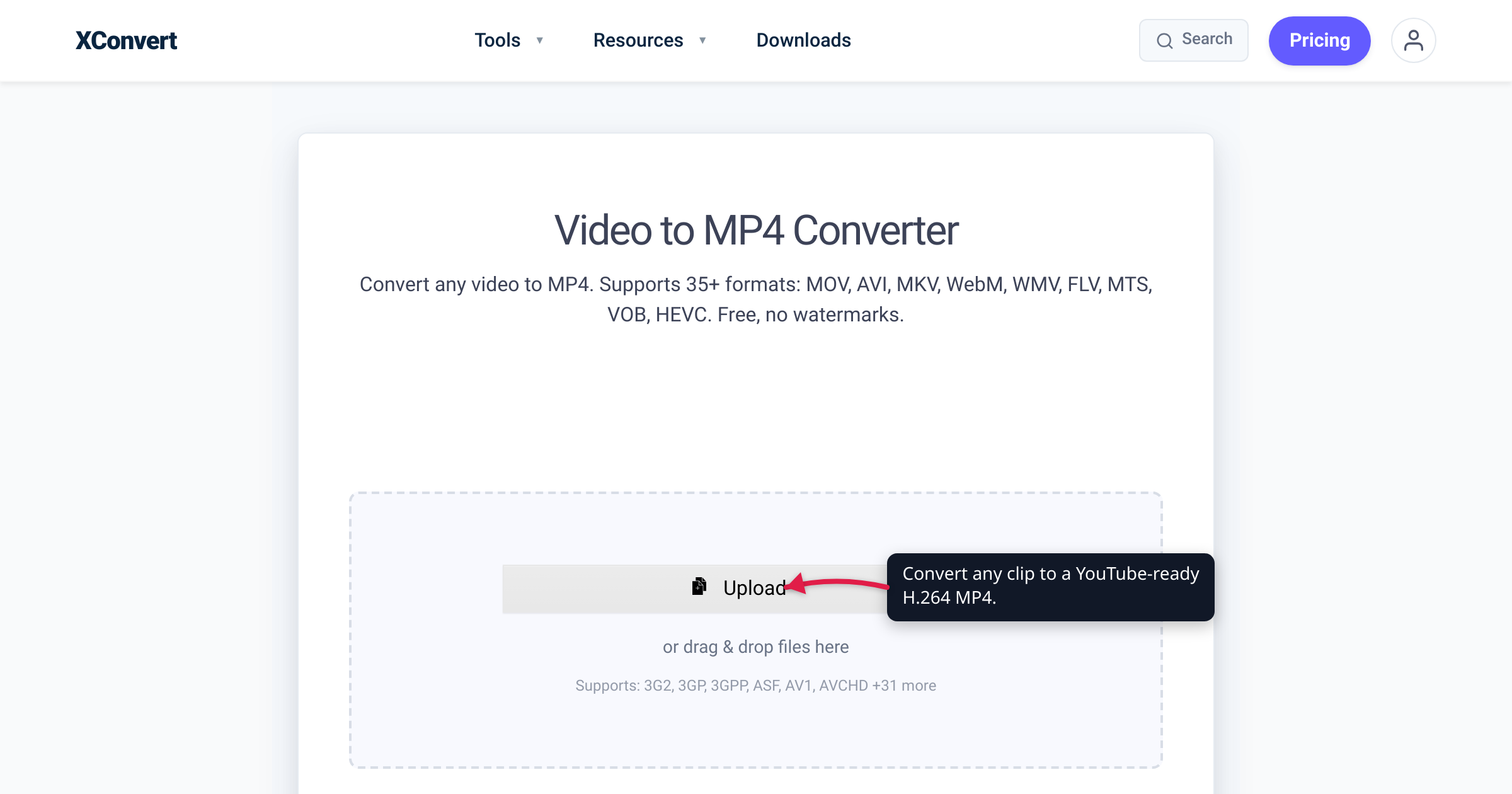
You exported a clip, uploaded it to YouTube, and it came out softer than the file on your desktop. The reassuring part is that YouTube tells you exactly what it wants: an official “recommended upload encoding settings” page that removes almost every avoidable quality problem. The short version is boring in the best way — MP4, H.264 video, AAC-LC audio — then a specific bitrate for your resolution. This guide is that recipe, pulled straight from YouTube’s own help doc and cited number-for-number, plus the thing most creators miss: YouTube re-encodes everything you upload, so your job is to hand it the cleanest possible source.
Quick answer: Upload MP4 (moov atom at the front, “Fast Start”) with H.264 video (High Profile, progressive scan) and AAC-LC audio at a 48 kHz sample rate — the combination on YouTube’s Recommended upload encoding settings page. For SDR at standard frame rate (24/25/30 fps), YouTube’s recommended video bitrates are 8 Mbps at 1080p, 5 Mbps at 720p, and 35–45 Mbps at 4K; high frame rate (48/50/60 fps) is about 1.5× those. Keep the aspect ratio 16:9 and upload at your native resolution and frame rate. YouTube then transcodes your file to VP9/AV1 for delivery — which is exactly why a high-quality H.264 upload matters.
Jump to a section
- The recommended recipe: MP4, H.264, AAC-LC
- YouTube’s recommended bitrate ladder
- Resolution, aspect ratio, and frame rate
- Why it matters: YouTube re-encodes every upload
- Convert your video to a YouTube-ready MP4
- FAQ
The recommended recipe: MP4, H.264, AAC-LC
A video file has two layers: the container (the .mp4/.mov/.mkv wrapper) and the codecs inside it (a video codec like H.264 and an audio codec like AAC). YouTube’s Recommended upload encoding settings page specifies both, and the whole list is short:
| Setting | YouTube’s recommendation |
|---|---|
| Container | MP4, with the moov atom at the front of the file (Fast Start) |
| Video codec | H.264, High Profile, progressive scan (no interlacing) |
| Encoding detail | 2 consecutive B frames, CABAC, closed GOP — a GOP of half the frame rate |
| Chroma subsampling | 4:2:0 |
| Bitrate mode | Variable bitrate (no hard bitrate limit; the numbers below are recommended for reference) |
| Audio codec | AAC-LC |
| Audio sample rate | 48 kHz |
| Audio channels | Stereo or Stereo + 5.1 |
| Audio bitrate | Mono 128 kbps · Stereo 384 kbps · 5.1 512 kbps |
| Aspect ratio | 16:9 (the standard for YouTube on a computer) |
Every value in that table is quoted from YouTube’s own help page (linked at the end). A few things worth calling out:
- MP4 over everything else. YouTube lists MP4/H.264 first and processes it most predictably. If your source is
.mov,.mkv,.webm,.avi, or HEVC/H.265, converting to MP4/H.264 first removes the format as a variable. - “Fast Start” matters. Moving the moov atom to the front of the file lets a player start reading before the whole file arrives; a good MP4 converter sets it for you.
- H.264, not H.265, for the upload. H.264 is YouTube’s recommended video codec. HEVC buys smaller files but adds friction with no delivery benefit here, because YouTube re-encodes anyway (see below). Weighing the two elsewhere? See H.264 vs H.265: which to use.
YouTube’s recommended bitrate ladder
Bitrate is the single biggest lever on how your video looks after upload. YouTube publishes a recommended bitrate for each resolution, split by SDR vs HDR and by standard (24/25/30 fps) vs high (48/50/60 fps) frame rate. Here is the SDR ladder — the one that applies to almost every ordinary upload:
| Resolution | Standard frame rate (24/25/30) | High frame rate (48/50/60) |
|---|---|---|
| 2160p (4K) | 35–45 Mbps | 53–68 Mbps |
| 1440p (2K) | 16 Mbps | 24 Mbps |
| 1080p | 8 Mbps | 12 Mbps |
| 720p | 5 Mbps | 7.5 Mbps |
| 480p | 2.5 Mbps | 4 Mbps |
| 360p | 1 Mbps | 1.5 Mbps |
(All figures from YouTube’s Recommended upload encoding settings page.)
If you shoot in HDR, YouTube lists higher targets — for example 44–56 Mbps at 4K and 10 Mbps at 1080p for standard frame rate, scaling up again for 60 fps. And note the frame-rate column: a 60 fps clip needs roughly 1.5× the bitrate of the same resolution at 30 fps, because there are twice as many frames to describe.
A practical, honest caveat: YouTube frames these as recommended reference bitrates and says variable bitrate with “no bitrate limit required.” Because YouTube then re-encodes your file (next section), many creators export somewhat above the recommended figure — say 10–12 Mbps for 1080p30 instead of exactly 8 — to give the transcoder more headroom. That’s a common-practice margin, not a YouTube-published number, so treat it as a rule of thumb. The published figures are the floor to clear; going under them is what makes footage look soft.
Resolution, aspect ratio, and frame rate
Three quick rules, all from the same YouTube guidance:
- Upload at your native resolution. Don’t downscale a 4K master to 1080p to “save time” — YouTube generates the lower-resolution versions itself, and giving it the highest-resolution source produces the best ladder. The standard aspect ratio is 16:9; if you shot vertical or square, YouTube pads or fits it, but 16:9 is what its player is built around.
- Upload at your native frame rate. Common accepted rates are 24, 25, 30, 48, 50, and 60 fps. Don’t conform 24 fps footage up to 30 — it adds duplicate frames and bitrate without adding any real motion. Match what you shot.
- Deinterlace first. Interlaced content (older camcorder
1080ifootage, for instance) should be deinterlaced before uploading and delivered as progressive scan.
The recurring theme: give YouTube a clean, high-resolution, progressive file and let it downscale. Anything you degrade before upload, you can’t get back.
Why it matters: YouTube re-encodes every upload
Here’s the part that reframes the whole recipe. YouTube does not serve viewers your uploaded file — it transcodes every upload into its own delivery codecs and streams those. YouTube’s help page states plainly that “to view new 4K uploads in 4K, use a browser or device that supports VP9” — a direct tell that your H.264 upload is re-encoded to VP9 for delivery. For popular content, YouTube also encodes to AV1, the newer royalty-free codec it helped develop (per Bitmovin’s codec analysis).
That single fact explains the entire strategy:
- Your upload is a source, not the final stream. Viewers see a VP9 or AV1 re-encode of whatever you gave YouTube. Every generation of compression loses detail, so the quality people watch is capped by the source you hand over.
- That’s why you upload high-bitrate H.264 even though it isn’t the delivery codec. You’re not optimizing viewer bandwidth — YouTube handles that. You’re maximizing the fidelity of the source its encoder works from. A clean, above-floor H.264 MP4 gives the transcoder room to work; a heavily-compressed upload bakes in artifacts the re-encode then preserves.
- It’s also why an HEVC or VP9 upload gains you nothing. YouTube re-encodes regardless, so an “efficient” upload codec never reaches the viewer and only adds friction. (Choosing a delivery codec for your own site instead? That’s a different question — see MP4 vs WebM for web video.)
So “best format for YouTube” really means “best source format for YouTube’s encoder,” and the answer is a high-quality MP4/H.264 file that matches the recipe above.
Convert your video to a YouTube-ready MP4
If your clip is already MP4/H.264 at a healthy bitrate, it’s ready — upload it. If it’s .mov, .mkv, .webm, .avi, HEVC, or you just want a clean H.264 MP4 that matches YouTube’s recipe, xconvert’s Video to MP4 converter outputs exactly that: H.264 in an MP4 container with AAC audio.
- Open the Video to MP4 converter and click Upload to add your clip (you can also drag-and-drop, or use From my Computer, From Google Drive, or From Dropbox).
- The output is fixed to H.264 MP4 with AAC — already YouTube’s recommended container and codecs, so there’s nothing to change for a compatible file.
- To control quality, open Advanced Options (the gear). Under File Compression you can pick Quality Preset (leave it at Very High (Recommended) to preserve source quality for YouTube), or use Specific file size, Constant Bitrate, Variable Bitrate, or Constant Quality if you want to target a bitrate from the ladder above.
- Under resolution, choose Keep original to hand YouTube your native resolution (recommended), or pick a Preset Resolution if you deliberately want a smaller output.
- Leave trimming at Unchanged, or use Time Range to cut to just the part you want.
- Convert, download the MP4, and upload it to YouTube.
Your file uploads over an encrypted connection, is processed on our servers and deleted automatically a few hours later. Nothing stays around.
FAQ
What is the best video format for YouTube?
MP4 with H.264 video and AAC-LC audio — the container and codecs on YouTube’s official Recommended upload encoding settings page. Add a 48 kHz audio sample rate, 16:9 aspect ratio, and the moov atom at the front of the file (Fast Start). If your source is .mov, .mkv, .webm, .avi, or HEVC, convert it to MP4/H.264 first so the format is never the problem.
What bitrate should I upload to YouTube at?
Use YouTube’s recommended bitrate for your resolution and frame rate. For SDR at 24–30 fps, that’s 8 Mbps at 1080p, 5 Mbps at 720p, 16 Mbps at 1440p, and 35–45 Mbps at 4K; 60 fps is about 1.5× those (e.g., 12 Mbps at 1080p60). These are recommended reference figures with no hard limit — because YouTube re-encodes your upload, exporting a little above the floor is common practice to give its transcoder headroom.
Why does my video look blurry or worse after uploading to YouTube?
Because YouTube re-encodes every upload into its own delivery codecs (VP9, and AV1 for popular videos), and each compression pass can soften detail — worst on high-motion or low-light footage. The fix is to upload a high-quality source: match or exceed YouTube’s recommended bitrate for your resolution, upload at native resolution, and use MP4/H.264. You can’t recover quality YouTube’s re-encode discards if the source was already compressed hard.
Should I upload in H.265 (HEVC) or VP9 to get better quality?
No. YouTube’s recommended upload codec is H.264, and it re-encodes your file to VP9/AV1 for delivery regardless of what you upload — so an “efficient” upload codec never reaches the viewer and only adds processing friction. Upload a clean, high-bitrate H.264 MP4. (H.265 is worth it for storage or Apple-ecosystem sharing, not for YouTube uploads — see H.264 vs H.265.)
What resolution and frame rate should I upload?
Upload at your native resolution and frame rate — don’t downscale or change the frame rate before uploading. YouTube generates the lower-resolution versions itself, so the highest-resolution source gives the best result. Accepted frame rates include 24, 25, 30, 48, 50, and 60 fps, and interlaced footage should be deinterlaced to progressive scan first. Keep the aspect ratio 16:9.
Does converting to MP4 reduce my video’s quality?
Not if you keep the quality high — changing the container/codec to MP4/H.264 is about compatibility, and at a Very High quality preset the visible loss is minimal. Quality only drops if you deliberately lower the bitrate, resolution, or quality setting. For a YouTube upload you generally want to preserve quality, so keep the preset high rather than targeting a small file size.
Sources
Last verified 2026-07-16.
- YouTube Help — Recommended upload encoding settings — the primary source for every setting cited here: container MP4 with Fast Start, H.264 High Profile / progressive / CABAC / 2 B-frames / closed GOP (half frame rate) / 4:2:0, AAC-LC audio at 48 kHz, the audio bitrate ladder (128/384/512 kbps), the SDR and HDR video bitrate ladders by resolution and frame rate, accepted frame rates, 16:9 aspect ratio, and the “use a browser or device that supports VP9” note for viewing new 4K uploads.
- Bitmovin — codec analysis (AV1/VP9) — corroborates that YouTube delivers AV1 for high-resolution versions of popular content and VP9 for other 4K content (the delivery-transcode point).
- xconvert — Video to MP4 converter — the tool used in the walkthrough; verified live to output H.264 in an MP4 container with AAC audio, with an “Upload” hero button and Advanced Options (Quality Preset, Specific file size, Constant/Variable Bitrate, Constant Quality, resolution presets).