 By Stephanie Taylor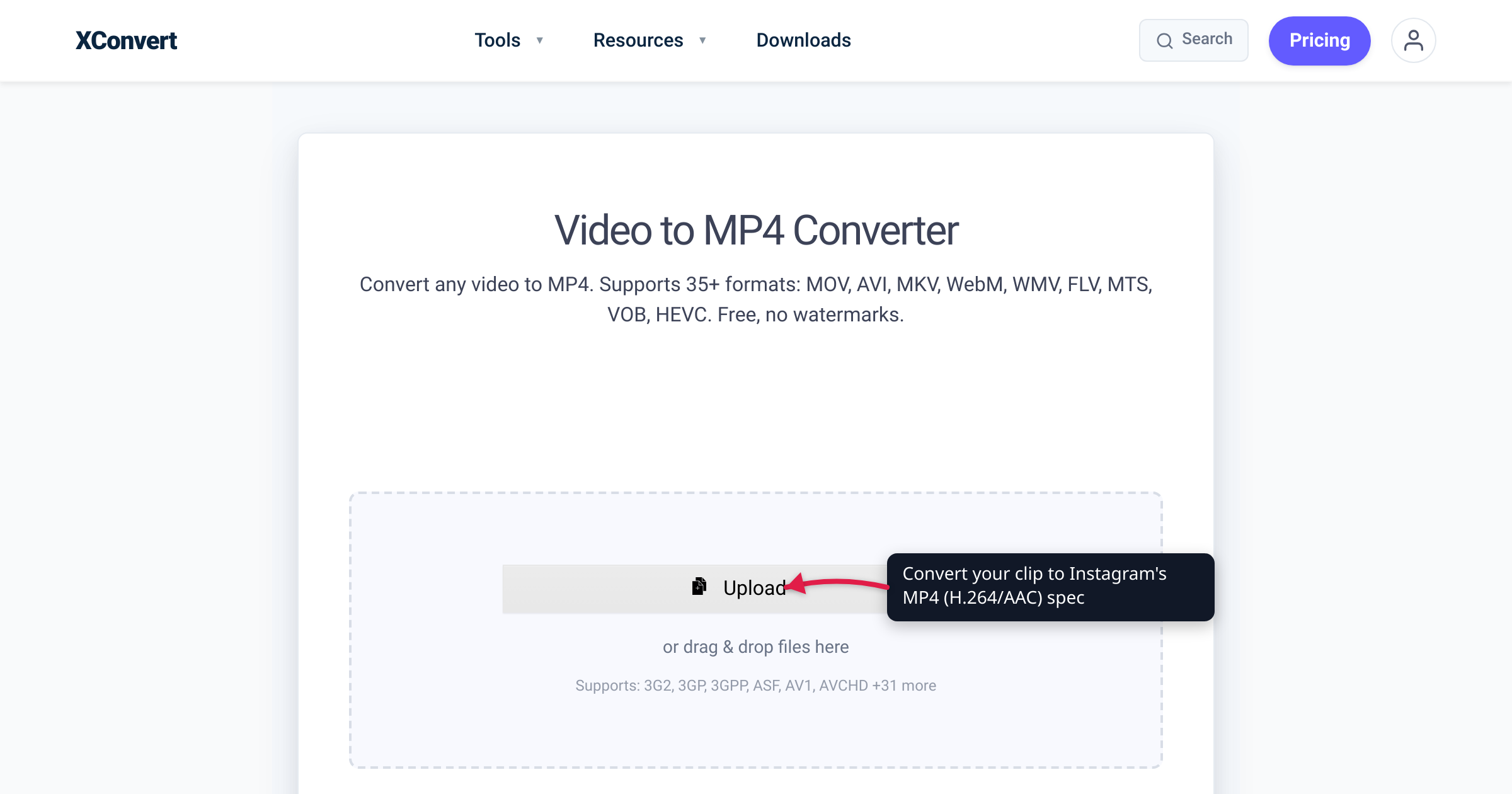
You export a crisp 1080p reel, upload it, and Instagram hands it back soft, blocky, and darker than you shot it. That’s not your camera or your export — Instagram re-encodes every video you upload, transcoding it into its own delivery format before a single viewer sees it. You can’t switch that off. What you can control is how much quality survives it: give Instagram a file that already matches the spec it’s re-encoding toward, and its pass has almost nothing left to degrade. This guide covers that spec — container, codec, resolution, aspect ratio, frame rate, and bitrate — with every number checked against Meta’s own developer and Business Help documentation.
Quick answer: Upload MP4 with H.264 video and AAC audio. Use 9:16 at 1080 × 1920 for Reels and Stories, and 4:5 portrait (1080 × 1350) or 1:1 square (1080 × 1080) for the Feed. Keep a constant frame rate between 23 and 60 fps (30 fps is the common default) and export at a high bitrate. Instagram also accepts HEVC and .mov, but H.264/MP4 plays everywhere and gives Instagram’s re-encoder the cleanest starting point. Because Instagram re-compresses everything, matching its target spec is what keeps your video sharp.
Jump to a section
- Why Instagram re-encodes every video you upload
- The format that survives: MP4 (H.264 + AAC)
- Resolution and aspect ratio for Reels, Stories, and Feed
- Frame rate, bitrate, and length
- Instagram video settings quick reference
- Convert your video to Instagram’s MP4 spec
- FAQ
Why Instagram re-encodes every video you upload
Instagram never serves your original file. On upload it processes and transcodes your video into standardized renditions it can stream efficiently to phones across every connection speed — a step that happens whether your file was perfect or not. Instagram’s own Help Center documents the still-image half of this behavior plainly: if you share a photo wider than 1080 pixels, Instagram “sizes it down to a width of 1080 pixels,” and if the aspect ratio isn’t supported, it is “cropped to fit a supported ratio.” Video gets the same resize-and-crop logic plus a full re-encode.
You can’t turn the transcode off — but every mismatch you hand Instagram (a 4K frame it has to shrink, an odd aspect ratio it has to crop, a variable frame rate it has to normalize, a codec it has to convert) is extra degradation its pipeline applies with no quality knob you control. So the winning move is to remove every reason for it to look bad: upload at the exact resolution and aspect ratio Instagram targets, in the codec it re-encodes from most cleanly (H.264), at a bitrate high enough that its compression is the only meaningful one. A file that already matches the destination spec loses far less than one Instagram has to resize, re-wrap, and squeeze.
The format that survives: MP4 (H.264 + AAC)
A video file has two layers: the container (the wrapper — .mp4, .mov, .mkv) and the codecs inside it (a video codec such as H.264, an audio codec such as AAC). Meta’s content-publishing specifications for Instagram list the accepted container as “MOV or MP4 (MPEG-4 Part 14)”, the video codec as “HEVC or H264, progressive scan, closed GOP, 4:2:0 chroma subsampling”, and audio as “AAC, 48khz sample rate maximum, 1 or 2 channels (mono or stereo).” Meta’s Instagram Reels ad spec is even more explicit about the ideal encode: “H.264 compression, square pixels, fixed frame rate, progressive scan and stereo AAC audio compression at 128kbps+.”
So Instagram accepts both HEVC (H.265) and H.264, in either MP4 or MOV. For an upload that has to just work and re-encode cleanly, choose MP4 + H.264 + AAC:
- H.264 (AVC) decodes in hardware on essentially every phone, laptop, and browser in use, and it’s the codec Meta names first in its own reels guidance. Instagram’s re-encoder handles it predictably.
- MP4 is the universal container — no edit-list or
moov-atom surprises (Meta explicitly wants “no edit lists, moov atom at the front of the file”). - HEVC /
.mov— the iPhone Camera default — is accepted, but HEVC-to-Instagram re-encoding is less predictable, and HEVC playback still isn’t guaranteed everywhere off-platform. Converting to H.264 first removes that variable. (If you’re weighing the two, see MOV vs MP4 for iPhone video.)
If your clip is already MP4/H.264/AAC, the format is done — your only job is dimensions and bitrate. If it’s .mov, HEVC, .mkv, .avi, or anything exotic, convert to MP4/H.264 first to take the codec variable off the table entirely.
Resolution and aspect ratio for Reels, Stories, and Feed
Instagram isn’t one canvas — it’s three surfaces with different shapes, and uploading the wrong shape is what triggers the crop-and-bar treatment.
Reels and Stories — vertical 9:16. Meta’s specs recommend a 9:16 aspect ratio (its documentation says the aspect ratio can range widely “but we recommend 9:16”) and cap the frame at 1920 pixels on the long edge. That makes 1080 × 1920 the standard, widely-supported target — and conveniently, it’s what most modern phones already shoot vertically. Meta’s reels ad guide lists an even higher 1440 × 2560 option, but 1080 × 1920 is the sweet spot for size-versus-quality and re-encodes cleanly.
Feed — square or portrait. Instagram’s Help Center states that a feed post keeps its original resolution at a width of 1080 pixels as long as the aspect ratio is “between 1.91:1 and 4:5 (a height between 566 and 1350 pixels with a width of 1080 pixels).” In practice, for feed video that means:
- 4:5 portrait — 1080 × 1350 — the tallest allowed, so it fills the most screen in the feed.
- 1:1 square — 1080 × 1080 — the classic feed shape.
- 1.91:1 landscape — 1080 × 566 — the widest allowed; anything wider gets letterboxed or cropped.
(That pixel table is published for images; feed video uses the same aspect-ratio bounds, but Instagram doesn’t publish a separate per-ratio pixel table for feed video.)
| Surface | Recommended aspect ratio | Resolution | Notes |
|---|---|---|---|
| Reels | 9:16 | 1080 × 1920 | Vertical full-screen |
| Stories | 9:16 | 1080 × 1920 | 60 seconds maximum per card (per Meta) |
| Feed (portrait) | 4:5 | 1080 × 1350 | Most screen real estate |
| Feed (square) | 1:1 | 1080 × 1080 | Classic feed shape |
| Feed (landscape) | up to 1.91:1 | 1080 × 566 | Widest before cropping |
Export at the exact target dimensions for the surface you’re posting to — then Instagram’s re-encode, not a forced resize or crop, is the only thing touching your pixels.
Frame rate, bitrate, and length
Frame rate. Meta’s specs accept 23–60 FPS, and the reels ad spec asks specifically for a “fixed frame rate” — i.e. constant (CFR), not variable. Match your source’s native rate within that band: 30 fps is the conventional choice for talking-head and standard content, 60 fps for fast motion, sports, or gameplay. Keep it constant — variable frame rate (common from screen recorders and some phone modes) can cause audio to drift out of sync once Instagram re-encodes.
Bitrate. Instagram doesn’t publish a target video bitrate for organic uploads, so treat any exact “recommended Mbps” you see elsewhere with suspicion. The only bitrate figure in Meta’s own specs is the audio floor — “stereo AAC audio compression at 128kbps+.” For video the goal is simply to be high enough that Instagram’s re-encode, not your export, is the quality bottleneck. A commonly cited safe range for 1080p is roughly 5–10 Mbps (Instagram doesn’t publish an exact number); much higher mostly wastes upload because Instagram re-compresses anyway, and too low bakes in artifacts before Instagram even touches the file.
Length and file size. These vary by surface. Meta’s specs put Stories at “60 seconds maximum” per card and list Reels up to 15 minutes in its content-publishing and ad specs, though the in-app reel recorder has commonly been capped around 3 minutes — a limit Instagram has changed over time, so treat 3 minutes as a moving target, not a fixed law. Meta’s ad specs document a 4 GB maximum file size for Instagram video; Instagram doesn’t publish a single organic in-app byte cap, so on most uploads the length limit binds before file size does. If a clip is genuinely too big for a channel with a hard cap — emailing it to a collaborator, say — compress it to a target size first.
Instagram video settings quick reference
| Setting | Recommended | Backed by |
|---|---|---|
| Container | MP4 (MOV also accepted) | Meta content-publishing specs |
| Video codec | H.264 (HEVC also accepted) | Meta content-publishing / reels ad spec |
| Audio codec | AAC, 48 kHz, stereo, 128 kbps+ | Meta content-publishing / reels ad spec |
| Reels & Stories | 9:16, 1080 × 1920 | Meta (recommends 9:16) |
| Feed portrait | 4:5, 1080 × 1350 | Instagram Help Center |
| Feed square | 1:1, 1080 × 1080 | Instagram Help Center |
| Frame rate | Constant 23–60 fps (30 common) | Meta (23–60 FPS; “fixed frame rate”) |
| Video bitrate | High (~5–10 Mbps at 1080p) | Not published by Instagram — hedge |
| Max file size | 4 GB | Meta ad specs |
Convert your video to Instagram’s MP4 spec
If your clip is the wrong codec (HEVC/.mov), the wrong container (.mkv, .avi), or the wrong size, re-encode it to a clean Instagram-ready MP4 first so Instagram’s own pass has the least possible to spoil. The xconvert Video to MP4 Converter outputs MP4 with H.264 video and AAC audio — exactly the combination above.
- Open the Video to MP4 Converter and click Upload to add your clip (or pull it from Google Drive or Dropbox). The output is fixed to MP4 (H.264 + AAC).
- Open Advanced Options (the gear). Under Video resolution, choose a Preset Resolution or set Width x Height to match your surface: 1080 × 1920 for Reels/Stories, 1080 × 1350 for a 4:5 feed post, or 1080 × 1080 for square.
- Under File Compression, keep the Quality Preset on Very High (Recommended) to hand Instagram a high-bitrate master — or switch to Specific file size if a channel needs the file under a hard cap, or Constant Quality to fix a quality level directly.
- (Optional) Use Trim → Time Range to cut to just the segment you want — for example, a single 60-second Story card.
- Click Convert, then download your Instagram-ready MP4 and upload it in the app.
Your file uploads over an encrypted connection, is processed on our servers and deleted automatically a few hours later.
FAQ
What is the best video format for Instagram?
MP4 with H.264 video and AAC audio. Meta’s own content-publishing specs accept MOV or MP4 containers with H.264 or HEVC video and AAC audio — and MP4/H.264/AAC is the combination that plays everywhere and re-encodes most predictably through Instagram’s pipeline. If your file is already MP4/H.264, you only need to check dimensions and bitrate. If it’s .mov, HEVC, .mkv, or .avi, convert to MP4/H.264 first.
What resolution and aspect ratio should Instagram Reels be?
9:16 aspect ratio at 1080 × 1920 pixels. Meta’s specs recommend 9:16 for reels and cap the frame at 1920 pixels on the long edge, so 1080 × 1920 is the standard, widely-supported target — and it matches what most phones shoot vertically. Stories use the same 9:16 / 1080 × 1920. For the Feed, use 4:5 portrait (1080 × 1350) or 1:1 square (1080 × 1080) instead.
Why does Instagram lower the quality of my videos?
Because Instagram re-encodes every upload into its own delivery format, and it also downsizes and crops anything that doesn’t match a supported size — its Help Center says it “sizes it down to a width of 1080 pixels” and crops unsupported aspect ratios. You can’t disable that, but you can minimize its damage by uploading at Instagram’s exact target resolution and aspect ratio, in H.264, at a high bitrate — so its re-encode is the only compression your video sees.
What frame rate does Instagram support?
23 to 60 fps, per Meta’s specs, and it should be a constant (fixed) frame rate — the reels ad spec explicitly calls for a “fixed frame rate.” 30 fps is the common default for standard content; 60 fps suits fast motion or gameplay. Avoid variable frame rate (VFR), which some screen recorders produce, because it can cause audio sync drift after Instagram re-encodes.
What is the maximum video length and file size for Instagram?
It varies by surface, and Instagram doesn’t publish one universal figure. Meta’s specs list Stories at 60 seconds maximum per card and Reels up to 15 minutes (the in-app recorder has commonly been around 3 minutes, which Instagram has changed over time). Meta’s ad specs document a 4 GB maximum file size for Instagram video; there’s no separately published organic byte cap, so length is usually the binding limit, not size.
Should I upload 4K video to Instagram?
There’s little benefit. Meta’s specs cap the frame at 1920 pixels on the long edge, so a 4K upload is downscaled to roughly 1080p on the way in — and a bigger file just spends more upload only to be re-compressed to the same target. Export at 1080 × 1920 (Reels/Stories) or the matching feed size at a high bitrate instead; you get the same on-platform result with a cleaner, faster upload.
Sources
Last verified 2026-07-16.
- Meta for Developers — Instagram Platform, Media reference (content-publishing specs) — accepted container (MOV/MP4, MPEG-4 Part 14), video codec (HEVC/H264, progressive scan, closed GOP, 4:2:0), audio (AAC, 48 kHz, mono/stereo), frame rate (23–60 FPS), aspect ratio recommendation (9:16), and Stories “60 seconds maximum.”
- Meta Business — Instagram Reels video ad specs — “H.264 compression, square pixels, fixed frame rate, progressive scan and stereo AAC audio compression at 128kbps+,” 9:16, and 4 GB maximum file size.
- Meta Business — Instagram Feed video ad specs — MP4/MOV file type, 1080 × 1920 resolution, and 4 GB maximum file size.
- Instagram Help Center — Image resolution of photos you share on Instagram — feed aspect-ratio bounds (“between 1.91:1 and 4:5,” height 566–1350 px at 1080 px wide) and the resize/crop behavior (“sizes it down to a width of 1080 pixels”).
- Instagram Help Center — Reel size & aspect ratios on Instagram — Instagram’s own reel size and aspect-ratio guidance (9:16).