 By Stephanie Taylor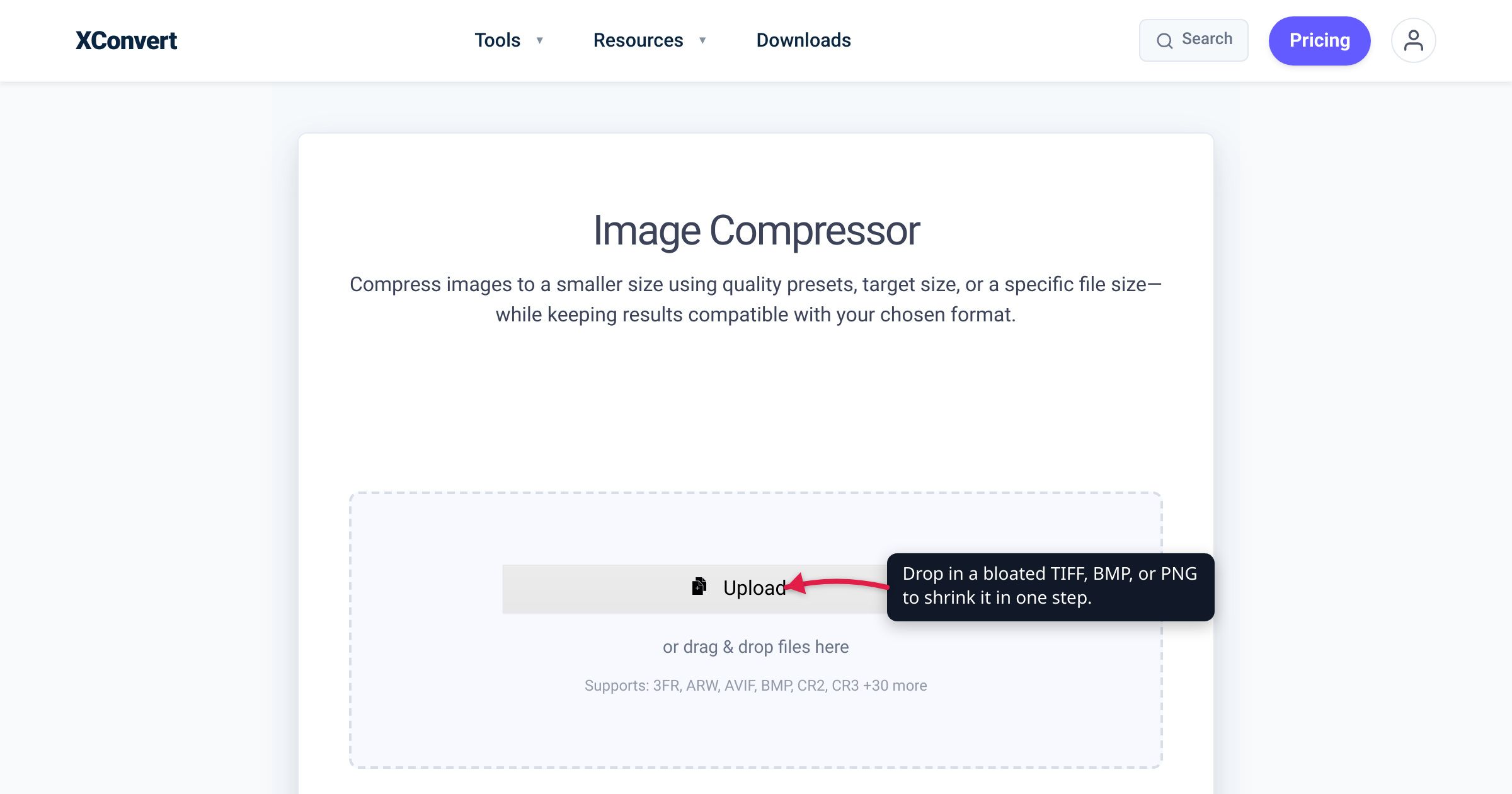
Your cloud drive flashes “storage almost full,” or a folder you meant to email turns out to be three times the attachment limit. Before you pay for more space, it’s worth knowing that a handful of file types are responsible for most of the waste — and that they shrink dramatically not because a compressor is doing anything magical, but because the format was a poor fit for what it was holding. This guide ranks the worst offenders using xconvert’s own production data (a 30-day sample of real conversions), explains why each one is bloated, and points every format at the right one-click fix. Every format fact below is checked against the Library of Congress, the W3C, and MDN.
Quick answer: The biggest storage wasters are formats that store data raw or keep more detail than the content needs. In xconvert’s production data (30-day sample), TIFF shrinks the most — a median ~85% — followed by scan-heavy PDFs (~72%) and PNGs used for photos or screenshots (~67%). A large reduction means the original format was inefficient for that content (uncompressed, lossless, or over-bitrate), so most of its bytes were removable weight. The lasting fix is usually to move each file to a format built for its job: TIFF/BMP → PNG or JPG, WAV → FLAC or MP3, GIF → MP4 — or simply re-compress scans and over-bitrate video in place.
Jump to a section
- How to read these numbers
- The file types wasting the most storage, ranked
- Uncompressed by design: TIFF, BMP, and WAV
- Lossless or outdated: PNG and GIF
- Right format, wrong settings: scanned PDFs and over-bitrate MP4
- How to shrink any of these on xconvert
- FAQ
How to read these numbers
Each percentage below is a median size reduction measured across real files of that type run through xconvert over a 30-day window. Read it as a “how much removable weight was this file carrying?” score, not as a rating of the tool.
That distinction matters: a big reduction is a signal about the source format, not the compressor. A TIFF drops ~85% because it stored the page as raw pixels — enormous slack to remove — while files that are already efficient (a JPEG, an MP3, an H.265 video at a sane bitrate) barely move, because there’s little left to squeeze. A small reduction isn’t a worse result; it’s an already-lean file.
Nearly every entry here is bloated for one of three reasons, which is how the fixes below are grouped:
- Uncompressed by design (TIFF, BMP, WAV) — the format stores raw samples with no compression assumed.
- Lossless or outdated (PNG, GIF) — the format preserves more than the content needs, or uses a dated, inefficient scheme.
- Right format, wrong settings (scanned PDFs, over-bitrate MP4) — an efficient format bloated by its content (a page stored as a photo) or settings (a needlessly high bitrate).
The file types wasting the most storage, ranked
Ranked by how much the median file shrinks — the higher the number, the more slack the format was carrying:
| Rank | File type | Why it’s bloated | Median size cut* | Where to shrink it |
|---|---|---|---|---|
| 1 | TIFF | Raster wrapper, usually uncompressed or lossless LZW; built for archival quality | ~85% | TIFF Compressor · or convert to PNG/JPG |
| 2 | Scan-heavy PDF | Each page is a full-resolution raster image, often barely compressed | ~72% | PDF Compressor |
| 3 | PNG (photos/screenshots) | Lossless — keeps every pixel exactly, even when the eye can’t tell | ~67% | PNG Compressor · or convert photos to JPG/WebP |
| 4 | GIF | 256-color palette + dated LZW animation, far heavier than modern video | ~58% | Video Compressor · or convert to MP4 |
| 5 | BMP | Uncompressed raster bitmap | ~57% | Image Compressor · or convert to PNG |
| 6 | WAV | Uncompressed PCM audio | ~50% | Audio Compressor · or convert to FLAC/MP3 |
| 7 | Over-bitrate MP4 | Efficient format, but the bitrate was set higher than the content needs | ~46% | Video Compressor (re-encode) |
*Median size reduction, xconvert production data (30-day sample). Your own result depends on the original file’s settings and content — an already-efficient file will save less.
Uncompressed by design: TIFF, BMP, and WAV
These three formats share a root cause: they store their data raw. There’s no compression built into the typical file, so the byte count is close to the theoretical maximum — which is exactly why they top the “removable weight” chart.
TIFF — the #1 waster (~85% median reduction). TIFF is a tag-based wrapper for raster images, built for scans and print masters where quality is the priority (Library of Congress — TIFF, Revision 6.0). In practice most files carry no meaningful compression: MDN notes that “Most TIFF files are uncompressed, but lossless PackBits and LZW compression are supported, as is lossy JPEG compression” (MDN — Image file type and format guide). Great for an archive, wasteful for anything you just need to store or send. The fix depends on your goal: re-compress it in place with the TIFF Compressor (which offers a JPEG-style Compression Type and an Image Quality (%) you set), or — for lasting savings — convert it to PNG (still lossless, far smaller) or JPG (smallest) using the Image Compressor’s output-format dropdown.
BMP (~57%). BMP is the plainest case of all. As MDN warns, “The most common form of BMP file represents the data as an uncompressed raster image, resulting in large file sizes compared to png or jpg image types,” and the Library of Congress confirms that most BMP files have historically been stored uncompressed (Library of Congress — BMP, Version 5). There’s almost never a reason to keep a photo or screenshot as a BMP: run it through the Image Compressor and set the Image File Extension to PNG for an equivalent lossless image at a fraction of the size, or JPG if it’s a photo.
WAV (~50%). WAV is the audio equivalent. It’s a wrapper that nearly always carries uncompressed linear PCM — MDN’s container guide describes WAV as containing “uncompressed PCM audio, delivering the highest fidelity at the cost of larger file sizes,” and the Library of Congress documents WAVE as an audio wrapper whose common encoding is LPCM (Library of Congress — WAVE Audio File Format). Unless you’re mastering audio, that fidelity is invisible. Drop the file into the Audio Compressor and set the Audio File Extension to FLAC (lossless but smaller) or MP3 (biggest reduction).
Lossless or outdated: PNG and GIF
These formats aren’t storing raw data — they do compress — but they hold on to more than most content needs, or they use a scheme that modern formats have long outclassed.
PNG (~67%). PNG is a genuinely good format used for the wrong job. The W3C specification defines PNG as a format for “the lossless, portable, well-compressed storage of static and animated raster images,” with losslessness as an explicit design goal (W3C — PNG Specification, Third Edition). Lossless is perfect for screenshots, logos, and transparency — but for a photograph, keeping every exact pixel is wasteful, because the eye won’t miss what a lossy encoder discards. MDN’s advice: prefer PNG “for lossless and indexed still images,” while photographs “fare well with lossy compression,” making JPEG and WebP the better choice (MDN — Image file type and format guide). Keep graphics as PNG and shrink them with the PNG Compressor (its Colors reduction and Image Quality (%) do most of the work); if the “PNG” is really a photo, convert it to JPG or WebP.
GIF (~58%). GIF is the outdated one. Each pixel is an index into a palette of at most 256 colors — MDN describes GIF as using “8-bit indexed color” and the Lempel-Ziv-Welch (LZW) algorithm (MDN — Image file type and format guide). That was clever in 1987 but is wildly inefficient for anything beyond a tiny loop. The most effective fix is to stop using GIF for motion and convert to MP4 (H.264), purpose-built for it — we measured that swap in GIF vs MP4 file size. Do the conversion (or just re-compress the GIF) on the Video Compressor.
Right format, wrong settings: scanned PDFs and over-bitrate MP4
The last two aren’t inefficient formats at all. PDF and MP4 are both perfectly capable — they got fat because of what was put inside them or how they were exported.
Scan-heavy PDF (~72%). A typed PDF stores text as characters and stays tiny. A scanned PDF stores each page as a full-resolution raster image — a photo of the page — so it inherits an image’s bloat, multiplied by the page count and often with weak compression baked in. The full breakdown of DPI, color mode, and compression is in Why is my scanned PDF so big?. The fix isn’t to re-scan — it’s to re-compress the page images. The PDF Compressor downsamples and re-encodes them; pick the Screen (Best) or Ebook preset for the biggest reduction, or Printer/Prepress if you still need to print it cleanly.
Over-bitrate MP4 (~46%). MP4 with H.264 or H.265 is one of the most efficient formats there is — which is why it sits at the bottom of this list. Its ~46% median reduction isn’t the format being wasteful; it’s that exports, screen recordings, and phone captures often use a far higher bitrate than the footage needs. Re-encoding at a sensible target reclaims that excess without leaving an already-good format. On the Video Compressor, choose Target file size (%) or Specific file size to name an outcome, or Constant Quality (CRF) to let the encoder spend bits only where they matter; H.265/HEVC or AV1 squeeze further than H.264 at the same quality.
How to shrink any of these on xconvert
Every tool above is a free online converter — no account, no software to install. The flow is the same on all of them:
- Open the compressor that matches your file: the TIFF Compressor, PNG Compressor, Image Compressor (BMP and other image types), PDF Compressor, Video Compressor (MP4 or GIF), or Audio Compressor (WAV). Each page’s heading names the format, so you know you’re in the right place.
- Click Upload — or drag the file onto the drop zone — to add one or more files.
- Set your target. On the image, video, and audio tools, choose Target file size (%) to let xconvert pick a sensible size automatically, or Specific file size to enter an exact number. On the PDF Compressor, pick a preset instead — Screen (Best) or Ebook for the largest cut, Printer or Prepress to preserve print quality.
- For lasting savings, change the output format under the extension dropdown: set a TIFF or BMP to PNG or JPG, a WAV to FLAC or MP3 via Audio File Extension, or export a GIF as MP4. Open Advanced Options to fine-tune — for example Image Quality (%), the Compression Type on TIFF, Colors on PNG/GIF, or the codec and Constant Quality on video.
- Click the compress (or convert) button and download the result. Every file you upload is processed on our servers and deleted automatically a few hours later — there’s no watermark, and nothing is stored.
FAQ
Which file type wastes the most storage space?
In xconvert’s production data (30-day sample), TIFF shrinks the most — a median of about 85% — which makes it the biggest waster on a per-file basis. That’s because TIFF is typically stored uncompressed or with lossless LZW, so it carries far more removable weight than a format built for delivery. Scan-heavy PDFs (~72%) and PNGs used for photographs (~67%) come next.
Does a big compression percentage mean the tool is doing something magical?
No — and this is the key mental model. A large reduction means the original format was a poor fit for its content: it was storing raw samples (TIFF, BMP, WAV), keeping every exact pixel of a photo (PNG), or using more bitrate than needed (MP4). Most of those bytes were removable. A file that’s already efficiently encoded — a JPEG, an MP3 — will barely shrink, because there’s nothing left to remove.
Is it better to compress a file or convert it to a different format?
For uncompressed formats (TIFF, BMP, WAV), converting to a modern format usually gives the most lasting savings: TIFF/BMP → PNG or JPG, and WAV → FLAC (lossless) or MP3 (lossy). For an efficient format bloated by its content or settings (a scanned PDF, an over-bitrate MP4), re-compressing in place is normally enough — there’s no wasteful format to escape.
Why is my PNG so big when PNG is a “compressed” format?
Because PNG compression is lossless — by design it preserves every pixel exactly (W3C — PNG Specification). That’s ideal for screenshots, logos, and transparency, but wasteful for photographs, where a lossy format like JPEG or WebP throws away detail the eye can’t see and lands far smaller. Keep graphics as PNG; convert photos-as-PNG to JPG or WebP.
Are these percentages guaranteed for my files?
No. They’re medians from xconvert production data over a 30-day sample, so half of files did better and half did worse. Your result depends on the source file’s original settings and content — resolution, color mode, bitrate, and whether it was already compressed. Treat the numbers as a ranking of which formats to target first, not a promise.
Is it safe to upload these files to compress them?
Files are uploaded over an encrypted connection, processed on our servers, and deleted automatically a few hours later — there’s no account required and no watermark added. If a file is highly sensitive or you may need the original archival quality later, keep your own copy and compress a duplicate.
Sources
Last verified 2026-07-16.
- Library of Congress — TIFF, Revision 6.0 — TIFF as a tag-based wrapper for raster image bitstreams, commonly stored uncompressed or with lossless LZW, used for high-quality and archival images.
- Library of Congress — Bitmap Image File (BMP), Version 5 — BMP as a raster bitmap format; most BMP files have historically been stored uncompressed.
- Library of Congress — WAVE Audio File Format — WAVE as an audio wrapper whose common bitstream encoding is uncompressed LPCM.
- MDN — Image file type and format guide — “Most TIFF files are uncompressed”; BMP “uncompressed raster image, resulting in large file sizes”; GIF 8-bit indexed color (≤256) with LZW; PNG lossless and better than lossy formats only for non-photographic images.
- MDN — Media container formats — WAV “contains uncompressed PCM audio, delivering the highest fidelity at the cost of larger file sizes.”
- W3C — PNG Specification (Third Edition, 2025) — PNG defined as a format for “lossless, portable, well-compressed storage” of raster images, with losslessness as an explicit design goal.
- xconvert — Why is my scanned PDF so big? and GIF vs MP4 file size — deeper breakdowns of scanned-PDF bloat and the GIF-to-MP4 size win.
- xconvert production data (30-day sample) — median size reductions per format (internal measurement); the load-bearing percentages throughout this article.