 By James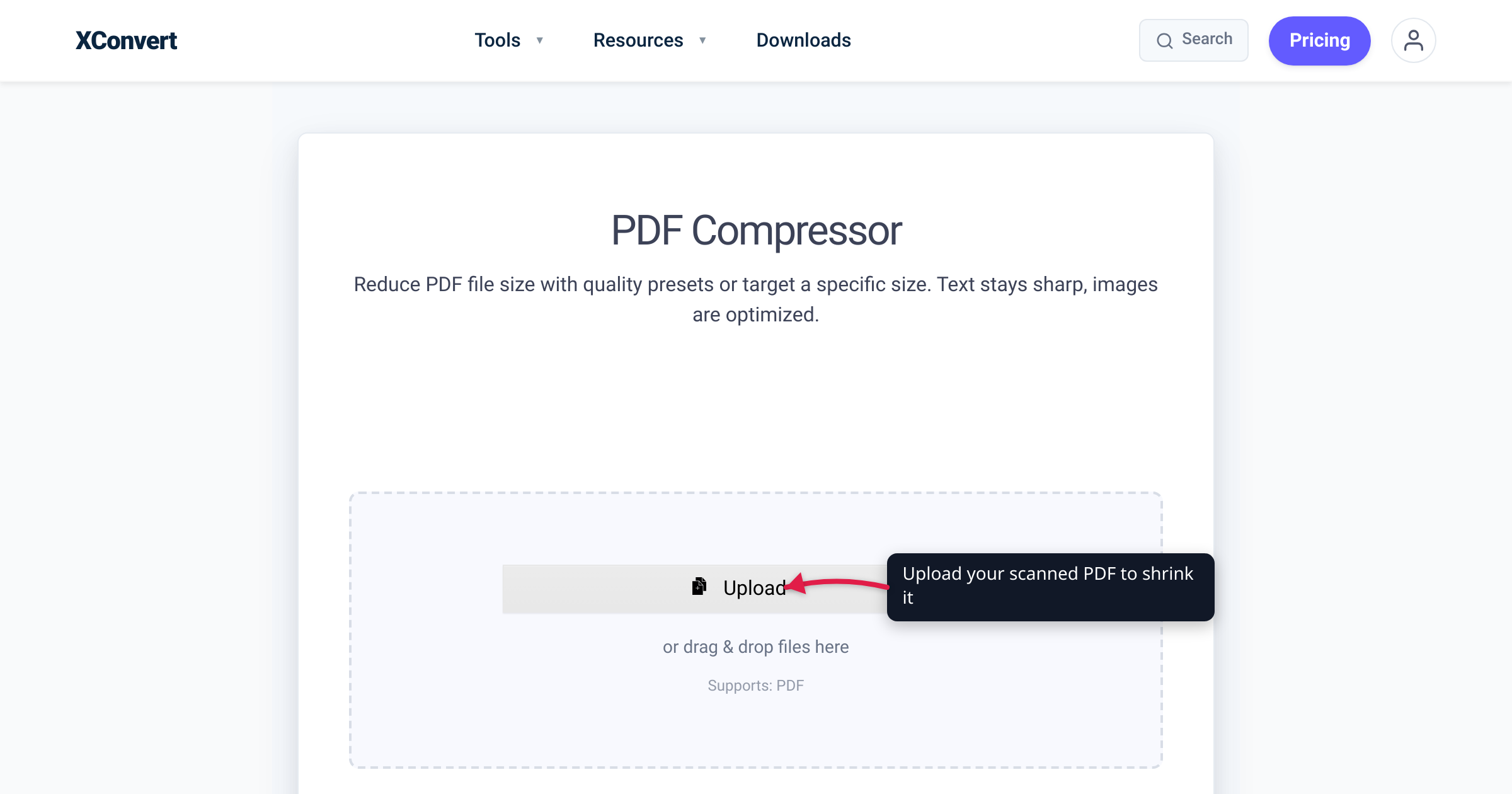
You scanned a five-page contract and ended up with a 40 MB PDF that bounces off your email provider’s attachment limit. The text would fit in a few kilobytes — but a scanned page isn’t text. It’s a photograph of a page, and a scanner that’s set to capture every fiber of the paper produces a photograph that’s huge. The size comes from four settings working together: the resolution (DPI) the scan was captured at, the color mode (color, grayscale, or black-and-white), whether the scanner applied any image compression, and whether the resolution was downsampled before saving. This guide explains how each one drives the byte count, how they multiply, and how to shrink an already-bloated scan.
Quick answer: A scanned PDF is big because each page is a full-resolution image, not text. File size is driven by pixel count × bit depth, so it scales with the square of the DPI (doubling DPI roughly quadruples size) and with the color mode: 24-bit color is about 3× grayscale, and 8-bit grayscale is about 8× 1-bit black-and-white. A 600-DPI color scan with weak or no image compression is the worst case. To shrink one, re-compress and downsample it with a tool like xconvert’s PDF Compressor — pick the Screen or Ebook preset for the biggest reduction.
Jump to a section
- Why a scanned page is an image, not text
- DPI: the squared term that dominates everything
- Color vs grayscale vs black-and-white
- Compression: the difference between 40 MB and 2 MB
- Downsampling: shrinking the resolution that’s already baked in
- How the four factors multiply: a worked diagnosis
- How to shrink a scanned PDF with xconvert
- FAQ
Why a scanned page is an image, not text
A PDF you type or export from a word processor stores text as characters plus font instructions. The whole page might be a few kilobytes regardless of how much text it holds, because the reader draws the letters from the font.
A scanned PDF is different. The scanner takes a picture of the physical page and embeds that picture — one raster image per page — inside the PDF wrapper. The PDF is really a folder of photographs with a thin container around them. Nothing in that file “knows” the page contains the word contract; it only knows the color of several million pixels. (Optical character recognition, or OCR, can add an invisible searchable text layer on top, but it does not remove the underlying image — the image is still what makes the file big.)
So the question “why is my scanned PDF so big?” is really “why is this image so big?” — and the answer is the standard formula for an uncompressed raster image:
image bytes ≈ width(px) × height(px) × bit depth ÷ 8Every setting that shrinks a scan works by reducing one of those terms: fewer pixels (lower DPI or downsampling), fewer bits per pixel (a simpler color mode), or by compressing the result so the stored bytes are far fewer than the raw formula predicts. Adobe’s documentation describes scanned pages in exactly these terms — resolution, color mode, and compression are the three knobs its scan settings expose (Adobe Acrobat — Scanned PDF settings).
DPI: the squared term that dominates everything
DPI (dots per inch — sometimes labeled PPI, pixels per inch, for the image itself) sets how many pixels the scanner captures per inch of paper. Because a page has two dimensions, DPI enters the size formula twice: doubling the DPI doubles both the width and the height in pixels, so it roughly quadruples the pixel count and therefore the raw size.
| Scan DPI | Approx. pixels for a US Letter page (8.5 × 11 in) | Relative raw size |
|---|---|---|
| 150 DPI | ~1,275 × 1,650 | 1× (baseline) |
| 300 DPI | ~2,550 × 3,300 | ~4× |
| 600 DPI | ~5,100 × 6,600 | ~16× |
A practical measurement bears this out: in one vendor’s test, the same document grew from about 2.7 MB at 100 DPI to roughly 11 MB at 200 DPI, and a 600-DPI capture reached nearly 99 MB — about 4× per DPI doubling (Dynamsoft — Size optimization of scanned documents).
The trap is that higher DPI is rarely necessary for documents. For ordinary text pages, archival and records-management guidance and Adobe both point to 300 DPI as the sweet spot — enough for clean reading and reliable OCR, without the size penalty of going higher. Adobe notes that for text recognition, 72 DPI is the floor and input above 600 DPI is downsampled anyway, and that “for most pages, black-and-white scanning at 300 DPI” gives text best suited to recognition (Adobe Acrobat — Scanned PDF settings). 600 DPI is meant for fine detail like photographs or fragile originals, not a printed memo. If your scanner shipped set to 600 DPI color “for quality,” that single default is often the biggest reason your files are huge.
Color vs grayscale vs black-and-white
The other multiplier in the formula is bit depth — how many bits each pixel uses to record its shade. Scanners typically offer three modes:
| Color mode | Bits per pixel | What it stores | Relative size |
|---|---|---|---|
| Black-and-white (bi-tonal) | 1 | Each pixel is purely black or white | 1× (smallest) |
| Grayscale | 8 | 256 shades of gray | ~8× the B&W size |
| Color (RGB) | 24 | ~16.7 million colors (8 bits each for R, G, B) | ~3× the grayscale size |
These ratios fall straight out of the bit-depth column (8 ÷ 1 = 8; 24 ÷ 8 = 3) and are confirmed by direct measurement — in Dynamsoft’s test the same page measured roughly 1.1 MB at 1-bit, 8.7 MB at 8-bit grayscale, and 26.2 MB at 24-bit color before compression (Dynamsoft — Size optimization of scanned documents).
The lesson: match the mode to the content. A page of black text on white paper carries no color or gray information worth keeping, so 1-bit black-and-white is both the smallest and a perfectly faithful representation. Scanning that same page in 24-bit color stores ~24× the raw data to record millions of colors that aren’t there. Reserve grayscale for pages with shading, signatures, or photographs in gray, and reserve full color for pages where the color genuinely matters (charts, photos, colored stamps). Many “why is this 40 MB” scans are plain text pages captured in color out of habit.
Compression: the difference between 40 MB and 2 MB
The raw byte counts above are before compression. Whether your scanner applied compression — and which kind — often matters more than DPI or color mode, because the right compression can shrink a page by 90% or more.
The catch is that some scanners and “save as PDF” paths embed each page as a lightly compressed or barely compressed image, so the file lands close to the raw size. That’s the classic bloated scan: one large image per page, no meaningful image compression. Adobe’s scan pipeline, by contrast, picks a compression scheme suited to the content (Adobe Acrobat — Scanned PDF settings):
| Content type | Compression Adobe recommends | Why |
|---|---|---|
| Color or grayscale pages | JPEG2000, JPEG, or ZIP | Lossy/lossless schemes built for continuous-tone images |
| Black-and-white / monotone pages | CCITT Group 4 (or JBIG2) | Designed specifically for bi-tonal text and line art |
| Mixed pages | Adaptive Compression | Splits the page into B&W, gray, and color regions and compresses each with the best scheme |
Compression is also where the modes compound: a black-and-white page compressed with CCITT Group 4 is tiny both because it’s 1-bit and because text and line art compress extremely well. A color photo can’t use CCITT and won’t compress nearly as far without visible loss. So “use black-and-white for text” helps twice — smaller raw data and far more effective compression.
If your existing PDF is huge, it almost certainly has weak or no image compression baked in. You don’t need to re-scan; you can re-compress it, which is what the PDF Compressor does.
Downsampling: shrinking the resolution that’s already baked in
What if the scan already exists at 600 DPI color and you can’t re-scan? Downsampling lowers the resolution of the embedded images after the fact by combining neighboring pixels into one — for example, turning a 600-DPI image into a 150-DPI one. Because resolution is the squared term, dropping from 600 to 150 DPI cuts the pixel count to roughly 1/16.
Adobe’s optimizer exposes several downsampling methods (average downsampling, subsampling, and bicubic downsampling) that trade speed against smoothness (Adobe Acrobat — Scanned PDF settings). A compression tool typically pairs downsampling with re-encoding: it downsamples the page images to a sensible screen or print resolution, then re-compresses them. The combination is what turns a 40 MB scan into a few megabytes. Downsampling is lossy — you can’t recover the discarded pixels — so keep the original if you might later need the full-resolution archival version.
How the four factors multiply: a worked diagnosis
The factors don’t add up — they multiply, which is why bloated scans get so extreme. Walk a problem file through them:
| Factor | “Bloated” setting | “Lean” setting | Approx. effect of fixing it |
|---|---|---|---|
| DPI | 600 DPI | 300 DPI | ~4× smaller (squared term) |
| Color mode | 24-bit color | 1-bit B&W (text) or 8-bit gray | up to ~24× / ~3× smaller |
| Compression | weak / none | JPEG2000, CCITT G4, or adaptive | often >10× smaller |
| Downsampling | none | downsampled to target DPI | folds into the DPI saving |
A text-only page scanned at 600 DPI, 24-bit color, lightly compressed can be tens of megabytes. The same page at 300 DPI, 1-bit black-and-white, CCITT Group 4 can be a few hundred kilobytes — a reduction well over 90% with no loss of legibility. Multiple sources put the combined saving from dropping to 300 DPI and a simpler color mode at “over 90%” for text-heavy documents (Dynamsoft — Size optimization of scanned documents). That stacking is also why there’s no single number to blame: it’s usually all four at once.
How to shrink a scanned PDF with xconvert
If re-scanning isn’t an option, re-compress the PDF you already have. xconvert’s PDF Compressor downsamples the embedded page images and re-encodes them, which targets exactly the bloat described above. Your file is uploaded over an encrypted connection, processed on our servers, and deleted automatically a few hours later — there’s no account or watermark.
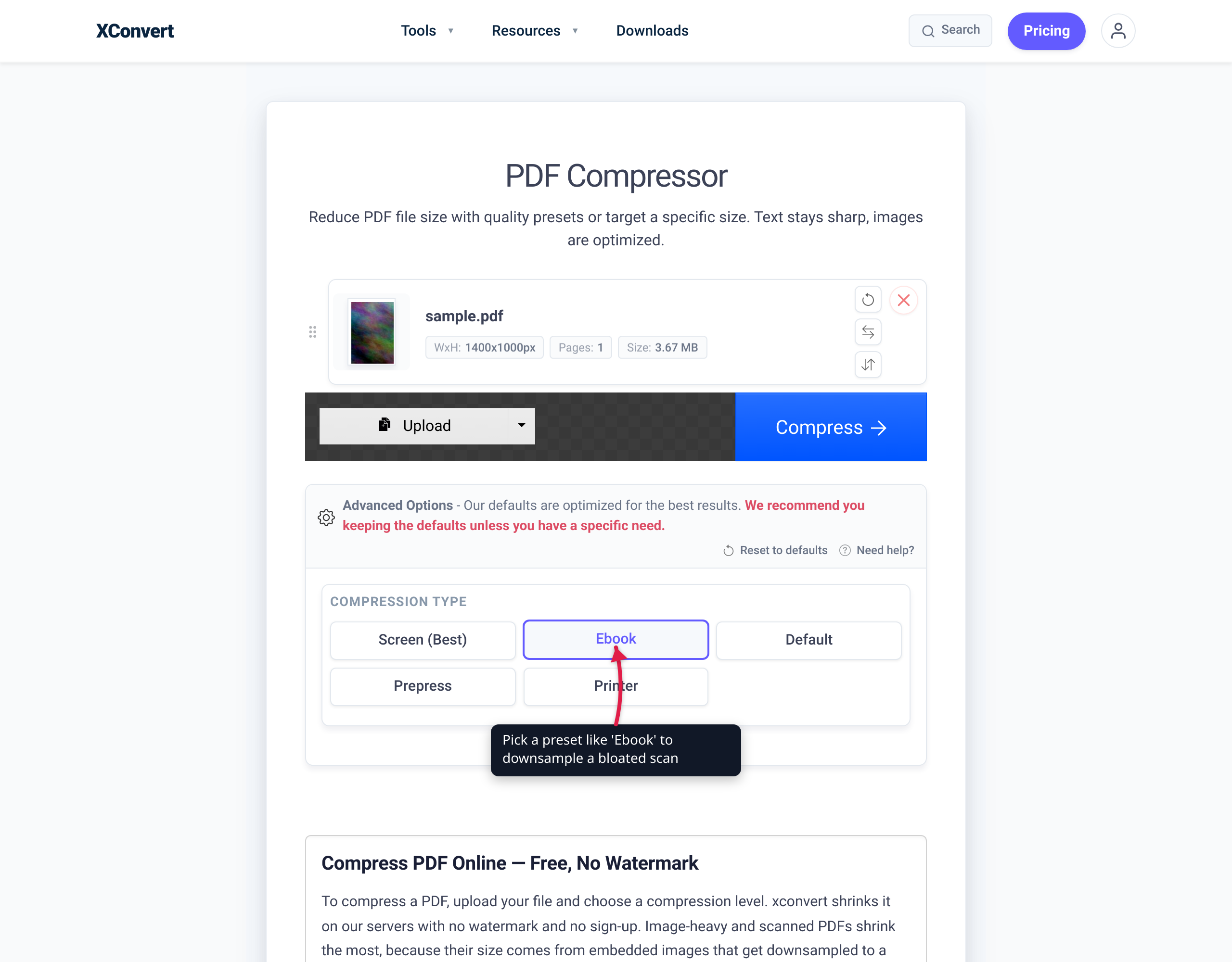
The tool offers five presets, from smallest file to highest fidelity:
| Preset | Best for |
|---|---|
| Screen (Best) | Smallest file — on-screen viewing and email; most aggressive downsampling |
| Ebook | Balanced — readable on devices at a small size |
| Default | General-purpose compression |
| Printer | Office printing quality |
| Prepress | Commercial print workflows; least compression |
How to use it:
- Open the PDF Compressor and choose Upload to add your scanned PDF.
- Pick a preset — start with Screen or Ebook for the biggest reduction on an email-bound scan; choose Printer or Prepress if you still need to print it cleanly.
- Click Compress and download the smaller PDF.
Two related tools help with the cases where compression alone isn’t the goal:
- Convert PDF to JPG — when you actually want the page images as separate JPGs (and you can choose a lower DPI, 72–600, to control their size).
- Split PDF — when the file is large simply because it has many pages: split out only the pages you need to send instead of compressing the whole document.
FAQ
Why is my scanned PDF so much bigger than a typed one?
Because a typed PDF stores text as characters drawn from a font, while a scanned PDF stores each page as a full raster image — a photograph of the page. The image’s size depends on its pixel count and bit depth, not on how many words are on the page, so even a sparse page can be many megabytes.
What DPI should I scan documents at?
For ordinary text documents, 300 DPI is the widely recommended balance of legibility, reliable OCR, and reasonable size. Adobe notes that 72 DPI is the minimum for text recognition and that input above 600 DPI gets downsampled anyway. Reserve 600 DPI (or higher) for photographs, artwork, or fragile originals where fine detail matters (Adobe Acrobat — Scanned PDF settings).
Does scanning in black-and-white really make the file that much smaller?
Yes. Black-and-white (bi-tonal) stores 1 bit per pixel versus 8 for grayscale and 24 for color, so it’s roughly 8× smaller than grayscale before compression — and it also compresses far more effectively with schemes like CCITT Group 4. For plain black text on white paper there’s no color or gray detail to lose, so it’s both smaller and faithful.
Why does doubling the scan resolution more than double the file size?
Because resolution affects both the width and the height of the image. Doubling DPI doubles the pixels in each direction, so the total pixel count — and the raw size — goes up by about 4×. That squared relationship is why a 600-DPI scan is roughly 16× the raw size of a 150-DPI scan of the same page.
Can I shrink a scanned PDF without re-scanning it?
Yes. A compression tool downsamples the embedded page images to a lower resolution and re-encodes them with efficient compression, which targets the same factors that made the file big. xconvert’s PDF Compressor does this; choose the Screen or Ebook preset for the largest reduction. Downsampling is lossy, so keep your original if you may need the full-resolution version later.
Will compressing a scanned PDF ruin the text quality?
Compressing for screen or email may slightly soften the images, but at sensible settings the text stays clearly readable. Use the Printer or Prepress preset when you need to print the result. If the document must stay pristine, keep the original and compress only the copy you’re sending.
My scanned PDF is large because it has lots of pages — should I still compress it?
Compression still helps per page, but if the real problem is page count and you only need to send a few pages, it’s often simpler to extract them. Use Split PDF to pull out just the pages you need, then compress that smaller file if necessary.
Sources
Last verified 2026-06-18.
- Adobe Acrobat — Scanned PDF settings — color/grayscale vs black-and-white compression (JPEG2000, JPEG, ZIP, CCITT Group 4), Adaptive Compression, downsampling methods, and the 300-DPI / >600-DPI-downsampled recommendations for text.
- Dynamsoft — Size optimization of scanned documents — the
width × height × bit depth ÷ 8size formula, the DPI-doubling ≈ 4× measurements, the 1-bit / 8-bit / 24-bit size comparison, and the “>90% reduction” figure for dropping to 300 DPI and a simpler color mode.