 By James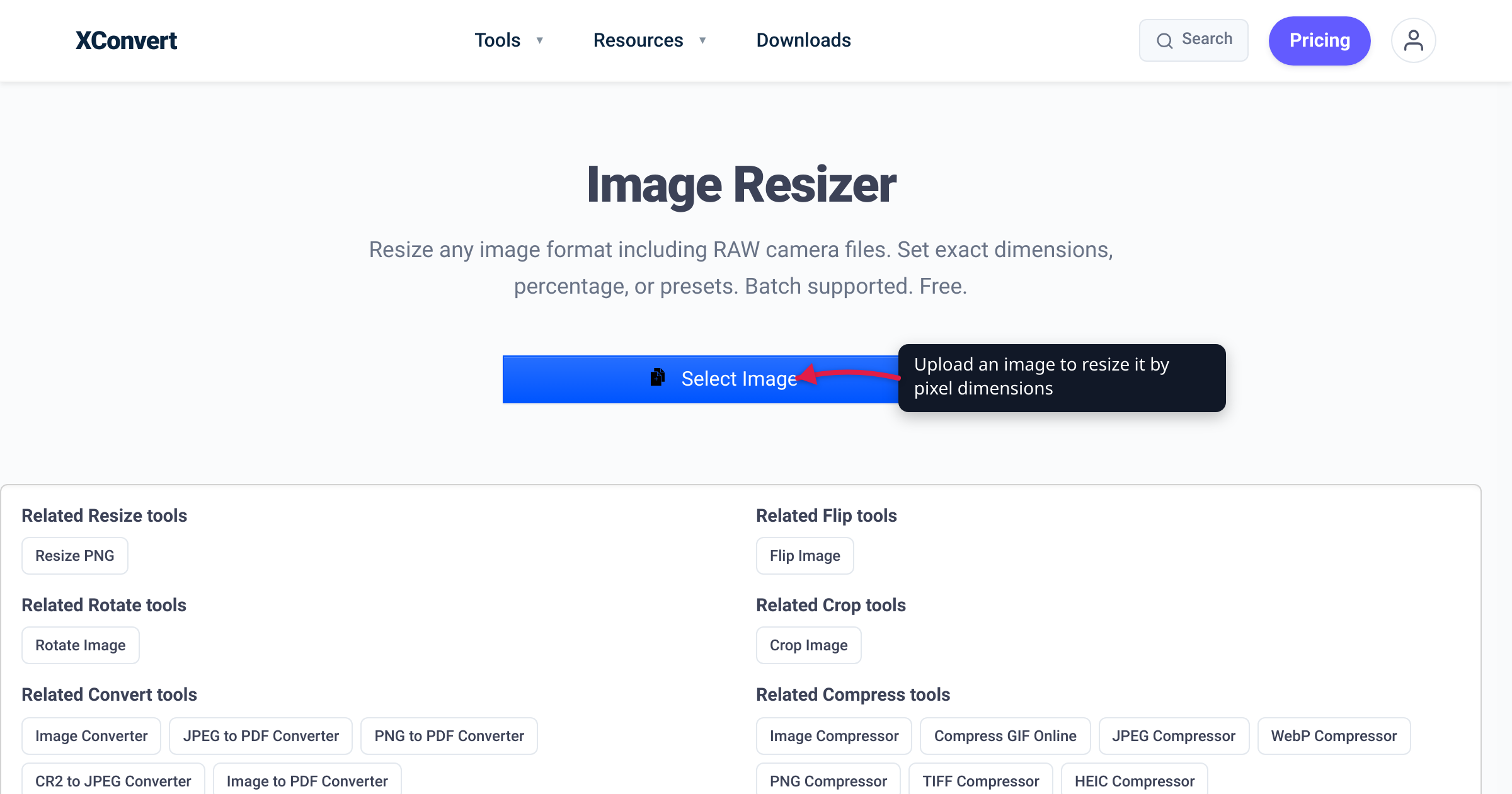
“Save this at 300 DPI for the website.” It’s a common brief in design and marketing — and it’s based on a misunderstanding. Screens do not read the DPI tag stored in an image file. A photo saved at 72 DPI and the same photo at 300 DPI display pixel-for-pixel identically in every browser. The only thing a screen cares about is the image’s pixel dimensions (e.g. 1200 × 800). DPI becomes load-bearing the moment you send that image to a printer — and there, it’s pure arithmetic: pixels divided by inches. This guide separates the web myth from the print reality, gives you the exact pixel counts for common print sizes, and shows where to resize by the number that actually matters.
Quick answer: For the web, DPI is irrelevant — browsers render by pixel dimensions and ignore the file’s embedded DPI/PPI tag entirely (the CSS default is one image pixel per CSS px, so a 1200 px image is 1200 px wide whether it’s tagged 72 or 300 DPI). The “72 DPI for web” rule is a myth. For print, DPI matters: required pixels = print size in inches × target DPI. 300 DPI is the standard for photo and commercial print, 150 DPI is fine for large-format viewed from a distance. So a 4 × 6 in photo at 300 DPI needs 1200 × 1800 px; A4 at 300 DPI needs 2480 × 3508 px. To hit a target, resize by pixel dimensions, not DPI.
Jump to a section
- Why “web DPI” is a myth
- PPI vs DPI: the terms people mix up
- Print: where DPI is real, and the formula
- Print-size to pixel-dimension table
- Sizing images for the web (the right way)
- Resize by pixel dimensions with xconvert
- FAQ
Why “web DPI” is a myth
Every raster image file can store a metadata field describing its intended print density — JPEG keeps it in the JFIF/Exif header, PNG in the optional pHYs chunk. This is where “72 DPI” or “300 DPI” lives. It is just a number written in the header; it does not change a single pixel of the image.
When a browser displays an image, it does not read that field. Per the CSS specification’s image-resolution property:
“By default, CSS assumes a resolution of one image pixel per CSS px unit; however, the
image-resolutionproperty allows a different resolution to be specified.”
A from-image value would tell the browser to honor the embedded metadata — but as MDN notes, no browsers currently support the image-resolution property. So the embedded DPI tag is universally ignored on the web: a 1200 × 800 image displays at 1200 × 800 regardless of whether its header says 72, 96, or 300.
The long-repeated rule “export web images at 72 DPI” therefore accomplishes nothing on its own. The 72 figure traces to the nominal pixel density of early Macintosh displays and has had no functional meaning for web rendering for decades. Re-tagging a 1200 px image down to 72 DPI doesn’t shrink it or change how it looks. The only way to make a web image lighter is to change its pixel dimensions (resize) or its compression — never its DPI tag. The myth persists because designers cross between print and web, where “300 DPI” is a meaningful export setting, so it feels like it should carry over. It doesn’t.
PPI vs DPI: the terms people mix up
The two acronyms get used interchangeably, but they describe different things:
| Term | Stands for | Describes | Where it’s real |
|---|---|---|---|
| PPI | Pixels Per Inch | How many image pixels map to one inch of output (or one inch of a physical screen) | Image files, display panel specs |
| DPI | Dots Per Inch | How many ink dots a printer lays down per inch of paper | Printers, print drivers |
When people say “save it at 300 DPI,” they almost always mean 300 PPI — 300 image pixels per printed inch. A printer’s true DPI is usually much higher (a typical inkjet prints 1200–4800 dots per inch) because it uses many tiny ink dots to reproduce a single image pixel. For everyday image prep, “300 DPI” is understood to mean “300 pixels per inch of print,” and that’s the meaning used throughout this article — but the distinction explains why your printer’s spec sheet shows a far bigger number than the “300” in your export dialog.
On a screen, the panel has its own fixed pixel density; your image’s embedded PPI tag has no influence over it, because the OS and browser map image pixels to screen pixels by their own rules, not the file’s metadata.
Print: where DPI is real, and the formula
Printing is the one place the number bites. A printer reproduces a fixed physical size on paper, so the question becomes: how many pixels do I spread across each inch? That’s the definition of PPI/DPI, and it’s a single equation:
required pixels (one side) = print length in inches × target DPIRun it both directions:
- Print size → pixels: a 5 × 7 in print at 300 DPI needs 5 × 300 = 1500 px by 7 × 300 = 2100 px.
- Pixels → max print size: a 3000 × 2000 px photo at 300 DPI prints cleanly at 3000 ÷ 300 = 10 in by 2000 ÷ 300 = 6.67 in.
What DPI should you target?
- 300 DPI — the standard for photographic prints and commercial/offset print (brochures, magazines, business cards), routinely prepared at 300 DPI or higher.
- 150 DPI — acceptable for large-format pieces viewed from a step or two back (posters, banners, signage), where the eye cannot resolve fine dots at distance.
- Below ~150 DPI at normal viewing distance, individual pixels start to show as softness or blockiness.
Crucial corollary: enlarging a too-small image in software (upscaling) does not add real detail — it invents pixels by interpolation and usually looks soft. To print large and sharp, you need enough original pixels, so check your source file’s pixel-dimension count before committing to a print size.
Print-size to pixel-dimension table
Exact pixel dimensions for common print sizes. Every figure is inches × DPI, rounded to whole pixels. A4 and Letter use their ISO 216 / ANSI inch dimensions (A4 = 210 × 297 mm ≈ 8.27 × 11.69 in; Letter = 8.5 × 11 in).
| Print size | Inches (W × H) | Pixels @ 300 DPI | Pixels @ 150 DPI |
|---|---|---|---|
| 4 × 6 photo | 4 × 6 | 1200 × 1800 | 600 × 900 |
| 5 × 7 photo | 5 × 7 | 1500 × 2100 | 750 × 1050 |
| 8 × 10 photo | 8 × 10 | 2400 × 3000 | 1200 × 1500 |
| A4 | 8.27 × 11.69 | 2480 × 3508 | 1240 × 1754 |
| US Letter | 8.5 × 11 | 2550 × 3300 | 1275 × 1650 |
| A3 | 11.69 × 16.54 | 3508 × 4961 | 1754 × 2480 |
| 11 × 17 (Tabloid) | 11 × 17 | 3300 × 5100 | 1650 × 2550 |
A handy mental shortcut: at 300 DPI, one inch = 300 px, so multiply the inch dimensions by 300. The A4 figure (2480 × 3508) comes from 210 mm and 297 mm converted to inches (8.2677 × 300 ≈ 2480; 11.6929 × 300 ≈ 3508), which is why it isn’t a round multiple.
Sizing images for the web (the right way)
Since DPI is ignored on the web, sizing an image for a site is purely about pixel dimensions relative to the space it will occupy:
- Match the display box. A hero shown 1200 CSS px wide should be at least 1200 px wide. Serving a 4000 px file into a 1200 px slot wastes bandwidth for no visible gain.
- Account for HiDPI (“Retina”). High-density screens map about 2 device pixels to 1 CSS pixel, so a crisp image on those displays wants roughly 2× the CSS dimension (a 1200 CSS-px slot → a 2400 px source). This has nothing to do with the DPI tag — it’s still just pixel dimensions.
- Compress, don’t re-tag. To cut file weight, reduce pixel dimensions and/or apply compression — changing the DPI metadata does neither.
The takeaway for both web and print is the same: the number you control is the pixel dimensions. That’s the lever — so resize by pixels.
Resize by pixel dimensions with xconvert
The xconvert image tools let you set exact pixel dimensions — the number that determines both how an image looks on screen and how large it can print at a given DPI. Your file is uploaded over an encrypted connection, processed on our servers, and deleted automatically a few hours later.
- Image Resizer — set exact pixel dimensions, a percentage, or a preset. Use the print-size table above to enter target width and height (e.g. 1200 × 1800 for a 4 × 6 photo at 300 DPI), or match your site’s display box for web. Batch is supported.
- Image Compressor — reduce file weight for the web; the real levers are dimensions and compression, not the DPI tag.
- Image Converter — change format (e.g. PNG → JPEG, or to WebP for the web) while keeping your chosen pixel dimensions.
Pick the pixel dimensions first — the table for print, your layout width for web; the DPI tag won’t matter for screens at all.
FAQ
Does DPI matter for web images?
No. Browsers render images by their pixel dimensions and ignore the embedded DPI/PPI metadata. A 1200 × 800 image looks identical whether it’s tagged 72 DPI or 300 DPI. Per the CSS spec, the default is one image pixel per CSS pixel, and the image-resolution property that could change this isn’t supported by any browser. For the web, control pixel dimensions and compression — not DPI.
Is “72 DPI for web” a real rule?
It’s a myth as a functional rule. The 72 figure dates to early Macintosh display density and has no effect on how a browser renders an image today. Re-saving a web image at 72 DPI instead of 300 DPI doesn’t shrink it or change how it looks; only changing the pixel dimensions does that.
How many pixels do I need for a 4 × 6 print at 300 DPI?
1200 × 1800 pixels. The formula is print length in inches × DPI: 4 × 300 = 1200 and 6 × 300 = 1800. At 150 DPI the same print needs 600 × 900.
What’s the difference between DPI and PPI?
PPI (pixels per inch) describes how many image pixels map to an inch of output; DPI (dots per inch) technically describes the ink dots a printer lays per inch. In everyday image-prep, “300 DPI” is used to mean “300 pixels per inch of print.” A printer’s true DPI is usually far higher (often 1200–4800) because it uses many ink dots to reproduce one image pixel.
Can I increase an image’s DPI to make it print sharper?
Not by editing the DPI tag alone. Sharp printing needs enough actual pixels for the size: pixels = inches × DPI. If the file doesn’t have them, upscaling in software interpolates (invents) pixels and usually looks soft — it doesn’t recover real detail. Start from a higher-resolution original.
What DPI should I use for a large poster?
150 DPI is generally acceptable for large-format pieces viewed from a distance (posters, banners, signage), because the eye can’t resolve fine dots at that range. Use 300 DPI for anything viewed up close, like photo prints and brochures. Always confirm requirements with your print provider.
Sources
Last verified 2026-06-18.
- MDN — CSS
image-resolutionproperty — default is one image pixel per CSS px;from-image(which would honor embedded metadata) is unsupported in browsers. - MDN — CSS
<resolution>data type —1dppx= 96 dpi default; resolution units used for media queries, not file metadata. - W3C — CSS Images Module Level 4, image-resolution — specification source for the default image resolution behavior.
- web.dev — Serve responsive (high-DPI) images — HiDPI/Retina sizing is about pixel dimensions (~2×), not the DPI tag.
- ISO 216 / A-series paper dimensions (Adobe — A4 format) — A4 = 210 × 297 mm (≈ 8.27 × 11.69 in), basis for the 2480 × 3508 px @ 300 DPI figure.