 By Stephanie Taylor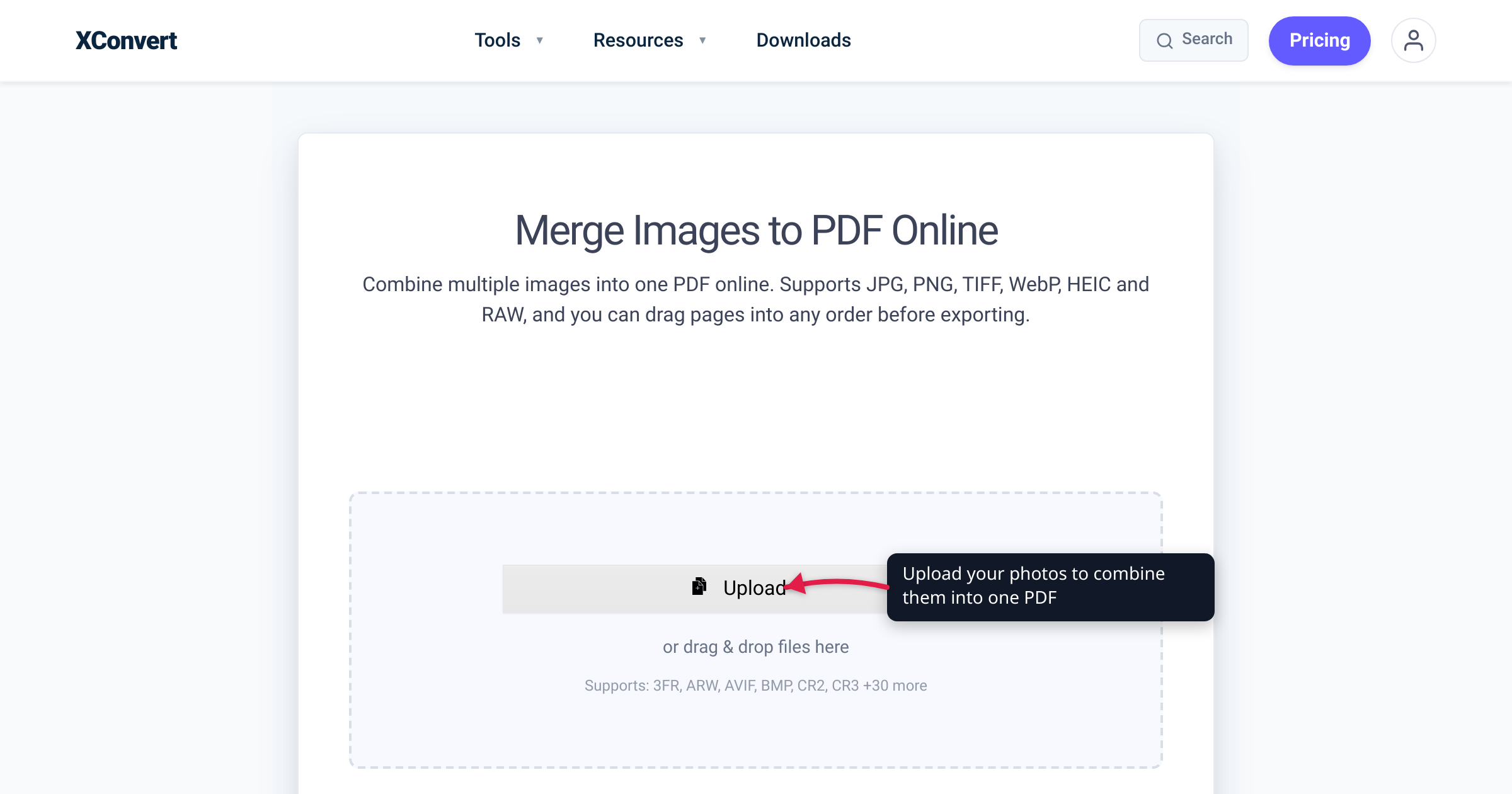
You shot a dozen receipts and a couple of whiteboard photos on your phone, and now someone wants them as one PDF — not twelve separate image attachments. Every modern device can turn photos into a PDF without installing anything: iPhone has a built-in Print-to-PDF and a Files-app PDF maker, Android has the system Print spooler, and Windows ships Microsoft Print to PDF. The catch is that those native paths are built for one document at a time, give you almost no control over page order, page size, or compression, and choke once you pass a handful of images. This guide walks the real per-device steps, names where each one stops being enough, and shows when a web tool is the faster route.
Quick answer: iPhone — save photos to the Files app, then Select → Create PDF (or use Share → Print and pinch out on the preview). Android — open the image, tap Share → Print, then pick Save as PDF as the “printer.” Windows — select your images in File Explorer, right-click Print, choose Microsoft Print to PDF, and save. All three handle a small batch fine. For many images, a specific page order, a fixed paper size, or compression, use a dedicated merge tool like xconvert’s Merge Images to PDF instead — it works on any device, takes any number of photos, and lets you drag thumbnails to set the page order.
Jump to a section
- iPhone & iPad: three native routes
- Android: the system Print menu
- Windows PC: Microsoft Print to PDF
- Where the native methods run out of road
- The any-device route: merge photos to PDF online
- Choosing the right method
- FAQ
- Sources
iPhone & iPad: three native routes
iOS has more than one built-in way to make a PDF from photos. Exact menu wording shifts between iOS versions, so treat these as the shape of the flow rather than pixel-perfect labels.
Route 1 — the Files app (best for combining several images). Save your photos into a Files folder first (from Photos: Share → Save to Files). In Files, tap More (•••) → Select, tap each image, then tap More again at the bottom and look for Create PDF. iOS stitches the selected images into one multi-page PDF in tap order — the closest iOS has to a true “combine photos into one PDF” feature.
Route 2 — the Print sheet trick (works from almost any app). Open photos in the Photos app, tap Share → Print. On the print preview, pinch outward on the thumbnail — the preview turns into a PDF you can then Share → Save to Files. It works almost everywhere but is fiddly for large batches, and the gesture isn’t obvious.
Route 3 — the Preview app (recent iOS). Apple’s Preview app can open an image and export it as a PDF: tap the options near the filename, choose Export, and pick PDF. Clean for a single image; multi-image combining is still better via Route 1.
All three are free and watermark-free. Where they get awkward is reordering pages and handling mixed image sizes — covered below.
Android: the system Print menu
Android has no dedicated “images to PDF” button, but it ships a system-wide Print service with “Save as PDF” as a built-in destination — so any app that can print can make a PDF.
- Open the photo in Google Photos (or your gallery app).
- Tap Share, then Print. (In some apps Print lives under the ••• overflow menu instead.)
- In the print preview, open the printer dropdown and choose Save as PDF.
- Tap the PDF / download button and pick where to save it.
This is reliable for a single image. The friction is batch: the stock Print flow handles one item at a time, so combining many photos into one ordered PDF means printing each and then merging — exactly the manual work a merge tool removes. Menu placement also varies by manufacturer skin (Samsung One UI, Pixel stock Android), so treat the labels above as the common case.
Windows PC: Microsoft Print to PDF
Windows 10 and Windows 11 both include a virtual printer called Microsoft Print to PDF, installed by default. It appears in the printer list of nearly every app, including File Explorer and the Photos app.
- In File Explorer, select your image files. To combine several into one PDF, select them all (Ctrl-click or drag a box), then right-click and choose Print. (On Windows 11, “Print” may not appear in the first menu — hold Shift while right-clicking, or click Show more options, to reveal it.)
- In the print dialog, set Printer to Microsoft Print to PDF.
- Choose a paper size and layout (e.g. Full page photo for one image per page), then click Print.
- Pick a filename and location, and save.
Selecting multiple images before you hit Print is what produces a multi-page PDF — each image becomes a page in the order Windows lists them (usually alphabetical by filename). If the printer is ever missing, re-enable it via Control Panel → Programs → Turn Windows features on or off → Microsoft Print to PDF.
The limitation is the same as on mobile: you get File Explorer’s filename order and almost no control over per-image scaling or compression beyond the dialog’s basic layout presets.
Where the native methods run out of road
The built-in tools are perfect for “I have three photos, make a PDF.” They start to hurt the moment any of these is true:
- Page order matters and filenames don’t sort that way. File Explorer and the Android print queue order by filename; iOS Files keeps tap order but offers no drag-to-rearrange afterward. A custom sequence means renaming files first.
- The images are different sizes or orientations. Native print-to-PDF stretches or letterboxes each photo onto the chosen paper size, so portrait receipts and landscape whiteboard shots come out inconsistent.
- You have a lot of images. The Print-sheet and right-click-Print flows get slow past a dozen or so images; the mobile routes especially aren’t built for big batches.
- File size matters. Phone photos are several MB each, so a large photo PDF can balloon past email or upload caps, and native exports give little compression control.
- You’re switching devices. The steps differ on every platform.
None of these are dealbreakers for a quick job — they’re the reason a purpose-built merge tool exists.
The any-device route: merge photos to PDF online
When the native path fights you — too many images, a custom order, mixed sizes, or a size cap — a dedicated web tool does the whole job in one screen and works the same on iPhone, Android, Windows, Mac, or Chromebook. xconvert’s Merge Images to PDF is built for exactly this:
- Add any number of images at once — JPG, PNG, HEIC (straight off an iPhone), TIFF, WebP, BMP, GIF, AVIF and more, in one upload.
- Drag the thumbnails to set the page order — first thumbnail is page 1, second is page 2 — the reordering step the native tools lack.
- Pick a paper size and orientation — A4 (default), US Letter, Legal, Tabloid, A3 and others, plus Portrait or Landscape — so a mixed batch lands on consistent pages.
- Control quality/compression, and get no sign-up and no watermark on the output.
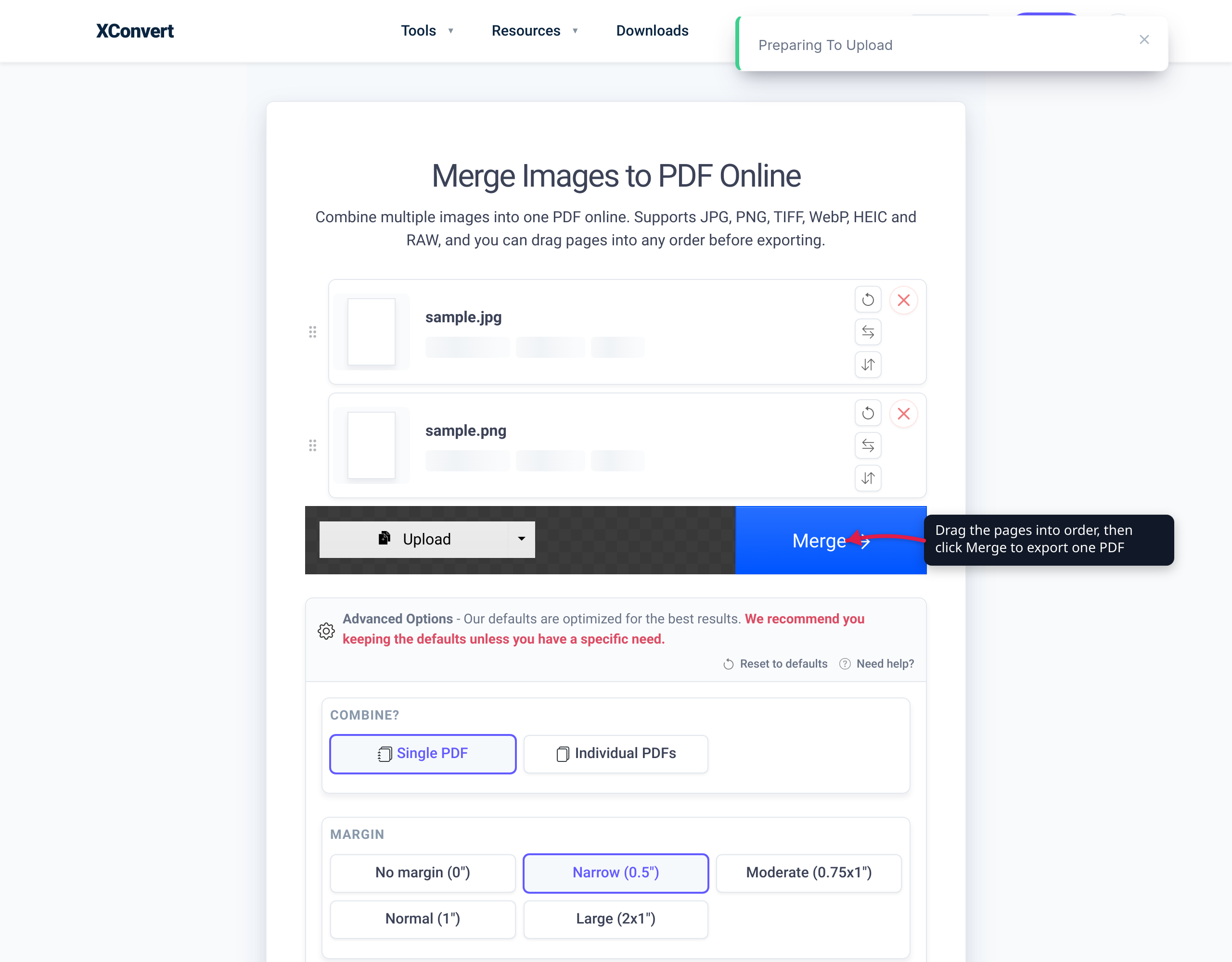
When you start a merge, your files upload over an encrypted connection, the PDF is assembled on xconvert’s servers, and you download the finished file. Uploaded files and results are automatically deleted from the servers a few hours later, so nothing lingers.
If your sources are specifically JPGs, the dedicated JPG to PDF converter does the same combine-and-reorder job tuned for photo files. And if the finished PDF is still too big for email, run it through the PDF compressor before sending.
Choosing the right method
| Your situation | Best route |
|---|---|
| iPhone, combine a few images in order | Files app → Select → Create PDF |
| Windows, a handful of images in filename order | Select all → right-click Print → Microsoft Print to PDF |
| Many images, custom page order needed | Merge Images to PDF (drag to reorder) |
| Mixed sizes/orientations, want consistent pages | Merge Images to PDF (set paper size + orientation) |
| Result too big to email | Merge, then compress the PDF |
| You switch devices and want one method | A web tool — same steps everywhere |
The rule of thumb: use what’s already on the device for small, simple jobs; reach for a merge tool the moment order, size, or volume becomes the problem.
FAQ
How do I combine photos into one PDF on iPhone?
Save the photos into a Files folder (from Photos: Share → Save to Files), then tap ••• → Select, tap each photo, tap ••• again, and choose Create PDF. iOS combines them in tap order; exact wording varies by iOS version. To reorder pages or set a paper size, use Merge Images to PDF instead.
How do I save multiple photos as one PDF on Android?
Android’s stock Print service (open a photo → Share/••• → Print → Save as PDF) handles one item at a time, so there’s no reliable built-in way to combine many photos into a single ordered PDF on every Android phone. For a true multi-image, reorderable PDF, upload the photos to Merge Images to PDF, which works in any Android browser.
How do I combine images into a PDF on Windows without extra software?
Select all the images in File Explorer, right-click Print, set the printer to Microsoft Print to PDF, pick a layout, and click Print — each image becomes a page in filename order. To control page order or compress the result, use Merge Images to PDF and drag the thumbnails into the sequence you want.
Will combining photos into a PDF lose quality?
It can, because photos are usually re-encoded when placed into a PDF, and native print-to-PDF gives little control over this. A dedicated tool lets you set the quality/compression level — keep images sharp, or deliberately shrink the file to fit under an email or upload size cap.
Does HEIC work, or do I need to convert iPhone photos first?
You don’t need to convert them first. Merge Images to PDF accepts HEIC (the default iPhone photo format) alongside JPG, PNG, TIFF, WebP and others in the same upload, so you can merge straight from an iPhone.
What happens to my photos after I use the online tool?
The files upload over an encrypted connection and the PDF is created on xconvert’s servers. Your uploaded images and the finished PDF are automatically deleted from the servers a few hours later — there’s no sign-up, and no watermark is added.
Sources
Last verified 2026-06-18.
- Apple — Export or compress PDFs and images in Preview on iPhone — Preview’s export-to-PDF formats and steps.
- Apple — Print PDFs or images in Preview on iPhone — iOS Preview/print workflow.
- Apple — Modify files and folders in Files on iPhone — selecting multiple files and the bottom action options in Files.
- Microsoft Learn — Microsoft Print to PDF (Q&A: enabling and using the built-in PDF printer) — confirms the default virtual printer and File > Print workflow on Windows 10/11.
- Google Photos Help / Files by Google community — converting images to PDF on Android — Android Share → Print → Save as PDF behavior.