 By Stephanie Taylor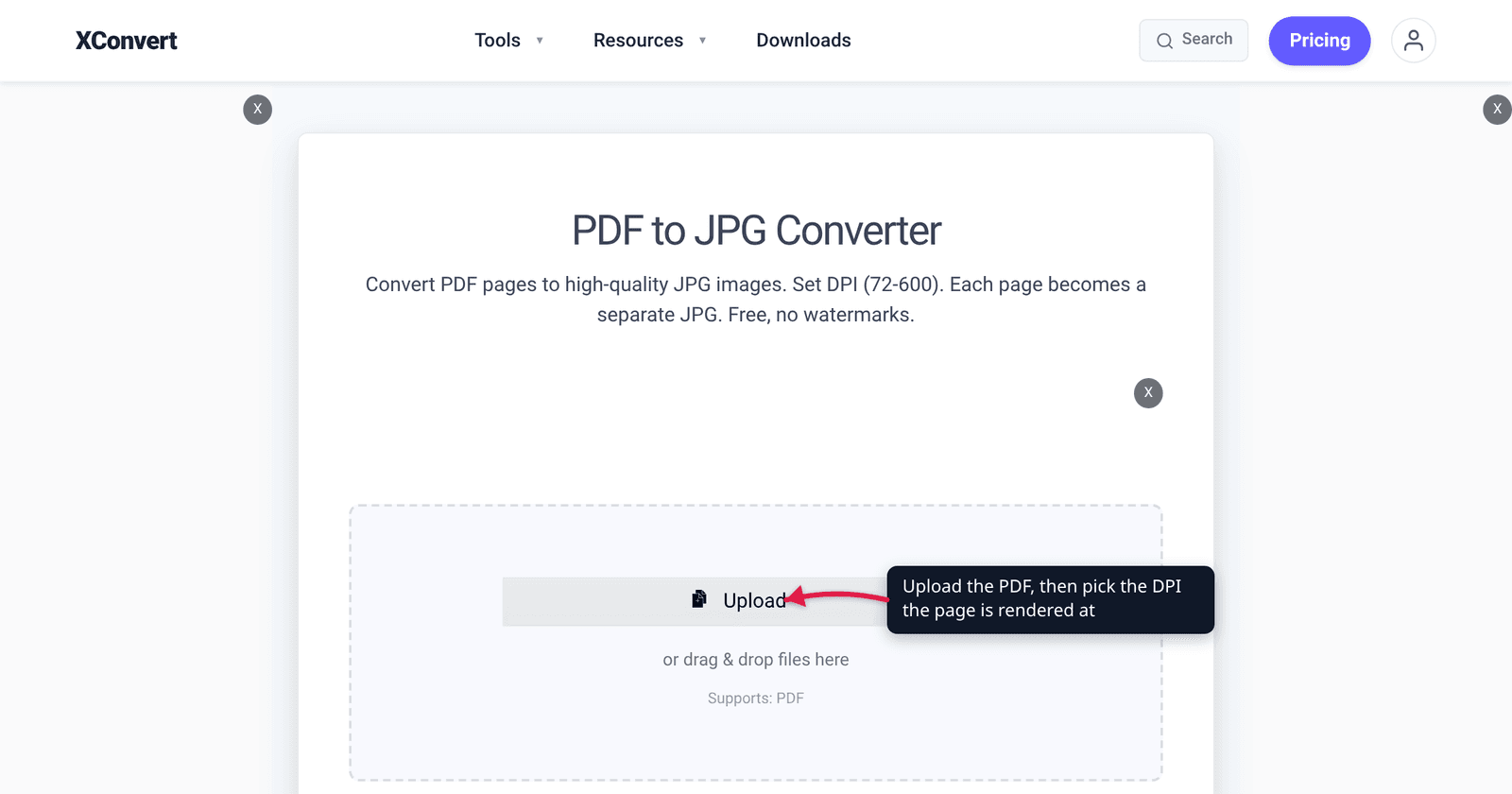
The Conversion Quality dropdown on a PDF-to-JPG converter goes all the way to 1200 DPI (Maximum Detail / Fine Art), and the temptation is obvious: pick the biggest number, get the best result. Except resolution is a squared cost. Moving from 300 DPI to 1200 doesn’t make a file four times bigger — it gives you sixteen times as many pixels, turning an ordinary US Letter page into a 134-megapixel raster. There is exactly one job that reliably justifies that, and it isn’t the one most people are trying to do.
Quick answer: 1200 DPI is for bitonal line art — engravings, hairline CAD strokes, engraved music, hatched maps, signatures — and for enlargement, where you’ll print the page much bigger than it was drawn. The Smithsonian’s own art-submission guide asks for 300 dpi for halftones, 600–900 for halftone-plus-text, and 1200 dpi for line art (black and white, no shading). For photographs, shaded illustrations and normal-size text, 1200 buys nothing that 300 or 600 doesn’t already give you, and costs 16× the pixels of a 300 DPI render: a US Letter page becomes 10,200 × 13,200 px. One more catch — if your content really is line art, JPG is the wrong container; JPEG’s lossy transform is at its worst on hard black-and-white edges, so render to PNG instead.
Jump to a section
- What the 1200 DPI tier actually sets
- The cost is squared, not linear
- The one job 1200 DPI is genuinely for
- Four times 1200 DPI does nothing for you
- When the output is too big to use
- Convert a PDF to JPG at 1200 DPI on xconvert
- FAQ
What the 1200 DPI tier actually sets
A born-digital PDF stores its page as vector instructions, so it has no native resolution. Turning it into a JPG means rasterizing — sampling those instructions onto a pixel grid — and the DPI you pick is the sampling rate. On xconvert’s PDF-to-JPG tool that dial is the Conversion Quality group, and it is a fixed ladder of eight rungs, each labelled with the job it’s meant for:
| Rung | Label | Pixels on a US Letter page | vs 300 DPI |
|---|---|---|---|
| 72 DPI | Web / Smallest File | 612 × 792 | 0.06× |
| 96 DPI | Standard Screen | 816 × 1056 | 0.10× |
| 150 DPI | Balanced / Medium | 1275 × 1650 | 0.25× |
| 200 DPI | Office Standard | 1700 × 2200 | 0.44× |
| 300 DPI | High Quality / Print Recommended (default) | 2550 × 3300 | 1× |
| 400 DPI | Small Text / OCR | 3400 × 4400 | 1.8× |
| 600 DPI | Ultra High / Archival | 5100 × 6600 | 4× |
| 1200 DPI | Maximum Detail / Fine Art | 10,200 × 13,200 | 16× |
Two things follow. First, this is a render setting, not a metadata tag — it genuinely changes how many pixels get painted, unlike the “set the file to 300 DPI” advice that only rewrites a resolution field. Second, the page’s own note is candid about the trade: “Higher DPI settings improve image quality but increase processing time. 300 DPI is the recommended balance between high-quality output and processing speed for most documents.”
The 300-vs-600 decision is the common one and is covered separately in PDF to JPG at 300 vs 600 DPI. This guide is about the rung above that.
The cost is squared, not linear
Double the DPI and you double the pixel count on both axes. So the jump from 300 to 1200 is 4× in each direction, and 4 × 4 = 16× the total pixels.
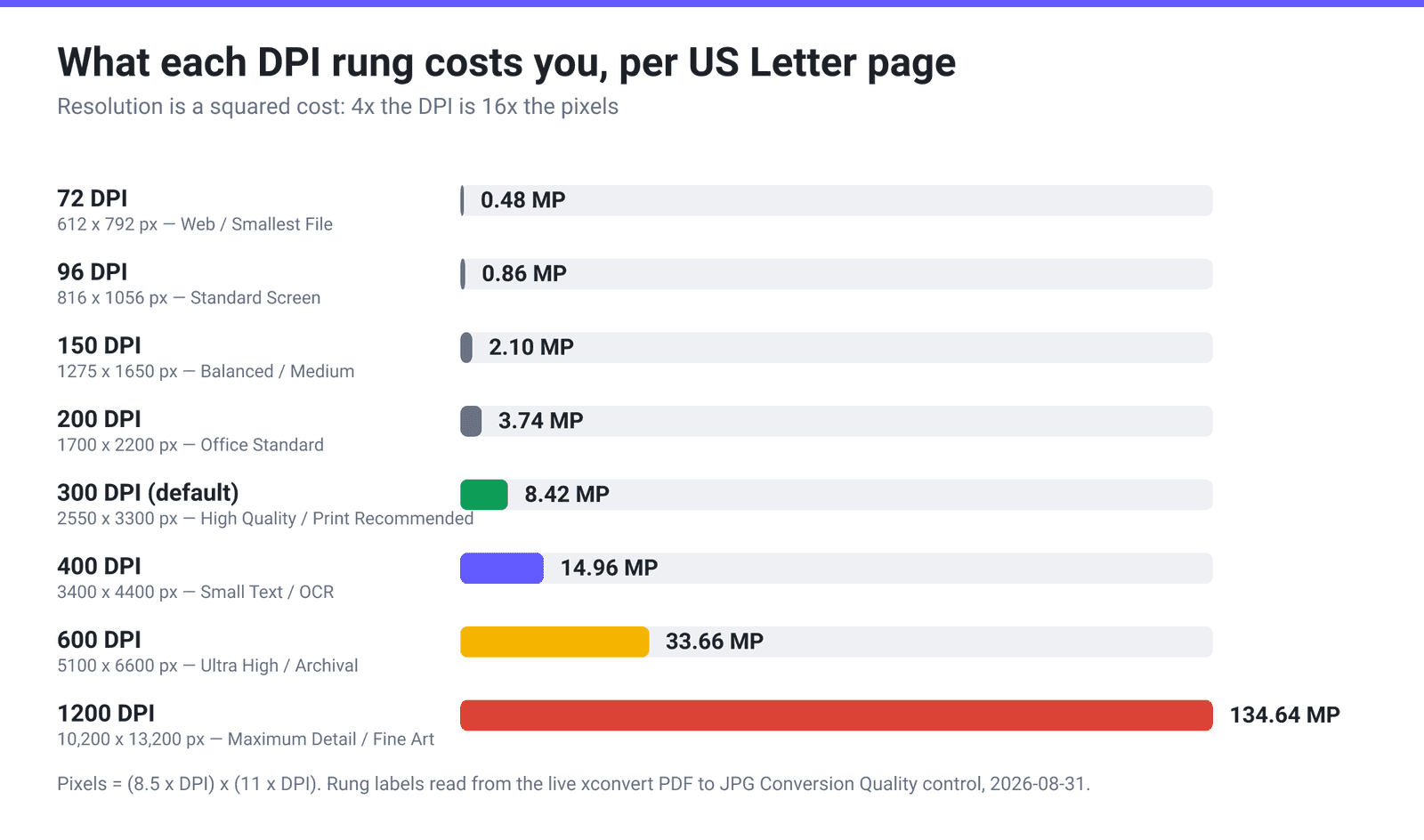
At 1200 DPI a single US Letter page is a 134.6-megapixel image — roughly 404 MB of raw 8-bit RGB samples before any compression. The JPG that comes out is much smaller than that, because JPEG compresses flat white paper efficiently, but the final size depends entirely on content: a mostly-white text page and a full-bleed photograph at the same DPI can differ by an order of magnitude. The ratio is the predictable part.
The raster is also expensive to produce. Ghostscript once carried a regression severe enough to illustrate the point: bug 690133, “Regression: Ghostscript takes up all disk space when rendering eog or GIMP PDF output in 1200 dpi”, filed against version 8.63 in October 2008 and closed as fixed that December. It is long gone — but it is a reminder that 1200 dpi is the setting that finds a renderer’s resource limits first. Rendering server-side moves that problem off your machine, but it doesn’t make it free: expect a longer job and a long download.
The one job 1200 DPI is genuinely for
The clearest published answer comes from a publisher stating its own submission requirements. The Smithsonian Institution Scholarly Press Digital Art Prep Guide splits artwork into three classes and gives each its own resolution:
| Content type | Required resolution | Why |
|---|---|---|
| Halftones (colour or greyscale photographs) | 300 dpi | Continuous tone; the press screen can’t resolve more |
| Combination halftones (photo with text over it) | 600–900 dpi | Sharp type edges sitting on continuous tone |
| Line art (black and white, no shading) | 1200 dpi | Nothing but edges — every pixel is an edge decision |
That is the pattern: continuous tone hits a ceiling; hard edges do not. A photograph at 1200 DPI carries no more usable information than the same photograph at 300 — the detail was never there and the press can’t print it. A pen-and-ink engraving, a CAD hairline, an engraved musical stave or a fine hatch pattern is made entirely of edges, and each doubling genuinely sharpens where each edge falls.
The second legitimate case is enlargement, and it’s just arithmetic. DPI is measured against the original page size, so printing bigger means rendering proportionally higher. Render an 8.5 × 11 in page at 1200 DPI and you get 10,200 × 13,200 px — which is exactly 300 DPI on a 34 × 44 inch poster. That is the honest justification for the “Fine Art” label: not that fine art needs 1200 DPI at its own size, but that reproductions of it are often printed several times larger than the source page.
Four times 1200 DPI does nothing for you
1. The PDF is a scan. If the page inside the PDF is already a raster image — a scanned contract, a photographed receipt, an exported fax — then the scan’s own resolution is a hard ceiling. Rendering it at 1200 DPI resamples an existing bitmap up; you get a bigger, blurrier version of the same pixels. Check what’s actually in the file before spending 16× the bytes on it.
2. The content is photographic. Photos, gradients, shaded illustrations, screenshots of photos: 300 DPI is where the press stops resolving more, which is why it’s the standard and the default.
3. It’s going on a screen. Browsers ignore an image’s embedded resolution tag entirely and render by pixel dimensions — a 134-megapixel JPG on a web page is just a very slow-loading image, and browsers apply their own decode limits to images that large. For anything screen-bound, 150 DPI is usually plenty.
4. It’s line art and you’re saving as JPG. This is the trap the “1200 DPI JPG” search hides. JPEG’s discrete cosine transform is tuned for continuous tone, and it is at its absolute worst on hard black-on-white boundaries, where it leaves faint ringing halos around every stroke. The Smithsonian guide doesn’t hedge about it — it says outright, “Don’t submit JPEGs. They do not include enough data to ensure quality printing. JPEGs are appropriate for computer monitor” display. If your reason for wanting 1200 DPI is line art, render to PNG instead: it is lossless, so edges stay exactly where the vector said they were. See convert PDF to PNG in high resolution for that route.
When the output is too big to use
Suppose you genuinely need the resolution but a submission portal has a hard cap. The PDF-to-JPG page has a second control that handles this: under Image Compression, switch from Quality Preset to Specific file size, then type a number and pick B / KB / MB.
Beside it sits an Auto Scale toggle, on by default, and its own on-page note explains exactly what it does: “[Smart Scaling Active] We will automatically adjust the image dimensions to maximize quality while hitting your target file size. Manual resolution settings are hidden to prevent pixelation.”
Read that carefully, because it changes the calculus. Auto Scale hits your byte target by reducing the pixel dimensions, not just by compressing harder. That is the right behaviour — a smaller sharp image beats a full-size mushy one — but it means capping the file size partly undoes the 1200 DPI render you just asked for. So:
- A hard portal cap, where “fits” matters more than “every pixel” → set Specific file size, leave Auto Scale on, accept fewer pixels.
- You need all 134 megapixels → leave Quality Preset on Very High (Recommended), take the large file, and move it with a transfer link rather than an attachment.
- Somewhere in between → drop a rung to 600 DPI rather than capping bytes at 1200. Rendering fewer pixels cleanly beats rendering many and throwing them away.
Convert a PDF to JPG at 1200 DPI on xconvert
- Open the PDF to JPG converter and click Upload to add your PDF, or drag it onto the page.
- Open Advanced Options.
- Under Conversion Quality, select 1200 DPI (Maximum Detail / Fine Art). It defaults to 300 DPI, so this is a deliberate change — and worth making per-job, not by habit.
- Leave Quality Preset on Very High (Recommended). Pairing a 1200 DPI render with heavy JPEG compression is self-defeating; you’d be sampling finely and then discarding the detail.
- Check Background. JPG has no transparency, so a colour is composited behind the page — the default is White, which is what you want for a document page.
- Click Convert. Every page of the PDF becomes its own image. Give the job time; 1200 DPI is 16× the work of the default, and the download will be large.
Your PDF uploads over an encrypted connection, is rasterized on our servers and deleted automatically a few hours later. No account, no watermark. Two practical notes: a long or image-heavy PDF at 1200 DPI is better done a few pages at a time, and if the page is black-and-white line art, the PDF to PNG converter at the same DPI gives cleaner edges.
FAQ
Is 1200 DPI overkill for a PDF?
For most PDFs, yes. It is the correct choice for black-and-white line art — the Smithsonian Scholarly Press specifies 1200 dpi for exactly that — and for enlargement, where you need 4× the linear resolution because you’re printing 4× the size. For photographs, shaded artwork, ordinary text documents, or anything destined for a screen, 300 DPI is the standard and 600 is the sensible upper bound. Picking 1200 by default just multiplies your file size by sixteen.
Will 1200 DPI make a scanned PDF sharper?
No. If the PDF contains a scanned image rather than vector text, that image’s own resolution is the ceiling on real detail. Rendering at 1200 DPI interpolates new pixels between the ones the scanner captured — a larger file showing the same information, slightly softer. The only fix is to rescan the original at a higher optical resolution.
Why did my 1200 DPI conversion take so long or fail on my desktop tool?
Because a single Letter page at 1200 DPI is a 134-megapixel raster — roughly 404 MB of uncompressed RGB samples the renderer has to hold and process. It is the setting that finds a renderer’s limits first — Ghostscript’s bug 690133 was exactly that failure, a 2008 regression in which a 1200 dpi render consumed all available disk space, fixed the same year. Converting server-side takes the memory problem off your machine, but the job is still 16x the work of a 300 DPI render.
Should I use PNG instead of JPG at 1200 DPI?
If the content is line art, diagrams, engineering drawings or anything with hard black-on-white edges — yes. JPEG is a lossy continuous-tone codec and leaves faint ringing artefacts around sharp boundaries, which is precisely the detail you paid 16× the pixels to capture. PNG is lossless and often smaller than JPG for line art, because large flat white regions compress extremely well. Keep JPG for photographic pages.
Is there a maximum size a JPG can be?
Yes, and it’s a hard limit in the format itself. The JPEG standard (ITU-T T.81) defines the frame-header fields for image height and width as 16-bit values with a range of 1–65,535, so no JPEG can exceed 65,535 pixels on a side. At 1200 DPI that ceiling arrives at about 54.6 inches, so ordinary page sizes are nowhere near it — but a large-format architectural sheet rendered at maximum resolution can be. Many viewers and editors run out of memory long before the spec does.
How do I keep a high-DPI page under an upload limit?
Use Specific file size under Image Compression and enter your cap. Bear in mind the Auto Scale toggle that comes with it reaches the target by shrinking the pixel dimensions — so if the resolution is the point, it’s usually better to render one rung lower (600 DPI) than to render at 1200 and let the size cap take the pixels back.
Sources
Last verified 2026-08-31.
- Smithsonian Institution Scholarly Press — Digital Art Prep Guide (May 2018) — a publisher’s own submission requirements: 300 dpi halftones, 600–900 dpi combination halftones, 1200 dpi line art; “Don’t ‘res up’ art files”; “Don’t submit JPEGs.”
- ITU-T Recommendation T.81 (JPEG), Table B.2 — Frame header parameter sizes and values — image height (Y) and width (X) are 16-bit fields with range 0–65,535 and 1–65,535, fixing the maximum JPEG dimension.
- Ghostscript bug 690133 — “Regression: Ghostscript takes up all disk space when rendering eog or GIMP PDF output in 1200 dpi”: reported 2008-10-24 against version 8.63, status NOTIFIED FIXED, last modified 2008-12-19. A single closed regression, cited here only as an illustration that 1200 dpi is where renderers hit their limits. The tracker sometimes serves an anti-bot interstitial; a Wayback capture carries the same fields.
- xconvert PDF to JPG converter — the live Conversion Quality ladder and labels, the 300 DPI default and its on-page note, and the Auto Scale “Smart Scaling Active” help text quoted above.