 By James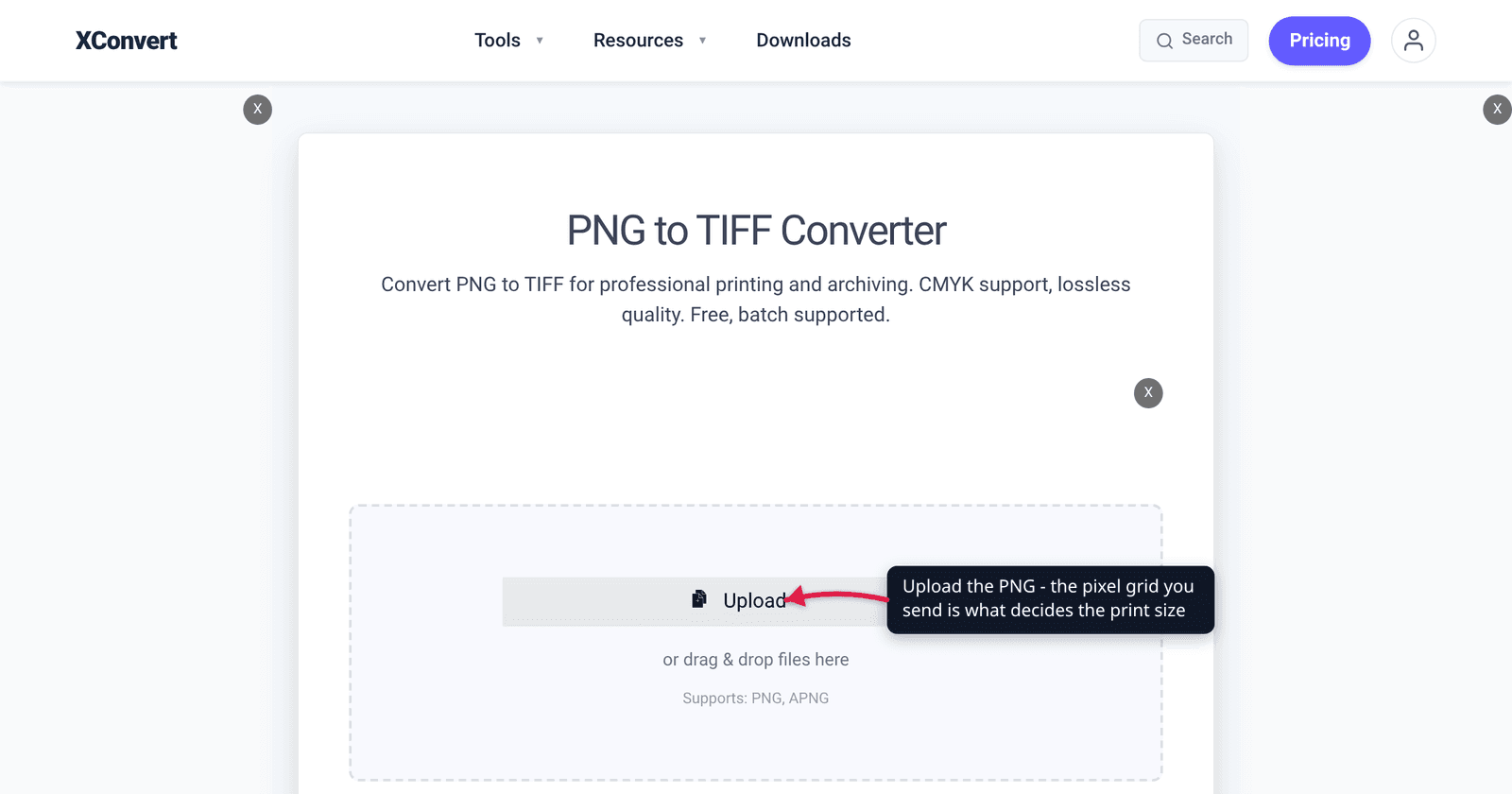
Your printer asked for “a 300 DPI TIFF.” You open a PNG-to-TIFF converter, go hunting for the DPI box — and there isn’t one. That is not a missing feature. On an image-to-image conversion there is nothing for a DPI control to do, because DPI is not stored in the pixels; it is a ratio between the pixels you already have and the inches you want to fill. The thing you actually control is the pixel grid. This guide gives you the arithmetic, the pixel counts for common print sizes, and the one setting on the conversion page that genuinely damages a print master if you leave it alone.
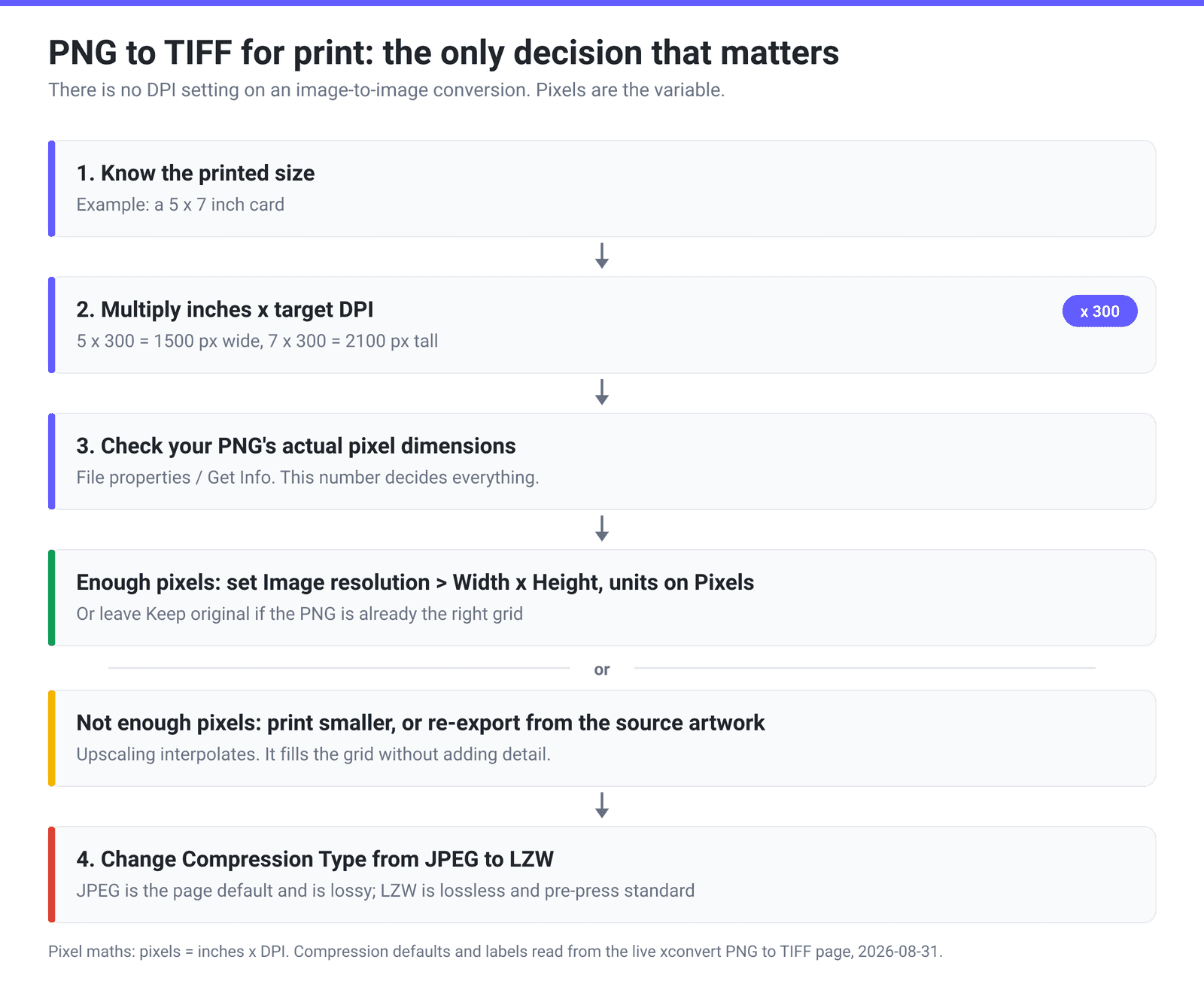
Quick answer: 300 DPI is arithmetic, not a setting: pixels ÷ inches. A 5 × 7 in print at 300 DPI needs a 1500 × 2100 px image — so the control that matters when you convert PNG to TIFF is Image resolution → Width x Height, with the unit dropdown switched from Percent (%) to Pixels. No converter can add detail your PNG never captured; if the source is 800 × 600, it is a good 2.67 × 2 in print and nothing more. The second thing to change: Compression Type defaults to JPEG (Best compression), which is lossy and no good for a print master — switch it to LZW.
Jump to a section
- “300 DPI” is a ratio, not a setting
- Pixel counts for common print sizes
- What no converter can do: invent pixels
- The setting that actually bites: Compression Type
- Convert PNG to TIFF for print on xconvert
- FAQ
“300 DPI” is a ratio, not a setting
Look at what the two file formats actually store.
PNG has no DPI field at all. The PNG specification’s optional pHYs chunk stores “pixels per unit,” and the only absolute unit it defines is the metre — unit specifier 1 means metres, 0 means “unit is unknown.” The spec is explicit that “if the pHYs chunk is not present, pixels are assumed to be square, and the physical size of each pixel is unspecified.” So a PNG tagged “300 DPI” is really a PNG carrying the integer 11811 pixels per metre (300 ÷ 0.0254), and most PNGs carry nothing at all.
TIFF does have resolution tags — XResolution (tag 282), YResolution (283) and ResolutionUnit (296, default 2 = inch). But read what the TIFF 6.0 specification says they are for: “Applications often want to know the size of the picture represented by an image. This information can be calculated from ImageWidth and ImageLength given the following resolution data.” The tags are a label describing intended print size. Rewriting XResolution from 72 to 300 does not touch a single pixel; it just tells the layout app to place the same grid into an area 4.17× smaller in each direction.
Which leaves one formula, and it is the whole topic:
pixels needed = print size in inches × target DPI
Everything else — the converter, the file format, the compression — is downstream of whether that number is satisfied. This is the print-side half of a bigger misunderstanding; the screen-side half is covered in What DPI do you need? Web vs print.
Why 300 in particular? Offset presses reproduce continuous tone as a halftone grid, and the pre-press rule of thumb is to supply image data at 2× the halftone screen ruling. Book printer PrintNinja spells the arithmetic out: it puts the standard commercial screen at 150 lines per inch, citing ISO 12647-2:2013 for that ruling, and calls the 2:1 resolution ratio a “rule of thumb” it attributes to Adobe’s print production guidelines rather than to the ISO standard itself. 150 lpi × 2 = 300 dpi, and that is the flat requirement PrintNinja states for submitted artwork.
Pixel counts for common print sizes
Multiply and you are done. These are the exact grids a printer means when they say “300 DPI at that size”:
| Printed size | Pixels needed at 300 DPI | Pixels at 600 DPI | Typical use |
|---|---|---|---|
| 4 × 6 in | 1200 × 1800 | 2400 × 3600 | Photo print |
| 5 × 7 in | 1500 × 2100 | 3000 × 4200 | Card, small framed print |
| 8 × 10 in | 2400 × 3000 | 4800 × 6000 | Framed print, portfolio page |
| 8.5 × 11 in (US Letter) | 2550 × 3300 | 5100 × 6600 | Flyer, full-page artwork |
| 11 × 17 in (Tabloid) | 3300 × 5100 | 6600 × 10200 | Poster, double-page spread |
| 24 × 36 in | 7200 × 10800 | — | Large poster (150 DPI = 3600 × 5400 is usually fine) |
Two notes on that last row. Large-format work is viewed from further away, so 150 DPI is standard for posters and banners and 300 is often wasted bytes. And at 600 DPI the counts get genuinely large — a 600 DPI 11 × 17 uncompressed 8-bit RGB TIFF is roughly 6600 × 10200 × 3 bytes = 202 MB (193 MiB) before compression. 600 DPI is for line art and bitonal scans, not photographs.
What no converter can do: invent pixels
This is where most “my 300 DPI file printed blurry” tickets come from. Run the formula backwards: your PNG’s pixel dimensions ÷ 300 = the largest size it prints cleanly at 300 DPI.
- A 1920 × 1080 screenshot → 6.4 × 3.6 in. Not a poster.
- A 1200 × 1200 logo export → 4 × 4 in.
- An 800 × 600 image → 2.67 × 2 in, about a business card.
Enlarging in the converter — setting Width x Height above the source dimensions, or dragging Resolution Percentage past 100% — resamples: the software interpolates new pixels from the neighbours it has. That fills the grid without adding information, and on hard edges and text it reads as softness. If you need a bigger print, the fix lives upstream: re-export from the vector or layered source at size, or rescan at a higher optical resolution.
The setting that actually bites: Compression Type
Here is the thing worth knowing before you convert. TIFF is a container, not one compression scheme — and on the PNG-to-TIFF page the Compression Type group defaults to JPEG (Best compression), not LZW. The page’s own help text is candid about it: “LZW is the standard for TIFF files and offers the best compatibility. While JPEG or WebP compression can create smaller files, they are often not supported by standard image viewers and professional printing software.”
JPEG-in-TIFF is exactly what it sounds like. The TIFF 6.0 spec is blunt: “The JPEG baseline process is an algorithm which inherently introduces error into the reconstructed image and cannot be utilized for lossless compression.” If the reason you are making a TIFF is that a printer or an archive wants an unaltered master, a lossy master defeats the point.
| Compression Type | Lossless? | Safe for a colour print master? | Notes |
|---|---|---|---|
| LZW | Yes | Yes — pick this | Universally read by pre-press software and image viewers |
| Lossy | No | No | Sits directly under LZW in the dropdown and is easy to hit by mistake |
| Deflate | Yes | Yes | ZIP compression; often smaller than LZW on photos, slightly less universal |
| PackBits | Yes | Yes | Simple run-length coding; large files, maximum compatibility |
| None | Yes (uncompressed) | Yes | Biggest possible file; only for pipelines that demand raw |
| JPEG (Best compression) | No | No | The page default. Lossy DCT; drops transparency |
| WebP | Depends on mode | No | Rarely read by print software |
| ZSTD | Yes | Cautiously | Modern and fast, but not universally supported in pre-press |
| CCITT Fax 4 | Yes | No — bilevel only | TIFF 6.0 defines value 4 as “T6-encoding: CCITT T.6 bi-level encoding”. Colour input fails |
| JP2K (JPEG 2000) | Depends | No | Non-baseline; poor reader support |
Two hard rules from that table. Do not pick CCITT Fax 4 for anything but a pure black-and-white 1-bit image — it is a fax coding scheme and a colour or greyscale source has nothing it can legally encode. And do not pick JP2K; JPEG 2000 inside TIFF sits outside baseline TIFF, and most viewers and print RIPs will not open the result.
One more consequence of the JPEG default: transparency does not survive it. JPEG is a continuous-tone photographic codec with no alpha model — TIFF carries opacity through the separate ExtraSamples tag (338), which a JPEG-compressed strip has nowhere to put. If your PNG has a transparent background and you need it kept, choose LZW, Deflate or None. There is more on why LZW is the safe default in What is LZW compression for TIFF?.
Convert PNG to TIFF for print on xconvert
Work out your target pixel count first — inches × DPI — then:
- Open the PNG to TIFF converter and click Upload (or drag your PNGs onto the page). You can queue several at once.
- Open Advanced Options.
- Under Compression Type, change the selection from the default JPEG (Best compression) to LZW. Do this every time you are making a print or archive master.
- Under Image resolution, choose Width x Height, then switch each unit dropdown from Percent (%) to Pixels and type your numbers — e.g.
1500and2100for a 5 × 7 in print at 300 DPI. Leave it on Keep original if your PNG is already the right size, which is the better outcome. - Under File extension, pick TIFF or TIF — same file, different three- or four-letter name. Some older pre-press systems only accept
.tif. - Click Convert and download.
There is deliberately no DPI control on this page, because setting one would only rewrite a metadata tag while leaving the pixels alone. If a submission portal literally validates the resolution tag, set it after conversion in any photo editor — it is a one-field metadata edit that does not touch image data.
Your file uploads over an encrypted connection, is processed on our servers, and is deleted automatically a few hours later. No sign-up, no watermark.
FAQ
Does converting PNG to TIFF increase the DPI?
No. Conversion copies the pixel grid into a different container. The only way to raise the effective DPI of a print is to reduce the printed size (same pixels, fewer inches) or to go back to the source artwork and re-export it larger. If a tool claims to “convert to 300 DPI,” it is either rewriting a metadata tag or resampling — the first changes nothing visible, the second interpolates detail that was never captured.
My print shop says my file is only 72 DPI. How do I fix it?
Ask them one question: at what printed size? “72 DPI” on its own is meaningless — it is their software reading your file’s resolution tag (or defaulting to 72 when there isn’t one) and dividing. Give them your pixel dimensions instead. If your image is 2400 × 3000 px, it is a 300 DPI file at 8 × 10 in regardless of what the tag says, and either they can set the placement size or you can set the tag. If the pixel count genuinely doesn’t reach inches × 300, no file edit fixes it — print smaller or supply a larger original.
Should I use LZW or JPEG compression for a print TIFF?
LZW, unless file size is the binding constraint and quality genuinely isn’t. LZW is lossless — the TIFF 6.0 spec says plainly, “LZW is lossless. All information is preserved” — and it is the compression pre-press software expects. JPEG-in-TIFF produces much smaller files but bakes in loss and is refused or mishandled by some print workflows. On the xconvert page, JPEG is the default, so this is a change you have to make deliberately.
Will my PNG’s transparent background survive the conversion?
Only with a lossless compression type. TIFF stores opacity as an extra sample alongside the colour channels (the ExtraSamples tag), and JPEG compression has no place to put it — so the default JPEG (Best compression) setting will not carry your alpha channel. Choose LZW, Deflate or None if the transparency matters. Also worth checking with your printer: many print workflows want a flattened file on a defined background anyway.
Can I make a 300 DPI TIFF from a screenshot?
Yes, but be realistic about the size. A 1920 × 1080 screen capture is a perfectly good 300 DPI image at 6.4 × 3.6 in — roughly a large postcard. Beyond that you are enlarging, and screenshots enlarge badly because their crisp UI edges and text are exactly what interpolation smears. If you need screen content at poster scale, recapture on a high-DPI display or rebuild the graphic at size.
Does the TIFF need to be CMYK for printing?
Some commercial presses ask for it; many modern workflows prefer to convert from RGB themselves using their own press profile. This converter works in RGB and does not perform a colour-space conversion, so if your printer specifically requires CMYK separations, do that step in a design or photo application where you can pick the right output profile. That choice is press- and paper-dependent and is not something a format converter should guess at.
Sources
Last verified 2026-08-31.
- PNG Specification (Third Edition), W3C Recommendation 24 June 2025 — §11.3.4.3 pHYs — PNG stores “pixels per unit” with only two unit specifiers (0 = unknown, 1 = metre); no DPI field, and physical size unspecified when the chunk is absent.
- TIFF Revision 6.0 Final, Adobe Developers Association, 3 June 1992 — XResolution (282), YResolution (283), ResolutionUnit (296, default inch); “LZW is lossless. All information is preserved”; Compression value 4 = “T6-encoding: CCITT T.6 bi-level encoding”; the JPEG baseline process “inherently introduces error… and cannot be utilized for lossless compression”; ExtraSamples (338) for alpha.
- PrintNinja — recommended resolution — a commercial book printer stating its own 300 dpi artwork requirement; “The standard halftone screen ruling for commercial printing is 150 lines per inch (lpi), specified in ISO 12647-2:2013”; “The rule of thumb is that image resolution should be 2x the halftone screen ruling”, which it attributes to Adobe’s print production guidelines rather than to ISO; and that raising the DPI field without more pixels “just makes the pixels in the pixelated image larger.”
- xconvert PNG to TIFF converter — the live Compression Type help text and the option defaults quoted above; the dropdown carries ten entries in this order: LZW, Lossy, DEFLATE, PACKBITS, CCITT Fax 4, NONE, JPEG, WebP, ZSTD, JP2K.