 By Stephanie Taylor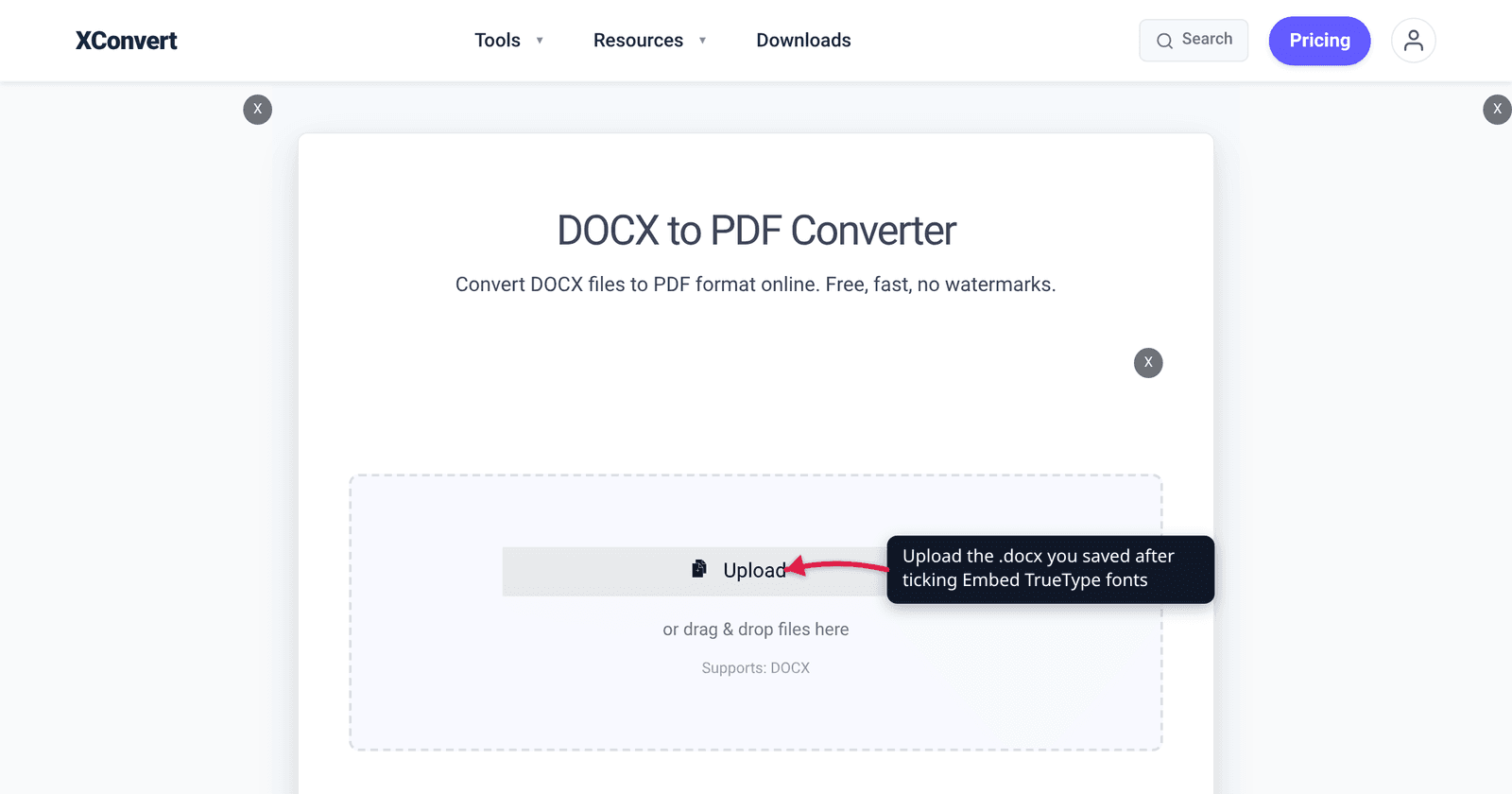
You spent an hour setting a report in a font you like, exported it to PDF, and opened it to find something that is almost — but very obviously not — the same typeface. The headings are heavier, a line that fitted has wrapped, and a table has grown an extra row. Nothing corrupted the file. What happened is font substitution: the font you used was never actually inside the document, so whatever produced the PDF reached for the nearest thing it had. This guide explains the mechanism, the one setting that prevents it, why that setting sometimes refuses to work, and a second, less obvious way fonts get thrown away after the PDF already existed.
Quick answer: A PDF only shows your exact font if that font is embedded — carried inside the file. A
.docxor.pptxdoes not embed fonts unless you tell it to, and a converter runs on a machine that does not have your fonts installed, so it substitutes. Fix it at the source: in Word, tick Embed TrueType fonts in the Save options before you export, and use PowerPoint’s equivalent embed-fonts setting. If embedding is greyed out or silently skips a font, that font’s licence forbids it — the OpenTypefsTypeflag. And do not compress the finished PDF with the Screen preset: Ghostscript’s/screensettings haveEmbedAllFontsset tofalse.
Jump to a section
- Why the fonts change: substitution, not corruption
- Fix it at the source: embed before you convert
- When “embed fonts” refuses to work
- The other font-killer: compressing the PDF afterwards
- Convert DOCX to PDF on xconvert
- FAQ
Why the fonts change: substitution, not corruption
A Word document does not contain the fonts it uses. It contains the names of fonts, and your computer supplies the actual glyphs from the fonts installed on it. That works perfectly on your machine and nowhere else.
A PDF is the opposite by design: it is meant to look the same everywhere, which it achieves by carrying the fonts inside the file. So converting to PDF is the moment the question gets asked — where do the actual letterforms come from? There are only two answers:
- The font came with the document (embedded in the
.docxor.pptx), so it can be embedded into the PDF too. Your typography survives intact. - The font didn’t come with the document, so the converter uses whatever it has. Ghostscript’s documentation describes this behaviour plainly: “Fonts which are not embedded in the input will have a substitute assigned and that will be embedded in the output.”
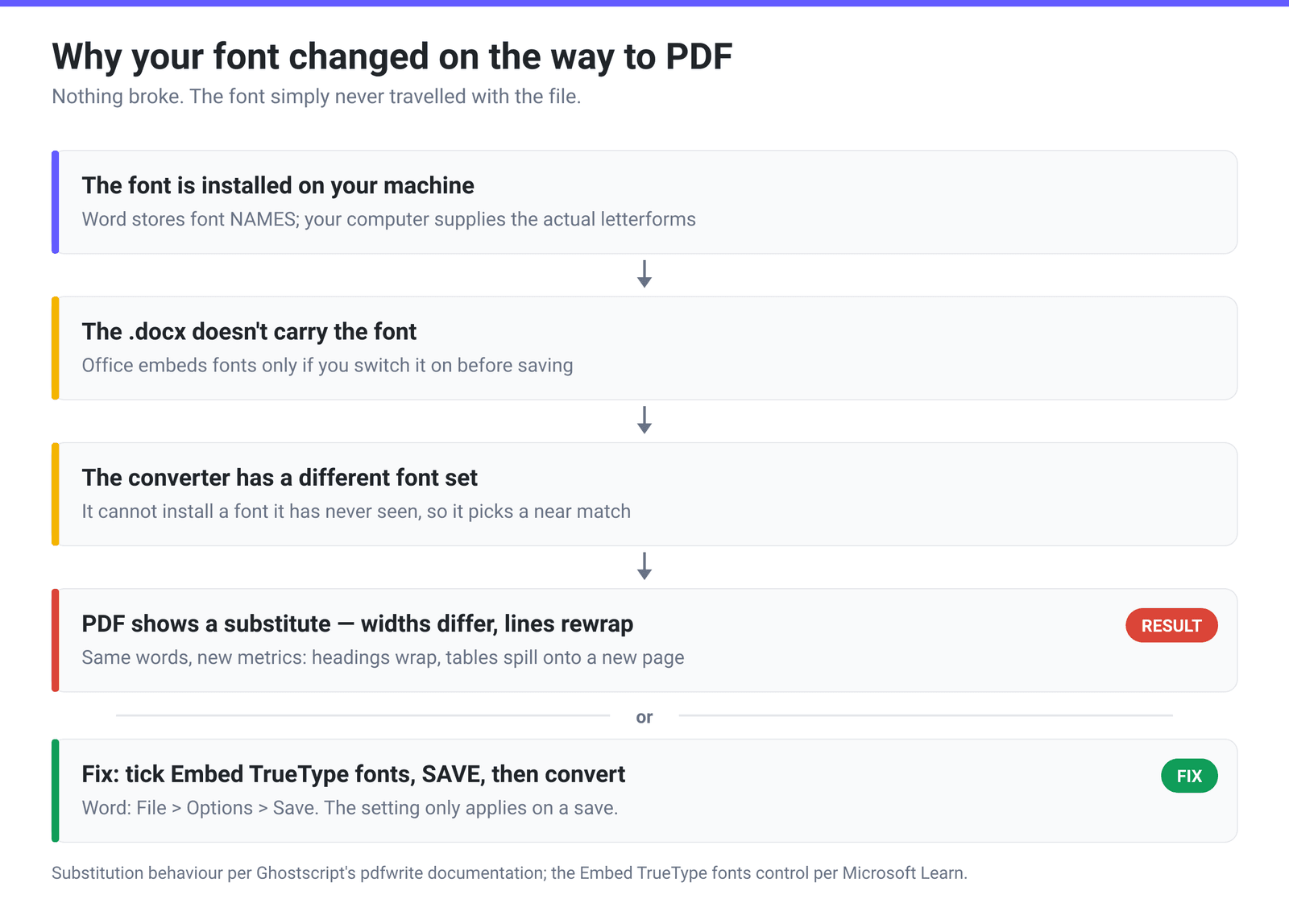
This is why the problem is so much worse for downloaded, purchased and brand fonts than for Arial or Times New Roman. Everyone’s machine has the latter; almost nothing has your foundry font. And it explains the specific symptom people report — text that is readable but reflowed. A substitute font has different glyph widths, so line breaks move, a heading wraps onto two lines, and a table that fitted on one page now spills onto two.
One more thing worth internalising: this is not a bug in the converter and it is not something a converter setting can fix. No option on any conversion page can conjure a font the file never contained. The fix has to happen before the file leaves your machine.
Fix it at the source: embed before you convert
In Word: Microsoft’s own documentation for the EmbedTrueTypeFonts property describes it as “True if Microsoft Word embeds TrueType fonts in a document when it is saved”, notes that “Embedding TrueType fonts allows others to view a document with the same fonts that were used to create it”, and identifies the control as “the Embed TrueType fonts check box in the Save options area on the Save tab in the Options dialog box.” In current versions that lives at File → Options → Save. Tick it, save the document, then convert the saved copy — the setting only takes effect on a save.
In PowerPoint: the equivalent lives in the same Save options area, and PowerPoint’s scripting interface confirms the capability: its SaveCopyAs method takes an EmbedTrueTypeFonts parameter that “specifies whether TrueType fonts are embedded.” Presentations suffer worse than documents when substitution happens, because slide text is usually set in fixed-size boxes — a wider substitute overflows the box rather than reflowing gracefully.
Two practical notes:
- Embedding makes the file bigger, sometimes substantially, because each embedded font is real font data. Both applications offer an option to embed only the characters actually used, which keeps the growth down; choose the “all characters” variant only if someone else will edit the file and type new text in that font.
- Save, then convert. A file open in Word with the checkbox freshly ticked has not embedded anything yet. Save first, close it, and upload the saved file.
If the source is a design tool rather than Office — InDesign, Illustrator, Canva, Figma — export directly to PDF from that application instead of routing through a document format. Those exporters embed fonts by default and skip the problem entirely.
When “embed fonts” refuses to work
You ticked the box, saved, converted — and one font still came out wrong. That is almost always a licensing flag inside the font file itself, not an application failure.
Every OpenType/TrueType font carries an fsType field in its OS/2 table which, in the OpenType specification’s words, “indicates font embedding licensing rights for the font.” The permission values are:
fsType value | Name | What it means |
|---|---|---|
| 0 | Installable embedding | “the font may be embedded, and may be permanently installed for use on a remote systems, or for use by other users” (the spec’s own wording) |
| 2 | Restricted License embedding | “the font must not be modified, embedded or exchanged in any manner without first obtaining explicit permission of the legal owner” |
| 4 | Preview & Print embedding | May be embedded and temporarily loaded elsewhere for viewing or printing; such documents “must be opened ‘read-only’” |
| 8 | Editable embedding | May be embedded and temporarily loaded, and the document may be edited with the embedded font |
The spec is explicit about what software must do: “Applications that implement support for font embedding must not embed fonts which are not licensed to permit embedding.” So a font marked value 2 is skipped by Word, by PowerPoint and by every well-behaved converter — correctly. Two further flags can bite: bit 8 forbids subsetting, and bit 9 restricts embedding to bitmaps, where “if there are no bitmaps available in the font, then the font is considered unembeddable and the embedding services will fail.”
Your options then are to buy an embedding licence from the foundry, swap in a font you can embed, or convert the affected text to outlines in a design tool before it reaches the PDF.
The other font-killer: compressing the PDF afterwards
Here is the one almost nobody knows. You produce a perfect PDF with everything embedded — then run it through a PDF compressor to get under an upload limit, and the fonts change again.
PDF compressors built on Ghostscript work by applying one of five PDFSETTINGS presets, and those presets do not just resample images. They set a whole block of distiller parameters, including EmbedAllFonts:
| Preset | EmbedAllFonts | Ghostscript’s description |
|---|---|---|
/default | true | “output intended to be useful across a wide variety of uses, possibly at the expense of a larger output file” |
/screen | false | “low-resolution output similar to the Acrobat Distiller … ‘Screen Optimized’ setting” |
/ebook | true | “medium-resolution output similar to the Acrobat Distiller … ‘eBook’ setting” |
/printer | true | “output similar to the Acrobat Distiller ‘Print Optimized’ … setting” |
/prepress | true | “output similar to Acrobat Distiller ‘Prepress Optimized’ … setting” |
And Ghostscript spells out the consequence: “When EmbedAllFonts is false only Fonts (not CIDFonts) which are symbolic will be embedded in the output file.”
On xconvert’s PDF compressor, that maps directly onto the Compression Type control — Screen (Best), Ebook, Default, Prepress, Printer — with Screen (Best) preselected because it produces the smallest file. If typographic fidelity matters more than the last few hundred kilobytes, pick Ebook or Printer instead. For the wider quality trade-offs, how to compress a PDF without losing quality works through the rest of what each preset changes.
Convert DOCX to PDF on xconvert
Embed your fonts and save the document first — everything below assumes you have done that.
- Open xconvert.com/convert-docx-to-pdf and click Upload to add the saved
.docx. - Open Advanced Options (the gear icon). This page is deliberately short, and shorter than it looks: it renders a Compression Type control, but that setting is only read by the PDF compressor — a DOCX conversion runs through LibreOffice with no Ghostscript stage, so changing it here has no effect on the output. There is no font control either, because there is nothing a converter can do about a font that was never in your file.
- Click Convert and download the PDF.
- Check the result on a device that does not have your fonts installed — a phone, or a browser PDF viewer. That is the only test that proves the fonts travelled with the file rather than being supplied by your own system.
- If you also need the PDF smaller, do it as a separate step on the PDF compressor and choose Ebook or Printer rather than the default Screen preset, for the reason above.
Your file uploads over an encrypted connection, is processed on our servers, and is deleted automatically a few hours later.
FAQ
Why do my fonts change when I convert a Word document to PDF?
Because the font was not embedded in the .docx. A Word file stores font names, not the fonts themselves, and supplies the glyphs from your own installed fonts. Any machine that converts the file — including a conversion server — has a different set of fonts installed, so it substitutes the closest match it has. Tick Embed TrueType fonts under File → Options → Save, save the document, and convert the saved copy.
Why did my text reflow and my page count change?
A substitute font has different glyph widths from the original. Wider letters push words onto the next line, which pushes lines onto the next page, which is why a two-page document arrives as three with a heading orphaned at the top. The text itself is unchanged — only the metrics are. Embedding the original font keeps the widths identical, and the layout with them.
Does embedding fonts make the file much bigger?
It can. Each embedded font adds real font data to the file, and a document using several weights of a family embeds several fonts. Both Word and PowerPoint offer the option to embed only the characters actually used in the document, which limits the growth considerably. Embed the full character set only when someone else will edit the file and type new text in that font.
The “embed fonts” option is there, but one font still isn’t embedded. Why?
That font’s licence forbids it. Fonts carry an fsType field declaring their embedding rights, and the value 2, “Restricted License embedding”, means “the font must not be modified, embedded or exchanged in any manner without first obtaining explicit permission of the legal owner.” The OpenType specification requires that applications “must not embed fonts which are not licensed to permit embedding”, so Word is obeying the font, not failing. Buy an embedding licence, swap in an embeddable font, or convert that text to outlines before export.
My PDF looked right until I compressed it. What happened?
Ghostscript-based PDF compressors apply a PDFSETTINGS preset, and the presets differ in which fonts they will leave out. Ghostscript’s documentation table shows EmbedAllFonts as false for /screen, but its own source (Resource/Init/gs_pdfwr.ps) sets /EmbedAllFonts //true in all five preset blocks — what actually differs is NeverEmbed, which is .standardfonts for /default, /screen and /ebook and an empty list for /printer and /prepress. In practice that means the three lighter presets decline to embed the 14 standard fonts (the Courier, Helvetica and Times families, Symbol and ZapfDingbats), leaving the viewer to substitute them. If those substitutions are what you are seeing, re-compress the original PDF with the Printer or Prepress Compression Type, which embed everything.
Do PowerPoint presentations have the same problem?
Yes, and usually worse. Slide text sits in fixed-size placeholders rather than reflowing paragraphs, so a wider substitute overflows the box, overlaps a graphic, or gets auto-shrunk to an odd size. PowerPoint has the same embedding capability — its SaveCopyAs method exposes an EmbedTrueTypeFonts parameter — so turn it on in the Save options, save, then convert.
How can I tell whether a PDF’s fonts are embedded?
Open it in a full PDF reader and look at the document properties — Acrobat, for instance, lists every font used with an “Embedded” or “Embedded Subset” annotation next to it. Any font listed without that annotation is being supplied by the machine you are viewing on, which means it will look different somewhere else. Failing that, view the PDF on a phone, which will not have your desktop fonts installed.
Sources
Last verified 2026-08-31.
- Microsoft Learn — Document.EmbedTrueTypeFonts property (Word) — “True if Microsoft Word embeds TrueType fonts in a document when it is saved”; “Embedding TrueType fonts allows others to view a document with the same fonts that were used to create it”; the “Embed TrueType fonts” check box in the Save options area on the Save tab of the Options dialog box.
- Microsoft Learn — Presentation.SaveCopyAs method (PowerPoint) — the
EmbedTrueTypeFontsparameter: “Specifies whether TrueType fonts are embedded.” - Microsoft Typography — OpenType OS/2 table specification — the
fsTypefield “indicates font embedding licensing rights for the font”; permission values 0/2/4/8 including “Restricted License embedding”; and “Applications that implement support for font embedding must not embed fonts which are not licensed to permit embedding.” - Ghostscript documentation — High level devices (pdfwrite / PDFSETTINGS) — the distiller-parameters table showing
EmbedAllFontsas false for/screenand true for/default,/ebook,/printerand/prepress; the preset descriptions; and “When EmbedAllFonts is false only Fonts (not CIDFonts) which are symbolic will be embedded in the output file.” - xconvert DOCX to PDF converter and PDF compressor — the live control names quoted in the steps.