 By James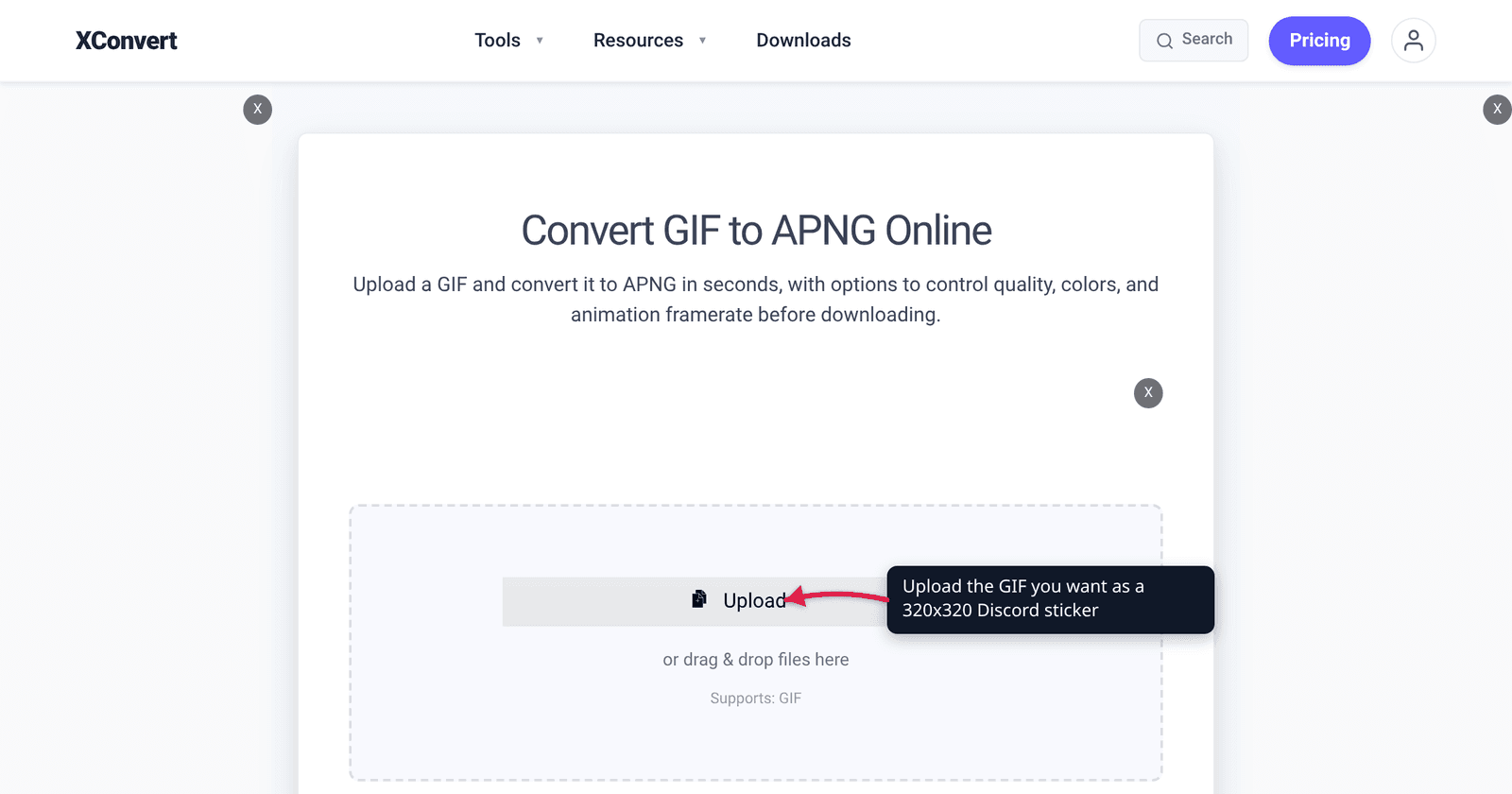
You have a 320 × 320 animation ready for your server’s sticker slot, Discord bounces it for being too big, and every guide you find says something different about which format to use. The caps are not mysterious — Discord publishes them — but the format advice online is mostly folklore. Here is what Discord’s own developer documentation actually says, why APNG is the better choice even though GIF is accepted, and how to fit a real animation inside 512 KiB without it turning to mush.
Quick answer: Discord stickers are 320 × 320 pixels, max 512 KiB, and animated ones are capped at 5 seconds. The accepted upload formats per Discord’s developer docs are PNG, APNG, GIF and Lottie JSON — a GIF is not rejected. But APNG is the better sticker: it carries a full alpha sample per pixel (or per palette entry), so edges stay clean against both Discord’s light and dark themes, and it isn’t limited to 256 colours. Convert with GIF to APNG, then cut frame rate and colours on Compress APNG until you’re under 512 KiB.
Jump to a section
- The sticker spec, from Discord’s own docs
- GIF is accepted — APNG is still better
- The 512 KiB budget: what actually fits
- Convert and shrink on xconvert
- FAQ
The sticker spec, from Discord’s own docs
Discord’s developer documentation for the sticker resource is the authority here — it is the contract the upload endpoint enforces. It states that a guild sticker “must be a PNG, APNG, GIF, or Lottie JSON file, max 512 KiB”, and that “uploaded stickers are constrained to 5 seconds in length for animated stickers, and 320 x 320 pixels.”
| Constraint | Value |
|---|---|
| Dimensions | 320 × 320 pixels |
| Maximum file size | 512 KiB (524,288 bytes) |
| Animated length | 5 seconds maximum |
| Accepted formats | PNG (type 1), APNG (2), Lottie JSON (3), GIF (4) |
| Different thing entirely | Custom emoji: 128 × 128, max 256 KiB |
Two details that trip people up. First, the cap is 512 KiB, not 512 KB — that is 524,288 bytes, about 2.4% more headroom than a decimal 512,000. Your file manager may report either. Second, emoji and stickers are separate systems with separate limits; if you are actually making a 128 × 128 emoji, see Discord custom emoji: fit an animated GIF in 128×128 and 256 KB instead — the maths is completely different at a quarter of the pixel count.
Note also that Lottie stickers are vector JSON animations and are not generally available: the same documentation warns that “Lottie stickers can only be uploaded on guilds that have either the VERIFIED and/or the PARTNERED guild feature.” For everyone else the practical choice is between a raster GIF and a raster APNG.
GIF is accepted — APNG is still better
Plenty of community guidance insists stickers “must be APNG”. That is an over-reading. Discord’s Sticker Format Types table lists GIF as value 4, and the create-sticker documentation names GIF explicitly in the accepted set. Your GIF will upload.
It will just look worse. The reason is in the two formats’ specifications, and it comes down to how each one stores transparency and colour.
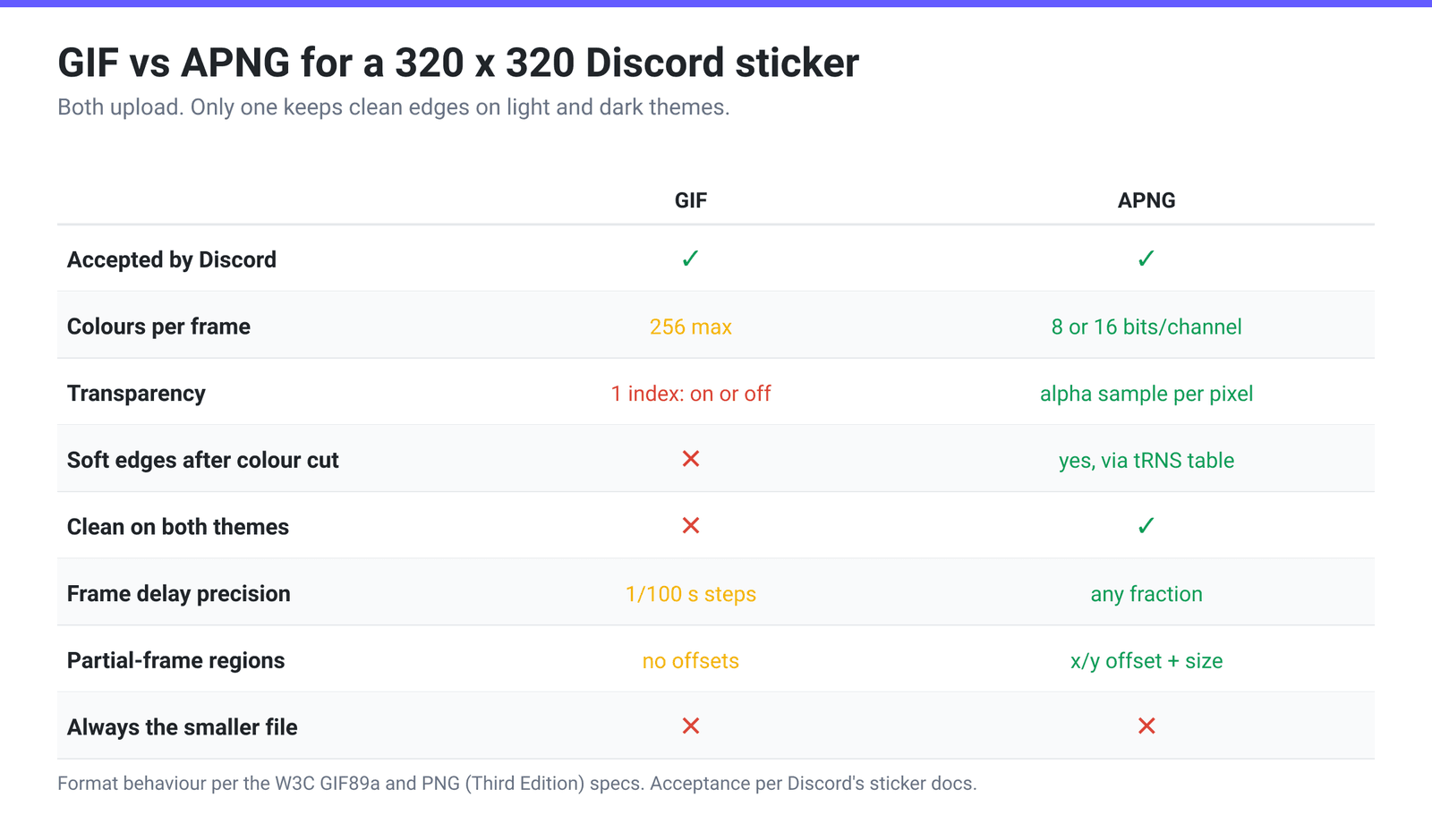
Transparency is the visible difference. The GIF89a specification gives a frame one Transparency Index: “when encountered, the corresponding pixel of the display device is not modified.” One index, one state — a pixel is fully transparent or fully opaque, with nothing in between. The W3C PNG specification (Third Edition, which now includes APNG) offers alpha four ways, and two of them matter here: truecolour with alpha, where “each pixel is an R,G,B triple followed by an alpha sample”; and indexed colour, where “a tRNS chunk contains the alpha table that associates an alpha sample with each palette entry.”
That second one is the underrated part. Even after you reduce an APNG to 128 or 64 colours to save bytes, every palette entry still keeps its own alpha value — so the anti-aliased pixels around a curved outline can be 40% or 70% opaque. A GIF reduced the same way cannot do that. Its semi-transparent edge pixels must be forced either fully opaque (baking in whatever background colour they were composited against) or fully invisible (producing a hard, jagged, aliased edge).
That is precisely the “white halo” you have seen on badly-made GIF stickers: the artwork was flattened against white, and on Discord’s dark theme the leftover white fringe glows. Because Discord users run both light and dark themes, artwork with soft or curved edges keyed to one background will look wrong on the other for whichever half of your server runs the opposite theme.
Colour depth is the second difference. A GIF’s colour table is capped by the spec’s formula — 2 raised to (the 3-bit size field + 1), so a maximum of 256 entries. PNG’s truecolour mode allows 8 or 16 bits per channel. For flat, cel-shaded sticker art 256 colours is often plenty; for anything with a gradient, a glow, or soft shading, it is where banding comes from.
Frame timing is the third. GIF stores delay as “the number of hundredths (1/100) of a second”, so your options are quantised to 10 ms steps. APNG’s frame control chunk carries delay_num and delay_den — a rational fraction — plus x_offset, y_offset, width and height, meaning each frame can be a small sub-rectangle rather than a full 320 × 320 redraw. On an animation where only part of the image moves, that is a real byte saving, not a theoretical one.
The honest caveat: APNG is not automatically smaller than GIF. On noisy, full-frame, photographic animation a well-quantised GIF can win, because PNG’s filter-plus-DEFLATE pipeline is built for flat regions and sharp edges, not for photographic noise. APNG’s advantages are quality and correctness at 320 × 320, plus its sub-rectangle frames when the animation is partial. If your sticker is a video clip rather than drawn artwork, expect to spend real effort on the frame count either way.
The 512 KiB budget: what actually fits
Do the division before you start designing, because it sets your frame count. A single uncompressed 320 × 320 RGBA frame is 409,600 bytes — 400 KiB. Your entire sticker budget is barely more than one raw frame, so every byte comes from compression and from being frugal with frames.
Divide 524,288 bytes by your frame count and you get the average size each compressed frame is allowed to be:
| Animation length | Frame rate | Total frames | Average budget per frame |
|---|---|---|---|
| 1 s | 10 FPS | 10 | 51.2 KiB |
| 2 s | 10 FPS | 20 | 25.6 KiB |
| 2 s | 12 FPS | 24 | 21.3 KiB |
| 3 s | 10 FPS | 30 | 17.1 KiB |
| 3 s | 15 FPS | 45 | 11.4 KiB |
| 5 s (max) | 10 FPS | 50 | 10.2 KiB |
| 5 s | 15 FPS | 75 | 6.8 KiB |
| 5 s | 20 FPS | 100 | 5.1 KiB |
Read that as a design brief rather than a limit to fight. Flat vector-style artwork with large single-colour areas compresses beautifully and will sit comfortably at 10 KiB a frame; a photographic or heavily-gradiented frame will not. The two levers that move the number most are therefore frame count (shorter loop, lower frame rate) and colour count — and because of the tRNS alpha table, cutting colours on an APNG does not cost you the soft edges the way it would on a GIF.
Practical starting point: a 2–3 second loop at 10–12 FPS. That gives you 20–30 frames and roughly 17–25 KiB each, which is achievable for drawn artwork without visible degradation.
Convert and shrink on xconvert
Two steps: convert the GIF to APNG, then shrink the APNG if it is still over budget.
- Open xconvert.com/convert-gif-to-apng and click Upload to add your GIF.
- Open Advanced Options (the gear icon). Under Image resolution, choose Width x Height, set both boxes to 320, and change each unit dropdown from Percent (%) to Pixels — the unit defaults to Percent, so leaving it alone would resize your sticker to 320% of its original size rather than to Discord’s exact 320 × 320.
- Check Framerate. It defaults to 10 FPS (Recommended), which is a sensible sticker rate; set it to match your source if your animation is meant to run faster. Frames are what your 512 KiB actually buys, so treat this dropdown as a size control.
- If you uploaded more than one file, set Combine? to Individual files — the default, Single animation, stitches everything you added into one animation.
- Click Convert and download. If the result is already under 512 KiB, you are done.
- Still too big? Send it through xconvert.com/compress-apng. This page has no “target file size” box — an APNG is shrunk by removing content, so the levers are Framerate (fewer frames), Colors → By Color Reduction + Dither (a Color Palette Size dropdown, 256 down to 2, defaulting to 128, with a Dither toggle), and Image resolution. Start at 128 or 64 colours before you touch anything else; leave the resolution at 320 × 320, since Discord will not thank you for a smaller sticker.
Files upload over an encrypted connection, are processed on our servers, and are deleted automatically a few hours later.
If you are making stickers for more than one platform, how to make WhatsApp stickers: 512 × 512 WebP, the right way covers the other big sticker spec — different size, different format, different cap.
FAQ
Will Discord reject my GIF sticker?
No. Discord’s developer documentation lists GIF as sticker format type 4 and names it in the accepted set for a sticker upload — “a PNG, APNG, GIF, or Lottie JSON file, max 512 KiB”. If your GIF fails, the cause is a limit you have exceeded (over 512 KiB, larger than 320 × 320, or longer than 5 seconds), not the format. Much community advice says “APNG only”; that is a quality recommendation being repeated as a rule.
Why does my sticker have a white or dark outline around it?
Because it has 1-bit transparency. A GIF’s transparency is a single index — a pixel is either fully transparent or fully opaque — so all the semi-transparent anti-aliased pixels along a curve had to be flattened against some background colour when the file was made. On the opposite Discord theme, that baked-in fringe is visible. Converting to APNG keeps a real alpha sample per pixel, but it cannot recover edges that were already flattened — you need to re-export from artwork that still has its alpha channel.
What frame rate should a Discord sticker use?
10–12 FPS is the practical sweet spot. Discord caps animated stickers at 5 seconds, and at 10 FPS that is 50 frames sharing 512 KiB — about 10 KiB each. Push to 20 FPS and each frame gets 5.1 KiB, which forces quality down far more than the extra smoothness gains. Shortening the loop is almost always a better trade than raising the frame rate.
Is an APNG always smaller than the GIF it came from?
No, and anyone promising that is guessing. PNG compression is built for flat colour and sharp edges, so drawn, cel-shaded artwork usually shrinks well, while noisy photographic animation can come out larger than a well-quantised GIF. APNG’s reliable wins are correctness — real alpha, more than 256 colours, per-frame sub-rectangles — not a guaranteed byte count.
How do I get under 512 KiB without wrecking the artwork?
In this order: shorten the loop, lower the frame rate, then reduce the colour palette. Cutting a 5-second loop to 3 seconds removes 40% of the frames outright. Dropping 15 FPS to 10 FPS removes another third. Only then reduce colours — on an APNG that is cheaper than it sounds, because the PNG spec’s tRNS chunk keeps an alpha value for every palette entry, so a 64-colour APNG still has soft edges. Resizing below 320 × 320 should be your last resort. Discord’s own sticker-creator FAQ explains why 320 is the number: “Stickers in the desktop chat will render at 160×160 dp, which is why we recommend uploading stickers as 320×320 px exactly. This scaling helps keep your stickers looking crisp on most displays.” Upload something smaller and you give up that 2× headroom.
How many stickers can my server actually hold?
Per Discord’s developer documentation, every guild starts with five free sticker slots, and each Boost level unlocks more. So the constraint on how many stickers you can make is your server’s Boost level, not the file format — worth checking before you spend an afternoon drawing a set of twelve. Lottie is the one format with a further restriction: it requires a VERIFIED and/or PARTNERED guild.
Sources
Last verified 2026-08-31.
- Discord Developer Documentation — Sticker Resource — the Sticker Format Types table (PNG 1, APNG 2, LOTTIE 3, GIF 4), “must be a PNG, APNG, GIF, or Lottie JSON file, max 512 KiB”, and “uploaded stickers are constrained to 5 seconds in length for animated stickers, and 320 x 320 pixels.”
- Discord Support — Tips for Sticker Creators FAQ — “Stickers in the desktop chat will render at 160×160 dp, which is why we recommend uploading stickers as 320×320 px exactly”, plus the note that stickers may display at different sizes depending on device and placement.
- Discord Developer Documentation — Emoji Resource — the separate emoji limits: “Emojis and animated emojis have a maximum file size of 256 KiB” at 128 × 128.
- W3C — Portable Network Graphics (PNG) Specification (Third Edition) — APNG is part of the PNG specification (W3C Recommendation, 24 June 2025); the four alpha representations including “a tRNS chunk contains the alpha table that associates an alpha sample with each palette entry”; and the fcTL chunk fields (
width,height,x_offset,y_offset,delay_num,delay_den,dispose_op,blend_op). - W3C — GIF89a Specification — the single Transparency Index (“the corresponding pixel of the display device is not modified”), the colour-table size formula giving a 256-entry maximum, and delay time in hundredths of a second.
- xconvert GIF to APNG converter and APNG compressor — the live control names quoted in the steps.