 By Stephanie Taylor
The DVD player under the TV has a USB port and a DivX logo on the front, and it refuses every MP4 you put on a stick. The manual says “DivX Certified” and lists AVI. Somewhere on the internet you found a “convert to Xvid” button, used it, and got a file called holiday.xvid that the player ignored just as hard. Here is what those logos actually promise, and the settings that make a file your twenty-year-old player will happily open.
Quick answer: Xvid and DivX are both MPEG-4 Part 2 video — the same codec family, different encoders. What your player matches on is the container and the file extension, and
.xvidis not one it knows. Use an AVI converter, set Video Codec to Xvid (or DivX, or plain MPEG-4), and leave Audio Codec on its MP3 default, because MP3 is the one audio format accepted on every DivX certification profile. Then stay inside your player’s profile: the entry-level DivX Home Theater tier tops out at 720 x 576, 30 fps, 10 Mbps and a 4 GB file.
Jump to a section
- Xvid, DivX and MPEG-4 are the same family
- The .xvid trap
- What your player actually promises
- The four settings that decide whether it plays
- Convert to Xvid AVI on xconvert
- FAQ
Xvid, DivX and MPEG-4 are the same family
The naming is the confusing part, and it is worth clearing up before you touch a setting.
MPEG-4 Part 2 is the video coding standard. DivX and Xvid are implementations of it — DivX commercially, Xvid as the open-source project whose name is DivX spelled backwards. FFmpeg, which does the encoding here, documents this plainly: its libxvid encoder is the “Xvid MPEG-4 Part 2 encoder wrapper”, and it notes that “the native mpeg4 encoder supports the MPEG-4 Part 2 format, so users can encode to this format without this library.”
That has a practical consequence on the converter page. The Video Codec list on an AVI conversion offers MPEG-4 (the page’s default), DivX, and Xvid as separate entries, but they are three routes into the same bitstream family:
- Xvid runs through the Xvid library itself (
libxvid). - DivX and MPEG-4 both use FFmpeg’s own native MPEG-4 Part 2 encoder.
A DivX Certified decoder does not care which of the three produced the file — it decodes MPEG-4 Part 2. So if a device is fussy, trying the other entry in the list is a cheap experiment, not a fundamentally different file. What it does care about is everything in the next two sections.
The .xvid trap
There are pages on the web — including one of ours — labelled “convert video to Xvid” that hand you a file whose name ends in .xvid. That extension is the single most common reason a conversion that “worked” still doesn’t play.
.xvid names a codec, not a container. There is no .xvid file format, no player that registers the extension, and no DivX profile that lists it. Under the hood our pipeline already knows this — its codec-to-container map routes both XVID and DIVX outputs into the AVI container, so the bytes in that file genuinely are an AVI. Only the name is wrong, which is why renaming holiday.xvid to holiday.avi will usually just work.
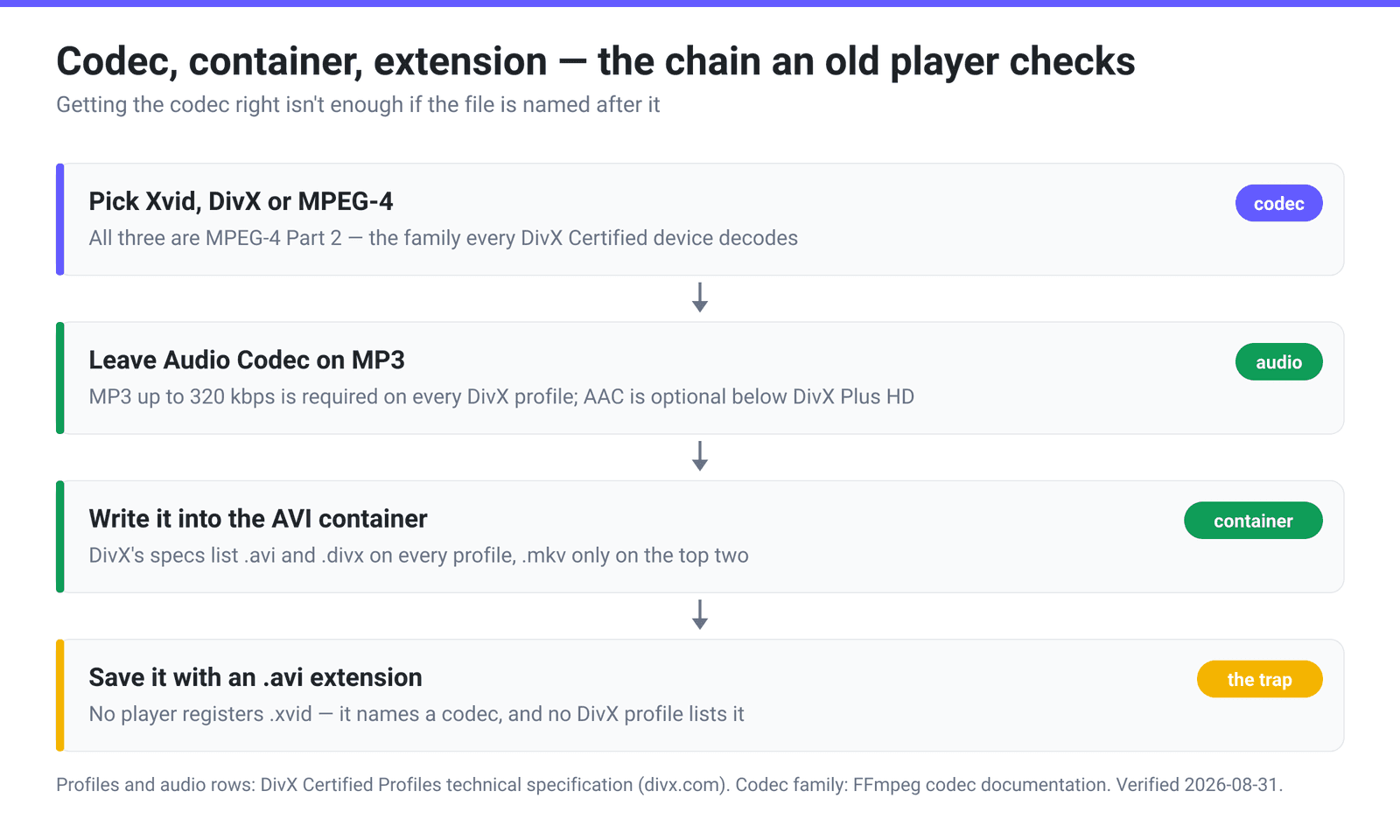
But relying on a rename is fragile, and it leaves the rest of the job — audio codec, resolution, bitrate — unattended. The better route is to convert to AVI and choose Xvid in the Video Codec list. Same video, correct container, correct extension, and every other setting exposed where you can see it.
The same logic applies to the .divx extension, with one difference: .divx genuinely does appear in DivX’s certification specs as an accepted file extension alongside .avi. If your player’s manual lists .divx, that file will work. .xvid appears nowhere.
What your player actually promises
The “DivX Certified” logo is not a single guarantee. DivX publishes four main certification profiles, and its own technical specification sheet gives the numbers each tier is tested against:
| DivX HEVC | DivX Plus HD | DivX HD 1080p | DivX HD 720p | DivX Home Theater | |
|---|---|---|---|---|---|
| Max file size | Unlimited | Unlimited | 4 GB | 4 GB | 4 GB |
| Max transfer | 30 Mbps | 30 Mbps | 30 Mbps | 13 Mbps | 10 Mbps |
| Extensions | .mkv, .avi, .divx | .mkv, .avi, .divx | .avi, .divx | .avi, .divx | .avi, .divx |
| Video codecs | DivX 3-6, H.264, H.265 | DivX 3-6, H.264, H.265 | DivX 3-6 | DivX 3-6 | DivX 3-6 |
| Max pixels | 3840 x 2160 (H.265) | 1920 x 1080 | 1920 x 1080 | 1280 x 720 | 720 x 576 |
| Frame rate | 30 fps | 30 fps | 30 fps | 30 fps | 30 fps |
| MP3 audio | up to 320 kbps | up to 320 kbps | up to 320 kbps | up to 320 kbps | up to 320 kbps |
| AC3 audio | up to 448 kbps | up to 640 kbps | up to 448 kbps | up to 448 kbps | up to 448 kbps |
| AAC audio | up to 1152 kbps | up to 1152 kbps | optional | optional | optional |
Three things jump out.
MP3 is the only audio that’s mandatory everywhere. Every profile, from the 4K HEVC tier down to the cheapest set-top box, is tested for MP3 up to 320 kbps at up to 48 kHz in mono, stereo or 5.1. AAC is only required on the two top tiers and is listed as optional on the three older ones — which is exactly why an MP4’s AAC soundtrack so often produces silent playback on an old player. Our AVI page defaults Audio Codec to MP3, which is the right default for this job; leave it alone.
The old players are standard definition. DivX Home Theater tops out at 720 x 576 — PAL SD. A 1080p file is outside what such a device was tested against, so expect stutter, a garbled picture, or an outright refusal. If the front of the box says “DivX HD” you get 720p or 1080p depending on which tier; if it just says “DivX”, assume SD.
Everything below DivX Plus HD caps at 4 GB. That limit shows up twice over, because these players read USB sticks, and Microsoft’s own documentation notes that “FAT32 has a file size limit of 4GB”. A FAT32 stick and a Home Theater profile agree on the ceiling; format the stick as exFAT and the profile still says no.
The four settings that decide whether it plays
Video Codec. Xvid, DivX, or MPEG-4 — any of the three. If one produces a file the player rejects, try another before you assume the file is the problem.
Audio Codec. MP3. It is the page default and the only codec every profile is tested against. If your source has a 5.1 AC3 track and the player lists AC3 in its manual, that also works; AAC is the one to avoid.
Resolution. Match the profile, don’t exceed it. Under Video resolution the page starts on Keep original, so a 1080p source stays 1080p unless you change it. For an SD-only player, switch to Preset Resolutions and pick 576p, or use Width (Keep aspect ratio) with the unit dropdown set to Pixels and type 720. For a “DivX HD” player, 720p or 1080p per its tier.
Bitrate. The profile’s “max transfer” is a ceiling on the whole file, video plus audio. Home Theater allows 10 Mbps, which is generous for SD — you will normally land far below it. If you need to force the issue, File Compression offers Constant Bitrate and Variable Bitrate in Kbps or Mbps alongside the default Quality Preset, which starts on Very High (Recommended).
One honest gap: the MP4-to-AVI page has no frame-rate control. Every DivX profile is specified at 30 fps, so a 50 or 60 fps source is outside spec even though it will often play anyway. If a high-frame-rate file stutters on a strict device, that is the likely cause and you will need a desktop encoder to change it.
And if what you actually want is a disc that plays in the disc tray rather than a file that plays off USB, that is a different job entirely — DVD-Video needs MPEG-2, which converting MP4 to MPEG-2 for DVD burning covers.
Convert to Xvid AVI on xconvert
Use the MP4 to AVI converter rather than any page that outputs a bare codec name as the extension.
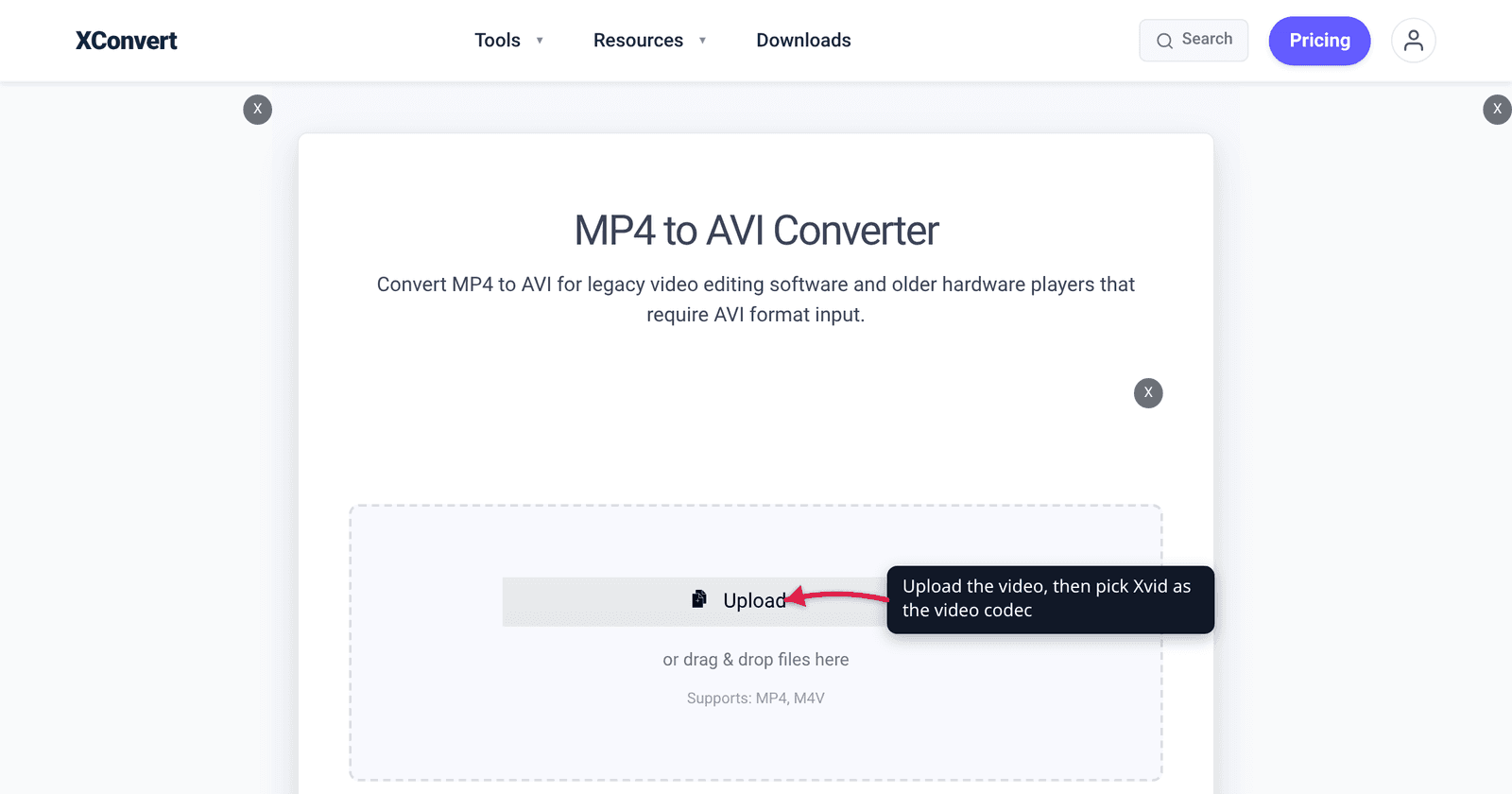
- Click Upload to add your video (from your computer, Google Drive, or Dropbox).
- Open Advanced Options, then click Show All Options — the Video Codec and Audio Codec groups are advanced-level and stay hidden until you do.
- In Video Codec, choose Xvid. (The page’s default is MPEG-4, which is the same standard through a different encoder; DivX is the third route.)
- Confirm Audio Codec is on MP3. It is the default, and it is the one format every DivX certification profile is tested against.
- Under Video resolution, leave Keep original for an HD-capable player, or switch to Preset Resolutions > 576p for a standard-definition DivX Home Theater device.
- Leave File Compression on Quality Preset / Very High (Recommended) unless you need a specific bitrate, then click Convert and download an
.avifile.
Files upload over an encrypted connection, are processed on our servers, and are automatically deleted a few hours later. No sign-up, no watermark.
Going the other way — an old AVI you want on a phone or a modern TV — is covered in how to convert AVI to MP4.
FAQ
Is Xvid better than DivX?
Neither is “better” — both encode MPEG-4 Part 2, and a DivX Certified device decodes the result either way. The practical difference is which encoder produced the bitstream: choosing Xvid runs the Xvid library, while DivX and MPEG-4 use FFmpeg’s own MPEG-4 Part 2 encoder. If one output is rejected by a particular player, trying the other costs you one more conversion and sometimes fixes it.
Why won’t my .xvid file play?
Because .xvid is a codec name, not a file format. No player registers that extension and no DivX profile lists it — the certification specs name .avi, .divx and (on the top tiers) .mkv. The file’s contents are usually a perfectly good AVI, so renaming it to .avi normally works, but converting to AVI directly is cleaner and lets you set the audio codec and resolution at the same time.
My video plays but there’s no sound. What happened?
Almost always an audio codec the player was never tested for. AAC — the standard soundtrack in an MP4 — is only required on the DivX HEVC and DivX Plus HD profiles; on DivX HD and DivX Home Theater devices, DivX’s specification lists it as optional. MP3 is required on every profile, up to 320 kbps and 48 kHz, in mono, stereo or 5.1. Re-convert with Audio Codec set to MP3.
What resolution should I use for an old DVD player?
If the device carries the plain DivX or DivX Home Theater logo, its tested maximum is 720 x 576. DivX HD 720p players go to 1280 x 720, DivX HD 1080p and DivX Plus HD to 1920 x 1080. All of them are specified at 30 fps. When in doubt, 576p in AVI is the file that plays on the widest range of old hardware.
Why does my file stop at 4 GB, or refuse to copy to the USB stick?
Two separate 4 GB limits stack up. DivX certifies every profile below DivX Plus HD at a 4 GB maximum file size, and FAT32 — the filesystem USB sticks are commonly formatted with, and the one many players require — has its own 4 GB per-file limit, which Microsoft documents directly. Either split the video or lower the bitrate until the file fits.
Can I make a 4K Xvid file?
Not usefully. Our Xvid encoder path is capped at 2048 pixels in each dimension, and no DivX profile lists MPEG-4 Part 2 above 1920 x 1080 anyway — the 4K tier is HEVC only. If you have a 4K source and an old player, downscale; if you have a 4K-capable DivX HEVC device, you want H.265 in MKV or MP4, not Xvid.
Sources
Last verified 2026-08-31.
- DivX — DivX Certified Profiles technical specification (PDF) — the per-profile table used above: max file size, max transfer, file extensions, codecs, pixel dimensions, frame rate, and the MP3/AC3/AAC audio rows. Linked as the current spec from divx.com’s devices page; the document itself is dated 2018.
- DivX — DivX Certified Devices — the four certification profiles (DivX HEVC, DivX Plus HD, DivX HD, DivX Home Theater) and what the logo on a device means.
- FFmpeg — Codecs Documentation, libxvid — “Xvid MPEG-4 Part 2 encoder wrapper”; “the native mpeg4 encoder supports the MPEG-4 Part 2 format.”
- Microsoft Learn — Install Windows from a USB flash drive — “FAT32 has a file size limit of 4GB.”
- Microsoft Learn — AVI RIFF File Reference — the AVI file format as a RIFF document format, and the note that the OpenDML extensions are specified separately.