 By James
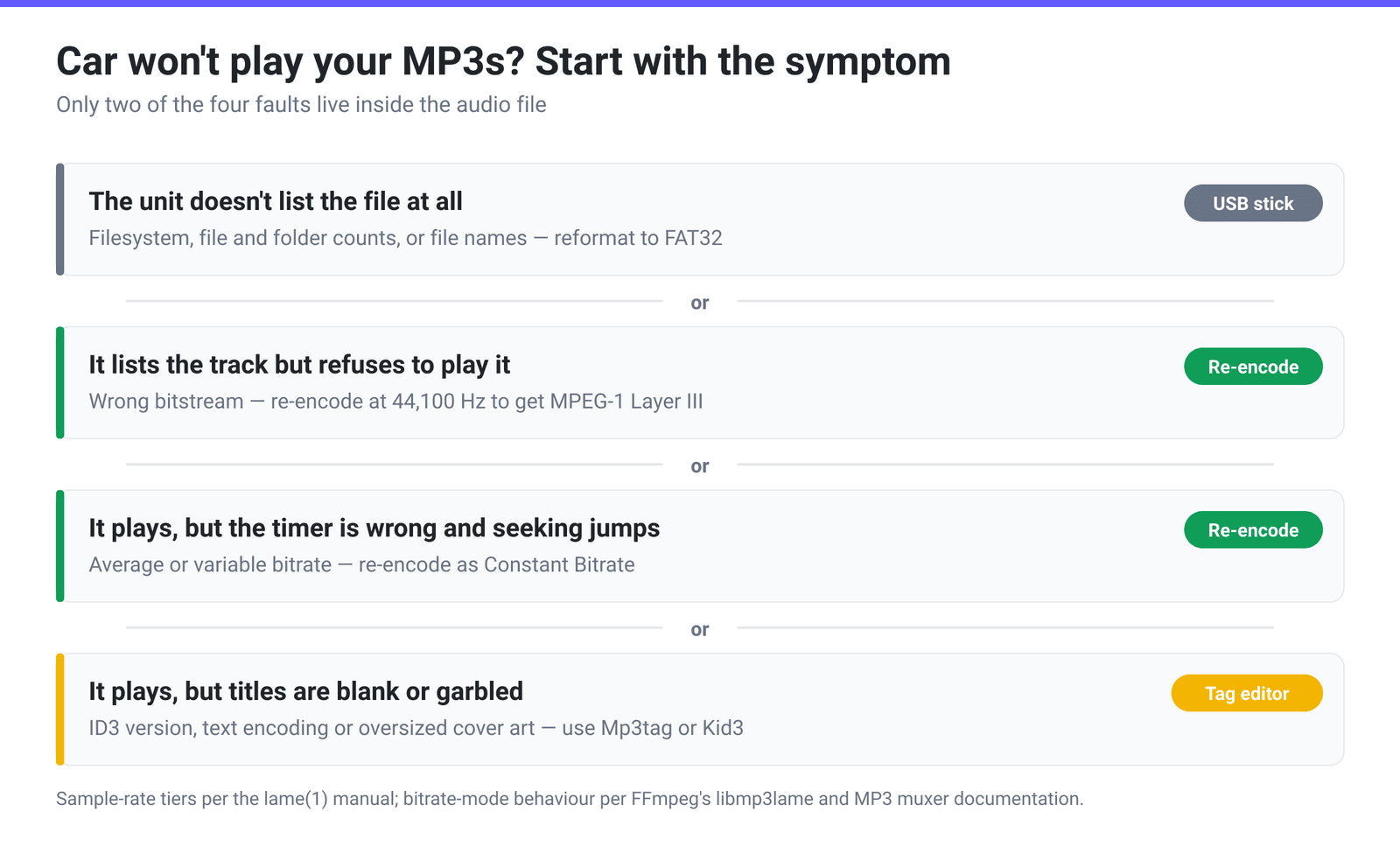
You copy an album onto a USB stick, plug it into the car, and the head unit plays four tracks and skips the rest. Or it plays everything but the elapsed time counts up wrong and fast-forward lands somewhere random. Or the titles come up as blank lines and question marks. These are three different faults with three different fixes, and only two of them live inside the MP3 file — which is why “just convert it again” sometimes works and sometimes changes nothing.
Quick answer: A car head unit decodes a narrower slice of the MP3 standard than your phone does. The two things you can fix by re-encoding are the bitstream (get the file to MPEG-1 Layer III by setting the sample rate to 44,100 Hz) and the bitrate mode (a true constant bitrate at a standard value such as 128 or 192 kbps). On xconvert’s MP3 compressor that means File Compression → Constant Bitrate, plus Audio Sample Rate → 44100 HZ. The two things re-encoding will not fix are the ID3 tags and the USB stick itself — for those you need a tag editor and a reformat.
Jump to a section
- The four things a head unit checks
- Why 44,100 Hz matters more than bitrate
- CBR, ABR, VBR — and which one you get by default
- What re-encoding cannot fix
- Re-encode an MP3 for the car on xconvert
- FAQ
The four things a head unit checks
A phone runs a general-purpose decoder that handles every corner of the MP3 family and every tag dialect ever shipped. A head unit runs fixed firmware around one decoder chip, and its manual carries a “supported formats” table naming exactly which corner it implements. That table is the authority for your car; this article is about what to do once you have read it.
| What the head unit checks | What it usually wants | Can xconvert change it? |
|---|---|---|
| Which bitstream — MPEG-1, MPEG-2 or MPEG-2.5 Layer III | MPEG-1 Layer III (32, 44.1 or 48 kHz) | Yes — Audio Sample Rate → 44100 HZ |
| Bitrate and bitrate mode | A standard rate; constant bitrate is the safe bet | Yes — File Compression → Constant Bitrate |
| Channel count | Mono or two-channel stereo | Yes — Audio Channel |
| ID3 tag version, text encoding, embedded artwork | Often ID3v1 or ID3v2.3, modest cover art | No — use a tag editor |
| The drive: filesystem, folder depth, file and folder counts, file names | Usually FAT32, with per-model limits | No — that is the stick, not the file |
Why 44,100 Hz matters more than bitrate
“MP3” is really three related bitstreams, and which one you get is decided entirely by the sample rate. The LAME encoder’s manual sets it out plainly:
| Bitstream | Sampling frequencies | Bitrates available (kbps) |
|---|---|---|
| MPEG-1 Layer III | 32, 44.1, 48 kHz | 32, 40, 48, 56, 64, 80, 96, 112, 128, 160, 192, 224, 256, 320 |
| MPEG-2 Layer III | 16, 22.05, 24 kHz | 8, 16, 24, 32, 40, 48, 56, 64, 80, 96, 112, 128, 144, 160 |
| MPEG-2.5 Layer III | 8, 11.025, 12 kHz | 8, 16, 24, 32, 40, 48, 56, 64 |
A file from a voice recorder, an old download, a ripped video or a podcast feed may be a perfectly valid 22,050 Hz MPEG-2 Layer III file that your phone plays without blinking and your dashboard refuses. Re-encoding it at 44,100 Hz moves it into MPEG-1 Layer III — the tier every MP3-capable head unit implements, because it is the tier CDs and everything ripped from them use. You gain no fidelity by resampling upward; the top end the original encoder discarded stays gone. You gain a file the hardware recognises.
Is hardware really that picky? The LAME manual documents an example of exactly this kind of constraint in its own bitrate notes: “If you own an mp3 hardware player build upon a MAS 3503 chip, you must set maximum bitrate to no more than 224 kpbs.” (The typo is in the original.) That decoder chip shipped in early portable and in-dash players, and its ceiling was a real, documented limit — not a myth.
CBR, ABR, VBR — and which one you get by default
Three modes exist, and they are not equally safe in a car.
- CBR — every frame is the same size, so even the most conservative decoder can compute track length and seek positions with arithmetic.
- ABR — frame sizes vary but aim at an average. This is what “80% of the size” or “exactly 8 MB” actually asks for.
- VBR — the encoder spends bits on quality and lets the rate roam.
For ABR and VBR files the true duration lives in a small header block at the front of the file. FFmpeg’s MP3 muxer writes it by default: “A Xing/LAME frame right after the ID3v2 header (if present). It is enabled by default, but will be written only if the output is seekable”, and “The frame contains various information that may be useful to the decoder, like the audio duration or encoder delay.” A decoder that reads that header shows the right time. A decoder that ignores it multiplies the first frame’s bitrate by the file size and displays nonsense — which is exactly the “wrong track length, seeking jumps” symptom.
Here is how xconvert’s five modes map onto that, per FFmpeg’s own documentation of the LAME wrapper, where the bitrate option “Set[s] bitrate expressed in bits/s for CBR or ABR” and a separate switch “Enable[s] the encoder to use ABR when set to 1”:
| File Compression mode | What the encoder is asked for | Best choice for a car? |
|---|---|---|
| File Size Percentage (preselected, 80%) | An average bitrate that lands near a target size | No — this is an ABR stream |
| Specific file size | An average bitrate that lands near a target size | No — same |
| Constant Bitrate | One fixed rate from the dropdown, every frame | Yes — the compatibility choice |
| Custom Bitrate | One fixed rate you type in | Yes, if you type a standard value |
| Variable Bitrate | A quality target, rate roams inside a range | Only if your manual says VBR is supported |
The recipe: Constant Bitrate at 192 kbps for music, 128 kbps to fit more on a small stick, nothing below 96 kbps unless it is spoken word.
What re-encoding cannot fix
Tags. xconvert has no tag editor: you cannot pick the ID3 version, change the text encoding, or strip an oversized embedded cover here. Blank, truncated or garbled titles are a tag problem. Mp3tag is the standard fix — its Tags options choose exactly what gets written: ID3v2.4 as UTF-8, ID3v2.3 as UTF-16, ID3v2.3 as ISO-8859-1, plus ID3v1 and APEv2. Older units are happiest with ID3v2.3 and plain ASCII. Kid3 does the same job on macOS and Linux. Removing a multi-megabyte embedded cover is often the one change that gets a stubborn unit listing tracks again.
The stick. If the unit does not list the file at all — no error, it simply is not there — nothing inside the MP3 is responsible. Suspect the filesystem (many units read FAT32 only and ignore an exFAT or NTFS drive entirely), the file and folder counts (manuals routinely publish a maximum), nesting depth, and names using characters the firmware cannot render. Reformatting to FAT32 and flattening the folders fixes more cars than any converter setting.
Loudness. If a track is quiet in the car and fine everywhere else, that is a level problem — xconvert has no gain, normalisation or loudness processing of any kind, so that belongs in an audio editor.
Re-encode an MP3 for the car on xconvert
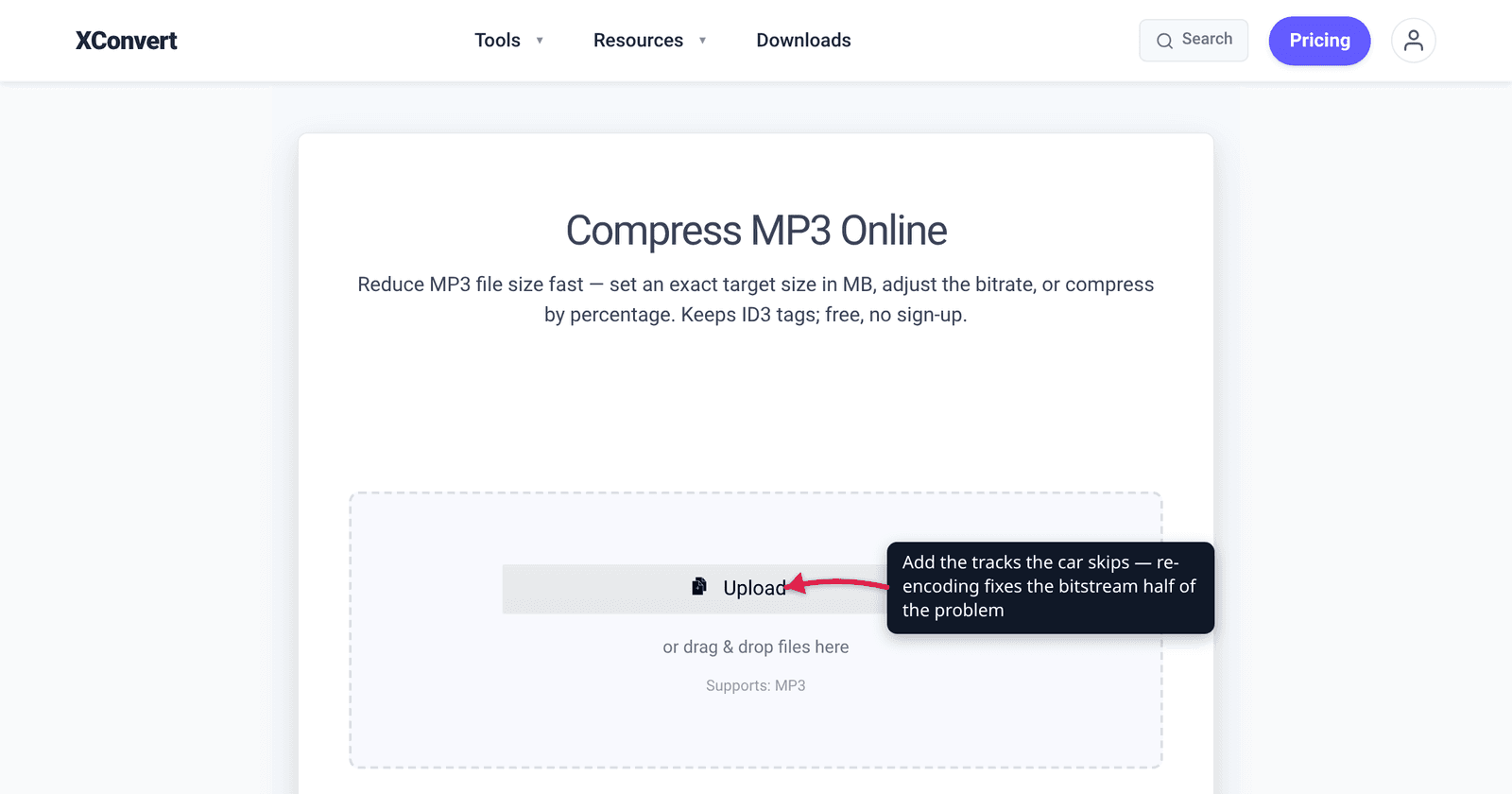
- Open xconvert.com/compress-mp3 and click Upload — from your computer, Google Drive or Dropbox. The drop area confirms Supports: MP3, and you can queue a whole album at once.
- In Advanced Options, switch File Compression from its preselected File Size Percentage to Constant Bitrate, then pick a standard rate from the dropdown — 192 kbps for music, 128 kbps to save space.
- Open the Audio Sample Rate dropdown, which starts on ORIGINAL, and choose 44100 HZ. This is the setting that guarantees an MPEG-1 Layer III file.
- Leave Audio Channel on ORIGINAL for normal stereo music. Set it to STEREO only if you know the source is something unusual, or to MONO for spoken word you want to halve.
- Click Compress, download, and copy the files to a FAT32 stick. If titles still display wrongly, run the folder through a tag editor — that half of the problem is not in the audio.
Your file uploads over an encrypted connection, is processed on our servers, and is automatically deleted a few hours later. Nothing stays around.
If the problem files are not really MP3s — an M4A, WMA or FLAC that someone renamed — start with How to Convert Any Audio File to MP3 instead. And if you are unsure which rate to standardise on, the 128 vs 256 vs 320 kbps guide covers what each one costs you.
FAQ
Why do some tracks play and others get skipped on the same stick?
Because they were made by different encoders at different times. A ripped CD track is almost always 44.1 kHz MPEG-1 CBR and plays anywhere. A file that came from a video, a voice recorder or a low-bitrate download may be 22,050 Hz MPEG-2 or 11,025 Hz MPEG-2.5, which is a different bitstream that a limited decoder may not implement. Check the odd files’ properties: if the sample rate is not 32, 44.1 or 48 kHz, that is your answer.
Should I use 320 kbps to be safe?
No — high bitrates are the wrong axis. 320 kbps is legal MPEG-1 and most units handle it, but the LAME manual’s own note about the MAS 3503 chip’s 224 kbps ceiling shows that some hardware caps out below the top of the table. 192 kbps constant bitrate is the safer default: comfortably inside every documented limit, and indistinguishable from 320 on a car’s speakers with road noise underneath.
My car shows the wrong track length and seeking jumps around. Is the file broken?
Almost certainly not. That is the classic symptom of a variable or average bitrate file being read by a decoder that ignores the Xing/LAME header at the front, where the real duration is stored. It estimates the length from the first frame’s bitrate instead, and every seek is computed from that wrong number. Re-encoding at a constant bitrate removes the estimate entirely, because with fixed frames the arithmetic is exact.
The tracks play but the titles are blank or full of question marks. Can the converter fix that?
No, and it is worth knowing why: that is the ID3 tag, not the audio, and xconvert exposes no control over tag version or text encoding. Open the folder in Mp3tag or Kid3, write ID3v2.3, avoid non-ASCII characters in titles if the display is mangling accents, and remove oversized embedded artwork. Then re-copy to the stick.
Do I need to re-encode files that already play fine?
No. Re-encoding is lossy — you decode an already-lossy file and compress it again, which costs a little quality every time. Convert only the tracks that fail. Sort the library by sample rate in a tag editor and the failures usually cluster in one small group of oddly-encoded files.
Sources
Last verified 2026-08-31.
- lame(1) manual page, Debian bookworm — the MPEG-1 / MPEG-2 / MPEG-2.5 sampling-frequency and bitrate tables quoted above, and the documented MAS 3503 hardware bitrate ceiling.
- FFmpeg codec documentation, libmp3lame — the bitrate option “Set bitrate expressed in bits/s for CBR or ABR”, and the separate ABR switch that “Enable[s] the encoder to use ABR when set to 1”.
- FFmpeg format documentation, MP3 muxer — the Xing/LAME frame written by default, which “contains various information that may be useful to the decoder, like the audio duration or encoder delay”, and the ID3v2.3/2.4 header behaviour.
- Mp3tag documentation — Options → Tags → Mpeg — the tag versions a real tag editor can write: ID3v2.4 UTF-8, ID3v2.3 UTF-16, ID3v2.3 ISO-8859-1, ID3v1 and APEv2.
- Kid3 audio tagger — cross-platform alternative for the tag half of the problem.
- xconvert MP3 compressor — the live control names used in the steps: File Compression (File Size Percentage preselected at 80%, Specific file size, Custom Bitrate, Constant Bitrate, Variable Bitrate), Audio Channel and Audio Sample Rate, both starting on ORIGINAL.