 By Stephanie Taylor
The document was two pages in Word. The PDF is three, the last heading is stranded alone at the top of page three, a table that fitted now runs off the right edge, and the margins look narrower than you set them. Nothing corrupted the file — a .docx doesn’t contain a layout at all. It contains instructions for producing one, and whatever renders the PDF re-runs those instructions on a machine that isn’t yours. This guide covers the geometry half of that problem: page size, margins, page breaks and reflow.
Quick answer: A Word file stores page geometry as section properties —
w:pgSzholds the page size and orientation in twentieths of a point, and the margins sit alongside it — and every renderer re-paginates from those instructions. Layout moves when (a) the page size the document assumes isn’t the page size it gets — A4 is 5.9 mm narrower and 17.6 mm taller than US Letter, which alone re-wraps every line; (b) the file carries thew:usePrinterMetricscompatibility flag, which ties layout to a printer that doesn’t exist on a conversion server; or © the pagination is held together by empty paragraphs rather than real breaks. Pin the page size, clear the printer flag, use real page breaks, then convert on xconvert’s DOCX to PDF converter. Fonts are the other half of this problem and have their own guide.
Jump to a section
- Word stores instructions, not a layout
- The page-size trap: designed on Letter, rendered on A4
- The printer your document is still thinking about
- Why the page breaks land somewhere else
- The pre-flight checklist
- Convert DOCX to PDF on xconvert
- FAQ
Word stores instructions, not a layout
A PDF is a painting: every glyph has a position on a page of fixed size, and every viewer draws it identically. A .docx is a recipe: a page size, some margins, a stream of paragraphs and rules about how they may break — and the application computes the pages from that when the file is opened.
You can see this in the format itself. Page geometry lives in the section-properties element, and the ISO/IEC 29500 definition of the page-size element says it “specifies the properties (size and orientation) for all pages in the current section”:
<w:pgSz w:w="11907" w:h="16839" />Those numbers are twentieths of a point — 11907 twips is 8.269 inches, 16839 twips is 11.694 inches. That is A4. Margins sit in the same section-properties block, which is why “the whole document” and “this section onwards” are two different answers when Word asks where to apply a page-setup change.
The practical consequence: a converter isn’t reproducing your pages, it is re-deriving them. Anything the recipe leaves to the renderer — line breaking, how much a table column may shrink, where a paragraph may split — can come out differently. Your job before converting is to remove as much of that discretion as possible.
The page-size trap: designed on Letter, rendered on A4
This is the single most common cause of “the margins changed”, and it usually isn’t the margins at all — it’s the page underneath them.
| US Letter | A4 | Difference | |
|---|---|---|---|
| Width | 8.5 in / 215.9 mm | 8.269 in / 210 mm | A4 is 5.9 mm narrower |
| Height | 11 in / 279.4 mm | 11.694 in / 297 mm | A4 is 17.6 mm taller |
w:pgSz value | w="12240" h="15840" | w="11907" h="16839" | in twentieths of a point |
| Text column at 1 in margins | 6.5 in | 6.269 in | 3.5% narrower |
| Text block at 1 in margins | 9 in | 9.694 in | 7.7% taller |
Read those last two rows together and the damage is obvious. A 3.5% narrower column re-wraps every line in the document — words drop to the next line, paragraphs grow, and the overflow accumulates onto extra pages. The 7.7% taller text block partly absorbs it, which is why the page count sometimes holds and sometimes jumps: the two effects fight, and the winner depends on how much of the document is text versus fixed-height objects.
Tables take the mismatch worst. A table set to AutoFit to Window is sized relative to the text column, so it shrinks by that 3.5% and every cell re-wraps — one extra line in one cell can add a row’s height and break the table across a page. A table with Fixed Column Width does the opposite: it keeps its width and hangs off the right edge of the narrower page.
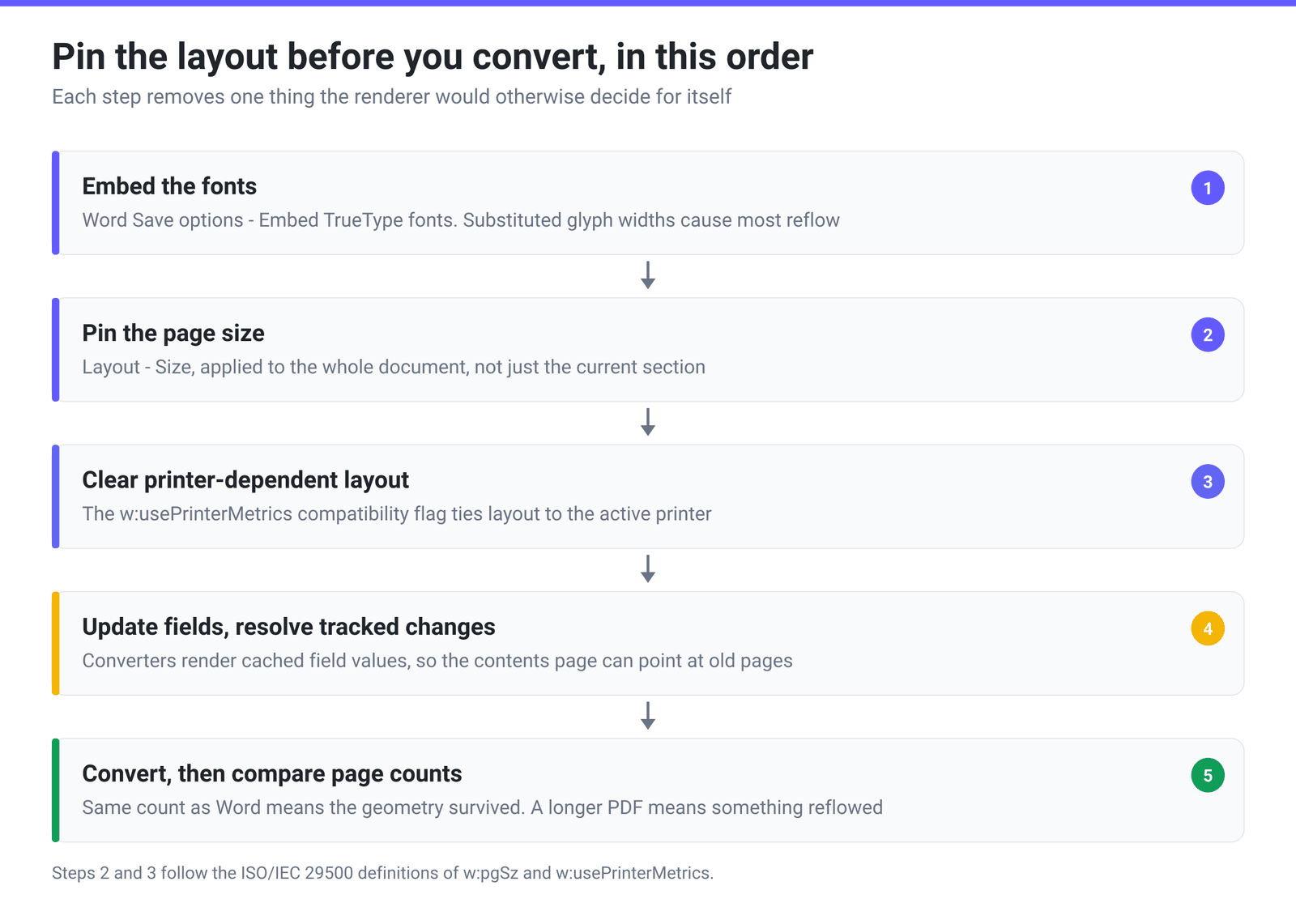
The fix is to stop leaving it implicit. In Word, set Layout → Size to the page you actually want and apply it to the whole document, not just the current section — a file assembled from several sources can easily carry a Letter section inside an A4 document, and you only notice in the PDF. The same choice, from the images angle, is covered in A4 or US Letter for photo PDFs.
The printer your document is still thinking about
Here is one that catches people who inherited a document from someone else. WordprocessingML has a document-level compatibility flag, w:usePrinterMetrics, and ISO/IEC 29500 describes it plainly:
“This element specifies whether applications shall use the printer metrics of the currently active printer when determining how to display the contents of a WordprocessingML document. … Typically, applications display the content of a document in a device independent manner … This element, when present with a val attribute value of true (or equivalent), specifies that the metrics of the current printer shall be used to display the document instead.”
In other words: with that flag set, the layout you see is a function of whichever printer was attached to the machine that last opened the file. Change the printer and the line breaks change. Send it to a conversion server, which has no printer at all, and the renderer falls back to device-independent layout — correct behaviour, and also why the pages don’t match what you saw.
There is a related fingerprint nearby: the page-size element carries a w:code attribute that ISO/IEC 29500 calls the “Printer Paper Code” — a printer-specific paper-tray identifier riding along inside your document. Neither is something you set on purpose; they are sediment from the file’s history.
The fix: turn the compatibility option off in Word’s advanced layout options and re-save — or, more reliably, re-apply the page size explicitly, save a fresh copy, and convert that.
Why the page breaks land somewhere else
Once the page geometry is pinned, the remaining movement comes from Word’s pagination rules, which are conditional rather than absolute:
- Widow/Orphan control forbids a single line of a paragraph being left alone at the top or bottom of a page. When reflow makes that happen, Word pushes two lines instead of one — so a one-line overflow can cost you two.
- Keep with next ties a heading to the paragraph beneath it. If the pair no longer fits, both jump to the next page and leave a visible gap.
- Keep lines together does the same for a whole paragraph or table row.
- Page break before on a Heading 1 style silently starts a new page you never inserted by hand.
None of these are bugs; they are exactly what you asked for. But they are consequences of reflow, which is why fixing the geometry usually fixes the breaks too, and why chasing individual breaks first is wasted effort.
Two habits make a document much more stable across renderers:
Use real breaks. A run of empty paragraphs pushing a heading onto the next page works only at the exact line height and column width you were looking at. A page break (Ctrl+Enter) or a section break survives any reflow. Same for pushing text across with tabs and spaces instead of an indent or a table.
Update fields before you convert. Page numbers, cross-references and the table of contents are fields, and a converter renders whatever value is cached in the file rather than recalculating. Select all, update fields, save, then convert. Tracked changes and comments deserve the same treatment — resolve them rather than trusting the renderer to hide markup you left in.
The pre-flight checklist
| What moved | What actually caused it | What to do |
|---|---|---|
| Extra pages, text re-wrapped everywhere | Page size mismatch (Letter vs A4) or a substituted font with different glyph widths | Pin Layout → Size to the whole document; embed the fonts |
| Margins look wrong, text sits closer to the edge | The margin values are unchanged — the page under them is a different size | Same fix: set the page size explicitly, then re-check margins |
| Table overhangs the right edge | Fixed column widths wider than the new text column | Set the table to AutoFit to Window, or reduce column widths |
| Table rows grew, table split across pages | AutoFit table shrank with the column; cell text re-wrapped | Pin the page size; add Keep lines together on rows that must not split |
| A heading is stranded at the top of a page | Keep with next plus a one-line overflow | Fix the overflow, not the heading |
| Contents page shows the wrong page numbers | Fields were never updated; the converter renders cached values | Select all, update fields, save, then convert |
| Layout differs from what a colleague sees | w:usePrinterMetrics ties layout to the active printer | Clear the compatibility flag and re-save |
| Fonts look different and everything shifted | Font substitution — the font was never embedded | See why your fonts move when you convert to PDF |
There is also a floor to how identical two renderings can be. LibreOffice ships an entire Compatibility preferences page of Word-matching layout switches — spacing between paragraphs and tables, trailing blanks, tab stop handling, object positioning, text wrapping, justified paragraphs — precisely because two mature layout engines disagree on dozens of small rules. A byte-identical layout from a different engine is not a realistic goal; the same page count, the same breaks and the same table geometry is.
Convert DOCX to PDF on xconvert
Do the checklist first — the conversion cannot recover geometry the document never pinned down.
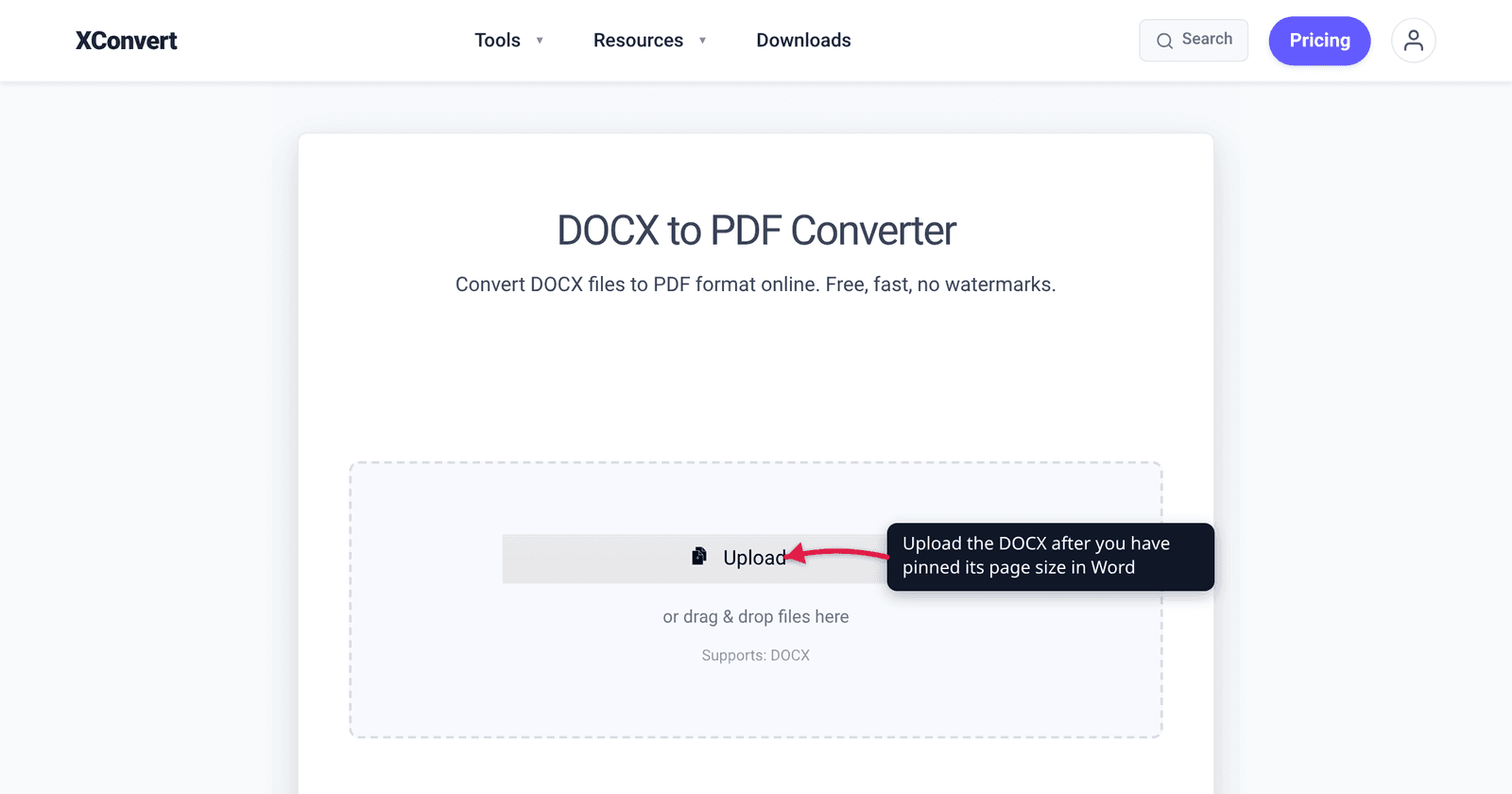
- Open xconvert.com/convert-docx-to-pdf and click Upload to add the saved
.docx(from your computer, Google Drive or Dropbox). The page accepts DOCX. - Leave Advanced Options (the gear icon) alone. The one control it contains is a Compression Type selector — Screen (Best), Ebook, Default, Prepress, Printer — and it does not change how the document is laid out.
- Click Convert, then download the PDF.
- Compare the page count against Word’s before you do anything else. Same count is the fast signal that the geometry survived; a longer PDF means something reflowed, and the table above says where to look.
- If the PDF also needs to be smaller, do that as a separate pass on the PDF compressor rather than expecting the converter to do both.
Your file uploads over an encrypted connection, is processed on our servers, and is deleted automatically a few hours later. If you need the round trip instead, converting a PDF back to Word has its own set of caveats.
FAQ
Why did my Word document gain a page when I converted it to PDF?
Almost always because the text column got narrower, so every line re-wrapped and the overflow accumulated. The two usual causes are a page-size mismatch — A4’s text column is about 3.5% narrower than Letter’s at the same margins — and a substituted font with wider glyphs. Pin the page size to the whole document, embed the fonts, save, and convert the saved copy. Word’s pagination rules do the rest: widow/orphan control turns a one-line overflow into a two-line push, which is why one extra word can cost a page.
Why did my margins change? I set them to exactly one inch.
They probably didn’t. Margin values are stored as numbers in the section properties and travel with the file; what changed is the page they are measured against. Set 1-inch margins on Letter and you get a 6.5-inch text column; the same 1-inch margins on A4 give you 6.269 inches, so the text looks like it starts and ends in different places. Fix the page size and the margins will look right again without touching them.
My table now runs off the right edge of the page. What happened?
The table has Fixed Column Width and the page got narrower — A4 is 5.9 mm narrower than Letter, and a table that was already close to the full column width no longer fits. Either set the table to AutoFit to Window so it scales with the column, or reduce the column widths to fit the narrower page. If instead your table shrank and its rows grew taller, that is the AutoFit behaviour doing the opposite thing: the table narrowed, and cell text re-wrapped onto extra lines.
Why does my table of contents show the wrong page numbers in the PDF?
Because a table of contents is a field, and a converter renders the value cached in the file rather than recalculating it. If the document repaginated at any point after the last field update — including because of the page-size change you just made — the cached numbers are stale. Select all, update fields, save, and convert the saved file. The same applies to page numbers in headers, cross-references, and any date field.
Is exporting to PDF from Word itself more faithful than converting the file?
For a document that has not been made portable, yes — Word is the engine it was authored against, so it reproduces its own layout exactly. But that is a property of the machine, not the file: a colleague exporting the same document with different fonts installed, or a different active printer, will not necessarily match either. Once the fonts are embedded and the page size pinned, the document stops depending on the machine. That is the real goal — a file that lays out the same way anywhere, not one that only lays out correctly on your desk.
Should I use A4 or US Letter?
Whichever your destination requires, decided before you write rather than after. A4 (210 × 297 mm) is the ISO standard used almost everywhere outside North America; US Letter (8.5 × 11 in) is the norm in the United States and Canada. Government portals, universities and print shops usually publish which they want. Switching late is what causes the reflow described here, so set it once at the start and apply it to the whole document.
Sources
Last verified 2026-08-31.
- Microsoft Learn / ISO/IEC 29500 — PageSize (
w:pgSz) — page size and orientation are properties of the current section; values are twentieths of a point; the A4 examplew:w="11907" w:h="16839"= 8.269 in × 11.694 in; thew:codeattribute is the “Printer Paper Code”. - Microsoft Learn / ISO/IEC 29500 — UsePrinterMetrics (
w:usePrinterMetrics) — quoted definition of printer-metrics layout and the note that applications otherwise lay documents out in a device-independent manner. - LibreOffice Help — Writer Compatibility options — the list of Word-compatibility layout switches (spacing between paragraphs and tables, Word-compatible trailing blanks, tab and object-positioning behaviour) that shows where two layout engines disagree.