 By Stephanie Taylor
An .MTS clip with no sound often has Dolby Digital (AC-3) audio. Premiere Pro and Resolve on Windows use its decoder, which Windows 11 24H2 no longer includes. Convert the MTS to MP4 with AAC audio, or swap only the audio with ffmpeg.
Checked on 2026-11-18 on the MTS to MP4 converter, with ffmpeg and in Chromium 147. Sources at the end.
Premiere Pro, DaVinci Resolve and Windows were not run: statements about them come from their makers’ pages and the threads cited.
Find your symptom
The order follows the cause named in the 8 forum threads read on 2026-11-18: a missing AC-3 decoder in 5 (2 only in a later reply), the import route in 1, no cause in 2. That counts threads, not users.
| Symptom | Cause | Fix |
|---|---|---|
| No sound in Premiere Pro, Resolve or Windows Media Player; VLC plays the sound | AC-3 audio and no decoder on the system (cause 1) | Change the audio to AAC or PCM, or restore a decoder |
| Silent in Premiere Pro, sound in Windows Media Player | The clip was imported outside its AVCHD folder, or the installed codec does not serve Premiere Pro (cause 2) | Import through the Media Browser, or change the audio |
| Still silent after converting or exporting | The converting app could not read the AC-3 track either, or the editor kept its cache (cause 3) | Convert with a tool that has its own decoder, then clear the media cache |
| The .MTS file does not open at all in a browser | The transport-stream container, not the sound | Convert to MP4 |
Cause 1: AC-3 audio and no decoder on the system
AVCHD camcorders record H.264 video with Dolby Digital or Linear PCM audio, in a transport stream named .MTS.
Confirm it. Open the clip in MediaInfo, or run ffprobe 00001.MTS, and read the audio line. For an AC-3 clip ffprobe prints:
Stream #0:1[0x1100]: Audio: ac3 (AC-3 / 0x332D4341), 48000 Hz, stereo, fltp, 256 kb/s, start 1.461400MediaInfo shows “Format: AC-3” and “Commercial name: Dolby Digital”. If the line says pcm_bluray (MediaInfo: “PCM”), the audio is Linear PCM and cause 1 is not yours.
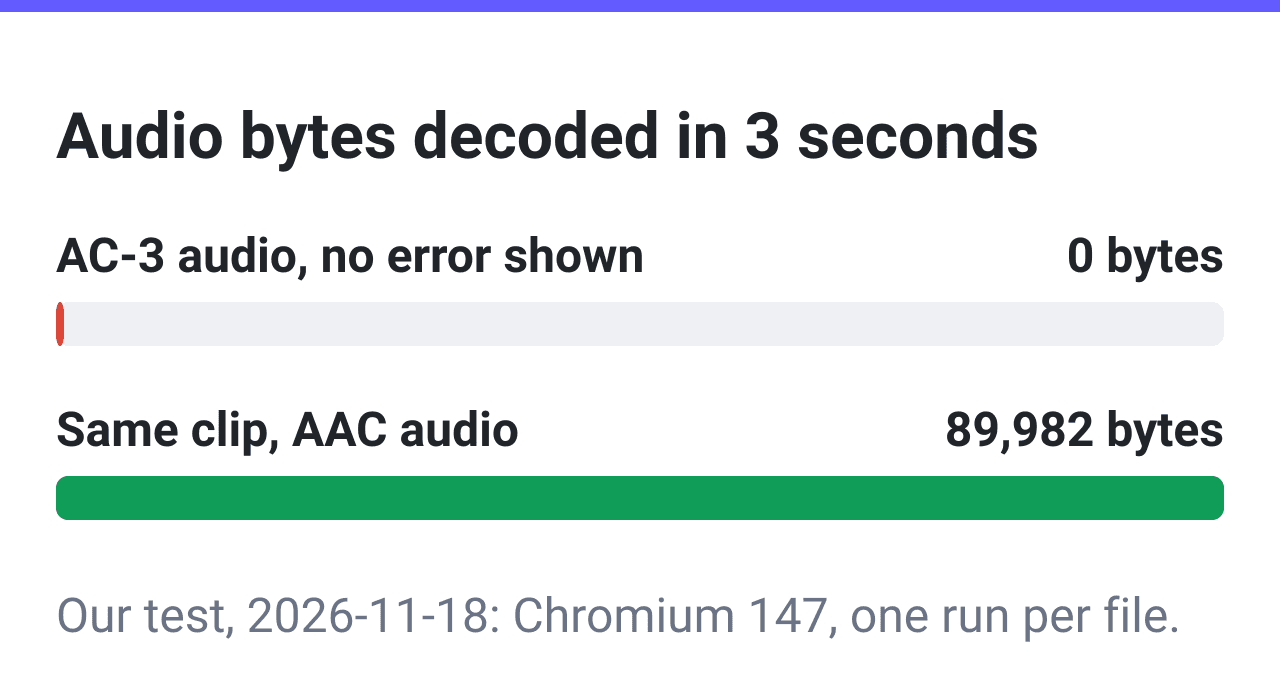
Chromium 147 has no AC-3 decoder. On 2026-11-18 it played three MP4 versions of one test clip for 3 seconds each without an error:
| Audio track | Frames decoded | Audio bytes decoded |
|---|---|---|
| AC-3, 256 kb/s, track kept | 95 | 0 |
| AAC, 244 kb/s, from ffmpeg (fix A) | 93 | 89,982 |
| AAC, 139 kb/s, from the converter (fix B) | 93 | 56,971 |
One run per file. Five repeats moved the AAC counts by under 2 %; the last is lower because its bit rate is.
Who still decodes AC-3, from the makers’ pages (read 2026-11-18):
| System or app | Decodes AC-3 | Source |
|---|---|---|
| Windows 10, and Windows 11 before 24H2 | Yes | Microsoft |
| Windows 11 from version 24H2, new install | No, unless the PC maker pre-installed a codec | Microsoft |
| Windows 11 24H2, upgraded from an earlier version | Yes, the codec is kept | Microsoft |
| Windows 10 N and KN | No, until the Media Feature Pack is installed | Adobe |
| macOS 10.11 and later | Yes | Adobe |
| Premiere Pro, Media Encoder, After Effects | Only with the system’s decoder | Adobe |
| DaVinci Resolve 21.1 | Mac and Linux: yes. Windows: “OS-supported formats” | Blackmagic Design |
| iPhone 16 | Yes | Apple |
| Chromium 147 | No | the test above |
That is how clips that had sound last year turn silent on a new PC. For the same gap with a video codec, see HEVC won’t import into a video editor.
Fix A: change only the audio with ffmpeg and keep the video
ffmpeg decodes AC-3 by itself and can copy the video while it encodes only the audio:
ffmpeg -i 00001.MTS -map 0:v:0 -map 0:a:0 -c:v copy -c:a aac -b:a 256k 00001.mp4For a whole folder, in bash:
for f in *.MTS; do ffmpeg -nostdin -i "$f" -map 0:v:0 -map 0:a:0 -c:v copy -c:a aac -b:a 256k "${f%.*}.mp4"; doneThe Command Prompt form of that loop was not run here. For PCM audio in a MOV (cause 3 says when), replace -c:a aac -b:a 256k 00001.mp4 with -c:a pcm_s16le 00001.mov.
Fix B: convert the clip online
On the MTS to MP4 converter:
- Click Upload and choose the clip; the arrow beside it offers From Google Drive and From Dropbox.
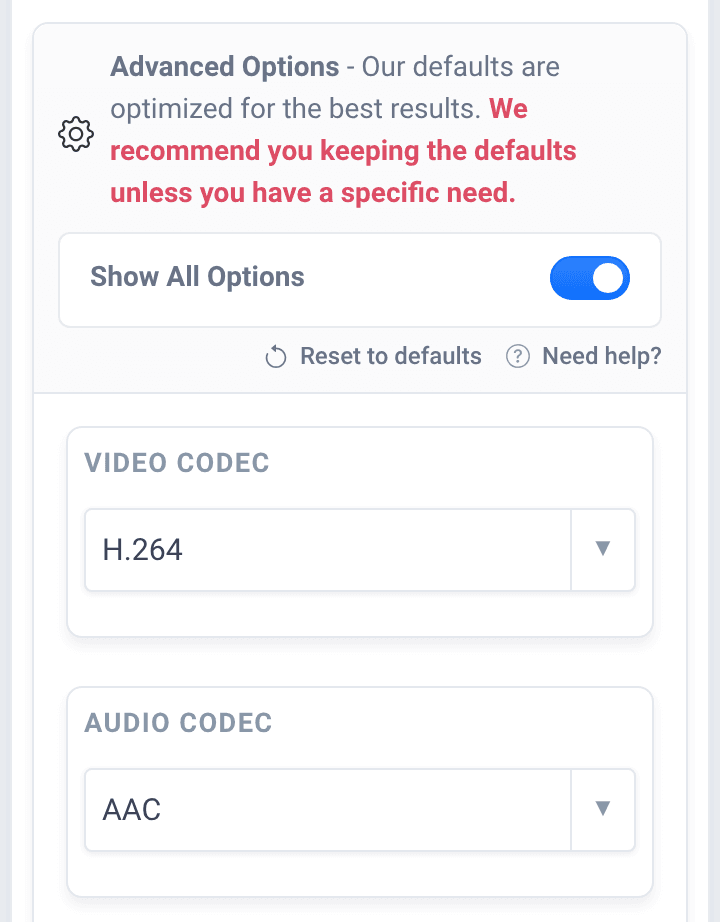
- Leave the options alone. Under Show All Options the Audio Codec is AAC already.
- Click Convert; the Downloads page opens. When the card there says Completed, click Download.
You get an MP4 with H.264 video and AAC audio. The files are processed on our servers, not in your browser, and each file is its own job with its own download.
Fix C: restore an AC-3 decoder on Windows
Microsoft’s note says many device manufacturers pre-install an AC-3 codec and names no download for a PC without one, so ask the PC maker.
Forum threads pass around installer packs instead. The one that Adobe’s 2025 thread points to is offered on the download site MajorGeeks, not on a Microsoft page.
The answer marked correct in that thread recommends it; a reply of 20 May 2026 reports that it did not bring the sound back.
Cause 2: Premiere Pro’s import route, or a codec it cannot use
The answer marked correct in Adobe’s long-running community thread tells people “to use the Media Browser to import media (as opposed to the import dialog) with potentially folder-dependent formats like MTS”.
By folder-dependent it means that “the video may be in one directory and the audio may be a sidecar file in a separate directory”. The same answer adds that MTS files “are not always folder dependent”.
Copy the card’s whole folder, not single .MTS files, and import it through the Media Browser.
A codec installed by hand can produce the same symptom. The marked answer in Adobe’s 2025 thread: “Some Dolby Digital codecs makes some apps work, maybe Media Player but not Premiere Pro, or vice versa.” Then use fix A or B.
Cause 3: still silent after converting
An app that cannot read the AC-3 track cannot rescue it by converting. Adobe’s Dolby page covers Media Encoder as well as Premiere Pro.
For work in progress the page suggests a third-party converter, then: “Rename the files and reimport them into Premiere Pro. Then, clear your media cache.”
In DaVinci Resolve on Linux a converted MP4 can stay silent for another reason: Blackmagic’s list shows no AAC decoding there. Use the PCM command of fix A.
Causes that belong to the conversion itself are in why a video has no sound after converting.
When a converter helps and when it does not
Three generated 10-second clips went through both routes on 2026-11-18:
| Test clip | Route | Result | Size | Time | Picture |
|---|---|---|---|---|---|
| 1080i, AC-3 stereo, 3.91 MB | ffmpeg, video copied, AAC | MP4 | 3.64 MB | 0.15 s | same as the source |
| same clip | XConvert, nothing changed | MP4, AAC stereo | 8.23 MB | 10.2 s | encoded again |
| 720p, AC-3 5.1, 3.86 MB | ffmpeg, video copied, AAC | MP4, 5.1 kept | 3.11 MB | 0.12 s | same as the source |
| same clip | XConvert, nothing changed | MP4, AAC 5.1 | 6.75 MB | 11.2 s | encoded again |
| 1080i, Linear PCM, 4.63 MB | ffmpeg, video copied, AAC | MP4 | 2.47 MB | 0.15 s | same as the source |
| same clip | XConvert, nothing changed | MP4, AAC stereo | 7.06 MB | 10.2 s | encoded again |
The clips are test patterns with a tone, not camcorder footage. “Same as the source”: every frame decoded to the same hash. XConvert time: one run each, from Convert to Completed, upload not counted.
On real uploads, of 6,912 MTS conversions run with nothing changed on /mts-converter and /convert-mts-to-mp4 from 19 October to 17 November 2026, 2,741 (39.7 %) came back larger than the upload.
What the converter does and does not do for camcorder clips:
- The video is always decoded and encoded again.
- Interlaced clips are not deinterlaced and are written as progressive video, so comb-like edges can show on motion. Clips of 1440×1080, which Sony’s Standard and Long Time modes record, come out 25 % too narrow.
- One audio track is kept, and 5.1 stays 5.1. The Audio Codec list has no PCM choice, so it cannot make the PCM file of fix A.
- A file can be up to 400 MB without a paid plan. At the 24 Mbps of Sony’s Highest Quality mode, 400 MB is about 2 minutes 13 seconds of footage.
So the converter fits a few short clips, a machine where nothing can be installed, or a clip you only want to send on.
For a card of interlaced footage that will be edited, use ffmpeg (fix A).
Whichever route you take, keep the original .MTS files and the card’s folder until the project is finished, because the converted copies are working files. Cutting, trimming and color work come after that, in the editor.
Sources
All read on 2026-11-18.
- Sony, “Handycam” User Guide, About the AVCHD format: AVCHD audio is Dolby Digital or Linear PCM. REC Mode: 24 Mbps in Highest Quality; 1440×1080 in Standard and Long Time.
- Microsoft Support, A note on AC-3 (“Dolby Digital”): the codec is not included from Windows 11 24H2, is kept on upgrade, and may be pre-installed by device makers.
- Adobe, Adobe Creative Cloud apps use native OS support for Dolby, archive copy of 2026-01-30 (the live page refused our request on 2026-11-18): which apps rely on the system’s decoder, Windows N and KN, macOS 10.11, the advice to convert, re-import and clear the media cache.
- Blackmagic Design, DaVinci Resolve 21.1 Supported Formats and Codecs, September 2026: AC-3 and AAC decoding on Mac, Windows and Linux.
- Apple, iPhone 16 Tech Specs, Audio Playback: Dolby Digital is a supported format.
- VideoLAN, VLC features: AC-3 (A/52) among the audio formats VLC plays.
- Adobe community, .MTS files no sound (answer marked correct, December 2014) and No Audio Playback for MTS Files in Premiere Pro 2025 (answer marked correct, May 2025; reply of 20 May 2026) and Premiere Pro 2025 Version 25.0.0 doesn’t accept .mts files with sound? (reply of 3 December 2024 that links the installer).
- Tests of 2026-11-18 on the MTS to MP4 converter (/convert-mts-to-mp4), with ffmpeg, MediaInfo 26.01 and Chromium 147, on three generated clips, and on a fourth of 1440×1080 for the width statement; job counts from our own records, 7,126 conversions on the MTS Converter and MTS to MP4 Converter pages, 19 October to 17 November 2026; thread count from 8 forum threads found with five searches that name the symptom and no cause.