 By James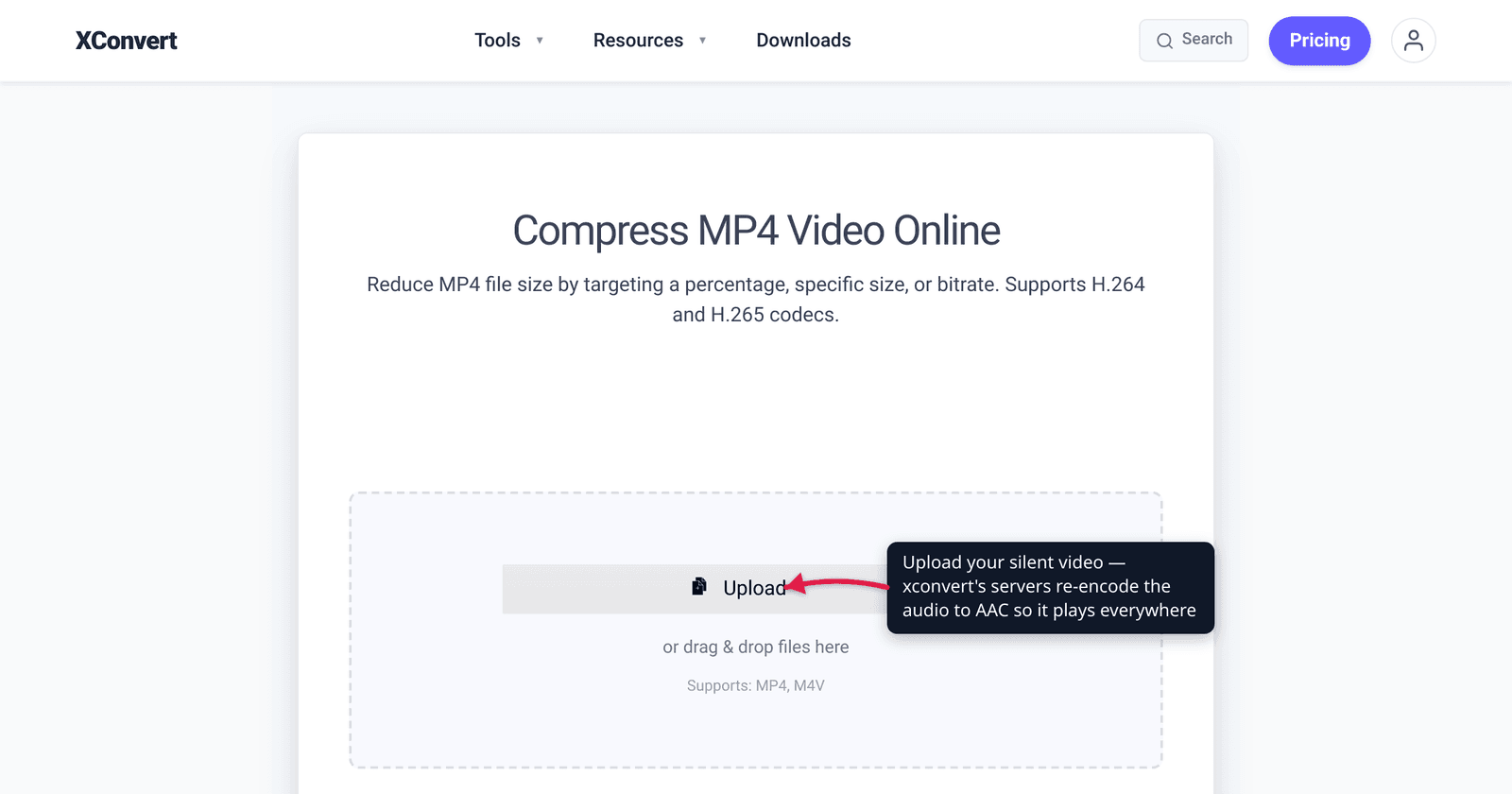
You converted a video, the picture plays fine — but there’s no sound. Before you re-do everything or assume the file is ruined: “no sound after converting” has four very different causes, and three are fixable in a couple of minutes. Sometimes the file is perfectly fine and your player is the problem. This guide shows how to tell which case you’re in and the exact fix for each. We verified the codec-support facts against Microsoft’s and Mozilla’s own documentation.
Quick answer: Silent video after a conversion almost always comes down to one of four things: (1) the output kept an audio codec the new container or player can’t decode — classically AC-3 (Dolby Digital), which Windows 11 24H2 no longer ships and which web browsers don’t support; (2) the converter dropped or didn’t map the audio track; (3) your player lacks the codec even though the file is fine (test it in VLC — if it plays there, the file is OK); or (4) the source had no audio track to begin with. The reliable fix for the first two is to re-encode the audio to AAC (the codec every modern device and browser plays) instead of copying it through.
Jump to a section
- First, find out whether the file or the player is broken
- Cause 1: the audio codec doesn’t survive the conversion
- Cause 2: the audio track was dropped or not mapped
- Cause 3: the player can’t decode it — but the file is fine
- Cause 4: the source had no audio at all
- The fix: re-encode the audio to AAC on xconvert
- FAQ
First, find out whether the file or the player is broken
The single most useful diagnostic step takes thirty seconds: open the converted file in VLC (or drag it into a Chrome browser window).
- If you hear sound in VLC but not your usual player → the file is fine; your player is missing a codec. Jump to Cause 3.
- If VLC is silent too → the audio really is gone or unreadable in the file itself. That’s Cause 1 (wrong codec), Cause 2 (track dropped), or Cause 4 (source never had audio).
VLC is the right reference player because it bundles its own decoders and plays almost every audio codec regardless of what your operating system has installed — so it isolates “is the data there?” from “can my player read it?”.
A second quick check: open the file’s stream info (VLC’s Tools → Codec Information, or ffprobe). No audio stream listed → Cause 2 or 4. An audio stream that reads AC-3, E-AC-3 (Dolby Digital Plus), or DTS → Cause 1.
Cause 1: the audio codec doesn’t survive the conversion
This is the most common silent culprit, and it’s subtle because the audio track is technically still in the file — your player just can’t decode it.
Many converters, when they re-package a video, copy the original audio stream through unchanged instead of re-encoding it. If that stream is a codec your destination doesn’t support, you get a silent video even though the data is right there. The usual offenders are AC-3 (Dolby Digital) and E-AC-3 (Dolby Digital Plus) — common in TV recordings, ripped discs, and screen recorders — and DTS, common in movie files.
Here’s the concrete trap on Windows. Microsoft’s own codec documentation states: “Beginning with Windows 11, version 24H2, the AC-3 codec is no longer included with Windows.” So a video whose audio is AC-3 plays picture-only in Windows Media Player on a clean 24H2 install — the file is fine, but the OS no longer ships the decoder. (Devices that shipped with the codec pre-installed, or that were upgraded from an earlier Windows version, keep it.)
The web is even stricter. Mozilla’s audio-codec guide makes no mention of AC-3 or DTS at all — they are not web-playback codecs. For broad playback, the only audio codecs that matter are:
| Audio codec | Where it plays |
|---|---|
| AAC | Per MDN, “AAC in an MP4 container is supported by all major browsers” — the safe default for video. Native on iPhone, Android, modern TVs, all browsers. |
| MP3 | Per MDN, “MP3 … is supported by all major browsers.” Universal, patents expired. |
| AC-3 / E-AC-3 (Dolby Digital) | TV/disc/player ecosystems and home-theatre gear — not browsers, and not Windows 11 24H2 out of the box. |
| DTS | AV receivers and some media players — not browsers, not the default codec set. |
The fix: re-encode the audio to AAC rather than copying it through. AAC is the audio half of the universally-playable “H.264 MP4 + AAC” combination — it plays everywhere your video does. The tool section below does exactly this. If you only need the audio out of the video (not the video at all), see how to extract audio from a video.
Cause 2: the audio track was dropped or not mapped
Some converters — especially quick free ones, and stream-based tools like VLC’s own convert feature — don’t include the audio stream in the output at all unless you explicitly tell them to. The audio isn’t broken; it was simply never written into the new file. This happens when:
- The conversion profile or preset omitted audio (a video-only “transcode” path).
- The source had multiple audio tracks (e.g. a TV recording with several languages) and the converter mapped none of them, or the wrong one.
- The converter hit an audio codec it didn’t recognize and, rather than warning you, silently dropped the track.
You’ll confirm this in the diagnostic step: the codec/stream info shows no audio stream at all. The fix is the same — re-convert with a tool that keeps and re-encodes the audio to AAC by default, so the track is guaranteed to be mapped into the output.
Cause 3: the player can’t decode it — but the file is fine
If your VLC test from step one produced sound, stop — there is nothing wrong with your file. Your default player is missing a codec.
Windows Media Player and Apple’s QuickTime are the usual culprits: they rely on whatever codecs the operating system provides, and they’re slow to support newer or less-common audio formats. The most common 2026 version is Windows 11 24H2 + AC-3 audio → silent in Media Player, because (as above) the AC-3 decoder is no longer bundled. Microsoft notes that “many device manufacturers will pre-install an AC-3 codec,” so whether you have it is hardware-dependent.
You have two choices:
- Change players. Use VLC, which bundles its own decoders and plays the file as-is — no conversion needed.
- Re-encode for compatibility anyway. If the file has to play on other people’s machines (you’re emailing it, posting it, or sending it to someone on a clean Windows install), convert the audio to AAC so it doesn’t depend on any add-on codec — the tool step below.
The takeaway: don’t re-convert just to make it play on your machine when a better player would do — but do re-convert if it needs to play reliably for an audience you don’t control.
Cause 4: the source had no audio at all
The anticlimactic case: sometimes the original never had sound. This is common with screen recordings captured without system or mic audio enabled, silent GIF-style clips converted to MP4, camera footage with a muted mic, and animation/render exports that were video-only by design.
No conversion can add audio that was never recorded. Confirm by playing the original file (before conversion) in VLC — if the source is silent and shows no audio stream in its codec info, the conversion did nothing wrong. To add sound you’d need a video editor; a converter can’t recover something that isn’t there.
The fix: re-encode the audio to AAC on xconvert
For Causes 1 and 2 — and for Cause 3 when the file must play for other people — the reliable fix is to re-encode the audio to AAC in an MP4. The xconvert MP4 compressor re-encodes audio by default rather than copying an incompatible stream through, so the track lands in the output as a codec everything can play.
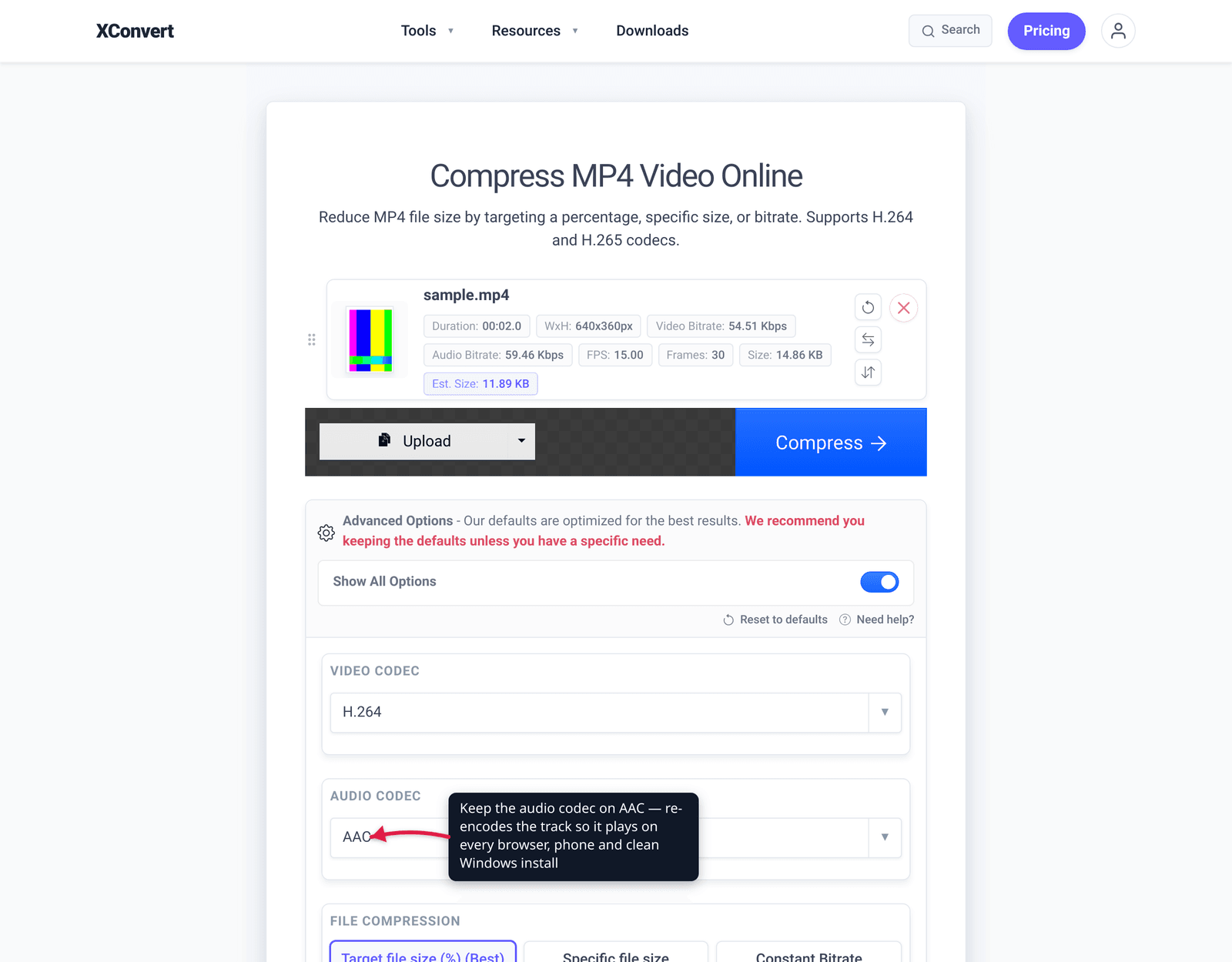
- Open xconvert.com/compress-mp4 and click Upload (the Add files button) to add your video — from your computer, Google Drive, or Dropbox.
- Open Advanced Options (the gear icon). The note reads “Our defaults are optimized for the best results” — and the default audio path re-encodes to AAC (around 128 kbps stereo), which is exactly what you want for compatibility.
- Leave the audio settings on the default re-encode (don’t choose any “copy / passthrough” option, which would carry an incompatible codec straight through). The audio bitrate, sample rate, and channel count controls live here if you want to adjust them.
- For the video, H.264 is the most compatible video codec choice; pair it with the default AAC audio for the “plays everywhere” MP4.
- Click Compress, then download. Test the result in VLC and your normal player — both should now have sound.
Your file uploads over an encrypted connection, is processed on our servers, and is deleted automatically a few hours later. Nothing is kept.
Related: if you want the audio only (pulled out of the video as an MP3 or M4A), use the MP4-to-MP3 converter and read how to extract audio from a video. For choosing the most compatible video codec, see H.264 vs H.265.
FAQ
Why does my video have no sound after I convert it?
Almost always one of four causes: the output kept an audio codec the new container or player can’t decode (often AC-3/Dolby Digital or DTS); the converter dropped the audio track entirely; your player is missing the codec even though the file is fine; or the source never had audio. Test the file in VLC first — if it has sound there, your file is fine and your player is the problem.
Why does my AC-3 / Dolby Digital video play with no sound on Windows 11?
Because Windows 11 version 24H2 no longer ships the AC-3 codec — Microsoft’s documentation states it “is no longer included with Windows.” The video data is fine; Windows Media Player just can’t decode the Dolby Digital audio. Play it in VLC, or re-encode the audio to AAC so it doesn’t depend on any add-on codec.
What audio codec should I convert to so it plays everywhere?
AAC, in an MP4 container. Per MDN, “AAC in an MP4 container is supported by all major browsers,” and it’s native on iPhone, Android, modern TVs, and players. MP3 is also universally supported. Avoid leaving the audio as AC-3, E-AC-3, or DTS if the video needs to play on the web or on a clean Windows install.
My converter gave me a silent video and no warning — why?
Some lightweight converters copy the original audio stream through unchanged, and if the destination doesn’t support that codec they drop it (or it won’t decode) — without telling you. Use a tool that re-encodes the audio to AAC by default so the track is always written into the output in a playable form.
Can I get the sound back if the conversion already dropped it?
If the original file still has the audio, yes — re-convert from the original with the audio re-encoded to AAC. If the source itself had no audio track (a muted screen recording, say), no conversion can add sound that was never recorded.
Sources
Last verified 2026-06-25.
- Microsoft Support — Codecs in Media Player — “Beginning with Windows 11, version 24H2, the AC-3 codec is no longer included with Windows”; lists the audio codecs Media Player supports natively.
- MDN — Web audio codec guide — “AAC in an MP4 container is supported by all major browsers”; “MP3 … is supported by all major browsers”; AAC as the best single-format choice; no AC-3/DTS as web codecs.
- VideoLAN — VLC media player — reference player that bundles its own decoders, used as the file-vs-player diagnostic.