Are you struggling to send a voice recording or music track because the file is too large? Whether you need to compress audio file for WhatsApp or simply want to free up space on your phone, finding a reliable audio compressor online is the easiest solution.
At XConvert, we’ve built a powerful, free audio compressor that gives you complete control over your files. Whether you are looking for an MP3 audio compressor, an M4A audio compressor, or need to shrink an OPUS file without losing quality, ourXConvert Audio Compressor tool handles it all directly in your browser—no audio compressor download or heavy audio compressor software required.
Why Compress Audio Files?
Audio files, especially lossless formats like WAV or high-bitrate MP3s, can take up a massive amount of storage. Here are the most common reasons millions of users search for compression tools:
Messaging Limits: You often need to compress audio file to 16 MB to fit within standard messaging app attachment limits.
Email Constraints: Many email clients reject files larger than 20 MB or 25 MB.
Mobile Storage: If you want to compress audio file iPhone users often run into storage warnings and need a quick fix.
How to Compress Audio File for WhatsApp Free
WhatsApp has strict file size limits for media attachments. If your track is slightly too large, XConvert allows you to target exact file sizes.
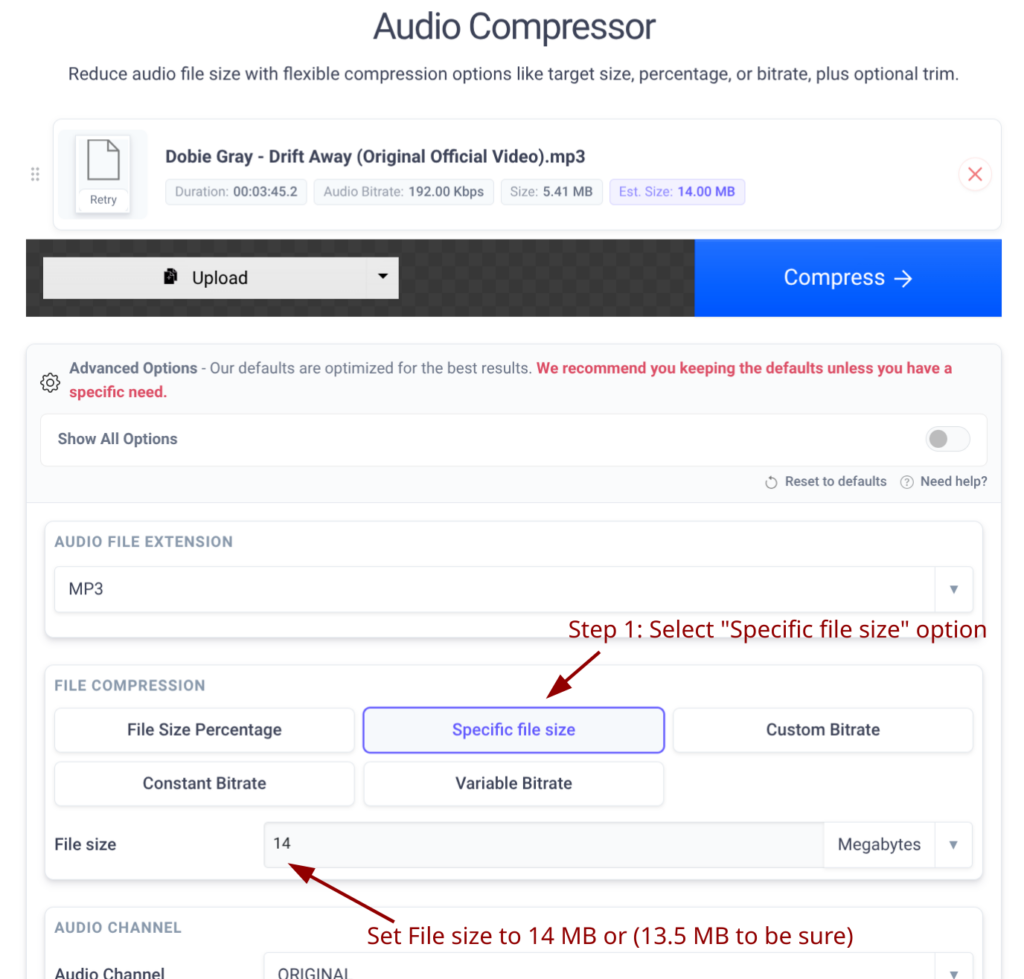
Here is how you can quickly compress audio file to 14 MB or 16 MB:
Upload your audio file to the XConvert Audio Compressor.
Scroll down to the File Compression section.
Choose the Specific file size option.
Enter your desired size (e.g., 14 or 16) and select MB from the dropdown menu.
Hint: You may set the value to bit less than the 14 (I.e. 13.5) so that your file is absolutely compatible with the WhatsApp size limit.
Click Compress!
A screenshot of the “File Compression” section on XConvert Audio Compressor. A red arrow pointing draw on the “Specific file size” selection, showing “14” typed in the box and the “MB” dropdown selected.
Choose the Right Format: MP3, AAC, and OPUS
Changing the file format is one of the most effective ways to reduce size. Our tool acts as an all-in-one converter and compressor.
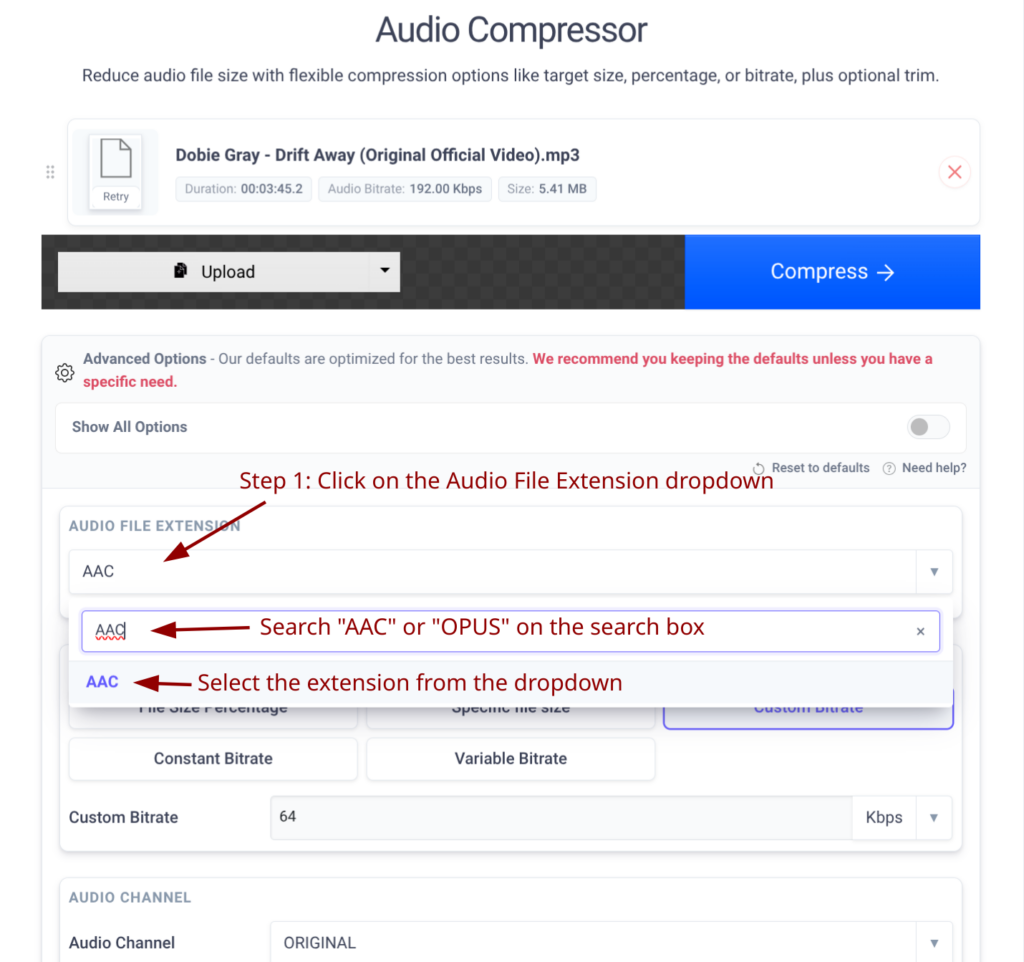
If you are looking to compress audio AAC or compress audio file M4A, XConvert makes it simple. Under the Audio File Extension settings, you can choose to keep your format as “Same as source” or switch to a more efficient codec.
Pro Tip: For the smallest file size without sacrificing sound quality, we recommend choosing OPUS or AAC (.m4a) from the extension list.
A screenshot of “Audio File Extension” grid with “AAC” button highlighted on XConvert Audio Compressor to visually guide users toward the most efficient formats.
Advanced Control: Constant And Variable Bitrates
If you want more granular control over how your audio sounds after compression, we offer multiple ways to tweak the data:
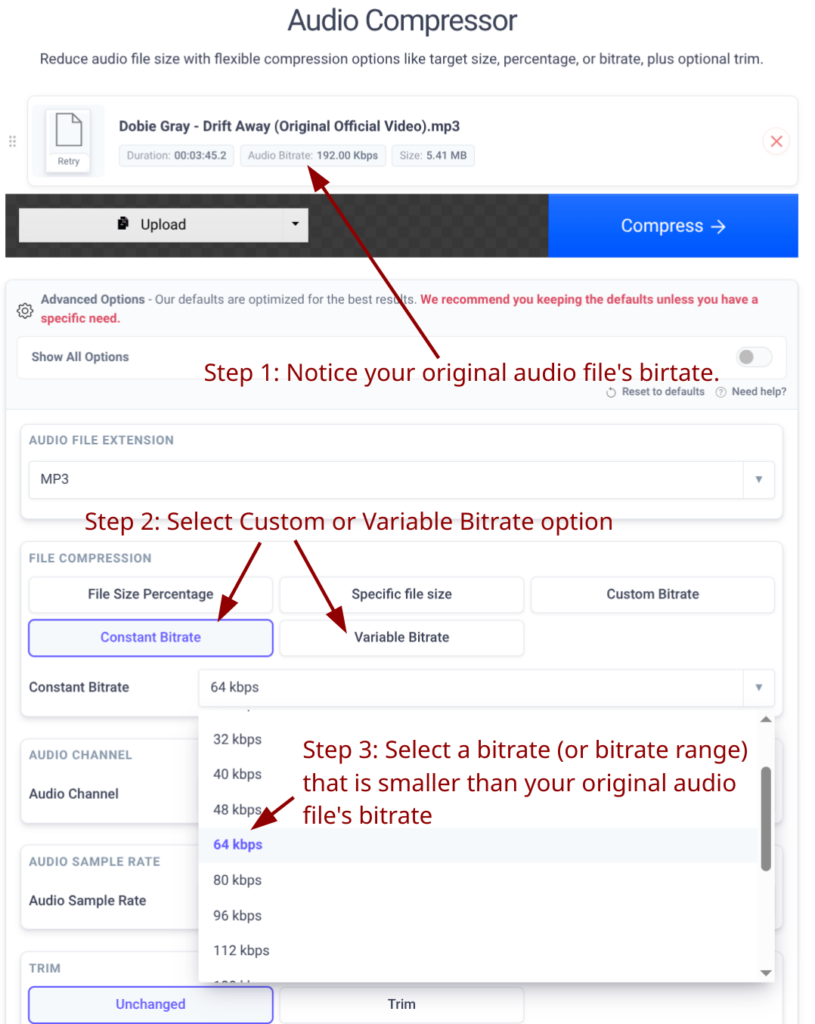
Custom Bitrate: If you are an audiophile, you can set an exact bitrate (e.g., 64 kbps or 128 kbps).
Constant vs. Variable Bitrate: Choose a Constant Bitrate for maximum compatibility, or Variable Bitrate to save space during silent parts of your audio track.
A screenshot of “File Compression” options selection on XConvert Audio Compressor showing reading of original file’s bitrate and setting a new bitrate to reduce file size.
Frequently Asked Questions
Do I need to install audio compressor software? No! XConvert is a 100% web-based audio compressor online. You do not need an audio compressor download to use our tool. It works on Windows, Mac, iOS, and Android.
Is it really a free audio compressor? Yes. You can compress audio file free directly on our site without paying for premium software.
Will I lose audio quality? If you aggressively compress a file (for example, trying to fit a 100MB WAV into a 2MB MP3), there will be some quality loss. However, using modern formats like AAC or OPUS, or using our “High” quality preset dropdown, ensures the compression remains practically unnoticeable to the human ear.
 By admin