 By James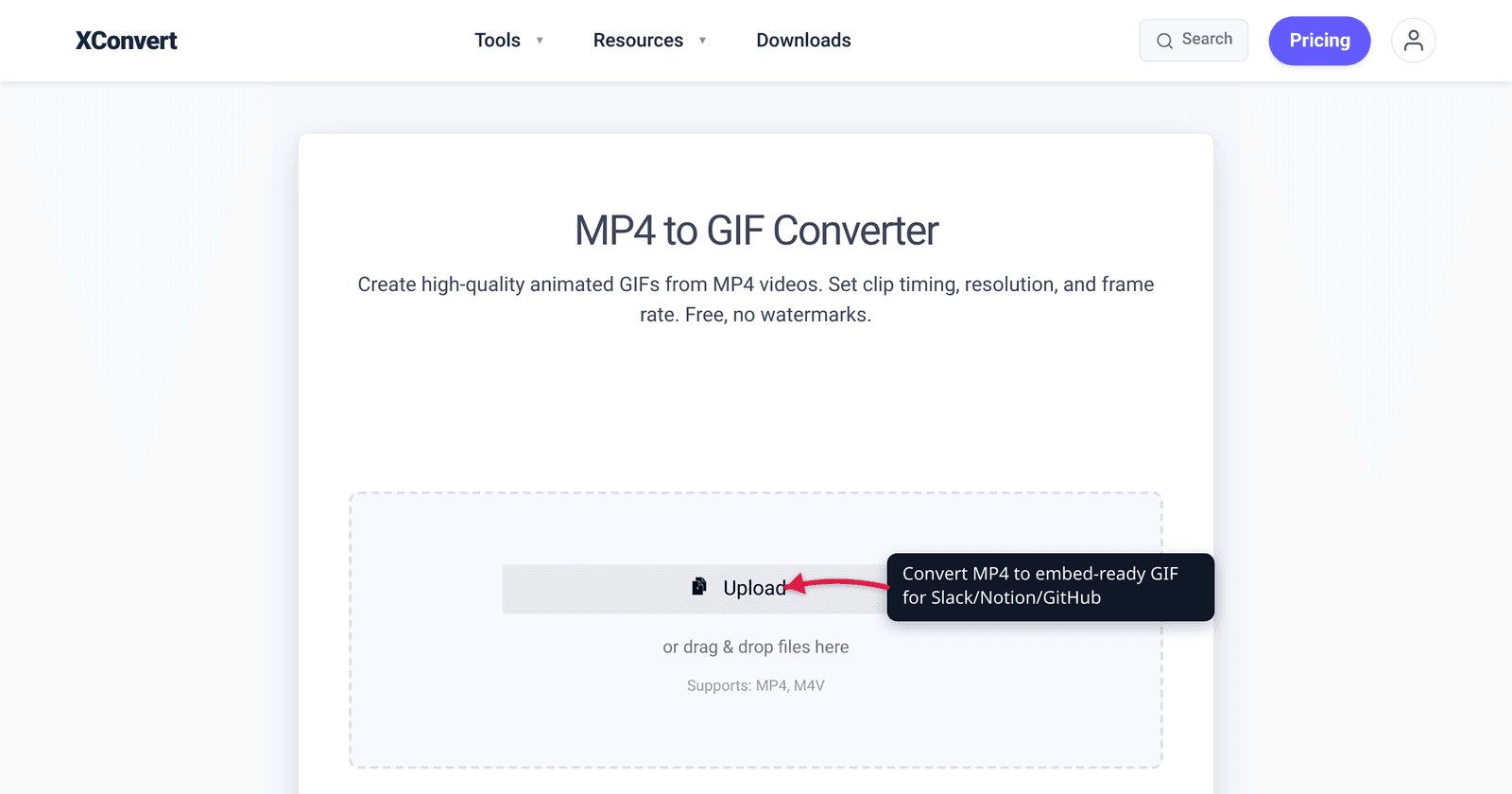
A 30-second screen recording at 1080p exports as MP4 around 5–10 MB. Drop it into Slack, Notion, GitHub, or your internal wiki and most platforms either reject it (file size) or display it as a non-playing thumbnail. Convert it to GIF and the file plays inline as a looping animation, but the GIF is 3–10× larger than the source MP4 — and now you’re back to compression. This guide gives you the exact xconvert settings to convert a screen recording into a clean, lightweight GIF that plays well in every documentation context.
Quick answer: To convert a screen recording for Slack, Notion, or GitHub: open xconvert MP4→GIF, set 480p (or original if narrow), 10–15 fps, target 5 MB. GIFs auto-loop inline; MP4 needs a click to play on most documentation platforms.
Jump to a section
- Why GIF (and not MP4) for documentation
- Embedding limits by platform
- Recommended settings by destination
- Step by step in xconvert
- Worked example: 20-second UI flow demo
- Common mistakes
- FAQ
Why GIF (and not MP4) for documentation
For technical documentation, GIFs have unique strengths:
- Auto-play and auto-loop without controls cluttering the screenshot. Markdown-rendered docs (GitHub, GitLab, Notion, Slack) show GIFs immediately; videos require user interaction.
- No audio chrome — videos in chat platforms render with mute icons and play bars even when silent. GIFs are pure visuals.
- Universal markdown support —
works in every markdown renderer. Embedding video requires platform-specific syntax that often gets stripped. - Smaller for very short clips — paradoxically, a 3-second GIF can be smaller than the same 3-second MP4 once browser controls are loaded. For longer clips (>5 seconds), MP4 wins on size.
The trade-off is file size for clips longer than ~5 seconds. For documentation that needs to embed in many places (Slack + Notion + GitHub + Confluence), the GIF format is the safest bet despite the size cost.
Embedding limits by platform
Common documentation destinations and their inline GIF limits:
| Platform | Inline GIF limit | Notes |
|---|---|---|
| Slack | 1 GB per file (custom emoji 128 KB; Free workspaces have 5 GB total storage) | Plays inline in channel |
| Notion | 5 MB per file (Free plan, hard cap); 5 GB per file (paid plans) | Free-plan limit is enforced, not advisory |
| GitHub README | 10 MB for an inline GIF in markdown | LFS for larger; usually use a hosted external GIF |
| GitLab README | 10 MB | Same as GitHub for practical purposes |
| Confluence | 100 MB per attachment (default) | Configurable per workspace |
| Linear | 10 MB (Free plan); higher on paid | Inline previews vary |
| Jira Cloud | 1 GB default per attachment (admin-configurable up to 2 GB) | Inline previews vary |
| Medium | 25 MB | Auto-loops in published article |
The GitHub README 10 MB cap is often the binding constraint. Most internal wikis (Confluence, Notion, GitLab) accept much larger files but render slowly above 5 MB. For a GIF that embeds well everywhere, target 5 MB.
Recommended settings by destination
For different documentation scenarios:
GitHub README / GitLab (10 MB cap, often public)
| Setting | Value |
|---|---|
| Resolution | 800–1000 px wide |
| Frame rate | 12–15 fps |
| Duration | ≤ 8 seconds |
| Color palette | 128 colors |
| Expected size | 3–6 MB |
Slack message (100 MB cap, internal use)
| Setting | Value |
|---|---|
| Resolution | 720 px wide |
| Frame rate | 15 fps |
| Duration | ≤ 12 seconds |
| Color palette | 128 colors |
| Expected size | 4–8 MB |
Notion / internal wiki (5 MB target for fast load)
| Setting | Value |
|---|---|
| Resolution | 600–720 px wide |
| Frame rate | 12 fps |
| Duration | ≤ 6 seconds |
| Color palette | 128 colors |
| Expected size | 2–4 MB |
For slower-paced UI demos (form filling, slow click-throughs), lower frame rates (10 fps) work fine because the user perception of motion is dominated by the slow input speed, not the playback frame rate. For animation-heavy sequences (transitions, progress bars), keep at 15 fps.
Step by step in xconvert
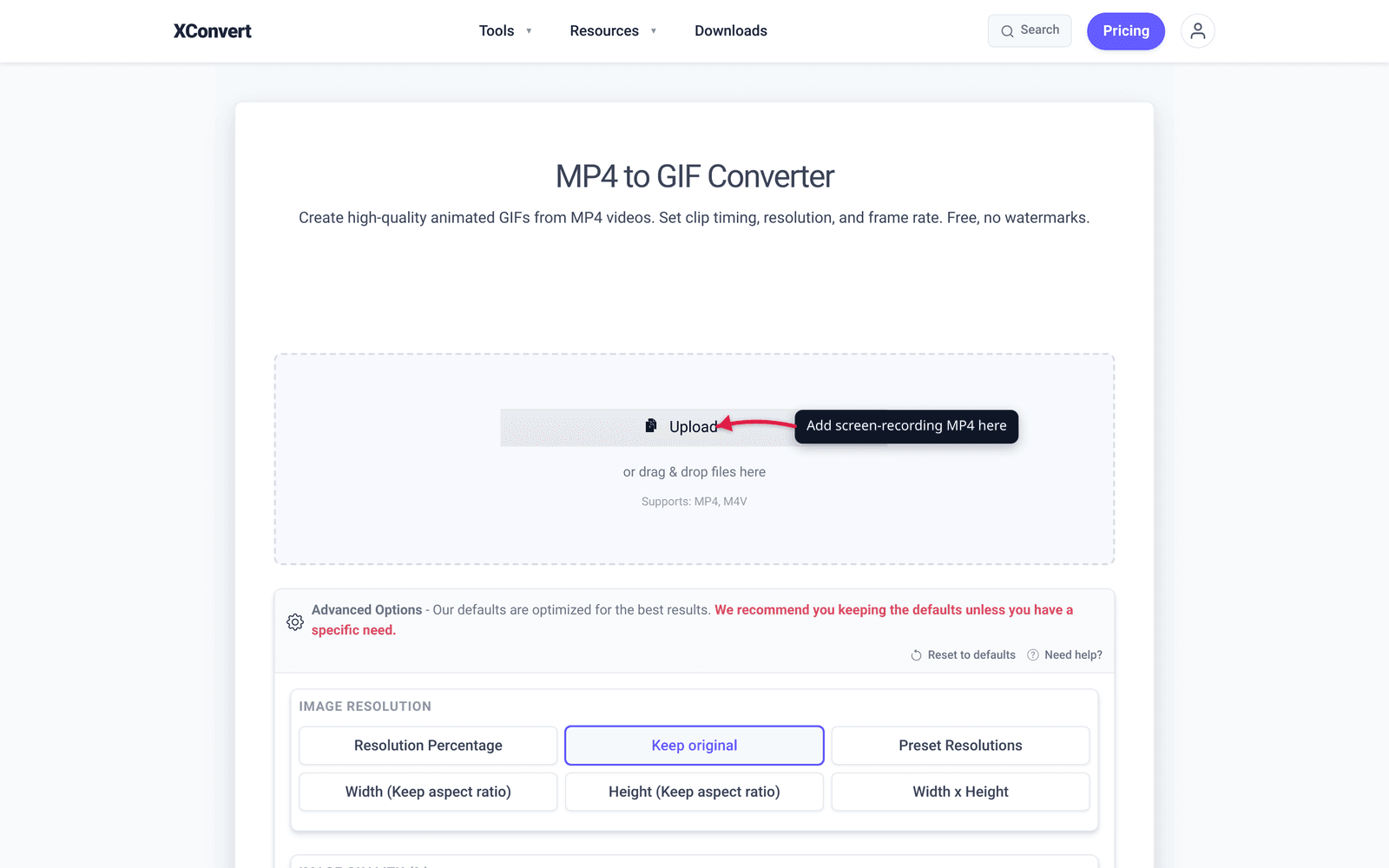
xconvert’s MP4-to-GIF tool exposes three Advanced Options that matter for documentation: Image resolution, FRAMERATE, and Colors. There’s also a clip-trimmer that appears once you upload a file.
- Open xconvert.com/convert-mp4-to-gif.
- Click + Add Files and pick your screen-recording MP4.
- (Optional) Use the trim controls on the uploaded file to extract just the relevant 5–10 seconds.
- In Advanced Options → Image resolution, click Resolution Percentage and pull the By Percentage slider down hard — ~30% of a 1920p source lands you at ~576 px wide, near the 480p ceiling that’s the practical sweet spot for documentation GIFs. Inline previews in Slack/Notion/GitHub render at ~600 px wide; anything bigger is wasted bytes.

- In Advanced Options → FRAMERATE, drop to 12 fps. Screen recordings rarely need more — the eye-trackable speed of mouse clicks doesn’t justify higher frame rates and bloats the file. For animation-heavy sequences (transitions, progress bars), bump to 15 fps.

- Heads-up — GIF will look noticeably worse than the MP4 source. GIF caps the palette at 256 colors per frame (often lower with optimization) and stores every frame as a full image. Photographic content, gradients, and anti-aliased text will visibly band and posterize. Lower resolution and lower framerate are the price of GIF’s universal embed compatibility — accept them, or post the MP4 directly where the platform allows it (Slack, Notion, and GitHub all play MP4 inline).
- (Optional) Colors → leave on default for natural color preservation. For very high-color screen content with gradients, drop to a smaller palette to shrink files further.
- Click Convert. Wait — for a 10-second source, conversion takes 10–30 seconds.
- Download the GIF and verify the file size before embedding.
Worked example: 20-second UI flow demo
Source: 20-second screen recording of an internal admin tool. 1920×1080 MP4, 30 fps, ~12 MB.
Goal: Embed in a GitHub PR description (10 MB cap) and the team’s Notion documentation page.
Step 1 — Decide budget. GitHub 10 MB is the binding constraint. Target 6 MB to leave headroom and to keep Notion load times fast.
Step 2 — Trim. 20 seconds is too long for engaging documentation. Trim to the most demonstrative 8 seconds: the user clicks the New button, fills the form, hits Save, sees the success state.
Step 3 — Pick GIF settings.
- Resolution: 800 × 450 (half the source dimensions)
- Frame rate: 15 fps
- Color palette: 128
Expected size: 8 sec × 15 fps × 800×450 px × 128 colors → ~5 MB. Fits.
Step 4 — Convert in xconvert. Set the parameters, click Convert.
Step 5 — Verify quality. Open the GIF in a browser. Click “fit to width” if needed. Confirm:
- All UI text is readable
- Click locations are visible (cursor highlight)
- The 8-second loop tells the story
Step 6 — Embed. In the GitHub PR description, drag-drop the GIF directly. GitHub uploads to its CDN and inserts the URL. In Notion, paste the URL or drag the file into a callout block.
Common mistakes
1. Recording at too high a resolution. A 4K screen recording converted to GIF is enormous. Record at 1080p (1920×1080) or even 720p (1280×720); convert that to a 600–800 px wide GIF. Don’t record 4K and downscale; record at the size you’ll deliver at.
2. Including silent intro / outro. Most screen recorders capture 1–2 seconds of empty desktop before you start. Trim those frames — at 15 fps, every saved second is 5–10% smaller file size.
3. Mouse cursor not visible. Default screen recorders sometimes drop the cursor. For demos, you almost always want the cursor visible — many recorders have a “highlight cursor” option that adds a circle around it. Turn it on.
4. Frame rate too high. A screen recording at 30 fps captured at 30 fps GIF doubles the file size with no perceptible benefit. The eye-tracking content of a screen recording (mouse movements, form filling, scrolling) doesn’t need 30 fps — 15 is fine.
5. Color palette too low. UI screen content has subtle gradients (button hovers, drop shadows, focus rings) that need at least 128 colors. Going to 64 colors causes visible banding on many UI styles.
Frequently Asked Questions
Can I convert just part of the MP4?
Yes — xconvert’s MP4-to-GIF tool has a Trim option in Advanced Options. Set start and end timestamps to extract just the relevant portion. The trimmed segment becomes the source for the GIF conversion.
What’s the smallest a GIF can be while still readable?
For UI screen content, 400 px wide at 10 fps with 64 colors is the practical floor. Anything smaller and text becomes too small to read at typical document zoom. For demonstrations of motion (transitions, animations), 600 px wide is the lower bound.
Should I add captions or labels?
If your GIF is going into long-form documentation, captioning the action sequence is worth it — but use overlay text before converting to GIF. Tools like Loom and CleanShot let you add labels in the recording phase. xconvert’s MP4-to-GIF tool doesn’t add captions, so do that step in your screen recorder.
What about 4K screen recordings?
If you have a 4K source, downscale to 1080p first (using xconvert’s video resizer or your editor), then convert to GIF. Going directly from 4K to GIF gives huge intermediate files and slow processing.
Can I convert WebM or MOV instead of MP4?
Yes. xconvert’s video-to-GIF tool accepts MP4, MOV, WebM, AVI, MKV, FLV, and more. The conversion path is the same regardless of input.
Does the GIF auto-loop in GitHub READMEs?
Yes — GitHub renders animated GIFs with infinite loop by default. Same for Slack, Notion, and most chat / documentation platforms. The “loop” attribute in the GIF format is set to infinite by xconvert’s converter.
What’s the difference between MP4 to GIF and Video to GIF?
xconvert has two related tools — MP4 to GIF is optimized for MP4 inputs (most common screen recording format). Video to GIF is the general version that handles any video format. For MP4 inputs they produce identical output; pick whichever URL you remember.
Try it now
Convert a screen recording to a documentation-ready GIF with xconvert MP4 to GIF. For Reddit-specific GIF size limits by subreddit, see MP4 to GIF for Reddit. For Twitter/X uploads from phone, see Phone Recording to GIF for Twitter.
Related guides
- Slack Animated Emoji: Fit a GIF Under 128 KB
- MP4 to GIF for Reddit: File Size Limits by Subreddit
- Convert a Phone Screen Recording to GIF for Twitter/X
Sources
Last verified 2026-05-19.