 By James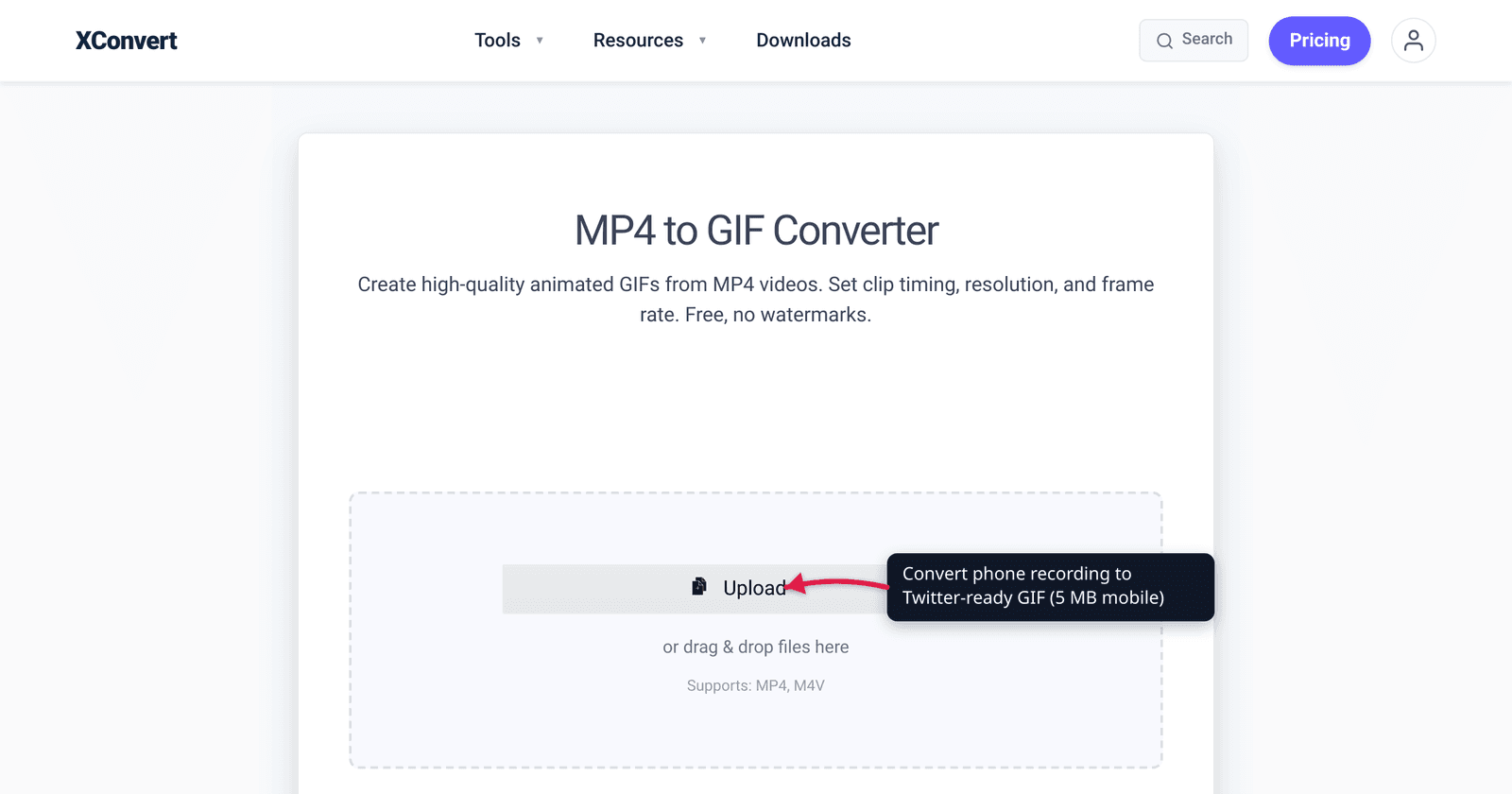
A 30-second screen recording from your iPhone or Android lands at 30–80 MB in the Photos app. Twitter/X caps GIF uploads at 5 MB on mobile and 15 MB on desktop. To get a tweetable, auto-looping GIF out of a phone recording, you need to: convert the MOV/MP4 to GIF, scale down the resolution, drop the frame rate, and trim length. This guide walks through doing it all in one tool, with the exact numbers for both vertical (9:16) and landscape (16:9) phone recordings.
Quick answer: iOS records to MOV, Android to MP4. Convert to GIF in xconvert at 480p (vertical), 720×400 (landscape), 10 fps, target 5 MB so it clears Twitter/X’s 5 MB mobile cap and the 15 MB desktop cap. Vertical phone recordings stay sharp at 480×854.
Jump to a section
- Twitter/X GIF limits (2026)
- Vertical vs landscape phone recordings
- Recommended xconvert settings
- Step by step (iPhone path)
- Step by step (Android path)
- What if the result looks blurry?
- FAQ
Twitter/X GIF limits (2026)
| Spec | Limit |
|---|---|
| Mobile upload (iOS / Android app) | 5 MB |
| Desktop / web upload | 15 MB |
| Max dimensions | 1280 × 1080 |
| GIFs per tweet | 1 (cannot mix with images) |
Target 5 MB for posts you’ll send from your phone. Even if you only post from desktop, viewers on mobile will see a Twitter-transcoded version, so there’s little benefit to going larger than necessary.
Vertical vs landscape phone recordings
Vertical (9:16) — most casual phone recordings. Twitter displays vertical GIFs at ~270 px wide in the timeline. Source resolutions of 1080×1920 are massively oversized; downscale to 405×720 (or smaller) for upload. Aspect ratio stays vertical.
Landscape (16:9) — recorded after rotating the phone, or done in landscape mode. Twitter shows landscape GIFs at ~600 px wide on desktop, ~360 px on mobile. Source 1920×1080 should downscale to 720×405 or 480×270 for upload.
For UI demonstrations, landscape is better — Twitter’s timeline displays it larger and viewers don’t need to tilt their head. For one-handed-shot content (vertical video reactions), keep vertical.
Recommended xconvert settings
Vertical phone recording (5 MB Twitter mobile-safe)
| Setting | Value |
|---|---|
| Resolution | 405 × 720 |
| Frame rate | 12 fps |
| Color palette | 128 colors |
| Duration | ≤ 5 seconds |
| Output | GIF |
Landscape phone recording (5 MB mobile-safe)
| Setting | Value |
|---|---|
| Resolution | 720 × 405 |
| Frame rate | 12 fps |
| Color palette | 128 colors |
| Duration | ≤ 5 seconds |
| Output | GIF |
Higher-quality (desktop-only 15 MB)
| Setting | Value |
|---|---|
| Resolution | 720 × 1280 (vertical) or 1280 × 720 (landscape) |
| Frame rate | 18 fps |
| Color palette | 128 colors |
| Duration | ≤ 8 seconds |
Step by step (iPhone path)
iPhone screen recordings save as MOV with H.265 (HEVC) encoding by default. The xconvert MP4 to GIF tool accepts MOV directly.
- Record the screen. Swipe down from top-right corner → tap screen-recording button (or set up Control Center if you don’t see it: Settings → Control Center → Screen Recording).
- Stop recording by tapping the red bar at the top.
- Open Files or Photos and locate the recording.
- Open Safari and navigate to xconvert.com/convert-mp4-to-gif.
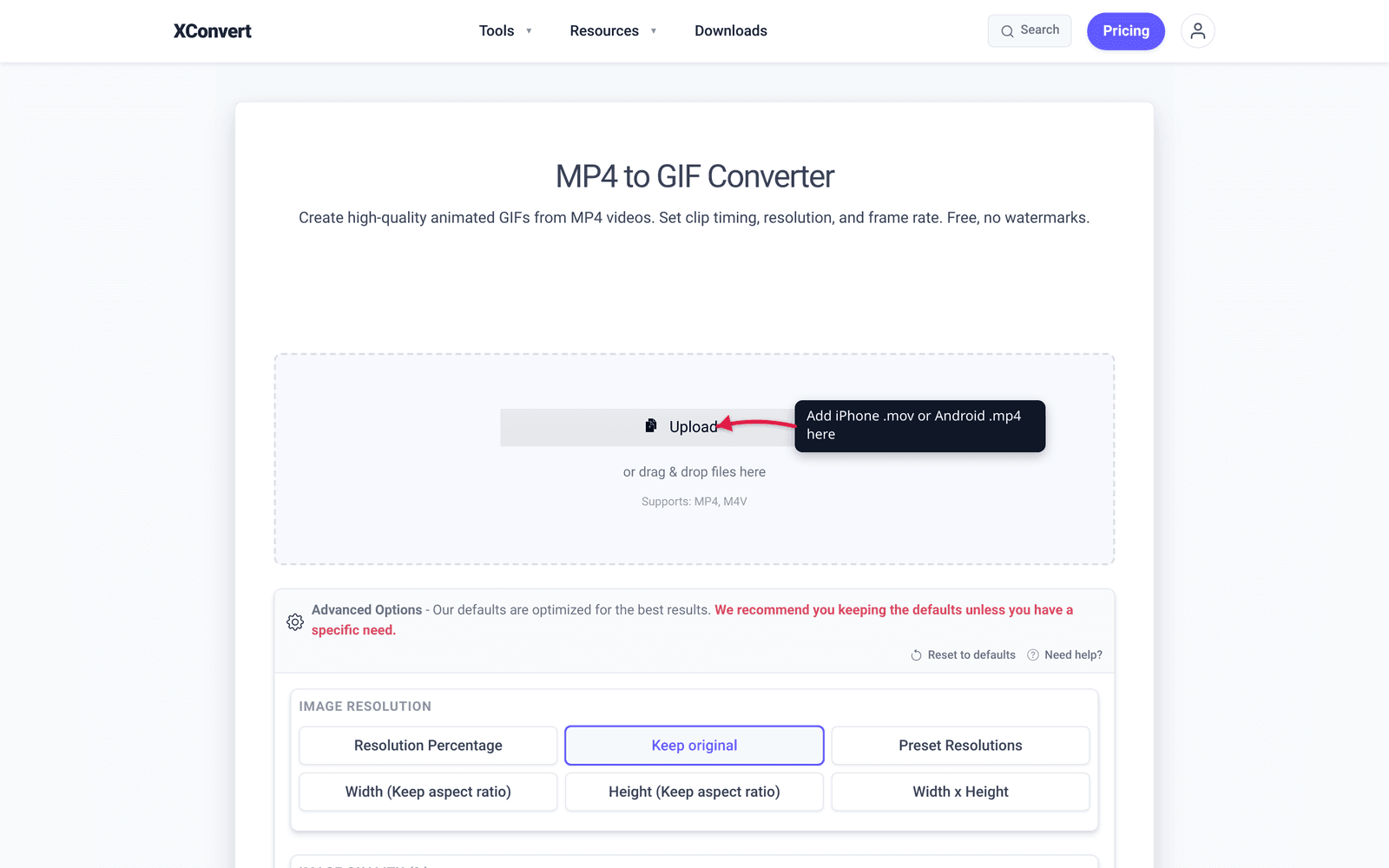
- Tap + Add Files → choose Photo Library → pick the recording.
- (Optional) Trim using the file-card controls after upload.
- In Advanced Options → Image resolution, click Resolution Percentage and pull the slider down to ~30% of source. On a 1080p phone capture that lands you near 480p — the sweet spot for GIF on a Twitter timeline (which renders at ~360 px wide on mobile, ~600 px on desktop). For vertical 9:16 phone clips, even 25% works.

- In Advanced Options → FRAMERATE, set 12 fps — the standard sane GIF baseline. Goes up to 15 fps if you’re posting from desktop and have headroom.

- Heads-up — phone-recorded video doesn’t survive the GIF round-trip cleanly. Skin tones, sunsets, motion blur, and any gradient-heavy content visibly band and posterize because GIF can hold at most 256 colors per frame and stores each frame as a full image. The compressor isn’t the culprit — it’s the format itself. If your phone supports it (iOS 11+, modern Android), share the MP4 directly to Twitter instead — it accepts MP4 up to 512 MB on desktop and mobile and auto-loops videos under ~60 seconds.
- Tap Convert. Wait. Download lands in Files.
- Open Twitter/X app, compose tweet, attach the GIF from Files.
Step by step (Android path)
Android screen recordings save as MP4 with H.264 by default (Android 11+). Earlier versions vary by manufacturer.
- Record the screen. Pull down quick settings → tap Screen Recorder. (Some manufacturers use different names.)
- Stop recording from the notification.
- The MP4 saves to your Movies / Screenshots / Screen Recordings folder.
- Open Chrome / Firefox and navigate to xconvert.com/convert-mp4-to-gif.
- Tap + Add Files → choose Files / Gallery → pick the recording.
- Set resolution, frame rate, trim if needed.
- Tap Convert. Download to your phone.
- Open X app, compose tweet, attach the GIF from Files / Gallery.
What if the result looks blurry?
Two common causes:
1. Resolution dropped too aggressively. If your source is 1920×1080 and you downscaled to 480×270, that’s 4× shrink in each dimension. Twitter’s timeline shows the GIF at ~600 px wide on desktop — already 1.25× upscale from your 480 source. Fix: keep at least 600 px wide.
2. Twitter’s transcoding compresses further. Twitter recompresses GIFs server-side, especially for mobile delivery. If you uploaded a high-quality GIF and it looks worse on Twitter than in your file, that’s the platform’s pipeline. Less you can do about it; consider uploading as MP4 video instead — Twitter’s video pipeline preserves quality better than its GIF pipeline.
For UI demos where text crispness matters, upload as MP4 video (Twitter video supports up to 512 MB for non-Premium users on both desktop and mobile). For “look at this” entertainment GIFs where loop matters more than crispness, GIF is fine.
Frequently Asked Questions
Does iPhone screen recording include audio?
By default no, but you can enable system audio (long-press the recording button and tap Microphone). For Twitter GIFs, audio is irrelevant (GIFs don’t support audio). If you want audio with your tweet, upload as MP4 video instead.
Why is my Android screen recording so big?
Android records at the native screen resolution and frame rate — that’s often 1080p or 1440p at 60 fps for high-end phones. A 30-second recording at 1080p60 is 50–80 MB. Most of that data is wasted for a GIF that’ll display at 360 px on Twitter mobile. Convert and downscale aggressively.
Can I record vertical and convert to landscape?
You can crop the vertical recording to a 16:9 frame (use xconvert’s video cropper before converting to GIF). The result is letterboxed-like content; only the central portion of the original frame is visible. For UI demos this often looks fine because the relevant content is usually center-screen.
What’s the maximum duration for a Twitter GIF?
No documented hard cap, but practical engagement drops sharply after 6 seconds. Aim for 3–5 seconds for the best engagement-vs-file-size balance.
Should I upload from desktop after transferring from phone?
If you have a Mac and use AirDrop, transfer the recording to the Mac, convert there using xconvert, and tweet from the desktop browser to use the larger 15 MB cap. Same for Windows + a USB cable. The file-size difference is real for higher-resolution content.
Does Twitter compress my GIF more on mobile vs desktop?
Yes. Twitter’s mobile delivery pipeline applies more aggressive compression to reduce bandwidth. The same GIF uploaded once may look different on iPhone vs Mac. Test on the platform after upload — what looks fine in your file may show banding on the timeline.
Can I convert directly in the Twitter mobile app?
Twitter doesn’t have a built-in GIF converter. You have to convert outside the app first, then attach the GIF to a tweet. xconvert in mobile Safari / Chrome is the cleanest path for phone-only workflows.
Try it now
Convert a phone screen recording to a Twitter-ready GIF with xconvert MP4 to GIF. For desktop documentation use, see Screen Recording to GIF for Slack/Documentation. For Reddit-specific subreddit rules, see MP4 to GIF for Reddit.
Related guides
- Compress GIF for Twitter/X: 15 MB Desktop / 5 MB Mobile
- Convert Screen Recording (MP4) to GIF for Slack and Docs
- MP4 to GIF for Reddit: File Size Limits by Subreddit
Sources
Last verified 2026-05-19.
- X Help Center — Video on X
- X Help Center — Posting photos or GIFs on X
- Apple — Record the screen on iPhone or iPad