 By James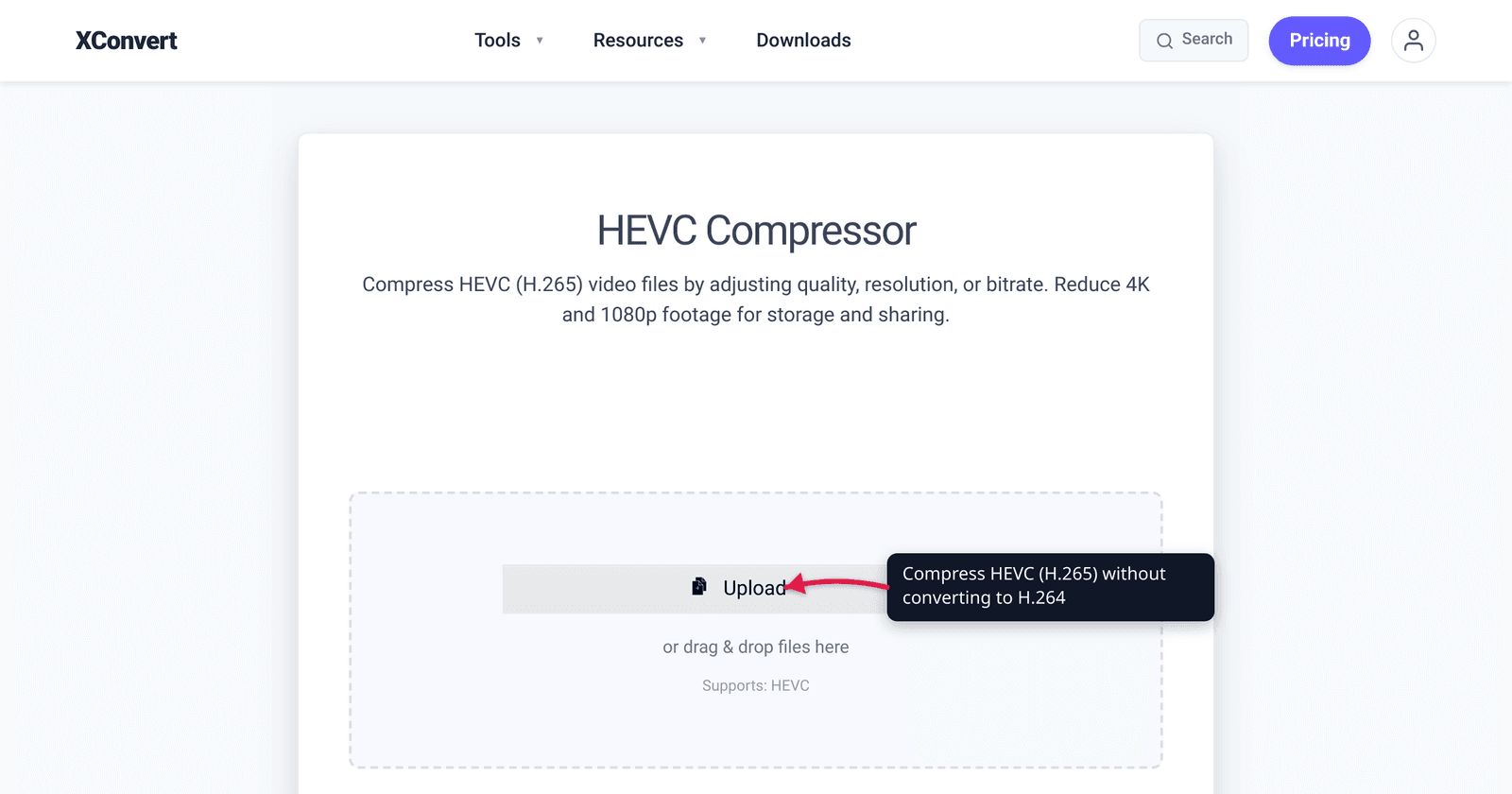
Modern phones (iPhone 7+, most Android since 2019) record video in HEVC (H.265) because it’s typically 30–50% smaller than the same-quality H.264 video. But HEVC files are still huge — a 1-minute 4K HEVC clip from an iPhone is ~150 MB. The naive fix is “convert to H.264 and compress” but that loses HEVC’s size advantage entirely, often producing an output bigger than aggressive HEVC re-encoding would. This guide covers HEVC-to-HEVC compression that keeps the format’s efficiency.
Quick answer: Use xconvert in ‘Repackage’ mode (no re-encode) to shrink HEVC file size without converting to H.264. Trim segments, change container, or drop audio tracks — keep the smaller HEVC codec. Saves 30–70% on operations that don’t need a quality change.
Jump to a section
- Why re-encode HEVC to HEVC?
- HEVC compression knobs
- Settings cheat sheet
- Step by step in xconvert
- Worked example: 4K iPhone video
- Compatibility considerations
- FAQ
Why re-encode HEVC to HEVC?
When you have an HEVC source and need a smaller file, three paths exist:
1. Re-encode HEVC → HEVC (recommended for quality + size)
- Lower bitrate than source = smaller file, slight quality loss
- Stays in HEVC format (universal HEVC compatibility)
- Best size:quality ratio
2. Re-encode HEVC → H.264 (only when compatibility requires it)
- Larger file at equivalent visual quality
- Better player compatibility (older devices, Windows without HEVC codec)
- Worse outcome for size unless re-encoding aggressively
3. Trim only (no re-encoding)
- Cuts duration, keeps quality and bitrate
- Best for “I just need a 30-second clip from a 5-minute recording”
For modern audiences (mobile devices, modern Macs, modern Windows with codec installed), HEVC-to-HEVC is almost always the right choice when shrinking video files.
HEVC compression knobs
Three settings control the output:
1. Bitrate. The dominant lever. HEVC at 8 Mbps for 1080p is visually transparent for most content. Drop to 4–5 Mbps and you get noticeable but acceptable compression. 2 Mbps starts to show artifacts.
2. Resolution. A 4K source downscaled to 1080p reduces pixel count by 4×, dramatically shrinking the file. For phone-shot 4K videos, this is usually the biggest size win.
3. Frame rate. iPhone records at 60 fps in some modes; dropping to 30 fps for delivery halves the file size with negligible visual difference for most content.
xconvert combines these into a “Specific file size” target — set 50 MB and it picks bitrate to hit that target.
Settings cheat sheet
For HEVC source → smaller HEVC output:
Aggressive shrink (60-70% size reduction, keep 1080p)
| Setting | Value |
|---|---|
| Output format | HEVC / H.265 |
| Resolution | 1920 × 1080 (or downscale from 4K) |
| Bitrate | 4 Mbps |
| Frame rate | 30 fps |
Moderate shrink (40-50% reduction, keep quality)
| Setting | Value |
|---|---|
| Output format | HEVC |
| Resolution | Same as source |
| Bitrate | 6-8 Mbps |
| Frame rate | Same as source |
Email-safe (1080p video, ~10 MB per minute)
| Setting | Value |
|---|---|
| Output format | HEVC |
| Resolution | 1280 × 720 |
| Bitrate | 1.5 Mbps |
| Frame rate | 30 fps |
Step by step in xconvert
- Open xconvert.com/compress-hevc.
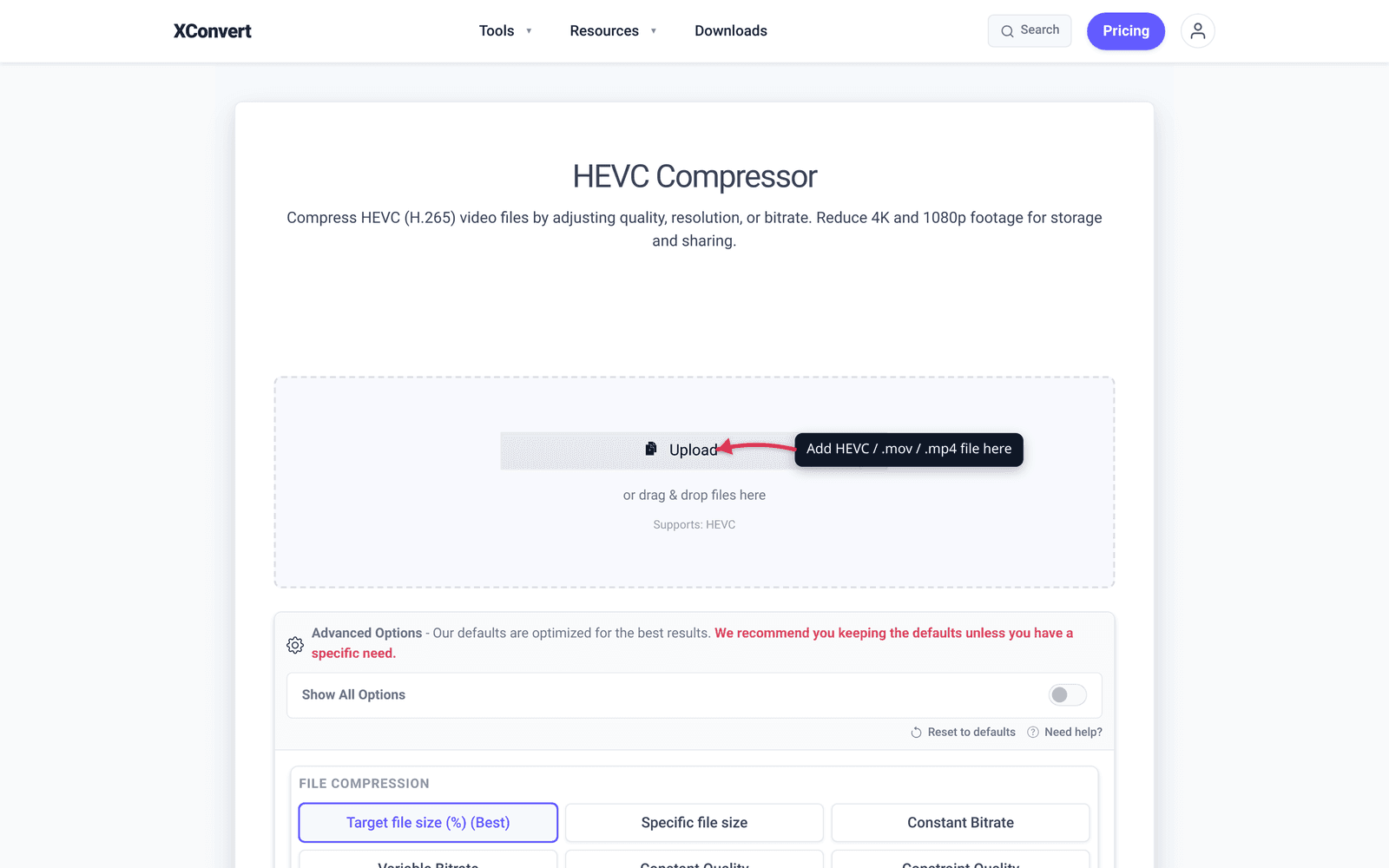
- Click + Add Files and pick your HEVC video (
.movfrom iPhone,.mp4from Android). - Advanced Options → File Compression → Specific file size.
- Enter target size (e.g., 50 MB for a Discord-friendly clip, 20 MB for email).
- Confirm output format is HEVC (don’t switch to H.264 unless you need legacy compatibility).
- Click Compress. Wait — HEVC encoding takes 2-3× as long as H.264 for the same input.
- Download. Verify file size and quick-watch for artifacts.
Worked example: 4K iPhone video
Source: 1-minute iPhone 14 video, 4K (3840×2160) at 30 fps in HEVC. Original: 150 MB.
Goal: Send via Slack, where the practical limit is ~20 MB for in-line preview.
Step 1 — Decide path. 4K → 1080p downscale is the dominant lever. Drop bitrate within HEVC.
Step 2 — Settings.
- Resolution: 1920 × 1080 (4× pixel reduction)
- Bitrate: 2.5 Mbps (good for 1080p video at 30 fps)
- Frame rate: 30 fps (unchanged)
- Format: HEVC
Expected output: 1 min × 60 sec × 2.5 Mbps / 8 = 18.75 MB. Fits.
Step 3 — Encode in xconvert. Set parameters, click Compress.
Step 4 — Verify quality. Watch the output. At 2.5 Mbps HEVC 1080p, content is sharp; only fine details (foliage texture, complex motion) show subtle compression. Acceptable for sharing.
Step 5 — Upload. 18 MB to Slack — uploads cleanly, plays inline.
If 18 MB isn’t enough headroom (Slack stops allowing inline preview at very large files), drop bitrate to 1.5 Mbps for ~11 MB. Quality drops slightly but still watchable.
Compatibility considerations
Where HEVC plays:
| Device / OS | HEVC support |
|---|---|
| iPhone / iPad (any modern) | Native, built-in |
| Mac (modern macOS) | Native |
| Windows 10/11 | Requires Microsoft codec ($0.99) or VLC |
| Android (most) | Native since Android 5+ |
| Web browsers | Safari (full); Chrome 107+, Edge 107+, Firefox 134+ on Windows with hardware HEVC decoder. H.264 MP4 still has broader compatibility — use it for the lowest common denominator. |
| Embedded video on websites | Inconsistent; H.264 is safer |
| TV / set-top streaming | Most modern smart TVs support HEVC |
The big gotcha: for embedding video in a website that needs to reach the broadest audience (older devices, Linux, browsers without hardware decoders), HEVC is still risky despite recent Chrome/Edge/Firefox additions. For web embeds with broad compatibility, convert to H.264 MP4. For peer-to-peer messaging where you know both sides have modern devices, HEVC is fine.
Frequently Asked Questions
Why does HEVC encoding take so long?
HEVC’s compression algorithm is more complex than H.264. The encoder examines more spatial and temporal patterns to achieve smaller output. CPU time is roughly 2-3× longer than H.264 at equivalent quality. xconvert runs encoding on the server, so it’s faster than encoding locally on a phone or older laptop, but still longer than H.264.
Will compressing HEVC reduce its quality?
Yes — any re-encoding loses some data. The trade-off: at appropriate bitrate, the loss is invisible. At 4 Mbps for 1080p HEVC, most viewers can’t distinguish from 8 Mbps source. Below 2 Mbps, artifacts become visible.
Can I convert HEVC to MP4 (H.264)?
Yes. Use xconvert convert MOV to MP4 or convert HEVC to MP4. The output is H.264 MP4 with universal compatibility but ~50% larger than equivalent HEVC. Use this when sharing with Windows users without codec installs or embedding on websites.
Does iPhone record HEVC by default?
iPhone 7 and later (iOS 11+) record HEVC by default. You can switch to H.264 in Settings → Camera → Formats → Most Compatible. The trade-off: H.264 files are ~40% larger than HEVC at equivalent quality, but always playable on any device.
What about HDR HEVC?
iPhone records Dolby Vision HDR using HEVC’s 10-bit color profile. Compressing HDR HEVC requires preserving the 10-bit profile or converting to SDR (8-bit). Most general HEVC compressors strip HDR metadata and produce SDR output. Specialized tools (Compressor, HandBrake with HDR settings) preserve HDR. Most viewers don’t notice the difference unless playing on an HDR-capable display.
Is AV1 better than HEVC for compression?
Yes — AV1 produces files 20–30% smaller than HEVC at equivalent quality. The catch: AV1 encoding is 5–10× slower than HEVC; AV1 playback support is still ramping up (Apple supports it on M3+ chips; older devices can struggle). For 2026 use, HEVC is the practical sweet spot. AV1 will become preferred over the next 2-3 years as hardware decoders proliferate.
Why does my HEVC file look fine on iPhone but won’t play on my Windows PC?
Windows 10/11 doesn’t include the HEVC codec by default — Microsoft charges $0.99 for it. Without the codec, HEVC files won’t play in Windows Media Player or other native apps. Solutions: install the codec, install VLC (free, plays everything), or convert HEVC to H.264 MP4 before sharing.
Try it now
Compress HEVC video with xconvert HEVC compressor. For converting to broader compatibility (H.264 MP4), use HEVC to MP4. For self-hosted web video using WebM, see WebM Compression for Self-Hosted Video.
Related guides
Sources
Last verified 2026-05-19.
- Apple Support — iPhone Camera Settings (HEVC)
- ITU-T H.265 (HEVC) Recommendation
- MDN — Video codecs (including HEVC / H.265)