 By James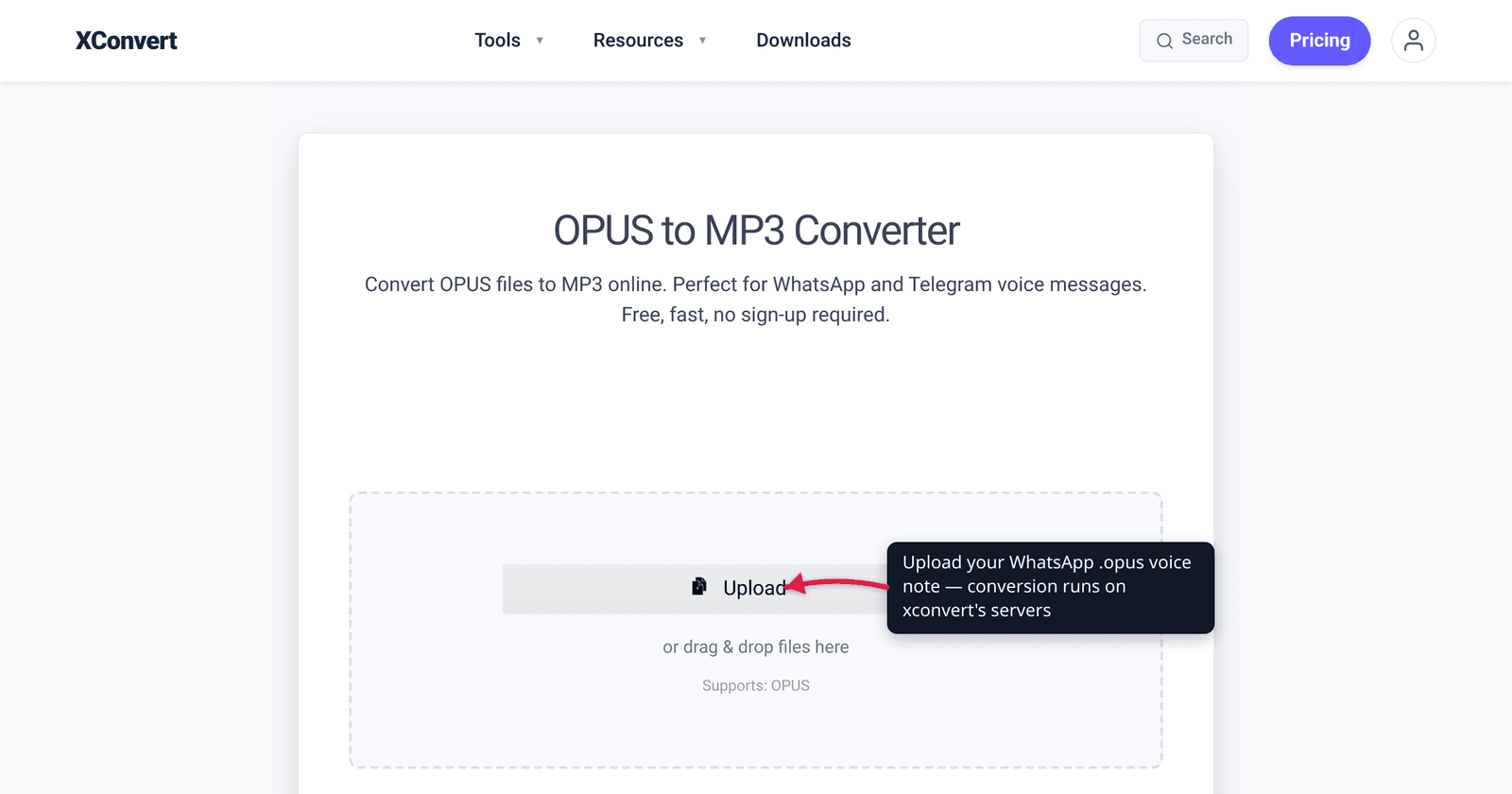
You forwarded a WhatsApp voice note to your computer to keep it, double-clicked the file, and Windows Media Player threw an error — or your email client refused to preview it. That’s because WhatsApp saves voice notes as Opus, a brilliant but newer codec that a lot of default players still can’t open. Converting it to MP3 makes it play anywhere — on old phones, in any media player, embedded in a presentation, attached to an email. This guide explains exactly what a WhatsApp voice note is, why it won’t play, and how to convert it without fuss. We verified the codec, the file extensions, and the playback gaps against the IETF spec and caniuse.
Quick answer: WhatsApp voice notes are encoded with the Opus codec (file extension .opus, or .ogg on some older Android exports). Opus is efficient and great for speech, but it isn’t playable in Windows Media Player and several default apps without an extra codec. Convert to MP3 for universal playback — every device and player handles MP3. Note that OPUS→MP3 is lossy-to-lossy (a second generation of compression loss), but for a voice recording the difference is imperceptible. Convert with the xconvert OPUS to MP3 converter.
Jump to a section
- Why WhatsApp voice notes are OPUS files
- Why OPUS won’t play (and MP3 always does)
- Does converting OPUS to MP3 lose quality?
- How to get the voice note off your phone first
- Convert OPUS to MP3 on xconvert
- FAQ
Why WhatsApp voice notes are OPUS files
When you hold the mic button in WhatsApp and record a voice note, the app encodes your speech with Opus — a free, open audio codec standardized by the IETF as RFC 6716 in September 2012. Opus was built from two earlier codecs (Skype’s SILK for speech and Xiph.Org’s CELT for music), and it’s now used by WhatsApp, Discord, Zoom, and YouTube.
The reason WhatsApp picked Opus is simple: it sounds remarkably clear at very low bitrates. Opus encodes from 6 kbit/s to 510 kbit/s at sampling rates from 8 kHz up to 48 kHz, and at the low end it’s been measured as higher quality than MP3 or AAC at the same bitrate, especially for speech. That’s why a one-minute WhatsApp voice note is tiny — clear audio in a file that barely dents your data plan.
A couple of details that trip people up:
- The file extension varies. When you export a voice note, you’ll usually get a
.opusfile. Some older WhatsApp Android versions exported the same audio as.ogginstead. Both are the same Opus codec inside an Ogg container — only the extension differs, and both convert to MP3 identically. - It’s a mono, low-bitrate speech recording, not a music file. Community measurements put WhatsApp’s voice notes around 16 kHz / mono at a low bitrate — perfect for voice, which matters when you set your MP3 quality later (you don’t need a 320 kbps MP3 for a voice memo).
Why OPUS won’t play (and MP3 always does)
Opus is technically excellent but young by playback-compatibility standards, and that’s the whole problem. The codec is well supported in modern browsers — Chrome, Firefox, and Edge have full support, and caniuse reports roughly 96% global browser support — but the gaps that bite you are on the desktop and in default apps:
| Where you try to play it | OPUS support |
|---|---|
| Windows Media Player | Not supported without installing an extra codec |
| Default Windows “Media Player” / older apps | Often fails to open |
| Apple desktop Safari | Partial only (improved on iOS Safari 18.4+) |
| VLC, Firefox | Native — plays fine |
| Chrome / Edge / Firefox (browser) | Supported |
| MP3 — everywhere | Universal |
So when you double-click a .opus file on a Windows PC and nothing happens, it’s not corrupt — it’s a missing codec. You can install a player like VLC that handles Opus natively, but if you need the recording to play anywhere — an email, a slide deck, an old phone, or software that only knows MP3 — converting to MP3 is the reliable fix. MP3 is the one audio format essentially every device, browser, and app has played for over two decades.
Does converting OPUS to MP3 lose quality?
Yes, technically — and it’s worth being honest about why. Both Opus and MP3 are lossy codecs, meaning each one throws away audio data that the encoder judges inaudible. When you convert OPUS to MP3, you’re decoding the already-lossy Opus audio and then re-compressing it with MP3 — a second generation of lossy compression. Every lossy-to-lossy conversion loses a little more than the original.
Here’s why that’s almost never a problem for a WhatsApp voice note:
- The source is speech, not music. Voice is far more forgiving of compression artifacts than a dense music mix. The detail that lossy codecs discard (very high frequencies, subtle stereo cues) barely exists in a mono voice recording.
- The note is already low-bitrate. A WhatsApp voice note was encoded at a low bitrate to begin with, so there isn’t much fidelity left to lose. Re-encoding it to a reasonable MP3 bitrate preserves what’s there.
- Perceptually, you won’t hear it. For a spoken message, an MP3 made from the Opus original sounds the same to your ears.
The practical rule: don’t over-spend on the MP3 bitrate. A voice note doesn’t need 320 kbps — that just inflates the file with no audible gain. A modest MP3 bitrate keeps the file small and the speech clear. (If you’re converting music in Opus rather than a voice note, the same lossy-to-lossy caveat applies but matters more — read OPUS vs MP3 for that comparison.) And if your goal is to keep the file small rather than maximally compatible, you may not need MP3 at all — see how to compress OGG or Opus audio.
How to get the voice note off your phone first
You’ll usually need to export the voice note from WhatsApp first:
- On Android, WhatsApp saves received voice notes to your device storage automatically — look in your file manager under the WhatsApp media/audio folder for the
.opus(or older.ogg) files. - On iPhone, long-press the voice message, tap Forward, then the share icon, and choose Save to Files (or email it to yourself). That gives you the raw audio file to upload.
Once the .opus or .ogg file is on a device with a browser, you’re ready to convert.
Convert OPUS to MP3 on xconvert
The xconvert OPUS to MP3 converter turns the voice note into a universally-playable MP3 in a few steps:
- Open xconvert.com/convert-opus-to-mp3 and click + Add Files to upload your voice note (from your computer, Google Drive, or Dropbox). A
.oggexport from an older WhatsApp works here too. - The output is already set to MP3 — no format picker needed.
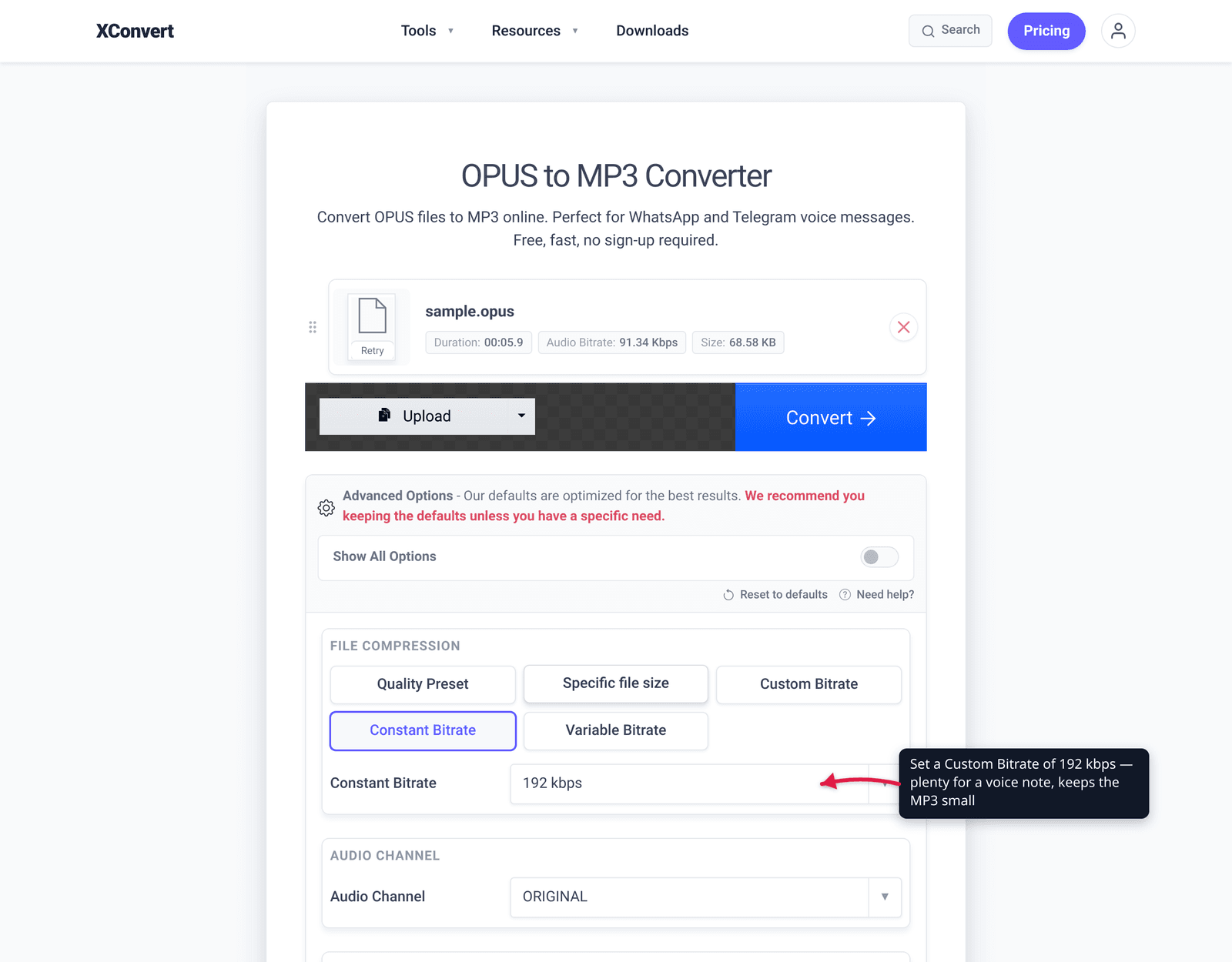
- (Optional) Open Advanced Options (the gear icon) to fine-tune. The defaults are optimized for good results, but you can set a Quality Preset (default Highest), a Custom Bitrate, or even a Specific file size. For a voice note, you don’t need a high bitrate — a modest one keeps the MP3 small.
- (Optional) Leave Audio Channel and Audio Sample Rate on ORIGINAL, or use Trim to clip the recording.
- Click Convert, then download your MP3.
Your file is uploaded over an encrypted connection, processed on our servers, and deleted automatically a few hours later. Nothing stays around.
For related tasks: compress OGG or Opus audio (shrink it without leaving the format) and OPUS vs MP3 (which to keep and why).
FAQ
What format are WhatsApp voice notes?
WhatsApp records voice notes with the Opus codec, stored in an Ogg container. Exported files usually carry the .opus extension, though some older WhatsApp Android versions exported the identical audio as .ogg. Both are the same Opus codec and both convert to MP3 the same way.
Why won’t my OPUS file play on Windows?
Because Windows Media Player doesn’t support Opus out of the box — it needs an extra codec installed. The file isn’t corrupt; the player just can’t decode it. Either install a player that handles Opus natively (VLC and Firefox do), or convert the file to MP3, which every Windows app can play.
Does converting OPUS to MP3 reduce the quality?
Slightly, in theory. Both are lossy formats, so OPUS→MP3 is a lossy-to-lossy conversion — a second round of compression. But for a voice note the loss is imperceptible: speech is forgiving of compression, and the note was already low-bitrate. Just don’t pick an unnecessarily high MP3 bitrate — it won’t improve a voice recording.
Is .ogg the same as .opus?
For WhatsApp voice notes, effectively yes. The Opus codec is wrapped in an Ogg container; the recommended extension is .opus, but older WhatsApp Android exports used .ogg. Same audio, same conversion — you can drop either one into an OPUS-to-MP3 converter.
What MP3 bitrate should I use for a voice note?
A modest bitrate is plenty for speech. WhatsApp voice notes are low-bitrate mono recordings to begin with, so a high MP3 bitrate (like 320 kbps) only inflates the file without making the voice clearer. A lower or medium bitrate keeps the MP3 small and the speech perfectly intelligible.
Can I convert OPUS to MP3 on my phone?
Yes — you don’t need desktop software. Save the voice note out of WhatsApp (Forward → Save to Files / email it to yourself on iPhone, or grab it from the WhatsApp audio folder on Android), then upload it to a browser-based OPUS to MP3 converter and download the MP3.
Sources
Last verified 2026-06-25.
- Opus Codec — official site (opus-codec.org) — Opus is a royalty-free IETF-standardized codec (RFC 6716), 6–510 kbit/s, 8–48 kHz, built for interactive speech and music.
- Opus (audio format) — Wikipedia — RFC 6716 standardization date, lossy nature,
.opus/Ogg container, adoption by WhatsApp (since 2016), Discord, Zoom, YouTube; outperforms MP3/AAC at given bitrate per listening tests. - caniuse — Opus audio format — browser support: Chrome/Firefox/Edge full, desktop Safari partial, ~96% global; basis for the playback-gap matrix.
- The Windows Club — “You must have an Opus Codec installed” WhatsApp error — Windows Media Player needs an added Opus codec to play
.opusvoice notes. - IONOS — How to save audio from WhatsApp (Android & iOS) — exporting voice notes: Android media folder; iPhone Forward → Save to Files / email.