 By James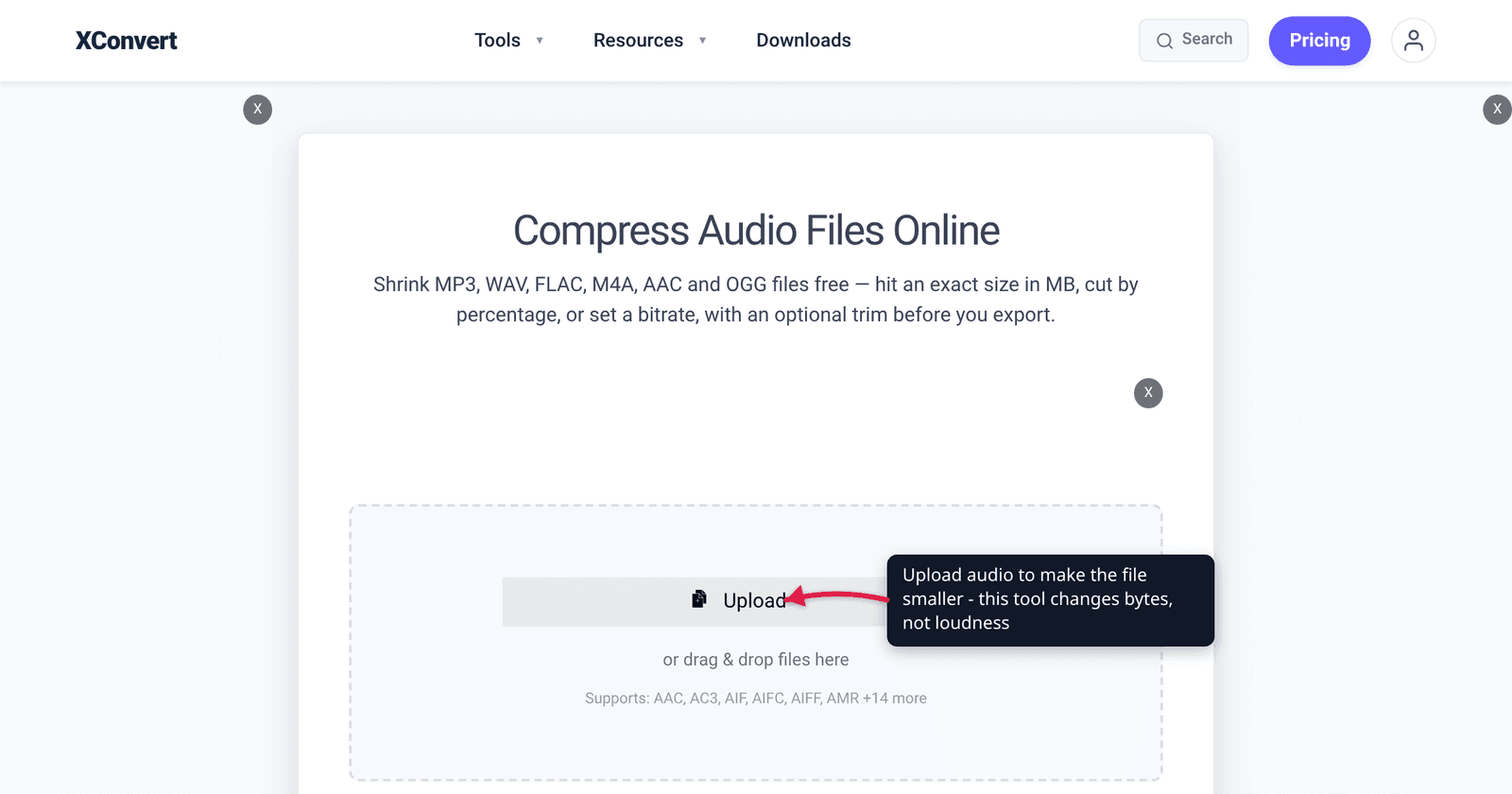
Two people search “audio compressor” on the same afternoon. One has a 90 MB voice memo that won’t attach to an email. The other has a podcast where the guest whispers and the host shouts, and wants the levels evened out. They land on the same search results, and roughly half of them are useless to each. The word “compression” covers two completely unrelated operations in audio, and nobody labels which one they mean.
Quick answer: Data compression makes the file smaller — fewer bytes for roughly the same sound, controlled with bitrate, sample rate and channel count. Dynamic-range compression makes the sound different — it squashes the gap between the loudest and quietest parts, controlled with threshold, ratio, attack and release. They share a word and nothing else. xconvert’s audio compressor does the first one only — there is no gain, normalize, loudness or dynamic-range control anywhere in it, and we would rather say so than let you upload and find out. For the second, use Audacity (free), a DAW, or ffmpeg’s
acompressorandloudnormfilters.
Jump to a section
- Two jobs, one word
- Data compression: fewer bytes
- Dynamic-range compression: a different sound
- Loudness normalization is a third thing again
- What xconvert does, and where to go for the other one
- FAQ
Two jobs, one word
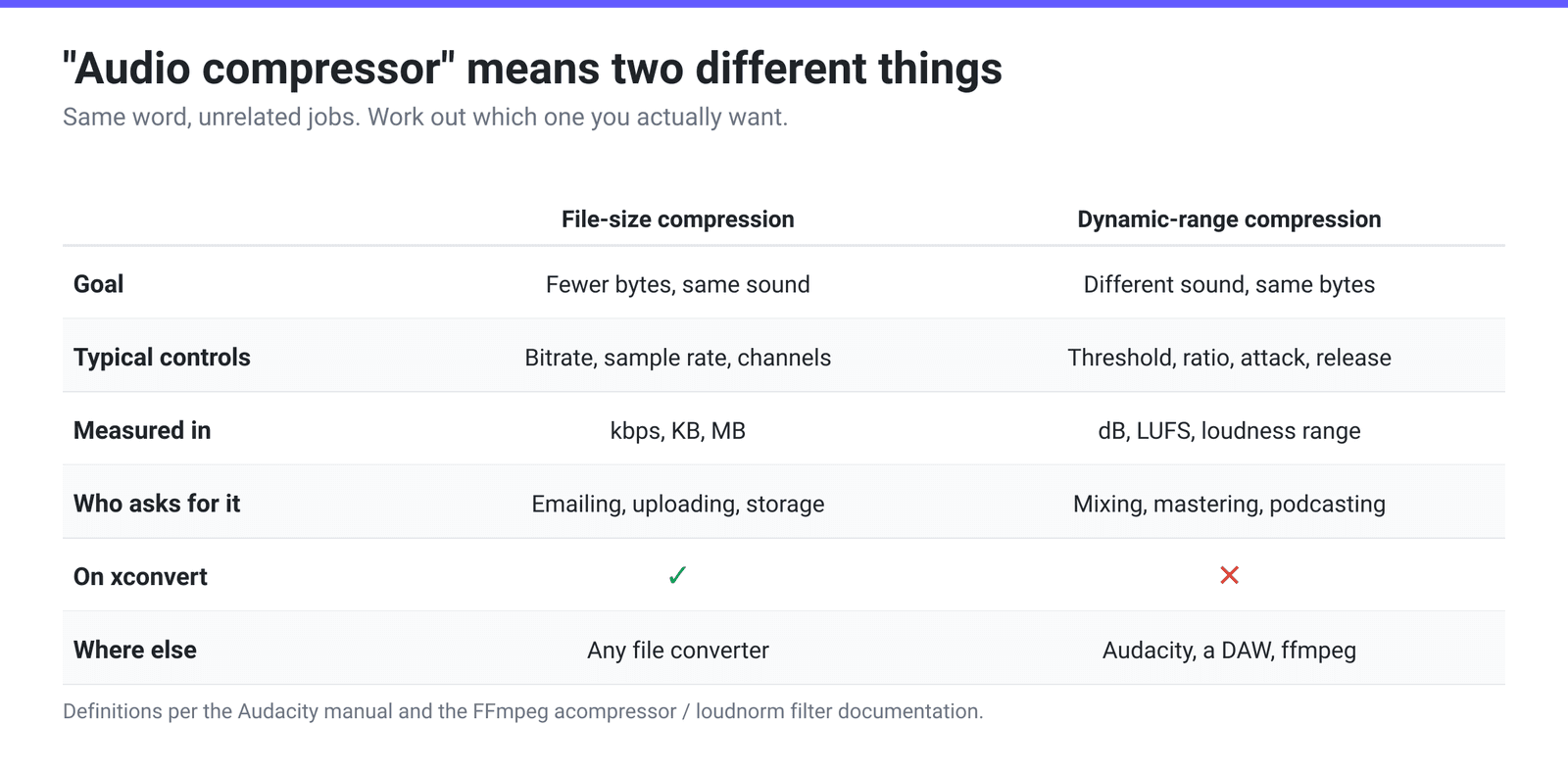
The confusion is not the user’s fault. It is genuine terminological collision: engineers named the bitrate-reduction process “compression” because it compresses data, and named the dynamics processor “compression” because it compresses the amplitude range. Both are correct in their own field.
The quickest way to work out which one you want: ask what you are unhappy with.
- Unhappy with a number — “it’s 90 MB and the limit is 25” — you want data compression.
- Unhappy with what you hear — “the quiet bits are inaudible in the car” — you want dynamics processing.
If you want both, do them in that order: process the dynamics first, encode second. Doing it the other way round means the dynamics processor is working on already-degraded lossy audio, and any re-encode after that stacks a second generation of loss on top.
Data compression: fewer bytes
This is the file-size job, and there are only four real levers.
| Lever | What it changes | Effect on size | Cost |
|---|---|---|---|
| Bitrate | Bits allocated per second of audio | Directly proportional — halve the bitrate, halve the file | The main quality lever; artefacts appear as you go low |
| Codec | The compression algorithm | Large. Opus and AAC hold up better than MP3 at low bitrates | Compatibility varies by device and platform |
| Channels | Stereo → mono | Roughly halves it for constant-bitrate encodes | Stereo image gone. Fine for speech, not for music |
| Sample rate | Samples captured per second | Moderate | Caps the highest frequency reproducible; 44.1 kHz is CD standard |
Two things worth knowing beyond the table. Lossy encoding is generational — every re-encode of an already-lossy file discards more, so always compress from the highest-quality source you still have rather than from the MP3 you made last week. And lossless compression exists too: FLAC and ALAC shrink a WAV with no change to the samples at all, typically to somewhere around half to two-thirds of the original, which is a smaller win than lossy but a mathematically perfect one.
For the numbers behind bitrate choices, MP3 bitrate: 128 vs 256 vs 320 has the comparisons.
Dynamic-range compression: a different sound
This is the studio job. A compressor watches the signal level and turns it down whenever it exceeds a set point, then you raise the whole thing back up — so the loud parts come down, the quiet parts effectively come up, and the distance between them shrinks.
Audacity’s own manual states the purpose in one line: “The Compressor effect reduces the dynamic range of audio.” ffmpeg’s documentation says the same of its acompressor filter: “A compressor is mainly used to reduce the dynamic range of a signal.”
The controls you will meet, and what each actually does:
- Threshold — the level above which the compressor starts working. Nothing below it is touched.
- Ratio — how hard it works above the threshold. 2:1 means 2 dB over the threshold comes out as 1 dB over. 10:1 and above is effectively limiting.
- Attack — how quickly it clamps down after the signal crosses the threshold. Fast attack catches transients (and can dull a snare or a plosive); slow attack lets them through.
- Release — how quickly it lets go afterwards. Too fast and you hear “pumping” as the background noise rises and falls; too slow and quiet passages stay ducked.
- Knee — how abruptly compression engages around the threshold. A soft knee eases in and sounds more natural on voice.
- Make-up gain — the manual volume boost that compensates for everything the compressor pulled down. This is what turns “quieter overall” into “louder overall.”
None of these have any effect on file size. A compressed-dynamics WAV is exactly the same number of bytes as the WAV that went in, because the sample count and bit depth have not changed — only the values inside have. That is the cleanest way to remember which job is which: data compression changes the byte count and tries not to change the sound; dynamics compression changes the sound and does not touch the byte count.
Loudness normalization is a third thing again
Worth separating out, because it is what most people asking for “compression” on a podcast actually want. Normalization measures the perceived loudness of a whole programme and applies one gain change to hit a target. It does not reshape anything — the dynamics are untouched, the whole thing just moves up or down.
The measurement standard is LUFS (Loudness Units relative to Full Scale), defined by ITU-R BS.1770 and used by EBU R 128. Every major streaming platform normalizes on playback against it. Spotify publishes its target explicitly: “We adjust tracks to -14 dB LUFS, according to the ITU 1770 standard.” It also tells artists to “Target the loudness level of your master at -14dB integrated LUFS” and “Keep it below -1dB TP (True Peak) max” — or below -2dB TP for louder masters.
The practical consequence for anyone still mastering loud: crushing the dynamics to win a volume war no longer works, because the platform simply turns the result back down to −14 LUFS. What you are left with is a quieter and flatter track than the person who left headroom.
ffmpeg implements this directly as the loudnorm filter — “EBU R128 loudness normalization,” with an integrated-loudness target that defaults to −24.0 LUFS, a loudness-range target of 7.0 and a maximum true peak of −2.0. Set I=-14 if you are aiming at Spotify’s number.
What xconvert does, and where to go for the other one
We do file-size compression only. There is no gain, normalize, loudness, threshold, ratio or make-up gain control anywhere on the audio compressor — not hidden behind a mode, not appearing after upload. If you need to shape dynamics, this is the wrong tool and we are not going to pretend otherwise.
To make an audio file smaller:
- Open xconvert.com/audio-compressor and click Upload — from your computer, Google Drive or Dropbox. It accepts MP3, WAV, FLAC, M4A, AAC, OGG, Opus, AIFF, WMA, AMR and others.
- Open Advanced Options.
- Under Audio File Extension, keep MP3, choose Same as source to stay in the format you started with, or pick another — Opus and AAC hold up better at low bitrates.
- Under File Compression, pick one of the five modes: File Size Percentage (a 1–100 slider that opens at 80), Specific file size (a number plus a B / KB / MB unit dropdown, opening at 8 MB), Custom Bitrate (opens at 64 kbps), Constant Bitrate (a fixed ladder from 8 kbps to 384 kbps, with 64 kbps preselected), or Variable Bitrate (quality-targeted ranges).
- Optionally set Audio Channel to MONO — for speech this roughly halves a constant-bitrate file with no meaningful loss — and Audio Sample Rate down to 16000 or 24000 Hz for voice-only material. Both default to ORIGINAL.
- Use Trim if you only need part of the recording; it is set to Unchanged by default. Then click Compress and download.
Your file uploads over an encrypted connection, is processed on our servers, and is deleted automatically a few hours later.
For dynamic-range compression or loudness normalization, these are the honest routes:
- Audacity — free and open source, on Windows, macOS and Linux. Its Compressor effect exposes threshold, ratio, attack, release, knee and make-up gain, and it has a separate Loudness Normalization effect for hitting a LUFS target.
- A DAW — Reaper, Logic, Ableton, Studio One, GarageBand. Anything with a mixer has a compressor on every channel.
- ffmpeg —
acompressorfor dynamics,loudnormfor EBU R128 normalization. Scriptable, free, and the right answer for batches. - A podcast-specific service — several hosting platforms run loudness normalization automatically on upload, which for most podcasters is enough.
Related: How to compress audio without losing quality for the file-size job in depth.
FAQ
Does xconvert’s audio compressor have a normalize or gain control?
No. We checked the entire option tree for this article: there is no gain, normalize, loudness, threshold, ratio, attack, release or make-up gain control on the audio compressor or on any of our audio pages. The controls are output format, file-compression mode (File Size Percentage, Specific file size, Custom Bitrate, Constant Bitrate or Variable Bitrate), audio channel, sample rate and trim. Everything there affects file size, not perceived loudness.
Will compressing a file make the quiet parts easier to hear?
No — that is the other kind of compression. Reducing bitrate or converting to a smaller format changes how the audio is stored, not its level relationship. A whisper at −45 dB is still at −45 dB after you halve the file size. If the quiet parts are the problem, you want a dynamics compressor or a loudness normalizer.
Does dynamic-range compression make the file bigger or smaller?
Neither, in itself. Compressing dynamics changes sample values, not sample count or bit depth, so an uncompressed WAV comes out exactly the same size. There is a small indirect effect if you then re-encode to a lossy format — reduced dynamic range is marginally easier for an encoder to model — but it is not a size strategy.
What is LUFS and do I need to care?
LUFS is a perceived-loudness measurement defined by ITU-R BS.1770, and you care if you publish anywhere that normalizes playback. Spotify states it adjusts tracks to −14 dB LUFS and recommends mastering to −14 LUFS integrated with true peak below −1 dB. If you master far louder, the platform turns it down anyway, so you get the squashed dynamics without the volume.
Which should I do first, dynamics or file-size compression?
Dynamics first, always. Process from the highest-quality source you have — ideally WAV or FLAC — then encode to the delivery format once at the end. Encoding first means the dynamics processor operates on audio that already has lossy artefacts, and the re-encode afterwards adds another generation of loss.
Is there a free way to do proper dynamic-range compression?
Yes, several. Audacity is free, open source and cross-platform, with a full Compressor effect (threshold, ratio, attack, release, knee, make-up gain) plus separate Loudness Normalization. ffmpeg’s acompressor and loudnorm filters are free and scriptable, with loudnorm implementing EBU R128 directly. Neither costs anything, and both do a job no file-size converter can do.
Sources
Last verified 2026-08-31.
- Spotify for Artists — Loudness normalization — “We adjust tracks to -14 dB LUFS, according to the ITU 1770 standard”; “Target the loudness level of your master at -14dB integrated LUFS”; “Keep it below -1dB TP (True Peak) max”; and the -2dB true-peak advice for louder masters.
- Audacity Manual — Compressor — “The Compressor effect reduces the dynamic range of audio,” and the threshold / ratio / attack / release / knee / make-up gain controls.
- FFmpeg Filters documentation —
acompressor(“a compressor is mainly used to reduce the dynamic range of a signal”) andloudnorm(“EBU R128 loudness normalization”) with its −24.0 LUFS integrated default, 7.0 LRA and −2.0 true-peak defaults. - xconvert option configuration, checked 2026-08-31 — the audio compressor’s complete control set, including all five File Compression modes (File Size Percentage, Specific file size, Custom Bitrate, Constant Bitrate, Variable Bitrate), and confirmation that no gain, normalize, loudness or dynamic-range control exists on any xconvert audio page.