 By Stephanie Taylor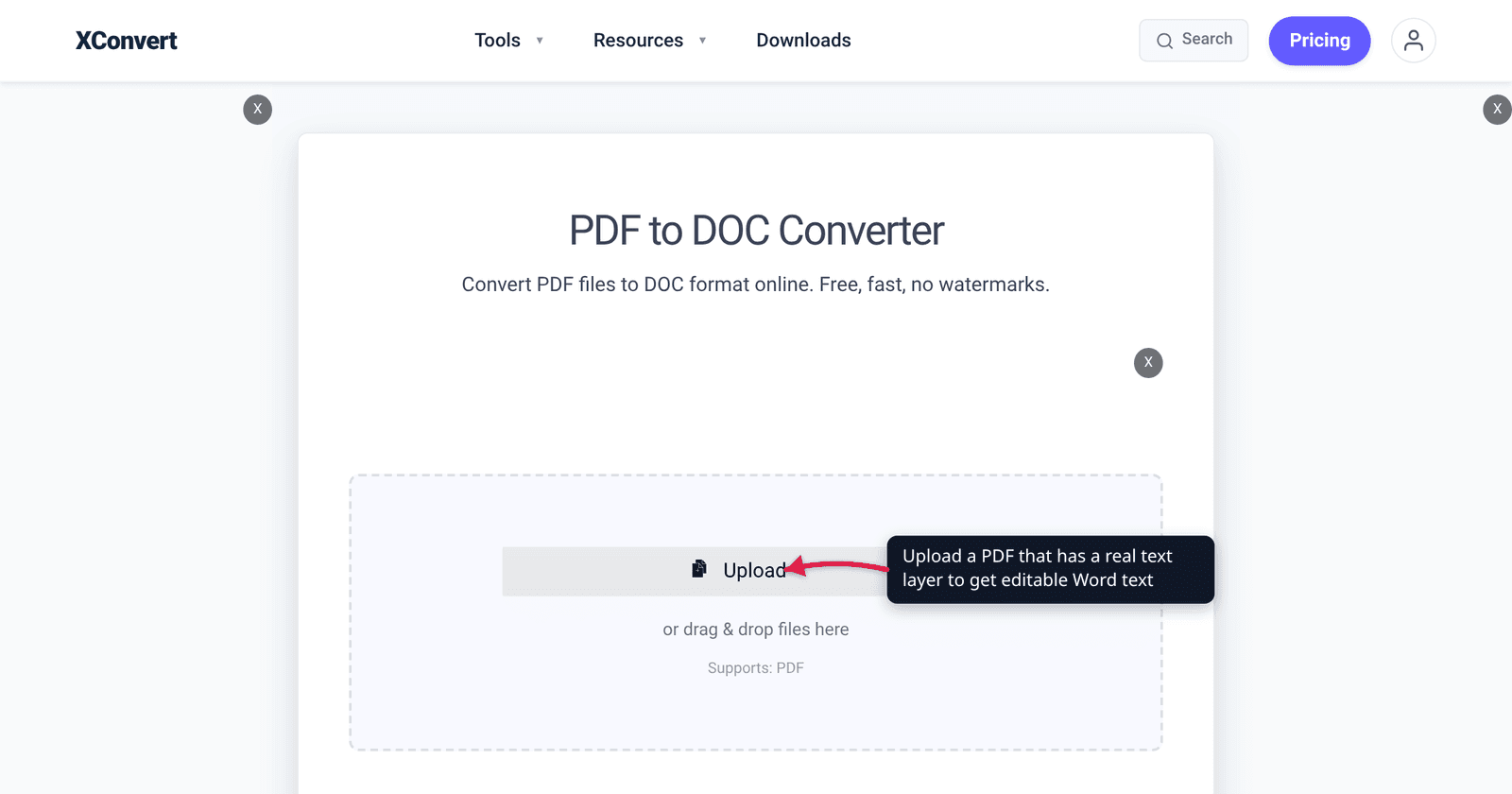
Someone hands you a scanned contract as a PDF. You convert it to Word so you can change one clause, open the .doc, and every page is a single flat picture — you can move it, resize it, delete it, but you cannot put a cursor in the middle of a sentence. Nothing failed. The PDF never contained any text to begin with, and no format conversion can invent characters that were never in the file. Here is how to tell in five seconds which kind of PDF you have, and what actually gets you editable text when the answer is the bad one.
Quick answer: A PDF is either a text PDF (made by Word, a browser, InDesign — real characters stored in the file) or an image-only PDF (made by a scanner, a copier, or a phone camera — just a photograph of a page). Try to drag-select a line of text: if it highlights, you have a text PDF and a normal PDF to DOC conversion gives you editable text. If nothing highlights, the file has no text layer, and it needs OCR first. xconvert does not do OCR — we convert the file you give us, so an image-only PDF arrives in Word as images. Free OCR routes that do work: Google Drive, OCRmyPDF, or Acrobat.
Jump to a section
- The five-second test
- What “no text layer” actually means
- Where OCR actually happens (and what it costs)
- What xconvert does and doesn’t do here
- What to expect even when the PDF does have text
- FAQ
The five-second test
Open the PDF in any viewer and try to drag-select a sentence with your cursor.
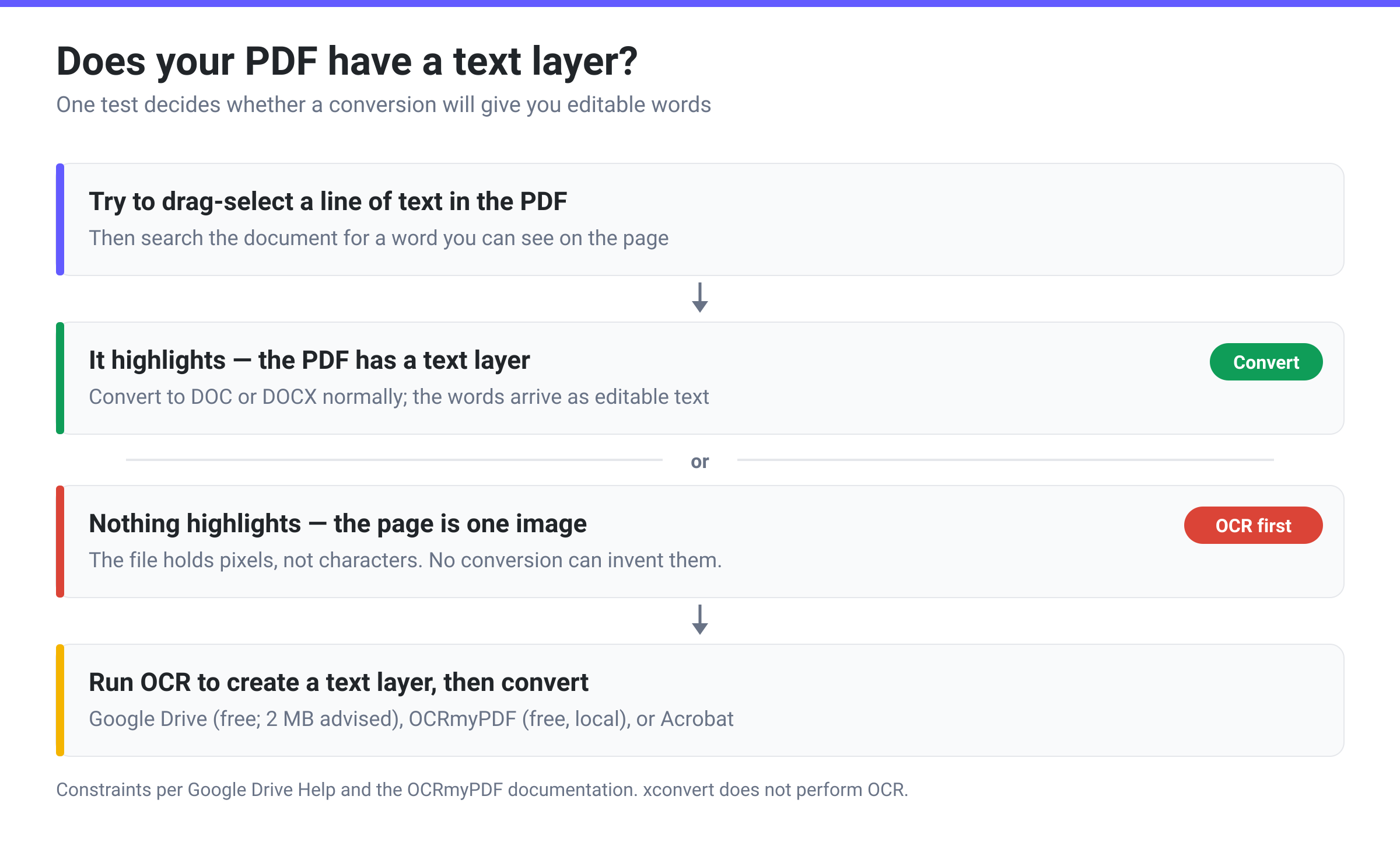
Two other quick confirmations if you want to be certain:
- Search it. Press Ctrl+F / Cmd+F and search for a word you can see on the page. A text PDF finds it; an image-only PDF reports zero results.
- Zoom to 400%. Real text stays crisp because it is rendered from font outlines at whatever zoom you ask for. A scan turns into visible pixels and JPEG artefacts, because it is a bitmap.
A third, sneakier case exists: the hybrid. A PDF can have a real text layer on some pages and scanned images on others — common when someone printed a form, filled it in by hand, scanned that page, and stapled it back onto a digital document. Test the specific page you care about, not just the first one.
What “no text layer” actually means
A PDF is a container for drawing instructions. A text PDF holds instructions like “draw the glyph ‘A’ from this embedded font at this position, at this size.” The characters exist as data. Copy, search, screen readers, and format conversion all work because there is something to work with.
A scanner does something completely different. It produces a photograph of the page — a JPEG or a CCITT-compressed bitmap — and wraps it in PDF, one image per page. To your eye it looks like a document. To software it is indistinguishable from a photo of a cat. There are no characters in the file, no words, no line breaks, no paragraph structure. There is a rectangle of coloured pixels.
That is why converting it to .doc produces images: the converter faithfully carries across everything the PDF contained, and what it contained was pictures. Any converter that does not perform OCR will do exactly this, and a converter that promises “editable Word from your scan” without mentioning OCR is either doing OCR silently or overselling.
Turning pixels back into characters is optical character recognition — a fundamentally different operation from format conversion. It is a recognition problem with an error rate, not a translation with a defined answer. That distinction is the whole article.
Where OCR actually happens (and what it costs)
These are the routes that genuinely add a text layer, with the constraints their own documentation publishes:
| Route | Cost | Published constraints | Best for |
|---|---|---|---|
| Google Drive → Open with Google Docs | Free | Google’s “for the best results” tips: “The file should be 2 MB or smaller”; text at least 10 pixels high; document must be right-side up; common fonts work best | A one-off scan you just need the words out of |
| OCRmyPDF (open source, runs locally) | Free | Command line; uses the Tesseract engine; needs Ghostscript (AGPLv3) installed | Batches, archives, anything confidential you don’t want to upload |
| Adobe Acrobat Pro | Paid | Built-in OCR with an export-to-Word step; feature availability differs between the Standard and Pro tiers, so check Adobe’s current comparison before buying | The best layout fidelity, and the reliable export to Word |
| Microsoft OneNote / Office Lens capture | Included with Office | Microsoft: “the accuracy of the text recognition depends on the quality of the scan and on the clarity of the text”; “handwritten text is seldom recognized” | Quick text grabs from a photo |
| macOS Preview / Live Text | Free on recent macOS | Selection-based, page at a time; no batch mode | Grabbing a paragraph, not rebuilding a document |
A few practical notes on choosing:
- Google Drive’s 2 MB figure is the constraint that bites, not the page count — though note Google lists it under “For the best results, use these tips,” so it is guidance rather than a published hard cap: a larger file may still work, just less reliably. A 20-page 300 DPI colour scan is well past it either way. Compressing the PDF first, or splitting it, gets you under — but compress too hard and you damage the very detail the OCR needs.
- OCR quality is a function of the scan, not the software. 300 DPI, straight, evenly lit, and typed. A skewed phone photo of a crumpled page will defeat every engine on this list.
- Handwriting is a different problem. Microsoft says it plainly for its own scan tool: handwritten text is seldom recognised. Treat handwritten annotations as images no matter which route you pick.
- After OCR, you still convert. OCR gives you a PDF with an invisible text layer behind the image. That searchable PDF then converts to Word normally — because now there is text in the file.
What xconvert does and doesn’t do here
We do not OCR. The PDF to DOC converter converts the PDF you upload. If it holds text, you get text. If it holds page images, you get page images in a Word document — accurately placed, but not editable as words. We would rather say that here than have you discover it after uploading.
For a PDF that does have a text layer:
- Open xconvert.com/convert-pdf-to-doc and click Upload — from your computer, Google Drive or Dropbox.
- Look at Advanced Options (the gear panel, already open on the page) only if you are curious. It carries a single group, Compression Type — Screen (Best), Ebook, Default, Prepress, Printer. Those are Ghostscript preset names, but a PDF to DOC conversion does not read them: the setting has no effect on the output, so leave it alone.
- Click Convert and download the
.doc. Open it in Word, LibreOffice Writer or Google Docs.
Your file uploads over an encrypted connection, is processed on our servers, and is deleted automatically a few hours later.
If the PDF is image-only and you need it smaller before running it through Google Drive, whose 2 MB guidance is easy to exceed, Compress PDF is the right first step — see Why is my scanned PDF so big? for what is actually taking up the space. And for the normal case, How to convert a PDF to Word covers the DOC-versus-DOCX decision.
What to expect even when the PDF does have text
A text PDF converts to editable Word, but “editable” is not “identical.” PDF is a fixed-layout format that records where every glyph sits on the page; Word is a reflowable format that recalculates layout from styles and paragraph rules. The conversion has to reconstruct structure that the PDF never stored.
Microsoft is unusually candid about this for its own PDF import: “The converted document might not have a perfect page-to-page correspondence with the original. For example, lines and pages may break at different locations,” and “this works best with PDFs that are mostly text. PDFs of book chapters or something that looks like a manuscript from a copier won’t be formatted well in Word.”
So expect: text you can edit, formatting that is close but not exact, and multi-column layouts, complex tables and footnotes as the usual casualties. If pixel-perfect layout matters more than editing, don’t convert — annotate the PDF instead.
FAQ
Why is my scanned PDF just a picture in Word?
Because it was only ever a picture. A scanner photographs the page and wraps the photograph in a PDF; no characters are stored. A format conversion moves what exists from one container to another, so images in means images out. Making it editable requires OCR, which recognises characters from pixels — a separate step that has to happen before the conversion.
Does xconvert do OCR?
No. We convert files; we do not perform optical character recognition. A PDF with a text layer converts to editable text in Word. A scanned, image-only PDF converts to page images. Run OCR first through Google Drive, OCRmyPDF or Acrobat, then convert the resulting searchable PDF here.
How can I tell if a PDF is scanned without opening special software?
Try to select a line of text with your cursor, and search the document for a word you can see. If neither works, the page is an image. Zooming to 400% is the tiebreaker: real text stays sharp at any zoom, a scan visibly pixelates.
Is free OCR good enough, or do I need Acrobat?
For getting the words out — an address, a paragraph, a reference number — free is fine. Google Drive’s converter is genuinely capable, though Google advises keeping files to 2 MB or smaller for best results, and OCRmyPDF handles batches locally at no cost. Where paid tools earn their money is layout: Acrobat Pro reconstructs columns, tables and headings far better than the free routes. Note that OCR capability differs between Acrobat’s Standard and Pro tiers — check Adobe’s own current feature comparison before you buy on the strength of it. Google’s own documentation is upfront that “lists, tables, columns, footnotes, and endnotes are not likely to be detected.”
Will OCR be accurate enough to rely on?
Not without proofreading. Recognition accuracy depends on scan quality — Microsoft’s own guidance is that it “depends on the quality of the scan and on the clarity of the text you scanned,” and that handwritten text is seldom recognised. Expect confusions between similar glyphs (0/O, 1/l/I, rn/m) and read the result before you send it anywhere that matters. For legal or financial documents, always compare against the original.
My PDF has text on some pages and scans on others — what then?
That is a hybrid, and it is common with signed or hand-completed forms. Convert it and you get editable text for the digital pages and images for the scanned ones. If you need the whole thing editable, run OCR over the file first — most OCR tools skip pages that already have a text layer, so you are only paying for the scanned pages.
Should I convert to DOC or DOCX?
DOCX unless something specifically demands the older format. DOC is the pre-2007 binary format, kept for legacy systems and a few institutional upload forms that still reject .docx. Both open in modern Word, LibreOffice and Google Docs; DOCX is the compressed XML format and is generally the smaller file.
Sources
Last verified 2026-08-31.
- Google Drive Help — Convert PDF and photo files to text — the 2 MB file-size guidance, given under “For the best results, use these tips” rather than as a hard cap, 10-pixel text-height and orientation requirements, and what formatting survives (“lists, tables, columns, footnotes, and endnotes are not likely to be detected”).
- Microsoft — Edit a PDF — “the converted document might not have a perfect page-to-page correspondence with the original,” and the note about manuscripts from a copier.
- Microsoft — Insert scanned text or images into Word — recognition accuracy depends on scan quality; handwritten text is seldom recognised.
- OCRmyPDF documentation — adds a text layer to scanned image PDFs using the Tesseract engine; requires Ghostscript.