 By Stephanie Taylor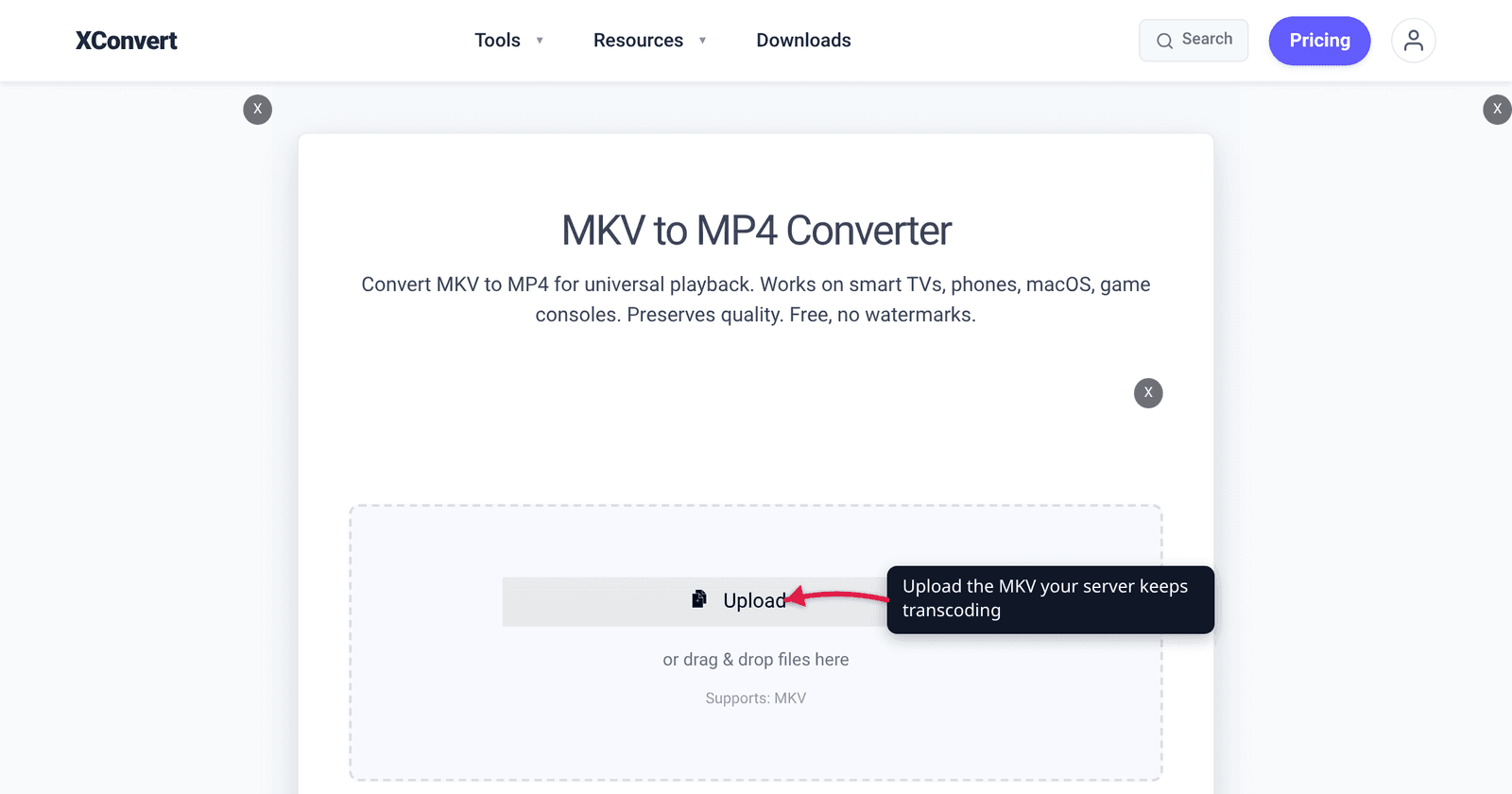
One person starts a film on the living-room TV and your server’s CPU jumps to 100%. A second person starts something else and both streams begin to buffer. Meanwhile the exact same file plays perfectly on your laptop with no fuss at all. Nothing is broken — your server is transcoding, re-encoding video in real time because something inside the file does not match what the TV can decode. The fix is not a faster CPU. It is a library that Direct Plays.
Quick answer: Plex and Jellyfin only burn CPU when the file does not match the client. Plex publishes the safe target for its Smart TV app explicitly: MP4 container, H.264 (level 4.0 or lower), 1080p or smaller, 30 fps, 8-bit, AAC audio. Anything outside that gets remuxed, partially transcoded or fully transcoded on the server. An MKV holding HEVC, DTS or Blu-ray image subtitles is the classic offender. Convert those files once — MKV to MP4 with Video Codec → H.264 and Audio Codec → AAC — and the server stops paying for it on every play.
Jump to a section
- The four playback paths and what each costs
- What “compatible” means, per Plex’s own docs
- The five things in an MKV that trigger a transcode
- Why hardware acceleration isn’t the whole answer
- Convert an MKV for Direct Play on xconvert
- FAQ
The four playback paths and what each costs
Jellyfin’s documentation names four playback types and orders them explicitly “from lowest to highest load on the server.” Plex uses slightly different vocabulary for the same ladder. Understanding which rung you are on is the whole diagnosis.
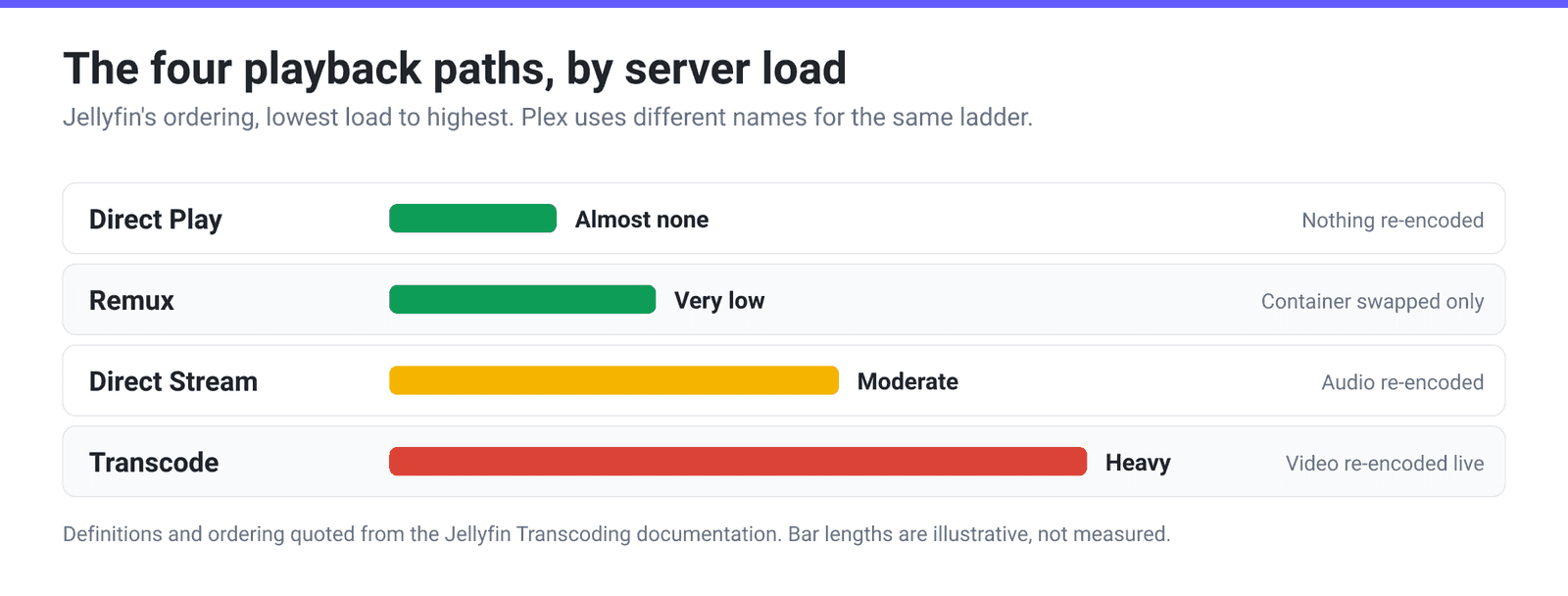
| Path | Jellyfin’s definition | Plex’s name | Server cost |
|---|---|---|---|
| Direct Play | “Delivers the file without transcoding. There is no modification to the file and almost no additional load on the server.” | Direct Play | Essentially none — the server is a file server |
| Remux | “Changes the container but leaves both audio and video streams untouched.” | Direct Stream | “Very little processing power without any loss in video quality” |
| Direct Stream | “Transcodes audio but leaves original video untouched.” | Partially-Transcoded Direct Stream | Modest — one audio track re-encoded |
| Transcode | “Transcodes the video stream.” | Transcode | The expensive one; scales with resolution and bit depth |
Two things follow from this table that people consistently get backwards.
First, the container almost never costs much. An MKV whose video and audio are already client-compatible gets remuxed — the streams are lifted out and dropped into a compatible container on the fly. Plex describes this as using “very little processing power without any loss in video quality.” So “MKV is bad for Plex” is not really true; MKV is bad for Plex because of what people usually put inside it.
Second, the video transcode is the only rung that really hurts — and it is triggered by the codec, the resolution, the bit depth, the H.264 level or a subtitle, not by the file extension.
What “compatible” means, per Plex’s own docs
Plex publishes hard numbers for its Smart TV app, which is the strictest common case and therefore a good target for a whole library. Its exact wording: “Native video support is typically (but not always) limited to the MP4 container, H.264 video encoding, and AAC audio.”
| Property | 1080p Direct Play target | 4K Direct Play target |
|---|---|---|
| Container | MP4 | MP4 |
| Resolution | 1920×1080 or smaller | 3840×2160 or smaller |
| Video encoding | H.264, level 4.0 or lower | HEVC (H.265) |
| Frame rate | 30 fps | 30 fps |
| Bit depth | 8 | 8 |
| Audio | AAC | Not listed — Plex’s 4K list names no audio codec; unsupported audio in video is transcoded to AAC or AC3 either way |
Plex adds two operational notes worth internalising. “Most devices can handle streams with peak bitrates < 20Mbps” — so a 60 Mbps remux can force a transcode even when every codec matches. And on 4K: “Transcoding 4K content is a very intensive process and will require a powerful computer running Plex Media Server.”
Jellyfin does not publish a single equivalent list because it negotiates per client: “Transcoding of local sources is always requested by the client. The client will send transcoding profile(s) to the server containing information about its capabilities.” In practice the same H.264/AAC-in-MP4 target satisfies essentially every Jellyfin client too, which is why it is the sensible library-wide baseline.
The five things in an MKV that trigger a transcode
In rough order of how often they bite:
- Subtitles — the one nobody expects. Plex is explicit: “Even if a file’s audio, video, and container are all compatible with a Plex App, if a subtitle stream is selected and is not compatible with the Plex App, then the Server will ‘burn in’ the subtitle text within the video. This requires a full transcode of the video stream.” Blu-ray rips carry PGS image subtitles and anime rips carry styled ASS/SSA — neither can be passed through, so selecting one converts a free Direct Play into the most expensive path available. Turning subtitles off is often the entire fix.
- HEVC on a 1080p client. HEVC is the 4K Direct Play codec, not the 1080p one. A 1080p HEVC rip that looks efficient on disk frequently transcodes down to H.264 on playback.
- 10-bit video and HDR. Bit depth 8 is in the Direct Play list for a reason. Jellyfin is blunt about the cost of the HDR case: tone-mapping in software “is very slow, and you may encounter situations where no modern consumer CPUs can transcode in real time.”
- DTS, TrueHD and other lossless audio. Many clients cannot decode these. Plex handles it as a partially-transcoded Direct Stream — audio re-encoded, video untouched — which is cheap, but it does mean the “stream is transcoding” badge appears and people over-react to it.
- Bitrate and H.264 level. A file can be H.264/AAC/MP4 and still transcode because its level or peak bitrate exceeds the client profile. Plex notes that “changing the Maximum H.264 Level global setting can allow many files to Direct Stream or Direct Play.”
The practical takeaway: check the reason before you convert. Both servers show the active playback type in the dashboard while something is playing. If it says Direct Stream because of audio, converting the whole library is overkill — you have an audio problem. If it says Transcode with a video reason, converting is exactly right.
Why hardware acceleration isn’t the whole answer
The usual advice is “just enable hardware transcoding.” It genuinely helps, and both projects support it — Jellyfin “on all modern GPUs from Intel, AMD, Nvidia, Apple and Rockchip,” Plex primarily via Intel Quick Sync. But there are three real caveats.
- On Plex it is normally a paid feature. Plex’s own requirements list includes “An active Plex Pass subscription” for Hardware-Accelerated Streaming, alongside a 2nd-gen Intel Core CPU or newer (5th-gen Broadwell or newer recommended), and a 7th-gen i3/i5/i7 for HEVC encoding. (Plex exempts a short list of specific devices — NVIDIA SHIELD and the WD My Cloud Pro PR2100 and PR4100 — where it is on by default for everyone.)
- Quality drops. Plex states plainly that hardware-accelerated encoders “provide lower-quality output than software encoders are capable of,” and that the difference is most noticeable below 720p or on low-bitrate sources.
- It does not remove disk pressure. Plex’s transcoder temporary directory “needs sufficient free space, roughly equal to the size of the source file of the transcode plus 100MB.”
Hardware acceleration makes transcoding survivable. Converting the library makes it unnecessary — and that also fixes remote streaming and the “everything buffers when two people watch” problem.
Convert an MKV for Direct Play on xconvert
Do this to the handful of files your dashboard shows transcoding, not to your whole library on day one.
- Open xconvert.com/convert-mkv-to-mp4 and click Upload — from your computer, Google Drive or Dropbox.
- Open Advanced Options.
- Set Video Codec to H.264. It is already the default here, and it is the codec in Plex’s 1080p Direct Play list. Pick H.265 only if the target is a 4K client that lists HEVC.
- Set Audio Codec to AAC — also the default, and the one audio codec on every Direct Play list. Leaving a DTS or TrueHD track in place is the most common reason a converted file still shows as transcoding.
- Under File Compression, leave Quality Preset at Very High (Recommended), or switch to Constant Quality and set a CRF if you want a specific quality/size trade. Leave Video resolution on Keep original unless you are deliberately dropping a 4K rip to 1080p, in which case choose Preset Resolutions → 1080p.
- Click Convert, download the MP4, drop it into your library folder and refresh the library.
Your file uploads over an encrypted connection, is processed on our servers, and is deleted automatically a few hours later.
One honest limitation: xconvert re-encodes rather than remuxing, so the output is a fresh encode, not a byte-for-byte copy of the original streams. If your MKV already contains H.264 and AAC and you only need the container changed, a local remux (ffmpeg -c copy, or MKVToolNix) is lossless and faster. Conversion is the right tool when the codec, audio or bit depth actually has to change — which is the case that was costing your server CPU in the first place.
Related reading: MKV vs MP4 for what the two containers actually differ on, and H.264 vs H.265 for choosing the codec inside.
FAQ
What is the best format for a Plex or Jellyfin library?
MP4 with H.264 video and AAC audio, 1080p or smaller, 8-bit, 30 fps. That is Plex’s published Direct Play target for its Smart TV app and it satisfies essentially every Jellyfin client too. If your library is 4K, the equivalent target is MP4 with HEVC at 8-bit, because HEVC is what appears on Plex’s 4K Direct Play list rather than the 1080p one.
Why does my server transcode even though the file is H.264?
Usually one of four reasons: a selected subtitle track that has to be burned in, an audio codec the client can’t decode, a peak bitrate above what the client accepts (Plex notes most devices handle under 20 Mbps), or an H.264 level higher than the client’s maximum. Check the dashboard while it is playing — both Plex and Jellyfin name the reason.
Is MKV bad for Plex?
Not inherently. If the video and audio inside are client-compatible, the server remuxes — it lifts the streams into a compatible container on the fly, which Plex describes as “very little processing power without any loss in video quality.” MKV gets its reputation because it is the container people use for Blu-ray rips, which tend to carry HEVC, DTS or TrueHD, 10-bit video and PGS subtitles — all genuine transcode triggers.
Should I convert my whole library or just enable hardware transcoding?
Start by converting only what actually transcodes; the dashboard tells you which files those are. Hardware acceleration is a good backstop but it is not free — on Plex it needs an active Plex Pass and a supported Intel CPU, it produces lower-quality output than software encoding, and it still needs scratch disk space roughly equal to the source file plus 100 MB per active transcode.
Will I lose my subtitles converting MKV to MP4?
Text subtitles survive, styling does not. MP4 natively carries mov_text (MPEG-4 Timed Text), so plain SRT converts cleanly, while styled ASS/SSA loses its formatting. Image-based PGS subtitles from Blu-ray rips cannot ride along in MP4 at all. Keeping subtitles as separate .srt sidecar files next to the video is usually the better answer — both Plex and Jellyfin pick them up, and a plain external SRT is far more likely to Direct Play than an embedded PGS track.
What about 4K HDR — can that ever Direct Play?
Yes, on a client that supports it: Plex lists MP4 + HEVC + 8-bit + 30 fps + 3840×2160 or smaller as the 4K Direct Play target for Smart TVs, and HDR-capable clients extend that. The failure case is HDR content going to an SDR client, which requires tone-mapping. Jellyfin warns that software tone-mapping “is very slow, and you may encounter situations where no modern consumer CPUs can transcode in real time.” Keeping a separate 1080p SDR copy for the devices that need it is far cheaper than tone-mapping on demand.
Sources
Last verified 2026-08-31.
- Plex — Streaming Media: Direct Play and Direct Stream — Direct Play conditions, the “very little processing power” description of Direct Stream, partially-transcoded Direct Stream, and the subtitle burn-in rule.
- Plex — What media formats are supported on Smart TVs? — the six-entry 1080p Direct Play list (MP4 / H.264 level 4.0 / 1920×1080 / 30fps / 8-bit / AAC); the 4K list, which has five entries and names no audio codec; “Unsupported audio formats in video will have the audio automatically transcoded to either AAC or AC3 (Dolby Digital)”; and the sub-20 Mbps device guidance.
- Plex — Using Hardware-Accelerated Streaming — “Hardware-accelerated streaming is a premium feature and requires an active Plex Pass subscription”; the Intel CPU requirements; the lower-quality-output caveat; and the “Special devices” exemption (NVIDIA SHIELD, WD My Cloud Pro PR2100, WD My Cloud Pro PR4100) where “a Plex Pass subscription is not required.”
- Plex — Transcoder settings — transcoder temporary directory sizing (source file plus 100 MB).
- Jellyfin — Transcoding — the four playback types ordered by server load, client-driven transcoding profiles, and the HDR tone-mapping cost.