 By James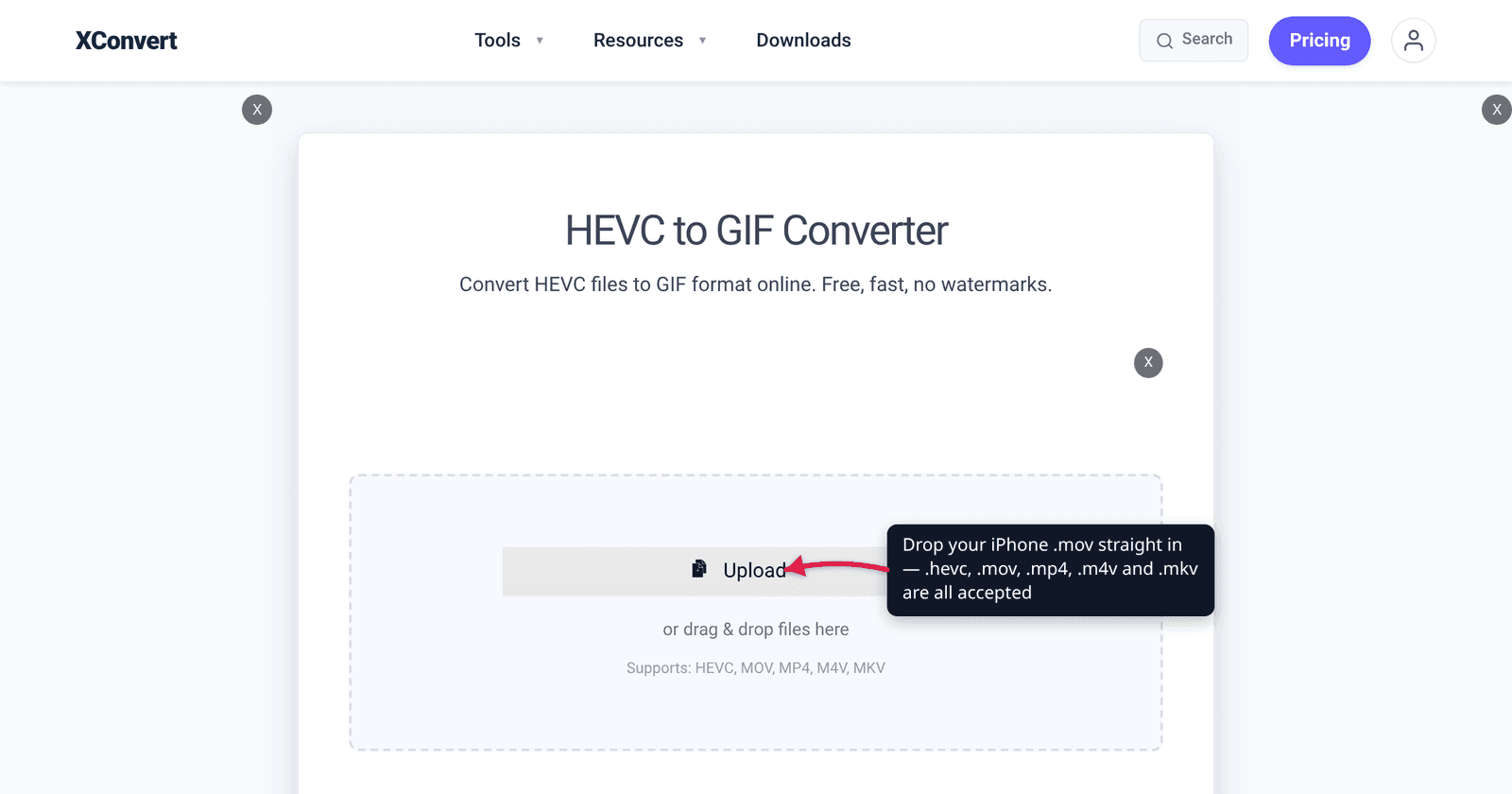
You trim six seconds off an iPhone clip, run it through a GIF converter, and get a 38 MB file out of a 4 MB video. A colleague does the exact same thing with a screen recording and lands at 12 MB. Same tool, same length, same settings — wildly different result. The variable nobody mentions is the codec inside your source file, and on a modern iPhone that codec is HEVC, which makes the problem roughly twice as bad.
Quick answer: GIF has no motion compression and no more than 256 colours per frame, so it is always bigger than the video it came from. Across all 73,688 GIF-output workflows on xconvert in a 30-day window, a video-to-GIF conversion inflated the file 4.9× at the median. Your iPhone clip is recorded in HEVC (H.265), which stores roughly half the bytes of H.264 for the same picture — so the same footage lands around 9.8× instead. The fix is not “compress harder” after the fact; it is to cap the output up front (Max file size → Custom size % → Max % of original, which opens at 350) and to cut frames and pixels before the palette ever gets involved.
Jump to a section
- What you actually have: a .mov with HEVC inside
- Why GIF inflates at all — and why HEVC doubles it
- The three levers, in order of effect
- Set a ceiling instead of guessing
- Convert an iPhone HEVC clip to GIF on xconvert
- FAQ
What you actually have: a .mov with HEVC inside
The first confusion to clear up: .hevc is not what your iPhone produced. A file extension names the container; HEVC is the codec stored inside it. iPhone recordings arrive as QuickTime .mov files, and on any recent iPhone the video track inside is HEVC.
That is a deliberate Apple setting. On iPhone 7 and later running iOS 11 or newer, Settings → Camera → Formats offers two choices, and Apple’s own support page frames High Efficiency as the normal state: capturing “in HEIF and HEVC format is recommended,” you switch to Most Compatible to get JPEG and H.264 instead, and you choose High Efficiency to “return to using the space-saving HEIF and HEVC formats.”
In practice: a .mov from your camera roll uploads to the HEVC to GIF converter directly, because the page accepts .hevc, .mov, .mp4, .m4v and .mkv — nothing to rename or re-wrap. To confirm what is inside, open the file in QuickTime Player on a Mac and check Window → Movie Inspector. A genuine .hevc file is a raw elementary bitstream with no container at all, which is what encoders and capture cards emit, not phones.
For the wider “why won’t this HEVC file open anywhere” problem, Convert HEVC to MP4 covers the playback side. This article is about what happens when the destination is GIF.
Why GIF inflates at all — and why HEVC doubles it
GIF was finalised as GIF89a in 1989 (the W3C reference copy of the specification is dated 31 July 1990). Two properties of that specification decide everything about your file size:
- Each frame is stored as its own LZW-compressed image. There is no motion compensation — no I/P/B frames, no motion vectors, no prediction from the previous frame. A modern codec describes “this block moved eleven pixels left”; GIF re-encodes the block. Frame-to-frame optimisation in GIF is limited to transparency-based patching of unchanged regions, which helps on screen recordings with static backgrounds and helps almost nothing on handheld camera footage where every pixel shifts.
- A colour table holds at most 256 entries. The GIF89a spec stores the table size in a 3-bit field, giving a maximum of 2⁸ = 256 colours. Real-world video has millions. Quantising down to 256 either bands visibly or needs dithering, and dither noise is high-frequency detail — exactly what LZW compresses worst.
So GIF is structurally bigger than video. The measured scale of it, from our own production data:
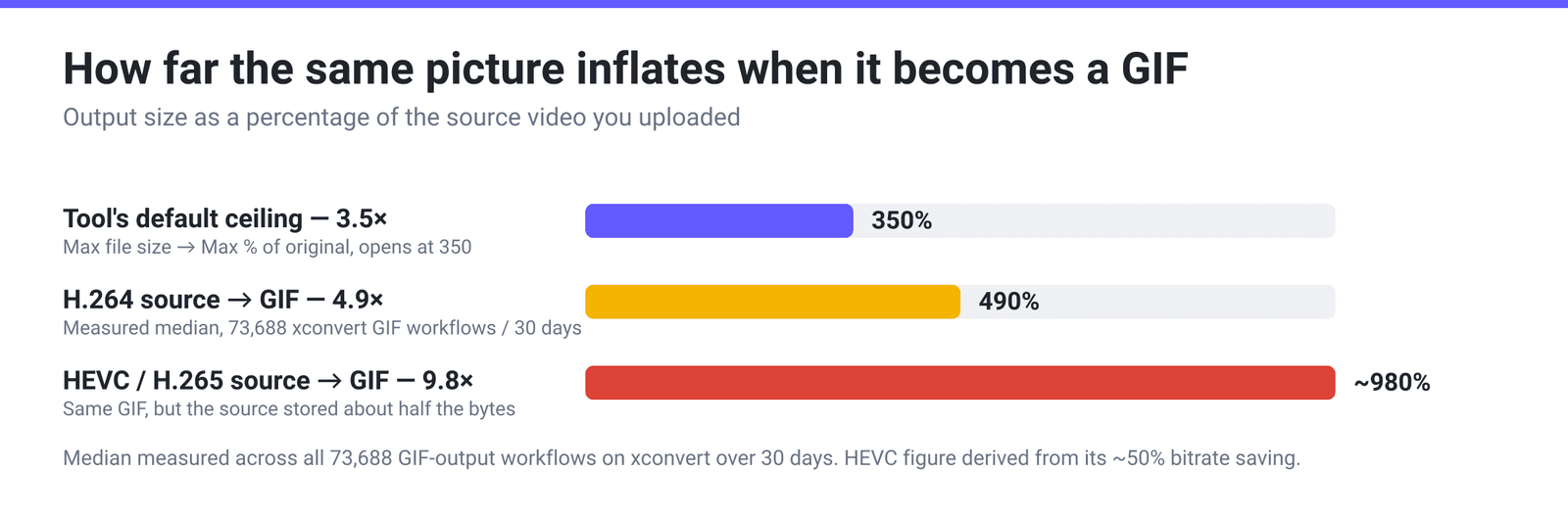
Here is the part that catches iPhone users specifically. The multiplier is measured against your source file, and HEVC sources are already about half the size of the H.264 equivalent. HEVC’s design target — the figure Fraunhofer HHI, one of the institutes behind the standard, publishes — is roughly 50% bitrate reduction at the same subjective quality versus H.264.
The GIF, meanwhile, does not care. Its size is set by frame count, pixel dimensions and palette complexity, all of which come from the picture, not from how cleverly the source stored it. Two files of the same scene, one H.264 and one HEVC, produce a GIF of very nearly the same size — but the HEVC file was half as big to start with, so the ratio you see doubles.
| H.264 source | HEVC (H.265) source | |
|---|---|---|
| Bytes stored for the same picture | Baseline | Roughly half |
| Resulting GIF size | Essentially the same | Essentially the same |
| Inflation ratio you observe | ≈4.9× (measured median) | ≈9.8× (derived) |
| Where the number comes from | 73,688 xconvert GIF workflows, 30 days | The same GIF, divided by a source that is ~2× smaller |
The 4.9× is measured. The 9.8× is arithmetic on top of it, and it will move with your footage — a low-motion clip where HEVC’s efficiency advantage is smaller will land closer to 4.9×, a detailed 4K handheld shot where HEVC shines will overshoot it.
The useful reframe: stop treating the ratio as a quality signal. A 10× inflation on an HEVC source is not evidence that something went wrong. It means your source was efficient and your GIF is a GIF.
The three levers, in order of effect
Because there is no motion compression, GIF size is close to frames × pixels × palette cost. That product tells you which lever to pull first.
| Lever | What it does | Rough effect | When to use it |
|---|---|---|---|
| Duration | Removes whole frames | Linear — halve the clip, halve the file | Always first. A 3-second GIF is a good GIF; a 15-second one rarely is |
| Frame rate | Removes frames within the same duration | Roughly linear | Drop 30 fps footage to 10–12 fps. Below 8 fps the motion reads as stuttery |
| Resolution | Fewer pixels per frame | Quadratic on the linear scale — 50% width is ~25% of the pixels | The heaviest single lever for phone footage shot at 1080p or 4K |
| Palette size | Fewer colours to index | Meaningful but bounded — 256 → 64 is a real saving | After the above. Cutting colours on noisy camera footage causes banding fast |
| Dither | Smooths banding by adding noise | Costs bytes — ordered dither runs about +12% at 64 colours in our measurements | Only when banding is visibly worse than the size penalty |
The ordering matters because people reach for the palette first — it feels like the “GIF-specific” knob — when duration and resolution are doing far more of the work. And note the last row: dither is a size cost, not a size saving. It hides the 256-colour limit by adding exactly the kind of high-frequency detail that LZW cannot compress.
One thing the GIF page does not have is a trim control. If your six seconds are buried in a 40-second recording, cut it first with the video cutter, then convert the clip. That single step usually does more than every other setting combined.
Set a ceiling instead of guessing
Rather than converting, checking, adjusting and converting again, tell the converter the maximum you will accept and let it work backwards.
Under Advanced Options → File Compression, switching the mode from Quality preset to Max file size reveals a Size limit dropdown with five choices:
- Custom size % — a Max % of original slider, range 1–500 in steps of 5, opening at 350. That default is not arbitrary: it sits below the 4.9× median, so it actively constrains a typical conversion instead of rubber-stamping it.
- Custom size value — a number field plus a B / KB / MB unit dropdown, when you have a hard number in mind.
- Discord (10 MB max), Email (25 MB max) and Forum (2 MB max) — absolute per-file caps for the three places GIFs most often get rejected.
Two honest caveats. The result is at or under the target on a best-effort basis, not an exact byte count — and the more aggressive the ask relative to the natural GIF, the more of the picture has to go to reach it. In our production data the target is hit essentially every time when it is 30% or more of the natural GIF size, and still 98.1% of the time at 10%; below that, something visible has to give.
Convert an iPhone HEVC clip to GIF on xconvert
- Open xconvert.com/convert-hevc-to-gif and click Upload — From my Computer, Google Drive or Dropbox. An iPhone
.movis accepted as-is, alongside.hevc,.mp4,.m4vand.mkv. - Open Advanced Options (the gear icon).
- Under File Compression, either leave Quality preset at High (Recommended), or switch to Max file size → Custom size % and pull Max % of original down from its default of 350.
- Check Framerate. It opens at 10 FPS (Recommended) — a sensible landing point for phone video shot at 30 or 60 fps. Use 12 or 15 FPS for fast motion; going down to 5 FPS buys size at a cost most people reject.
- For manual control, set File Compression to Custom. That reveals Image quality (%) (opens at 80), Image resolution (set to Keep original; choosing Preset Resolutions adds a Use as max resolution checkbox, already ticked, so a smaller clip is never upscaled) and Colors (Color Palette Size opens at 128, with Dither off).
- Click Convert, then download the GIF.
Your file uploads over an encrypted connection, is processed on our servers, and is deleted automatically a few hours later.
Related: Why is my GIF file so big? for the general case, and H.264 vs H.265 for what HEVC is doing differently in the first place.
FAQ
Why is my GIF bigger than the iPhone video it came from?
Because GIF stores every frame as its own compressed image with no motion prediction and no more than 256 colours, while HEVC stores motion vectors and predicted frames. Across 73,688 GIF-output workflows on xconvert over 30 days, video-to-GIF inflated the file 4.9× at the median. An HEVC source is roughly half the size of the H.264 equivalent for the same picture, so the observed ratio roughly doubles — around 9.8×. The GIF is not unusually large; the source was unusually efficient.
Does converting to GIF from HEVC lose more quality than from H.264?
No. The quality loss happens in the GIF encoding — 256 colours, quantisation, dropped frames — and it is identical whichever codec the source used. HEVC only changes the ratio you observe, because it changes the denominator.
Will the GIF keep the sound from my iPhone clip?
No. The GIF89a specification has no audio track at all — there is nowhere for it to go. If the sound matters, convert to MP4 or WebM instead, which is also the right answer for anything longer than a few seconds. GIF vs MP4 file size covers the size difference in both directions.
How long a clip should I actually convert?
Aim for 2–5 seconds. GIF size scales linearly with frame count and there is no keyframe structure to amortise it across, so a 15-second GIF costs five times a 3-second one at identical settings. Cut the clip with the video cutter before converting — the GIF page has no trim control.
Why does the size slider go up to 500% instead of 100%?
Because on a video-to-GIF conversion, 100% of the source would be an extremely aggressive target — the natural result is around 490% for an H.264 source and higher for HEVC. The slider is expressed as Max % of original against your uploaded video, so the useful range genuinely lives above 100%. It opens at 350, deliberately under the measured median so it constrains rather than rubber-stamps. On the GIF-to-GIF compressor, where the input is already a GIF, the same slider runs 1–100 and opens at 75.
Should I turn dithering on to make it look better?
Only if you can see banding. Dither trades bytes for smoothness — ordered dithering costs roughly 12% more at a 64-colour palette in our measurements, and Floyd–Steinberg costs more again while flickering between frames because the error pattern is not stable over time. On camera footage with gradients (sky, skin, walls) dither is often worth it; on flat graphics and screen recordings it is usually wasted size.
Sources
Last verified 2026-08-31.
- Apple — Using HEIF or HEVC media on Apple devices — the Settings → Camera → Formats choice, the “High Efficiency” / “Most Compatible” wording, and iPhone 7-and-later capture support.
- GIF89a specification (CompuServe, 1989; W3C reference copy dated 31 July 1990) — the 3-bit colour-table size field (maximum 256 entries), the per-frame image model, and frame delays expressed in hundredths of a second.
- Fraunhofer HHI — H.265 / HEVC — “about 50% bit-rate reduction at the same subjective video quality” versus H.264.
- xconvert production measurement — all 73,688 GIF-output workflows over a 30-day window: 4.9× median inflation, target-reached rates at 0.3 and 0.1 of the natural GIF size, and the measured cost of ordered dithering.