 By James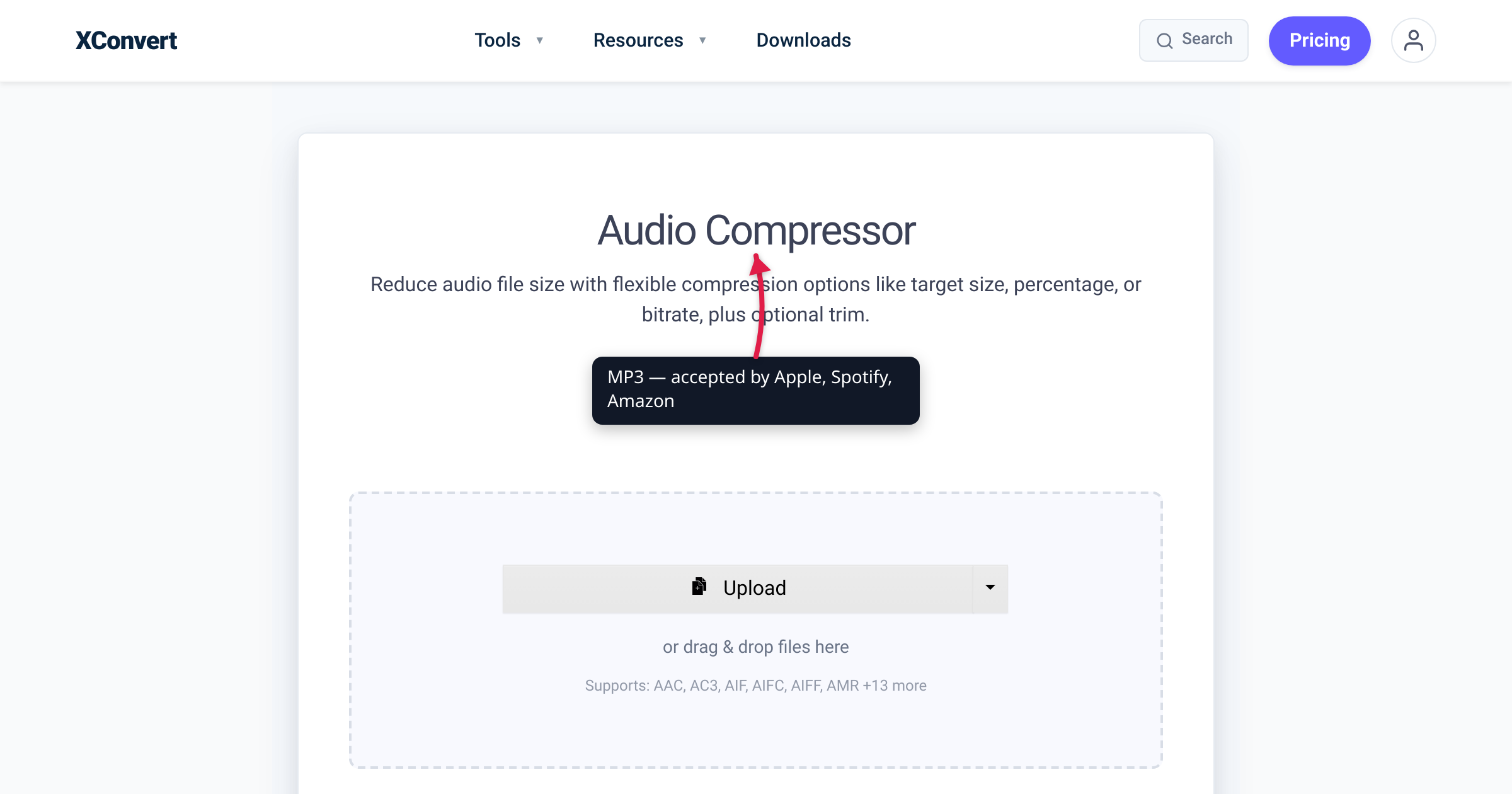
A 60-minute podcast episode at studio quality (320 kbps stereo MP3) is about 146 MB. That’s safely under the size caps of Spotify, Apple Podcasts, and Amazon Music — but it’s bigger than it needs to be for spoken-word content, and it adds bandwidth cost for your listeners every time someone downloads. This guide gives you the exact xconvert settings that satisfy all three major platforms simultaneously, so you don’t re-encode three different versions of the same episode.
Quick answer: A single MP3 encode satisfies Spotify, Apple Podcasts, and Amazon Music: 128 kbps stereo 44.1 kHz, joint-stereo (or 96 kbps mono for speech-only). No need to re-encode the episode three different ways — all three platforms accept this profile.
Jump to a section
- Platform requirements at a glance
- The “one-encode” target settings
- Why MP3 over AAC for podcast distribution
- Step by step in xconvert
- Worked example: a 60-minute interview podcast
- What about ID3 tags and metadata?
- FAQ
Platform requirements at a glance
Each platform publishes its own audio specs. Reading the docs (Apple Podcasts, Spotify for Podcasters, Amazon Music for Podcasters) and consolidating, here’s where they agree and where they diverge:
| Platform | Max file size | Format | Bitrate | Sample rate | Notes |
|---|---|---|---|---|---|
| Apple Podcasts | No published hard cap (community reports cite ~512 MB) | MP3 (preferred) or M4A | 128–256 kbps stereo recommended | 44.1 kHz | Episodes pulled from your RSS feed |
| Spotify for Podcasters | No published file-size limit (per Spotify’s help) | MP3, M4A, WAV | 96–320 kbps | 44.1 or 48 kHz | Spotify converts your upload to OGG/Vorbis for delivery |
| Amazon Music for Podcasters | Not publicly documented | MP3 | 192 kbps recommended | 44.1 kHz | Submit via your podcast host |
| YouTube Music podcasts | Not publicly documented; ingested via RSS | MP3 | 128 kbps min | 44.1 kHz | Uses YouTube’s standard ingest |
| Pocket Casts / Overcast / etc. | (pulls from your RSS) | MP3 | (whatever you serve) | (whatever you serve) | They re-stream your RSS file as-is |
Even though the hosts don’t publish strict per-file MB caps, your podcast host (Buzzsprout, Libsyn, Transistor, Anchor / Spotify for Podcasters, etc.) usually does. Check yours — most fall in the 250–500 MB per-episode range.
The “one-encode” sweet spot that satisfies all major platforms: 192 kbps stereo MP3 at 44.1 kHz. That sits in Apple’s recommended 128–256 kbps band, fits comfortably under typical podcast-host caps for episode durations up to ~3 hours (192 kbps stereo ≈ 86 MB/hr), and produces audibly transparent quality for talk-heavy content.
For longer episodes (>3 hours) that approach a 250 MB host cap, drop to 128 kbps stereo for talk content (≈ 56 MB per hour, fits 4.5 hours under 250 MB).
The “one-encode” target settings
For a single MP3 file you can upload to every platform without re-encoding:
| Setting | Value | Why |
|---|---|---|
| Format | MP3 | Required by all three (Apple accepts M4A but MP3 is universal) |
| Bitrate | 192 kbps stereo | Apple’s recommendation; transparent for talk; good for music intros |
| Sample rate | 44.1 kHz | All platforms standard |
| Channels | Stereo | Required for Spotify; recommended by Apple |
| VBR or CBR | CBR (Constant Bitrate) | More predictable file size; some older clients struggle with VBR |
For talk-only episodes longer than 2 hours, drop to 128 kbps stereo CBR to stay under 200 MB.
For music-heavy episodes (interviews with music demos, audio drama), keep 192 kbps stereo CBR as a minimum — going lower introduces audible compression artifacts on the music portions.
Why MP3 over AAC for podcast distribution
AAC is technically more efficient: 128 kbps AAC sounds about the same as 192 kbps MP3, so AAC files are ~33% smaller at equivalent quality. So why MP3?
Three reasons:
- Spotify converts everything anyway. Spotify ingests your file and re-encodes to OGG/Vorbis for delivery. Whether you submit MP3 or AAC, listeners get the same OGG/Vorbis stream. There’s no quality benefit to submitting AAC because Spotify’s ingest re-encoder treats both as “lossy source — re-encode to OGG.”
- Apple Podcasts prefers MP3 for legacy compatibility. Apple’s docs explicitly recommend MP3. Older iPod / iPhone hardware and some embedded podcast clients (in-car systems, smart speakers) don’t reliably play AAC podcasts even though they should.
- MP3 is universal across the long tail of podcast apps. Pocket Casts, Overcast, Castro, AntennaPod, Podcast Addict — every app handles MP3. AAC handling is occasionally buggy in older app versions.
If your master is uncompressed WAV, your single source-to-distribution encode goes WAV → 192 kbps MP3 stereo. xconvert’s audio compressor handles this directly.
Step by step in xconvert
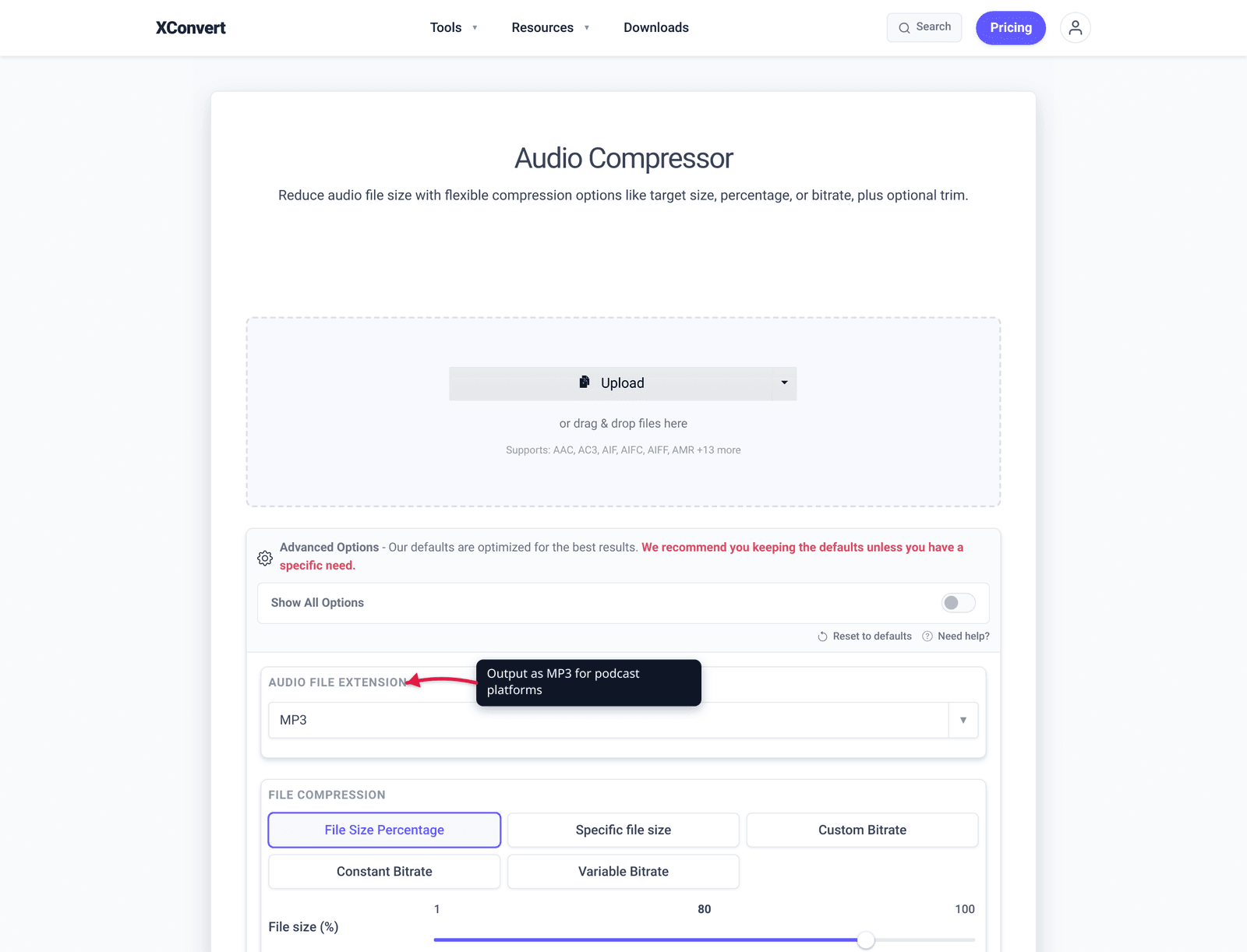
- Render or export your episode from your DAW (Reaper, Audacity, Logic, Hindenburg, etc.) as a high-quality WAV — typically 24-bit, 48 kHz stereo. Don’t pre-compress in the DAW; let xconvert do it.
- Open xconvert.com/audio-compressor.
- Click + Add Files, pick the WAV master.
- Toggle Show All Options to see all controls.
- Audio File Extension → MP3.
- File Compression → Custom Bitrate → enter 192.
- Audio Channel → Stereo.
- Audio Sample Rate → 44100 Hz.
- (CBR is the default; VBR is opt-in. Don’t switch to VBR for podcast distribution.)
- Click Compress. Wait — for a 1-hour WAV master, encoding takes 30–90 seconds.
- Download. The file is ready for Apple, Spotify, and Amazon ingest as-is.
Worked example: a 60-minute interview podcast
Source: 60-minute interview, recorded in Riverside.fm, exported as 48 kHz stereo WAV. File is ~660 MB.
Step 1 — Pick target. The “one-encode” target: 192 kbps stereo MP3 at 44.1 kHz.
Step 2 — Estimated output. 60 × 60 × 192 / 8 / 1024 ≈ 84.4 MB. Comfortably under all platform caps.
Step 3 — Encode in xconvert. Output is ~84 MB MP3. Listen to a 30-second sample to confirm intelligibility.
Step 4 — Listen for compression artifacts. At 192 kbps stereo, compression is transparent for speech. If your episode has music intros or stings, listen specifically to those sections — that’s where artifacts show up first.
Step 5 — Add ID3 tags. xconvert produces a clean MP3; add episode title, artist, album, episode number, and artwork in your podcast host (Buzzsprout, Transistor, Captivate, etc.) before publishing the RSS feed. Some hosts auto-tag from the RSS metadata; others preserve tags from the uploaded file. Check yours.
Step 6 — Upload to your podcast host. Apple, Spotify, and Amazon pull from the RSS feed your host generates — you don’t upload directly to those platforms. The MP3 you uploaded to the host gets served to all of them simultaneously.
What about ID3 tags and metadata?
xconvert preserves ID3 tags from the source file when re-encoding to MP3. If your DAW exports clean MP3s without metadata, you have three options:
1. Set tags in your podcast host. Hosts like Buzzsprout, Transistor, Captivate, and Spotify for Podcasters add ID3 tags to your file based on the metadata you fill out in their dashboard. This is the standard workflow.
2. Set tags in a separate tool. Mp3tag (Windows/macOS), Kid3 (cross-platform), or iTunes can edit ID3 tags directly. Useful if you’re hosting your own RSS feed.
3. Embed tags in your DAW export. Reaper, Logic, and Audacity all support ID3 tag embedding at export time. Set the title, artist, album, episode number, and artwork there.
If you’re submitting directly to a platform that allows it (some podcast hosts let you upload pre-tagged MP3s and use their tags), make sure the tags include: Title (episode name), Artist (your podcast name), Album (also podcast name), Track Number (episode number), and Cover art (1400×1400 to 3000×3000 JPEG/PNG, ≤ 5 MB).
Frequently Asked Questions
Can I submit higher than 320 kbps?
No. 320 kbps is MP3’s hard upper limit (the format defines bitrate values up to 320). Higher quality requires lossless formats (FLAC, ALAC, WAV) which podcast platforms don’t accept for distribution. If you have a 24-bit lossless master, xconvert encodes it down to 320 kbps MP3 cleanly — that’s as high as podcast distribution goes.
What about VBR vs CBR?
CBR (Constant Bitrate) uses the same bitrate for every part of the file — predictable file size, slightly less efficient. VBR (Variable Bitrate) uses higher bitrate for complex sections and lower for silence — more efficient at the cost of less predictable file size. For podcast distribution, CBR is standard because some older podcast clients miscalculate seek positions in VBR files (you tap “skip 30 seconds” and it skips 25 or 35). Modern apps handle VBR fine, but CBR is the safe choice.
Should I record at 48 kHz or 44.1 kHz?
Record at the native rate of your equipment — usually 48 kHz for video-capable interfaces and 44.1 kHz for audio-only ones. Don’t worry about the mismatch with podcast distribution; xconvert handles the resampling cleanly during the MP3 encode.
Do I need to process for loudness (LUFS)?
Yes, but separately from compression. Apple Podcasts and Spotify both target around -16 LUFS for podcast loudness. Loudness normalization isn’t a file-size compression task — it happens in your DAW or a dedicated tool like Auphonic. After loudness processing, run the WAV through xconvert for the final MP3 encode.
Can I use FFmpeg or LAME directly?
Yes — both produce identical or better MP3 quality than any web tool. xconvert is for podcasters who don’t want to run command-line tools. The output quality is the same; the workflow is the difference.
What about chapter markers?
MP3 chapter markers are stored in ID3 chapter frames (CHAP atoms). xconvert preserves chapters from the source file but doesn’t add them. To add chapters, use Hindenburg, Auphonic, or your podcast host’s chapter editor — those write the CHAP atoms into the existing MP3 without re-encoding.
What’s the difference between bitrate and sample rate?
Sample rate is how many audio samples per second (44,100 for CD quality). Bitrate is how many bits per second the encoder uses to represent those samples (192,000 in our recommendation). Higher sample rate = better high-frequency detail. Higher bitrate = more accurate representation of the audio at any given sample rate. For podcasts, 44.1 kHz × 192 kbps stereo is the established sweet spot.
Try it now
Compress a podcast episode for Apple, Spotify, and Amazon Music with the xconvert audio compressor — pick MP3, Custom Bitrate 192, Stereo, 44100 Hz. Single encode satisfies all three platforms. For shorter audio uses (email, Discord), see the related guides on compressing MP3s for email and compressing audio for Discord.
Related guides
- Compress an MP3 to Send by Email (Under Gmail’s 25 MB)
- Compress Audio for Discord: 10 MB Free, 50 MB Nitro Settings
- Reduce iPhone Voice Memo File Size for Email and AirDrop
Sources
Last verified 2026-05-19.
- Apple Podcasts for Creators — Podcast Requirements
- Spotify for Podcasters — Resources
- Amazon Music for Podcasters