 By James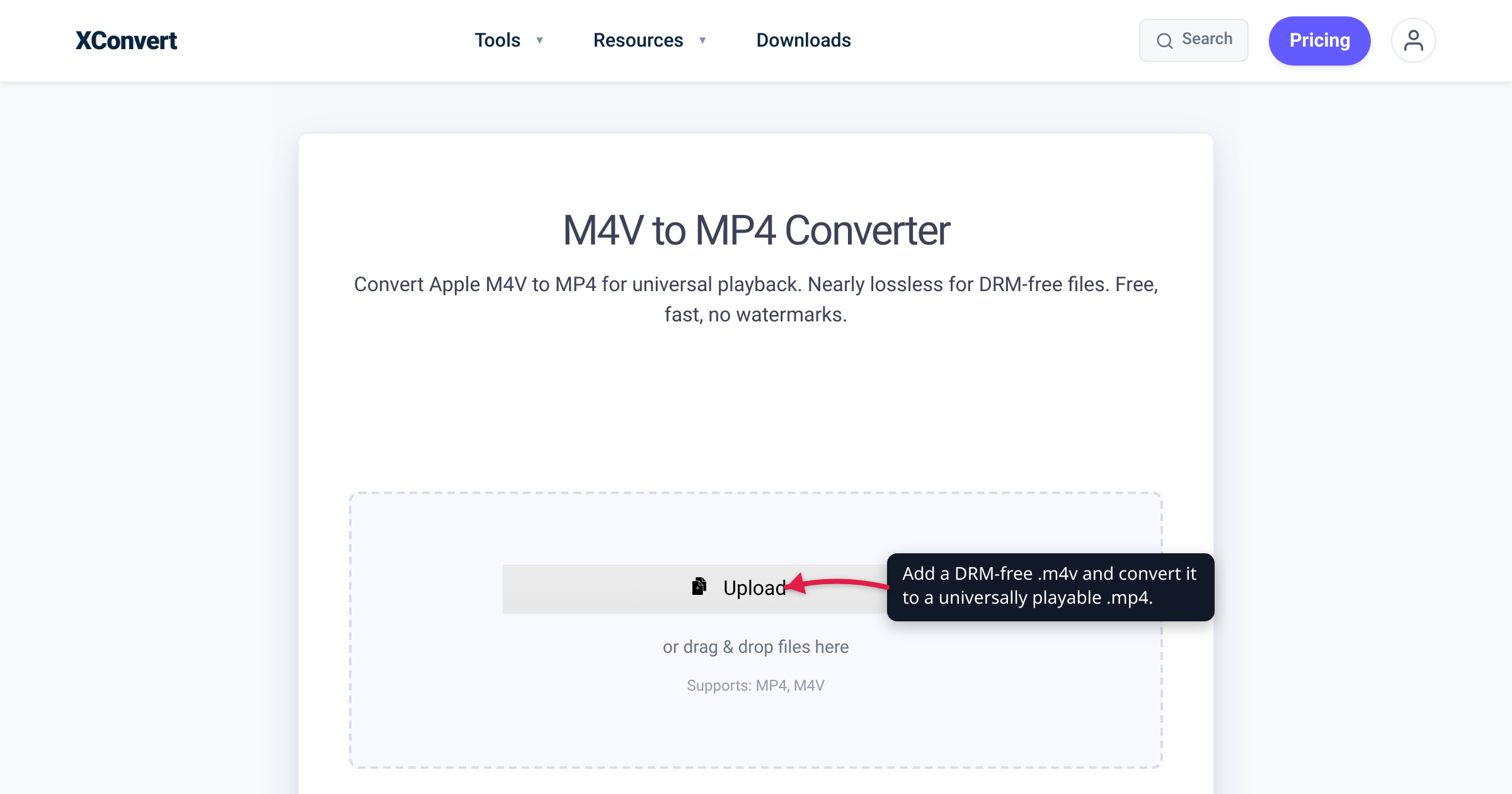
You’re clearing out an old iTunes library, or you just exported a clip from HandBrake, and you’re left with a .m4v file that half your apps refuse to open. Here’s the reassuring part: a .m4v is Apple’s take on an MP4 — the same MPEG-4 container underneath — so for an ordinary, unprotected file you can often just rename it .mp4 and be done, with no real conversion at all. Here’s the hard part: if that .m4v came from an iTunes Store or Apple TV app purchase or rental, it’s sealed with Apple’s FairPlay DRM, and no format converter — this one included — can open it. This guide draws that line clearly, then shows the fastest honest path for the files that can be converted. We verified the container relationship, the DRM facts, and the tool’s controls against Apple’s own documentation, MDN, and the live tool page.
Quick answer: A .m4v is Apple’s MPEG-4 video container — “very similar to the MP4 format,” typically holding the same H.264 + AAC streams an .mp4 does. For a DRM-free .m4v (a HandBrake export, a home movie, a screen recording), converting to MP4 is trivial — you can often just rename .m4v to .mp4 and it plays, because it is already an MPEG-4 file. A real conversion is only needed when the codec, audio, or size has to change, or a strict app rejects the rename. But an iTunes Store or Apple TV app purchase or rental is protected by FairPlay DRM and cannot be converted by this tool or any format converter — removing that protection is a separate legal and technical matter this tool does not handle. So step one is always: which kind of .m4v do you have?
Jump to a section
- What a
.m4vfile actually is - First, check for DRM — the M4V no converter can touch
- Rename or convert? Which your file needs
- Convert M4V to MP4 on xconvert
- FAQ
What a .m4v file actually is
The single fact that demystifies M4V: it is Apple’s own MPEG-4 video container, and it is nearly the same thing as an MP4. Apple introduced it in 2006 with iTunes Store video, and the format is best summed up as “very similar to the MP4 format”. The two are cousins in the same family: .mp4 is formally MPEG-4 Part 14 (ISO/IEC 14496-14), and per MDN it is “derived from the ISO base media file format, which is directly derived from the QuickTime file format developed by Apple.” An .m4v is that same MPEG-4 box wearing an Apple label.
What sits inside the box is what actually plays: a .m4v typically carries H.264 (or the newer H.265/HEVC) video with AAC audio — the exact streams a .mp4 normally holds. That is why the two are so interchangeable.
There are only two “Apple twists” that make a .m4v different from a plain .mp4:
- It can carry Dolby Digital (AC-3) audio — common on iTunes movie files, and something many non-Apple players can’t decode (more on that below).
- It can be locked with FairPlay DRM — the one that decides whether the file can be converted at all.
.m4v | .mp4 | |
|---|---|---|
| Container family | MPEG-4 (Apple) | MPEG-4 Part 14 (ISO standard) |
| First appeared | 2006, with the iTunes Store | 2001–2003 (ISO) |
| Typical video codec | H.264 / HEVC | H.264 / HEVC / others |
| Typical audio | AAC (sometimes Dolby Digital) | AAC (and others) |
| Built-in DRM | Optional Apple FairPlay | None |
| Plays outside Apple | Often — if DRM-free | Virtually everywhere |
First, check for DRM — the M4V no converter can touch
Before anything else, answer one question: is your .m4v protected by FairPlay? Everything downstream depends on it.
FairPlay is Apple’s DRM (digital rights management) technology — per Apple’s developer documentation, it lets content owners “encrypt content, securely exchange keys, and protect playback on Apple platforms.” A FairPlay-protected .m4v will only play on a device authorized with the Apple Account that purchased it — Apple lets you authorize up to five computers at a time, tying playback to that account.
The source of your file tells you almost everything:
- Bought or rented from the iTunes Store / Apple TV app → FairPlay-protected. Apple’s music has been sold DRM-free for years, which is why an iTunes song converts without a fuss — but movies and TV shows were never freed, and rentals never were. These
.m4vfiles are encrypted. - Anything you or someone else created — a HandBrake export, a GoPro or camera clip, a screen recording, a home video, a file a friend made themselves → almost certainly DRM-free and convertible.
Here is why the protected case is a hard wall: a converter works by reading the video and audio streams inside the file and re-packaging or re-encoding them. It cannot read the encrypted streams inside a FairPlay-protected .m4v at all — so no format converter, xconvert included, can convert an iTunes purchase or rental. The tool will simply reject it. Renaming it to .mp4 doesn’t help either: the protection lives inside the file, not in the extension, so a renamed protected file still refuses to play anywhere outside Apple’s authorized apps.
Stripping FairPlay is a separate legal and technical matter that this tool does not perform and this article does not cover. If your .m4v is a store purchase, the honest answer is that a format converter is the wrong tool — Apple’s own apps are where that content is meant to play.
Rename or convert? Which your file needs
Once you’ve confirmed a file is DRM-free, you have two paths, and the cheaper one often works.
The rename trick. Because a .m4v is already an MPEG-4 container, many players and apps accept it the instant you change the extension to .mp4. The M4V format reference notes that “some other video players can also recognize and play M4V files if the file extension is changed from ‘.m4v’ to ‘.mp4’”, and Apple documents the very same move for M4V’s sibling QuickTime — you can rename an H.264 .mov to .mp4 and it just plays. (See Convert MOV to MP4 on Windows & Mac for that neighbouring case.)
But a rename only relabels the file — it does not transcode anything. So it works when the app’s only objection was the unfamiliar extension, and it fails when the file’s actual contents are the problem:
- The target needs a different codec. An older TV, console, or editor may want H.264, but your
.m4vholds HEVC (H.265) — renaming won’t change the codec, so it still won’t play. - The audio is Dolby Digital (AC-3). Many non-Apple players can’t decode it, so you get video with no sound — a classic “I renamed it and it half-works” symptom.
- A strict uploader validates the file and rejects a container it wasn’t expecting.
- (And, as covered above, it never removes DRM.)
When any of those apply, you need a real conversion: re-package the file into a proper MP4 and, where necessary, re-encode the video and audio to broadly supported H.264 + AAC. That’s the reliable path when you don’t know exactly what’s inside, or when “it played on my machine but not theirs.”
Rule of thumb: rename to test, convert to be sure. If a renamed .mp4 plays everywhere you need it, you’re finished. The moment anything balks — no sound, wrong codec, a rejected upload — convert it properly to MP4/H.264/AAC for universal playback.
One reassurance about quality: a proper conversion of a DRM-free .m4v is usually a lossless rewrap — the streams are copied into the MP4 untouched — and only becomes a quality-affecting re-encode when the codec or audio must change. The container never sets picture quality; the codec inside does. (For the full container-versus-codec breakdown on Apple footage, see MOV vs MP4 for iPhone video.)
Convert M4V to MP4 on xconvert
The xconvert M4V to MP4 converter handles the reliable path: it re-packages a DRM-free .m4v into a clean MP4, and re-encodes to H.264/AAC when you need universal playback. (It cannot process FairPlay-protected iTunes files, and will reject them.)
- Open xconvert.com/convert-m4v-to-mp4 and click Upload to add your
.m4v— From my Computer, Google Drive, or Dropbox. - The output is already MP4 — that’s the tool’s job. To control the result, open Advanced Options (the gear icon); click Show All Options for the full set.
- For maximum compatibility, set the video codec to H.264 (the tool also offers H.265/HEVC, VP9, and AV1). H.264 with AAC audio plays on Windows, Android, browsers, and non-Apple editors without extra codec packs.
- Control size with the Quality Preset dropdown (it defaults to Very High (Recommended)), or pick a precise mode — Specific file size, Constant Bitrate, Variable Bitrate, or Constant Quality. Leave Video resolution on Keep original unless you want to downscale, and optionally Trim to a Time Range.
- Convert, then download your MP4.
Your .m4v is uploaded over an encrypted connection, is processed on our servers and deleted automatically a few hours later — no sign-up, no watermark. If the new MP4 is too large to send, shrink it with the MP4 compressor instead of converting again.
FAQ
Can I just rename .m4v to .mp4?
For a DRM-free file, often yes. A .m4v is already an MPEG-4 container, so changing the extension to .mp4 is enough for many players to recognize and play it. But renaming only relabels the file — it doesn’t re-encode anything, so it fails if the app needs a different codec, if the audio is Dolby Digital the player can’t decode, or if an uploader is strict about the file. And it never removes FairPlay DRM. If a renamed file plays everywhere you need, you’re done; if anything balks, do a real conversion.
Why won’t my iTunes M4V convert?
Because it’s almost certainly FairPlay-protected. Every movie, TV episode, or rental from the iTunes Store or Apple TV app is encrypted so it plays only on devices authorized with the Apple Account that bought it. A converter can’t read those encrypted streams, so no format converter can process it — xconvert will reject it. Protected purchases are meant to play in Apple’s own apps on authorized devices.
Are all M4V files DRM-protected?
No. DRM is optional in the M4V format. Only video bought or rented from Apple carries FairPlay. A .m4v you exported from HandBrake, recorded on a camera or GoPro, captured as a screen recording, or received from someone who made it themselves is almost always DRM-free and converts (or renames) without trouble.
How do I know if my M4V has FairPlay DRM?
Check where it came from. If you bought or rented it from the iTunes Store or Apple TV app, it’s protected. If you or another person created it, it isn’t. A protected file also gives itself away in use: it will prompt for Apple Account authorization, or simply refuse to open, when you try to play it outside an authorized Apple device or app.
What’s the difference between M4V and MP4?
Very little, technically. Both are MPEG-4 containers, and a .m4v usually holds the same H.264/AAC streams as a .mp4. The differences are Apple-specific: a .m4v can be wrapped in FairPlay DRM, and it may carry Dolby Digital audio. A plain .mp4 has no built-in DRM and is the more universally recognized extension — which is exactly why converting (or renaming) .m4v to .mp4 is so common.
Does converting M4V to MP4 lose quality?
Not when it’s a rewrap. Since a DRM-free .m4v already contains MP4-compatible streams, converting can copy the video and audio into an MP4 untouched — no re-compression, no visible change. Quality only shifts when the codec has to change (say HEVC → H.264 for an older device), and that re-encode is usually a slight, often invisible difference — though it can make the file larger.
Will renaming or converting remove the DRM?
No. FairPlay protection lives inside the encrypted file, not in the extension, so renaming a protected .m4v to .mp4 changes nothing, and a format converter can’t process it at all. Removing DRM is a separate legal and technical matter this tool does not perform.
Sources
Last verified 2026-07-16.
- Apple Developer — FairPlay Streaming — FairPlay is Apple’s DRM technology; it encrypts content, exchanges keys securely, and “protect[s] playback on Apple platforms.”
- Apple Support — Authorize or deauthorize your computer for Apple Account purchases — purchases play only on devices authorized with the buying Apple Account; you can authorize up to five computers at a time.
- Apple Support — Convert a MOV file to MP4 on Mac — Apple documents renaming an H.264
.movextension to.mp4; the same container-relabel principle applies to a DRM-free.m4v. - MDN — Media container formats — MP4 is MPEG-4 Part 14, derived from the ISO base media file format, itself derived directly from Apple’s QuickTime.
- ISO/IEC 14496-14 — MP4 file format — the formal standard defining the MP4 (MPEG-4 Part 14) container.
- Wikipedia — M4V — aggregator (cross-checked against the Apple/MDN primaries above): M4V is Apple’s MPEG-4 video container “very similar to the MP4 format,” typically H.264 + AAC (optionally Dolby Digital), optionally FairPlay-protected; renaming
.m4vto.mp4lets some players recognize it; first appeared 2006 with the iTunes Store.