 By James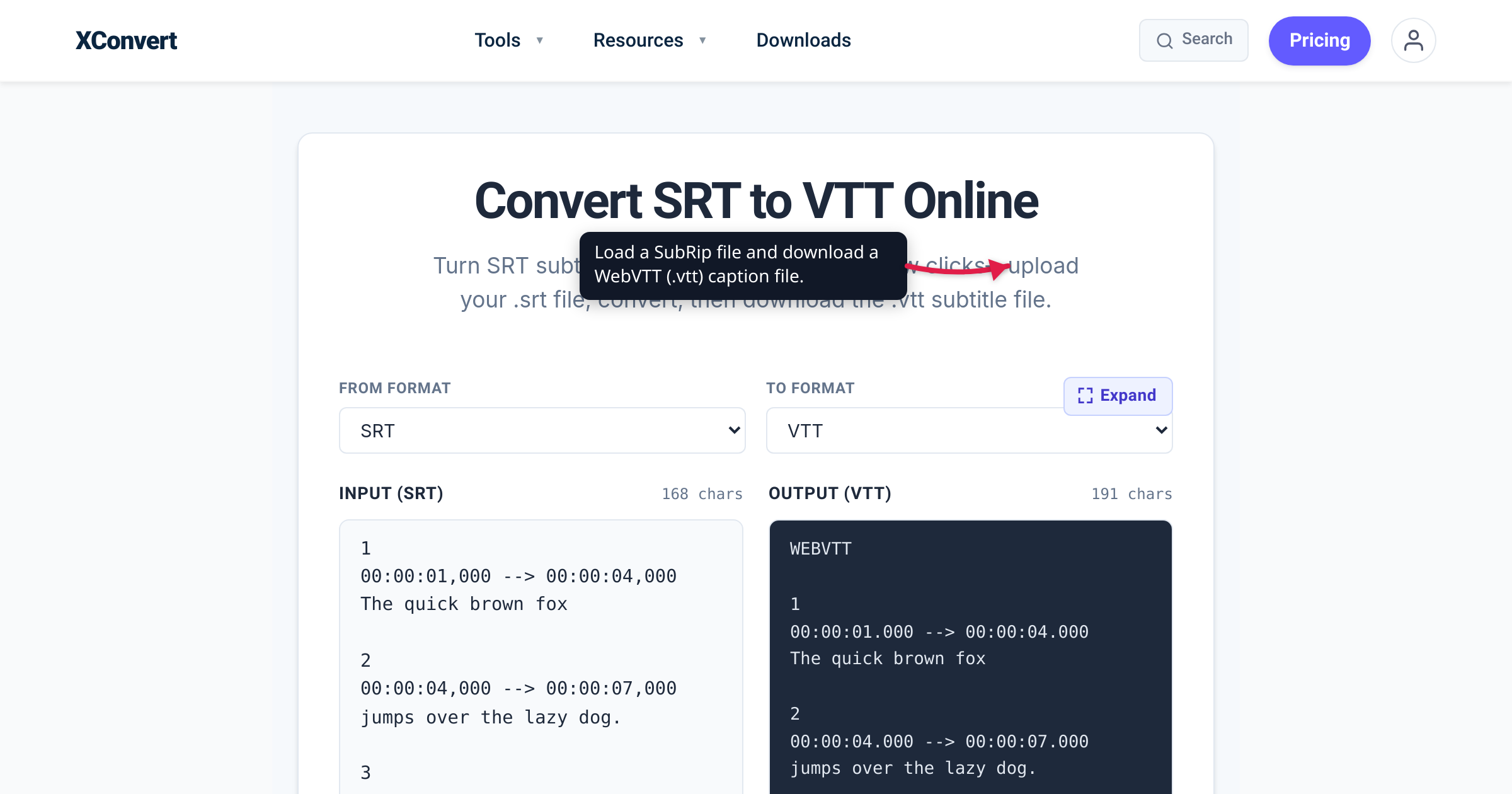
You add a subtitle file to your HTML5 video — <track src="captions.srt" kind="captions"> — reload the page, and no captions appear. The file isn’t broken; VLC plays it fine. The problem is that browsers don’t read SubRip (.srt) through the <track> element at all — the HTML5 <track> element only accepts WebVTT (.vtt). The good news: SRT and VTT are almost the same format, so converting is a quick reformat, not a re-encode. This guide shows exactly what changes — verified against the W3C WebVTT specification and MDN’s <track> docs — and how to do the conversion in seconds.
Quick answer: The HTML5
<track>element needs WebVTT (.vtt), not SubRip (.srt) — point<track src>at an.srtand no captions show. Converting SRT to VTT is mostly a reformat: add aWEBVTTheader line at the top, change the comma to a period in every timestamp (00:00:01,500→00:00:01.500), and the sequence numbers become optional. A short file you can fix by hand; for anything real, xconvert’s SRT-to-VTT converter does it locally in your browser.
Jump to a section
- SRT vs VTT: the differences that matter
- Why HTML5 video needs WebVTT
- Convert SRT to VTT by hand
- Convert SRT to VTT on xconvert
- FAQ
SRT vs VTT: the differences that matter
Both are plain-text subtitle files: a list of cues, each with a start time, an end time, and the line(s) of text to display. SubRip (.srt) is the older, near-universal format — it came out of the SubRip DVD-ripping tool around 2000, has no formal specification (it’s a de-facto standard), and is read by virtually every video platform and desktop player. WebVTT (.vtt) — “Web Video Text Tracks” — is the modern format the W3C standardized specifically for the web, and it’s what browsers use for the HTML5 <track> element.
Put the same cue in each format and the differences are small but strict:
SubRip (.srt):
1
00:00:01,500 --> 00:00:04,000
Welcome to the tutorial.
WebVTT (.vtt):
WEBVTT

00:00:01.500 --> 00:00:04.000
Welcome to the tutorial.
Here’s what changes, side by side:
| SubRip (SRT) | WebVTT (VTT) | |
|---|---|---|
| Header line | none | must start with WEBVTT |
| Millisecond separator | comma — 00:00:01,500 | period/dot — 00:00:01.500 |
| Cue numbers | present, sequential | optional |
| Styling & positioning | not native | cue settings: position, line, align, size |
| Extension / MIME type | .srt | .vtt / text/vtt |
The two rules that actually break playback if you get them wrong: the file must begin with the string WEBVTT (the W3C spec defines this as the file’s required signature), and every timestamp must use a full stop (.) for the thousandths of a second, not a comma. Get either wrong and the browser rejects the whole track. The sequence numbers are the one part that’s genuinely optional in VTT — the W3C spec lists the cue identifier as an optional element — so you can keep them or delete them; browsers don’t care either way.
WebVTT also does things SRT can’t: cue settings let you position a caption (line, position), align it (align), size its box (size), or set it vertically, and you can style cues with CSS. A straight SRT-to-VTT conversion doesn’t need any of that — you’re only reformatting the timing — but it’s why VTT is the richer format for the web.
Why HTML5 video needs WebVTT
When you caption an HTML5 <video>, you use a <track> child element. Per MDN, the track’s src must point at a .vtt file — WebVTT is the only format the element reads. Reference an .srt there and the captions simply won’t appear:
<video controls src="lecture.mp4">
  <track default kind="captions" src="captions.vtt" srclang="en" label="English" />
</video>
A few attributes worth knowing:
kind— usecaptionsfor a transcript that also conveys sound effects and speaker cues (for viewers who can’t hear the audio), orsubtitlesfor a translation/transcription of the dialogue. MDN listscaptions,subtitles,descriptions,chapters, andmetadata;subtitlesis the default.default— marks the track that’s active when the video loads.srclangandlabel— the language code and the human-readable name shown in the player’s caption menu.
This browser-only requirement is the entire reason the SRT-to-VTT step exists. As MDN’s own guide on adding captions puts it, video providers supply subtitles “usually in the SubRip Text (SRT) format,” and “these can be easily converted to WebVTT.” YouTube, Vimeo, and desktop editors happily accept SRT; the browser’s <track> element does not.
If you’re still settling the video side of your web player — which container and codec to serve — see MP4 vs WebM for web video. The caption workflow below is the same whichever you pick.
Convert SRT to VTT by hand
Because the change is so small, a short .srt can be converted in a plain-text editor:
- Open the
.srtin a text editor (not a word processor, which can inject smart quotes or curly punctuation). - Add
WEBVTTas the very first line, then a blank line before the first cue. - Replace the comma with a period in every timestamp. A global find-and-replace of
,→.is safe only if none of your caption text contains commas; otherwise restrict the replace to the-->lines (many editors can match a comma followed by three digits,,\d\d\d). - Keep the sequence numbers or delete them — either is valid WebVTT.
- Save with a
.vttextension, encoded as UTF-8 (the W3C spec requires WebVTT files to be UTF-8).
Hand-editing is fine for a quick one-off. It gets error-prone when the file has hundreds of cues, when the caption text contains commas a blind find-and-replace would corrupt, when the source isn’t UTF-8 (accented or non-Latin characters can turn into mojibake), or when you have a whole folder to do. For any of those, a converter that parses the timing lines and re-encodes cleanly is faster and safer.
Convert SRT to VTT on xconvert
The xconvert SRT-to-VTT converter does the reformat for you — it adds the header, rewrites every timestamp, and hands back a valid .vtt. The whole thing runs in your browser:
- Open xconvert.com/convert-srt-to-vtt.
- Click Upload .srt and choose your subtitle file. (It’s read locally in your browser — see the note below.)
- Click Convert. The tool rewrites the header and the timestamps into WebVTT.
- Click Download .vtt to save the file — or Copy to grab the text and paste it straight into your project.
- Reference the
.vttfrom your<track>element (see above), and the captions will show.
Because processing happens locally in your browser, there’s nothing sitting on a server to delete afterward. For a subtitle file — which may hold transcripts you’d rather not send anywhere — that’s a genuine privacy win, and it’s why the tool needs no account and has no upload size limit.
FAQ
What’s the difference between SRT and VTT?
Both are plain-text subtitle files with the same cue structure, so the differences are formatting rules. VTT files must start with a WEBVTT header line, use a period (not a comma) before the milliseconds in timestamps, treat cue numbers as optional, and can carry positioning/styling that SRT can’t. SRT is the universal format for editors and video platforms; VTT is the one web browsers require.
Why won’t my SRT captions show in HTML5 video?
Because the HTML5 <track> element only reads WebVTT (.vtt), not SubRip. If <track src> points at an .srt, the browser ignores it and no captions appear. Convert the file to .vtt and reference that file instead — the timing and text are unchanged.
Can I just rename my .srt file to .vtt?
No. Renaming doesn’t add the required WEBVTT header or fix the comma-vs-period timestamps, so the browser still rejects the file. You have to reformat the contents — which is exactly what the converter (or the by-hand steps above) does.
Do I have to keep the subtitle numbers when converting to VTT?
No. Cue identifiers are optional in WebVTT — the W3C spec lists the identifier as an optional part of a cue. You can keep the sequence numbers from your SRT or drop them; browsers display the captions the same either way.
Is SRT or VTT better for YouTube and video editors?
For uploading to YouTube or Vimeo, or importing into a desktop editor, SRT is the safer, more widely accepted choice. Reserve VTT for the web — HTML5 <track>, in-browser players, and anywhere a browser is doing the playback and requires it.
Does converting SRT to VTT change the timing or the text?
No. It’s a reformat, not a re-encode — the same cues, start times, end times, and text, just written with the WEBVTT header and period-separated timestamps. Your captions stay frame-accurate.
Sources
Last verified 2026-07-16.
- W3C — WebVTT: The Web Video Text Tracks Format — the required
WEBVTTfile signature, period-separated timestamps (HH:MM:SS.mmm), optional cue identifiers,.vtt/text/vttand UTF-8, and cue positioning settings. - MDN — The
<track>element — the tracksrcmust be a.vtt(WebVTT) file; thekindvalues (captions,subtitles,descriptions,chapters,metadata). - MDN — Adding captions and subtitles to HTML5 video — subtitles are usually supplied as SRT and “can be easily converted to WebVTT”; full
<track>usage. - MDN — WebVTT API — WebVTT file structure, cue settings, and
<track>/ HTML5 video examples.