 By James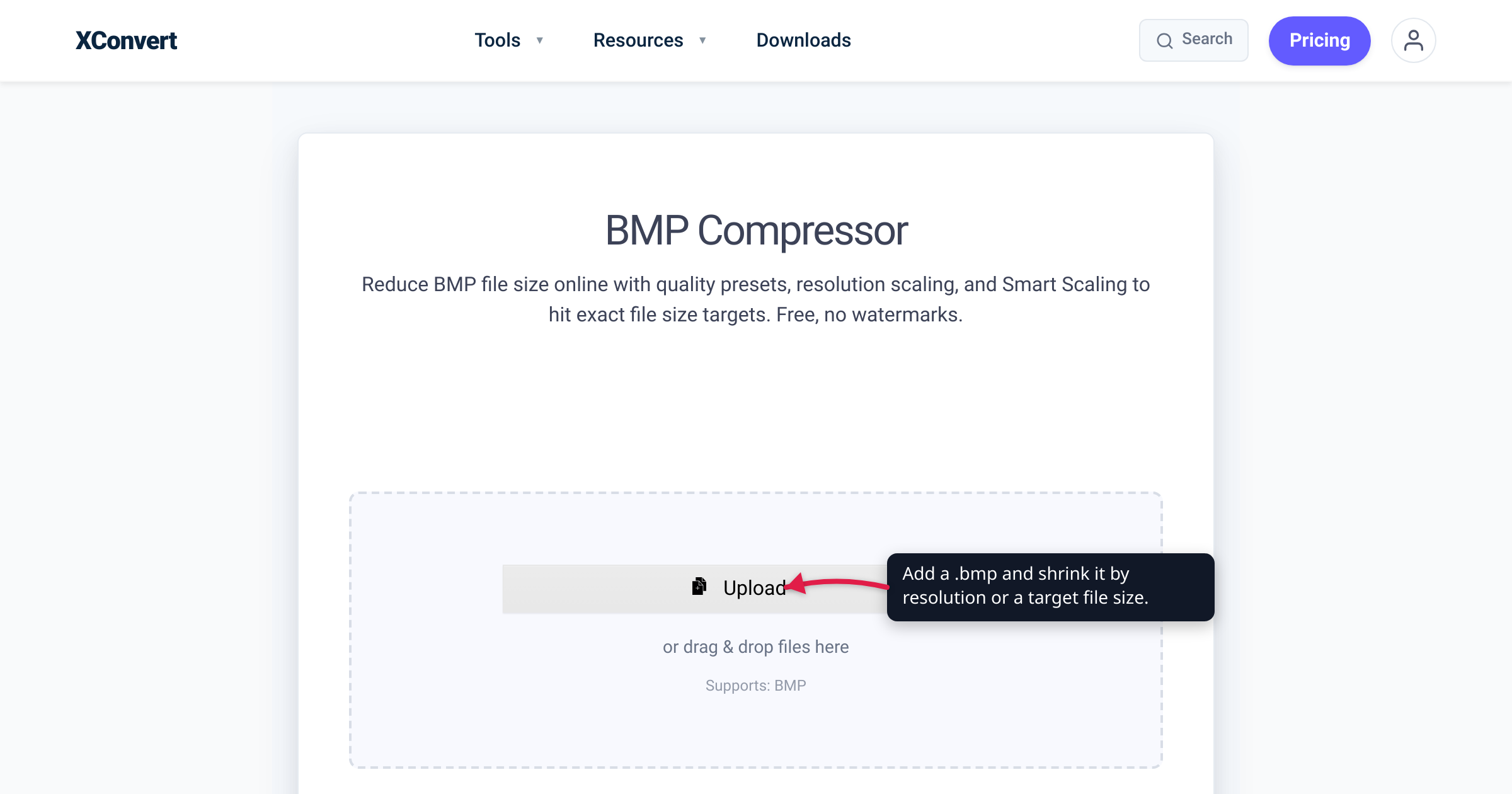
Save one full-screen screenshot as a BMP and it lands on disk at around 6 MB — while the same image as a PNG is often under 1 MB. Attach a handful to an email and you blow past a 25 MB limit almost immediately. That heft isn’t higher quality; a BMP is simply uncompressed, storing every pixel raw. This guide explains why a bitmap is so large, what “compressing a BMP” can and can’t do while keeping the .bmp extension, and the honest shortcut that shrinks it most — verified against Microsoft’s bitmap documentation and MDN, with the size math checked against the spec.
Quick answer: A BMP is huge because it stores raw, uncompressed pixels — a 1920×1080 24-bit bitmap is 1920 × 1080 × 3 = ~6.2 MB regardless of what the picture shows. BMP has no JPG/PNG-style compression: the format defines run-length encoding (RLE) only for 4-bit and 8-bit indexed images, never for 24-bit true color. So the only way to make a true-color BMP smaller as a BMP is to remove data — fewer pixels (lower resolution) or fewer colors (lower color depth). If you just need a genuinely small file, the biggest win is a format change: BMP → PNG is lossless and commonly 50%+ smaller; BMP → JPG or WebP is lossy and smallest of all.
Jump to a section
- Why a BMP is so big
- What “compressing a BMP” can actually do
- The bigger win: change the format
- Which path for which job
- Compress a BMP on xconvert
- FAQ
Why a BMP is so big
BMP (the Windows Bitmap format) was designed to be trivially simple and fast to read, not small. In Microsoft’s structure the common bitmap is stored as BI_RGB — “uncompressed RGB” — and MDN describes the typical BMP as “an uncompressed raster image, resulting in large file sizes compared to png or jpg.” Every pixel is written out literally: a 24-bit pixel takes 3 bytes (one each for red, green, blue) whether it belongs to a flat blue sky or a noisy texture. Nothing is deduplicated; nothing is modeled.
That makes the size a straight multiplication — width × height × bytes-per-pixel:
1920 × 1080 pixels × 3 bytes = 6,220,800 bytes ≈ 6.2 MB
…plus a small header and a few bytes of per-row padding (BMP pads each row to a 4-byte boundary). The content is irrelevant: a solid-white 4K bitmap and a detailed forest photo at the same dimensions and depth weigh precisely the same. The other multiplier is color depth — the bytes spent per pixel:
| Color depth | Colors | Size at 1920×1080 | vs 24-bit |
|---|---|---|---|
| 32-bit (RGBA) | 16.7M + alpha | ~8.3 MB | 33% larger |
| 24-bit (true color) | 16.7 million | ~6.2 MB | baseline |
| 16-bit (high color) | 65,536 | ~4.1 MB | ~33% smaller |
| 8-bit (indexed) | 256 | ~2.1 MB | ~66% smaller |
| 4-bit (indexed) | 16 | ~1.0 MB | ~84% smaller |
| 1-bit (monochrome) | 2 | ~260 KB | ~96% smaller |
These are derived straight from the spec (header plus the uncompressed pixel array; indexed depths add a small palette). They describe the format, not a guaranteed output — but they show where a bitmap’s bytes go.
What “compressing a BMP” can actually do
Here is the part most “BMP compressor” pages quietly skip. BMP has no general-purpose compression the way JPG and PNG do. The only compression the format defines is run-length encoding (RLE), and Microsoft’s documentation is explicit that Windows “supports formats for compressing bitmaps that define their colors with 8 or 4 bits-per-pixel” — BI_RLE8 for 8-bit (256-color) and BI_RLE4 for 4-bit (16-color) bitmaps. There is no RLE mode for 24-bit true color (or 16- or 32-bit). RLE also only pays off when an image has long runs of identical pixels — screenshots, icons, line art — and does almost nothing for a photograph.
So for the everyday case — a 24-bit photo or screenshot — a BMP simply cannot be compressed while remaining a true-color BMP. The two levers that actually reduce a BMP’s size are both destructive:
- Reduce resolution. Fewer pixels means linearly fewer bytes. Halving both dimensions quarters the file. This is the most reliable BMP size lever, and it’s pure decimation — you’re discarding pixels.
- Reduce color depth. Convert 24-bit true color to an 8-bit (256-color) or 4-bit (16-color) indexed palette, cutting size to roughly a third or a sixth (and unlocking RLE for indexed content). For flat UI graphics this can look identical; for photographs, 256 colors can’t represent a smooth gradient, so you get visible banding.
Both are subtraction — discarding pixels or colors, not squeezing them. That’s the honest ceiling of in-format BMP compression: decimation, not the entropy coding that makes JPG and PNG small.
The bigger win: change the format
If you don’t specifically need a .bmp, converting the format shrinks the file far more — and often with no visible quality loss at all:
- BMP → PNG (lossless). PNG uses lossless DEFLATE compression with predictive filtering; MDN lists it plainly as “lossless.” Every pixel is recovered exactly, yet the file is commonly 50% or more smaller than the raw bitmap, and dramatically smaller for screenshots and graphics with flat regions. This is the best default when you want to keep perfect quality.
- BMP → JPG (lossy, smallest for photos). JPEG is “based on the discrete cosine transform” (MDN) and discards perceptually unimportant detail, typically shrinking a photo 10× or more. Ideal for photographs where a little loss is invisible; avoid it for sharp text or screenshots, where it blurs edges. (If you’re weighing that trade-off, see convert PNG to JPG for how lossless-vs-lossy plays out.)
- BMP → WebP. Google’s WebP is smaller again: lossless WebP averages 26% smaller than PNG, and lossy WebP runs 25–34% smaller than JPEG at equivalent quality. A great choice when your target (the web, modern apps) supports it.
The takeaway a BMP-compressor page won’t lead with: the single biggest size win for a bitmap is usually leaving the format, not compressing within it.
Which path for which job
- A legacy or embedded tool that only reads
.bmp— old industrial or medical software, microcontroller displays, ATMs, signage. Keep the BMP, but drop to 4-bit or 8-bit indexed and lower the resolution; that’s the most the format allows. - You want perfect quality and a normal, small file — convert to PNG. Lossless, with alpha transparency, decoded by essentially every browser and image library of the last two decades.
- It’s a photograph and you want it as small as possible — convert to JPG or WebP.
- Unsure whether your image is a “photo” or a “graphic” — that distinction picks the right format; see best image format for photos vs graphics.
Compress a BMP on xconvert
The xconvert BMP compressor keeps the output a .bmp and exposes exactly the levers above, so you can shrink a bitmap without leaving the format:
- Open xconvert.com/compress-bmp and click Upload — or the “+ Add Files” button — to add your bitmap from your computer, Google Drive, or Dropbox. You can drop several BMPs for batch processing in one session.
- Open Advanced Options and, under Image Compression, pick a Quality Preset (Highest through Lowest). On a true-color BMP this alone does little, because BMP has no lossy mode — so the real size levers are the next two steps.
- Under Image resolution, cut the pixel count: Keep original, Resolution Percentage (1–100%), a Preset from 4320p (8K) down to 144p, or an exact Width × Height. Fewer pixels is the most dependable way to shrink a BMP.
- To hit an exact target instead, switch to Specific file size and enter a number in Bytes, Kilobytes, or Megabytes — Smart Scaling then auto-adjusts the dimensions (and bit depth) to land near your number.
- Click Compress and download.
Your file is uploaded over an encrypted connection, is processed on our servers and deleted automatically a few hours later — no sign-up, no watermark, never shared. And the honest reminder even though this is the BMP compressor: if a smaller file matters more than keeping the .bmp extension, converting to PNG (lossless) or JPG/WebP (lossy) will beat anything you can do inside the format.
FAQ
Why are BMP files so big?
Because a standard BMP stores raw, uncompressed pixels. A 24-bit pixel is a fixed 3 bytes regardless of the image content, so a 1920×1080 bitmap is always about 6.2 MB. Unlike JPG or PNG, the common BMP applies no entropy compression — the size is simply width × height × bytes-per-pixel.
How do I make a BMP smaller?
Two honest options. Keep it a BMP and lower the resolution or color depth (both remove data). Or — usually the bigger win — convert it: BMP → PNG is lossless and commonly 50%+ smaller; BMP → JPG or WebP is lossy and smallest.
Can a BMP be compressed without converting it to another format?
Only partially. The BMP spec defines run-length encoding (RLE) for 4-bit and 8-bit indexed bitmaps only (Microsoft’s BI_RLE4 and BI_RLE8); there is no RLE mode for 24-bit true color. And RLE only helps images with long runs of identical pixels — screenshots and line art — not photos. For a true-color bitmap, “compressing in place” really means lowering resolution or color depth.
Will reducing color depth from 24-bit to 8-bit ruin my image?
It depends on the image. For flat graphics, icons, and screenshots, an 8-bit (256-color) palette often looks identical at about a third of the size. For photographs, 256 colors can’t reproduce smooth gradients, so you’ll see banding — convert to JPG or WebP instead of forcing the bitmap into an indexed palette.
Is a converted PNG or JPG really smaller than a “compressed” BMP?
Almost always, yes. PNG’s lossless compression alone typically beats anything you can do inside the BMP format, and JPG or WebP go smaller still for photos. The only real reason to keep a BMP is a downstream tool that refuses to open anything else.
Does BMP support transparency?
Only through the 32-bit RGBA variant, which adds an alpha byte per pixel and is therefore about 33% larger than 24-bit — and its transparency is inconsistently supported across apps. If you need reliable transparency and a small file, PNG or WebP is the right choice; both are lossless with a proper alpha channel.
Sources
Last verified 2026-07-16.
- Microsoft Learn — Bitmap Compression — Windows defines RLE compression only for bitmaps at 8 or 4 bits-per-pixel (
BI_RLE8/BI_RLE4); the basis for “no RLE for 24-bit true color.” - Microsoft Learn — BITMAPINFOHEADER (wingdi.h) —
BI_RGBis the uncompressed RGB format; enumerates the compression values. - MDN — Image file type and format guide — BMP is typically uncompressed with large file sizes; PNG is lossless; JPEG is lossy, based on the discrete cosine transform.
- Google for Developers — WebP — lossless WebP averages 26% smaller than PNG; lossy WebP is 25–34% smaller than JPEG at equivalent quality.