 By Stephanie Taylor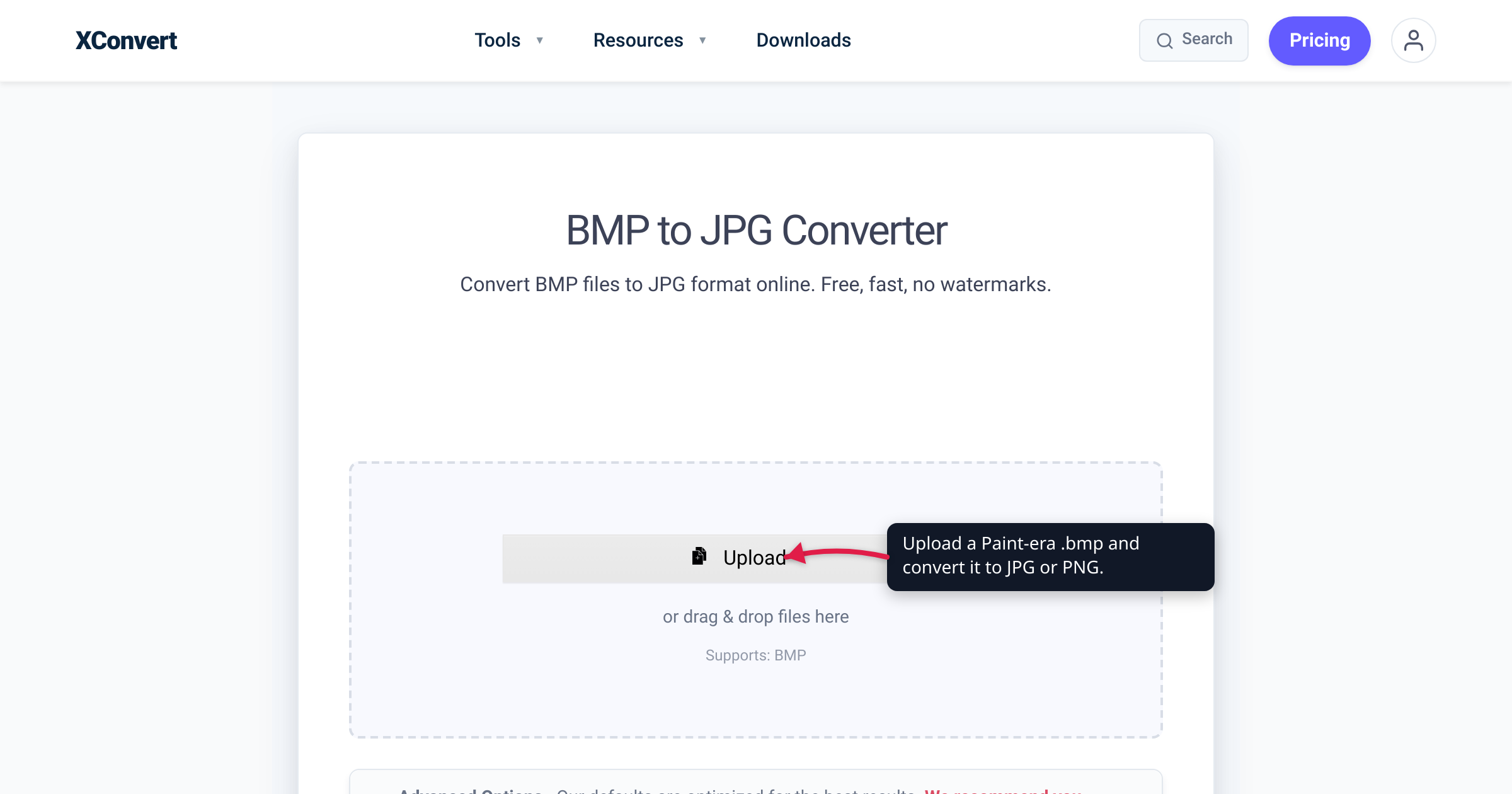
You open a folder of images you saved years ago in MS Paint and every .bmp is 5 or 6 MB — larger than a high-resolution photo, for what might just be a screenshot. Or a web form, a chat app, or a marketplace flatly refuses your .bmp upload. BMP (Windows Bitmap) is the classic Paint-era format, and its problem is simple: it stores every pixel raw, with no compression, so the files are enormous and increasingly unwelcome. The fix is a ten-second conversion — to JPG if the image is a photo, or PNG if it’s a screenshot, logo, or anything with sharp text. We verified both conversion flows on the live tools and checked the format facts against Microsoft’s own bitmap documentation and the W3C PNG specification.
Quick answer: BMP is uncompressed — every pixel is stored raw, so a 1920×1080 image is about 5.9 MB no matter what it shows. Convert photos to JPG (lossy, by far the smallest file) and screenshots, line art, logos, or anything needing sharp text or transparency to PNG (lossless like BMP, but compressed — the same pixels in a fraction of the space). One rule decides it: photo → JPG, graphic → PNG.
Jump to a section
- Why BMP files are so enormous
- JPG or PNG: the one rule
- What each conversion actually costs
- Size, side by side
- Convert BMP to JPG or PNG on xconvert
- FAQ
Why BMP files are so enormous
BMP — the Windows Bitmap format, and the default MS Paint used for years — stores an image as a literal map of pixels written to disk one after another. Microsoft’s own documentation describes the pixel data as a “color-index array” whose size “equals the number of pixels times the number of bits needed” to describe each one. For a true-color image the format’s compression field is set to BI_RGB, which Microsoft defines in one word: “Uncompressed RGB.” There is no squeezing — what you see is exactly what’s stored on disk.
That makes the file size pure arithmetic. Take a standard 1920×1080 image at 24-bit color (8 bits each for red, green, and blue = 3 bytes per pixel):
- 1920 × 1080 = 2,073,600 pixels
- 2,073,600 pixels × 3 bytes = 6,220,800 bytes ≈ 5.9 MB
The striking part: that size has nothing to do with the picture. A blank white 1920×1080 BMP is the same ~5.9 MB as a detailed photo at the same dimensions, because BMP records every pixel individually. (It can optionally use a simple run-length encoding, but that’s limited to 8-bit palette images; every 24-bit true-color BMP is stored fully uncompressed.) JPG and PNG both spend real effort shrinking that data — which is why a modern format holds the same picture in a small fraction of the space.
JPG or PNG: the one rule that decides it
Almost every BMP conversion comes down to a single question: is this a photograph or a graphic?
- A photograph is continuous-tone — millions of subtly different colours, gradients, no hard edges (a camera shot, a scanned photo, a rendered scene). Convert it to JPG. JPEG’s lossy compression is tuned for exactly this kind of image and produces by far the smallest file.
- A graphic is flat regions and sharp edges — a screenshot, a logo, a chart, a scanned diagram, text on a solid background. Convert it to PNG. PNG is lossless, so crisp edges and small text stay crisp; JPG would smear them into a blocky halo.
PNG earns the “graphic” job because of two properties the W3C spec spells out. It is built for “the lossless, portable, well-compressed storage of static and animated raster images,” with an explicit design goal of “losslessness: filtering and compression should preserve all information.” And it supports “an optional alpha channel” — full transparency, which JPG cannot do at all. So anything with a transparent background is automatically a PNG.
| Your BMP is… | Convert to | Why |
|---|---|---|
| A photo — camera shot, scan, gradients, natural detail | JPG | Lossy, tuned for photos, by far the smallest file. No transparency. |
| A screenshot, or anything with text or UI | PNG | Lossless — sharp text and edges stay crisp; JPG smears them. |
| A logo, icon, diagram, or line art | PNG | Lossless flat-colour compression; crisp edges. |
| Anything needing a transparent background | PNG | Full alpha channel; JPG has none. |
| An archival master you must keep pixel-perfect | PNG | Lossless like BMP, but far smaller — same pixels, less space. |
If you’re genuinely unsure whether your image counts as a photo or a graphic, the best image format for photos vs graphics guide walks through the edge cases.
What each conversion actually costs you
BMP → PNG loses nothing. Both formats are lossless, so converting just re-packs the same pixels into a compressed container — every pixel survives intact, in a much smaller file. That makes PNG the safe default whenever you’re unsure, or when the image is something you’ll keep, edit, or re-export later.
BMP → JPG loses a little, once. JPEG is lossy: it discards fine detail you’re unlikely to notice in a photograph, so at a high quality setting the difference is effectively invisible — and the file is often ten to twenty times smaller than the BMP. The catch is that the loss isn’t reversible, and re-saving a JPG repeatedly compounds it. For a photo you’re sharing, that’s a fine trade; for a master copy you’ll edit again, prefer PNG.
The other JPG limitation is transparency: JPG has no alpha channel, so any transparent areas in your source get flattened onto a solid background (usually white). If transparency matters, PNG is the only right answer.
Size, side by side
Here is the same 1920×1080, 24-bit image in all three formats:
| Format | Typical size at 1920×1080 | Compression | Lossy? | Transparency |
|---|---|---|---|---|
| BMP | ~5.9 MB (fixed by dimensions, not content) | None (raw pixels) | No | No |
| JPG | ~200–800 KB for a photo (varies with quality) | Lossy | Yes | No |
| PNG | ~1–3 MB for a photo; far less for flat graphics | Lossless (DEFLATE) | No | Yes |
Only the BMP figure is exact — it’s pure arithmetic; the JPG and PNG numbers vary with content and quality, so treat them as typical ranges. Notice how PNG shines on flat graphics (a screenshot’s large runs of identical colour often compress to well under 500 KB) while JPG shines on photographs. That is the decision rule in numbers.
Convert BMP to JPG or PNG on xconvert
Both directions work the same way — pick the tool that matches your target format.
For photos, use the xconvert BMP-to-JPG converter:
- Open xconvert.com/convert-bmp-to-jpg and click + Add Files to upload your bitmap (or drag & drop files onto the page; you can also pull from Google Drive or Dropbox).
- (Optional) Open Advanced Options (the gear icon). The Quality Preset dropdown defaults to Very High (Recommended) — drop it to Higher or Medium for a smaller file, or switch to Specific file size to target an exact size in MB.
- Click Convert and download your JPG. The defaults are tuned for good results, so for most photos steps 1 and 3 are all you need.
For screenshots, logos, or anything with text, use the BMP-to-PNG converter instead. It uses the same + Add Files upload, and its Advanced Options add PNG-specific controls: a Colors setting (ORIGINAL, or By Color Reduction + Dither to shrink the palette and the file) and a Compression level slider, all defaulting to sensible values. Click Convert and download.
Your file is uploaded over an encrypted connection, processed on our servers, and deleted automatically a few hours later. Nothing is kept.
Already converted a graphic to PNG and now realise it’s actually a photo you want smaller? See convert PNG to JPG for that next step.
FAQ
Why are BMP files so big?
Because BMP is uncompressed — it stores every pixel raw. The file size is just resolution × colour depth: a 1920×1080 24-bit image is 2,073,600 pixels × 3 bytes ≈ 5.9 MB, regardless of what the picture actually shows. JPG and PNG both compress that same data, which is why they’re far smaller.
Should I convert my BMP to JPG or PNG?
Photo → JPG; screenshot, logo, line art, or anything with text or transparency → PNG. JPG’s lossy compression makes the smallest files and is tuned for photographs, but it smears sharp edges. PNG is lossless (like BMP), keeps text and edges crisp, and supports transparent backgrounds — at a larger size than JPG for photos.
Does converting BMP to JPG lose quality?
Slightly, and only once. JPG is lossy — it discards detail you’re unlikely to notice, so at a high quality preset the difference is effectively invisible. But it isn’t reversible. If you need every pixel preserved (an archival master, or an image you’ll edit repeatedly), convert to PNG instead, which is lossless.
Can I convert BMP without losing any quality?
Yes — convert to PNG. PNG uses lossless compression, so every pixel from the BMP survives intact and you get the identical image in a much smaller file. The W3C PNG specification’s stated design goal is “losslessness: filtering and compression should preserve all information.” BMP → JPG, by contrast, is lossy.
Why won’t a website or app accept my BMP file?
Many modern forms, chat apps, and content platforms only accept JPG, PNG, and WebP, because BMP files are large and bring no web advantage. Converting to JPG (for photos) or PNG (for graphics) gives you a smaller file in a universally accepted format.
Is PNG or JPG better quality?
They solve different jobs. PNG is lossless, so it’s technically higher fidelity and perfect for screenshots, text, and transparency — but a photo saved as PNG is several times larger than the same photo as JPG. JPG is lossy yet tuned for photographs, where at high quality the loss is invisible and the file is tiny. Match the format to the image rather than chasing a single “best.”
Are BMP files still used?
Rarely, and mostly by older Windows software. BMP was designed to be simple and fast for Windows to read and display, not small — so outside a few legacy programs, PNG (for graphics) and JPG (for photos) have replaced it. Converting your old bitmaps reclaims a lot of disk space with no visible quality change for graphics.
Sources
Last verified 2026-07-16.
- Microsoft — BITMAPINFOHEADER structure (wingdi.h) — defines the
biCompressionvalue BI_RGB as “Uncompressed RGB”;biBitCountspecifies the number of bits per pixel. - Microsoft — Bitmap Storage (Win32 GDI) — BMP file layout; pixel data is stored as a color-index array whose bit count equals the number of pixels times the bits per pixel.
- W3C — Portable Network Graphics (PNG) Specification — PNG is for “lossless, portable, well-compressed storage” of raster images, uses DEFLATE compression, supports an optional alpha channel, and has an explicit “losslessness” design goal.