 By James
The photo is upright in your camera roll. You convert it, or compress it, or drop it into a document — and it is lying on its side. Nothing rotated it. The picture was always stored sideways, with a small piece of metadata attached asking viewers to turn it, and somewhere in the chain a piece of software declined to read that request. Here is exactly which tag is involved, why honouring it was optional from the very first specification that defined it, and the one file extension where xconvert’s own fix quietly doesn’t fire.
Quick answer: Your camera stored the pixels in whatever direction the sensor read them and set the EXIF Orientation tag (TIFF tag 274) to describe how to display them. Phones and browsers honour that tag; plenty of other software does not, and any step that drops the metadata leaves the sideways pixels behind. The permanent fix is to bake the rotation into the pixels and clear the tag. xconvert does that automatically when the file you upload ends in .jpg or .jpeg — but the check is by extension, so a .jfif slips past it. Rename a
.jfifto.jpgbefore uploading, or rotate the result by hand at xconvert.com/rotate-jpeg.
Jump to a section
- The photo was never upright
- Who honours the tag and who ignores it
- What xconvert does — and the file type it misses
- Fix a sideways photo for good
- FAQ
The photo was never upright
When you turn a phone sideways to take a landscape shot, the sensor does not rotate. The camera writes the pixel grid the way the sensor read it and records how it should be displayed in a single metadata field.
That field is not a JPEG invention. EXIF borrows its structure from TIFF, and the tag is defined in Adobe’s TIFF 6.0 specification as Orientation, Tag = 274 (112.H), a SHORT with eight legal values describing where the image’s visual top and left edges actually live:
| Value | What the viewer is asked to do |
|---|---|
| 1 | Nothing — the stored top-left is the visual top-left |
| 2 | Mirror horizontally |
| 3 | Rotate 180° |
| 4 | Mirror vertically |
| 5 | Mirror horizontally, then rotate 270° clockwise |
| 6 | Rotate 90° clockwise |
| 7 | Mirror horizontally, then rotate 90° clockwise |
| 8 | Rotate 270° clockwise (90° counter-clockwise) |
Values 6 and 8 are the ones that cause almost every sideways photo — the two ways of holding a phone in landscape.
And here is the sentence at the root of the entire problem, from that same specification: “Support for orientations other than 1 is not a Baseline TIFF requirement.” Reading the tag was optional from the first day it existed. Thirty-plus years later, that is still true — which is why the same file can be upright in one program and on its side in the next.
Who honours the tag and who ignores it
Browsers are firmly on the “honour it” side, and it is written into CSS. MDN documents the image-orientation property’s initial value as from-image — “the EXIF information contained in the image is used to rotate the image appropriately” — and the feature is Baseline Widely available. So a photo that looks right in Chrome or Safari is being corrected for you, live, every time it renders.
The ignore-it side is larger than people expect, and it is not all old software:
- Image-processing libraries and command-line tools, where reading the tag is generally an explicit opt-in flag rather than default behaviour. A conversion pipeline that nobody told to auto-orient will faithfully hand you the sideways pixels.
- Anything that decodes straight to a raw bitmap — a print pipeline, a document renderer, a thumbnailer. Once the pixels are unpacked into a grid, the metadata is a separate thing somebody has to remember to apply.
- Anything that strips metadata. Many upload paths re-encode images and discard EXIF for privacy and size reasons — which also discards the orientation instruction. If your photo looks fine locally and sideways after posting, that is usually what happened; the same re-encode is behind other upload surprises, like WhatsApp’s photo re-compression.
The asymmetry is worth internalising: the tag can only ever be an instruction, never a guarantee. Every workflow that involves handing your photo to unknown software is a workflow where you want the rotation in the pixels instead.
What xconvert does — and the file type it misses
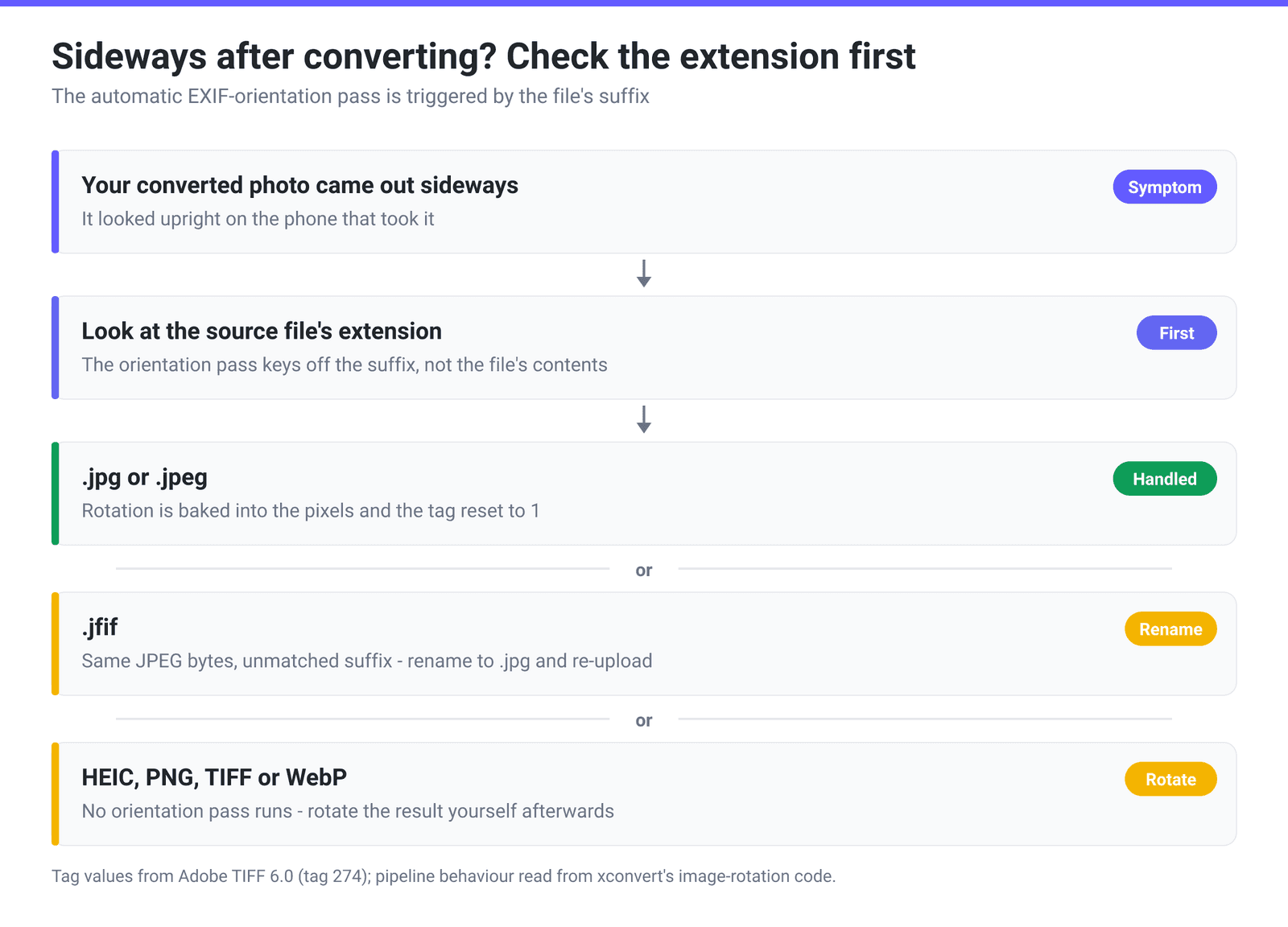
When you send a JPEG through xconvert — converting it, compressing it, resizing it, or building a PDF out of it — the pipeline normalises orientation before anything else happens. It reads the Orientation tag, rotates the actual pixel grid to match, and resets the tag to 1, so the output looks the same in EXIF-aware and EXIF-blind software alike. If the tag is present but already 1, the tag is cleared rather than left to confuse a later tool.
There is a real gap in that, and it is worth knowing rather than discovering: the check is on the file’s extension, not its contents. The normalisation step runs when the uploaded filename ends in something containing jp — .jpg, .jpeg. It does not run for anything else, including:
.jfif— which is the honest surprise, because a.jfifis a JPEG. JFIF is JPEG File Interchange Format; the bytes are identical to a.jpgand start with the sameFF D8marker. Windows produces them from some browser image downloads. The suffix simply does not match the check, so a.jfifwith Orientation 6 keeps its Orientation 6.- HEIC, PNG, TIFF and WebP sources — no orientation pass runs on these, so whatever the underlying converter does with the metadata is what you get.
The workaround for .jfif is a rename. Change the extension to .jpg before you upload — no conversion, no re-save, just the filename — and the normalisation runs like it would for any other JPEG. For the other formats, the reliable move is to rotate the output explicitly rather than to expect it to be corrected for you.
The same rule governs photos going into a PDF, since building a PDF from images runs through the same rotation step — one reason a page can come out sideways in a document. Placement problems in that direction are covered in why your photo is cropped or floating in white space in the PDF.
Fix a sideways photo for good
There are two routes, and which one you want depends on whether you are fixing one photo or preventing the problem across a batch.
Route 1 — turn it by hand. Best for a single photo, or any source where you already know the automatic pass will not fire:
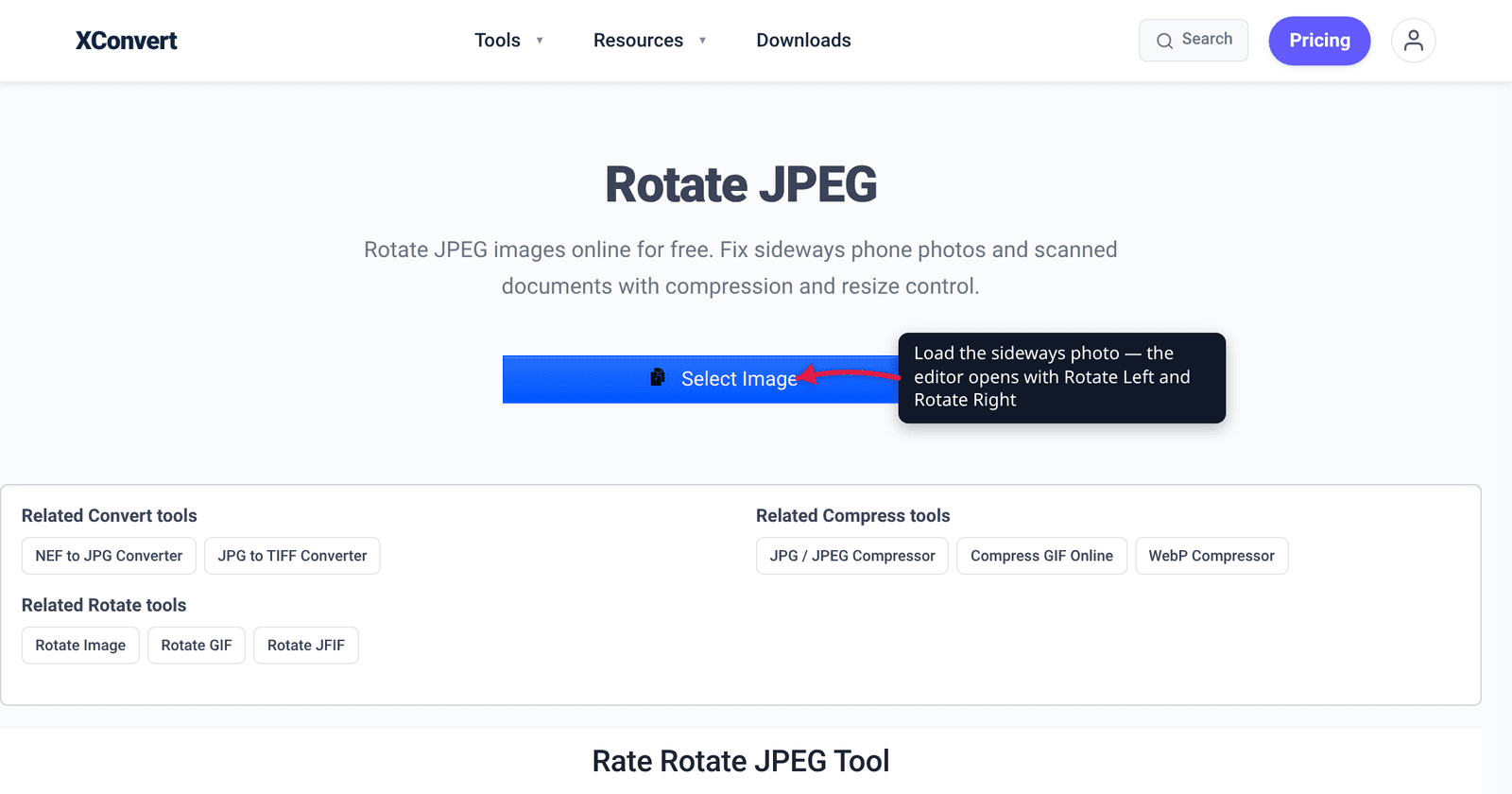
- Open xconvert.com/rotate-jpeg and click Select Image.
- The photo opens in the on-page Photo Editor.
- Press Rotate Left or Rotate Right until it is upright. Each press is a clean 90° step, so there is no resampling blur and no white corners.
- Open the download menu and choose Download as JPG — PNG, WebP, TIFF and BMP are on the same list. What you see in the editor is what the exported file contains, and the export carries no EXIF metadata for a later viewer to misread.
Route 2 — let the conversion bake it in. Best when you have a folder of phone photos and want them all normalised as a side effect of something you were doing anyway:
- Make sure the files end in .jpg or .jpeg — rename any
.jfiffirst. - Run them through a JPEG-input tool such as the JPEG compressor. The orientation pass happens automatically before compression, so every output comes back with the rotation in its pixels and the tag reset.
Files upload over an encrypted connection, are processed on our servers, and are deleted automatically a few hours later — no sign-up, no watermark.
FAQ
Why does the photo look fine on my phone but sideways on my laptop?
Your phone’s gallery reads the EXIF Orientation tag and rotates the picture for display. The program on your laptop is showing you the stored pixel grid without applying it. Neither is broken — the tag is a request, and Adobe’s own TIFF specification says supporting orientations other than 1 “is not a Baseline TIFF requirement”. Until the rotation is written into the pixels, the two will keep disagreeing.
Why didn’t converting my .jfif fix the orientation?
Because the automatic orientation pass is triggered by the file extension, and .jfif does not match it — even though a JFIF file is a JPEG, byte for byte. Rename the file to .jpg before uploading and the pass runs normally. That is the whole fix; no re-saving or re-encoding is needed to change a suffix.
Does rotating a JPEG by 90° lose quality?
A 90°, 180° or 270° rotation can in principle be done losslessly, because JPEG stores data in 8 × 8 blocks that can be reordered without re-encoding — that is what tools like jpegtran do. Any route that decodes to pixels and re-encodes does cost you a generation of JPEG compression, though at high quality it is very hard to see. If the photo is going to be edited or re-saved again anyway, it is not worth agonising over.
My HEIC photos from an iPhone come out rotated after converting. Why?
HEIC files describe their orientation in metadata the same way JPEGs do, but the automatic normalisation pass does not run for HEIC inputs — the check is extension-based and looks for a JPEG suffix. The dependable approach is to convert first, look at the result, and rotate it explicitly if it needs it, rather than assuming the conversion will correct it.
Can I just delete the EXIF data to fix it?
That makes it worse, not better. Stripping the metadata removes the instruction while leaving the sideways pixels exactly where they were, so the photo becomes permanently sideways in every viewer — including the ones that were previously showing it correctly. The correct order is always: rotate the pixels first, then clear or reset the tag.
Will this happen again if I upload the fixed photo somewhere?
No. Once the rotation is in the pixels and the tag reads 1 (or is gone entirely), there is nothing left for anything downstream to misinterpret. That is exactly why baking it in is worth doing before you hand a photo to a printer, a marketplace listing, a document generator, or any upload path that re-encodes what it receives.
Sources
Last verified 2026-08-31.
- Adobe — TIFF Revision 6.0 specification (June 3, 1992) — Orientation, “Tag = 274 (112.H)”, type SHORT, the eight defined values describing where the visual top and left-hand side sit, “Default is 1”, and “Support for orientations other than 1 is not a Baseline TIFF requirement.” EXIF reuses TIFF’s IFD structure and this tag.
- MDN —
image-orientation— the initial value isfrom-image: “Default initial value. The EXIF information contained in the image is used to rotate the image appropriately.” Marked Baseline Widely available, which is why browsers show phone photos the right way up without being asked. - xconvert rotate JPEG — live tool; the Select Image control, the Photo Editor panel, the Rotate Left / Rotate Right buttons and the Download as JPG / PNG / WebP / TIFF / BMP menu were read from the tool itself.
- xconvert image pipeline — the EXIF-orientation behaviour described here (rotate the pixels, reset the Orientation tag to 1, clear a redundant tag when the value is already 1) and its extension-based trigger, which fires for
.jpgand.jpegand not for.jfif, HEIC, PNG, TIFF or WebP, was read from our own image-rotation code rather than inferred.