 By Stephanie Taylor
You have a 78 MB exhibit binder, a midnight filing deadline, and CM/ECF just threw back ERROR: This document cannot be loaded because it is over 35 MB. Submit the document in smaller parts, labeled correctly. The court isn’t asking you to compress the file into mush — it wants sub-volumes: the same pages, in two or three separate PDFs, each under the cap and each labelled so the clerk can put them back in order. Here’s where to find your court’s actual number, how to work out the page ranges, and why two halves of a PDF don’t always weigh half.
Quick answer: There is no single e-filing size limit — every court sets its own, and the published caps we verified range from 10 MB to 100 MB per document. Look up yours on the PACER Court CM/ECF Lookup or your state portal’s help pages before you do anything else. Then, if the file is genuinely over the cap: compress first, and only split if compression isn’t enough. Splitting is done by page range, not by megabytes — you decide the ranges (
1-50, 51-100) and the splitter copies those pages into new PDFs without re-rendering them, so text stays text and scans keep their original resolution.
Jump to a section
- The cap is per document — and it is not the same in every court
- Try compression before you split
- Working out the page ranges
- Two halves don’t always weigh half
- Labelling the sub-volumes
- Split a filing into sub-volumes on xconvert
- FAQ
The cap is per document — and it is not the same in every court
There is no federal e-filing size limit. PACER states it plainly: “Each court sets a limit on the size of PDF files submitted for electronic filing. If a document exceeds the limit, the recommendation is to break the document into separate, smaller documents.” PACER points filers at its Court CM/ECF Lookup for the number in a specific court.
The spread is wide enough that guessing is dangerous. Caps we verified on the courts’ own pages:
| Court / portal | Published per-document cap | What the court tells filers to do |
|---|---|---|
| U.S. Court of Appeals, 2d Circuit | 10 MB per document; max 10 attachments, each ≤ 10 MB | Divide an oversized appendix into smaller PDFs and paginate each part |
| Superior Court of California, San Bernardino County | 25 MB per document, 50 MB per submission | Upload in multiple sets and note the page range in the filing description |
| U.S. District Court, C.D. California | 35 MB | “Attachments that exceed 35 MB must be divided into sub-volumes” (L.R. 5-4.3.1) |
| U.S. Bankruptcy Court, N.D. Alabama | 35 MB (raised from 5 MB) | Court notice announcing the increase |
| U.S. District Court, S.D. Florida | 50 MB | “You can separate large files into multiple smaller files” |
| U.S. District Court, W.D. Washington | 100 MB per document/attachment | Divide and label as “Exhibit 1 – Part 1, Exhibit 1 – Part 2” |
| NYSCEF (New York State courts) | 100 MB per PDF document | Stated in the NYSCEF FAQ |
| eFileTexas.gov | Recommends ≤ 5 MB per document, ≤ 25 MB per envelope | Guidance, phrased as a recommendation rather than a hard cap |
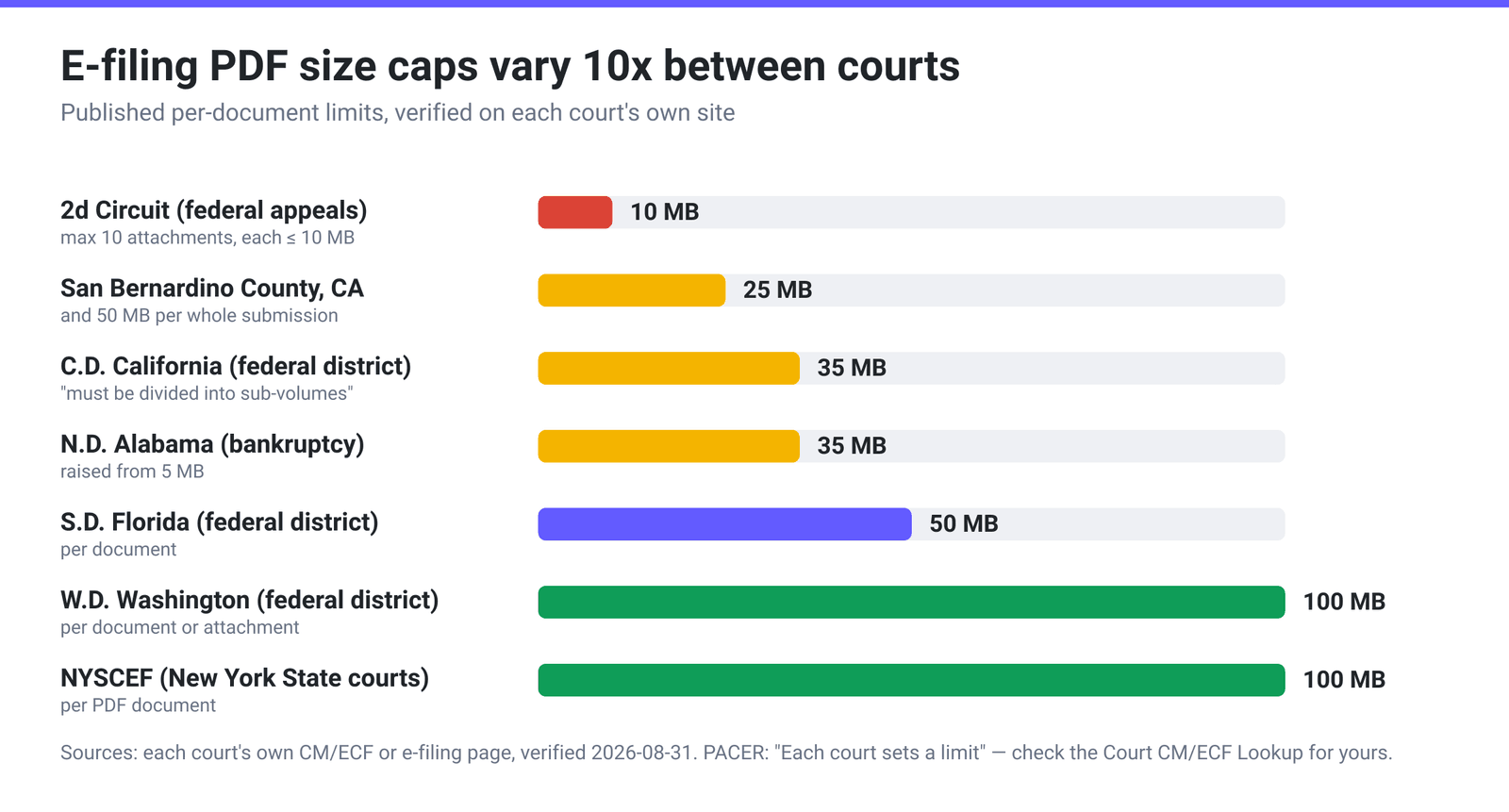
Two things follow. First, a workflow tuned for one court fails in the next one over — a 30 MB brief sails into the Central District of California and bounces off the Second Circuit three times over. Second, caps move: the Western District of Washington announced a raise from 35 MB to 75 MB, and its current CM/ECF FAQ now says 100 MB. Anything you memorised a year ago is worth re-checking.
Some courts also add rules the size cap doesn’t capture — the Second Circuit caps the number of attachments at ten, so a 15-part appendix fails even if every part is 9 MB.
Try compression before you split
Splitting is a last resort. Clerks prefer one document over three, and every extra sub-volume is another docket entry, another cover page, and another chance to mislabel something.
Most oversized court PDFs are oversized for one reason: they contain scans. A born-digital brief exported from Word is usually a few hundred kilobytes; a 200-page exhibit scanned at 600 DPI in colour runs into the hundreds of megabytes. PACER’s guidance is specific — scan at 300 DPI and in black and white where possible.
So check what’s in the file first. If the pages are photographs of paper, compression helps enormously — our post on why scanned PDFs get so big covers how to tell, and Compress PDF does the job on an existing file. If it’s text-only vector output, compression barely moves the number and splitting is your only lever.
One warning: check a compressed exhibit page by page before certifying it as a true and correct copy. Aggressive downsampling can render small print, handwritten signatures and stamped exhibit numbers unreadable, and an illegible exhibit is worse than an oversized one.
Working out the page ranges
Here is the honest mechanic, and it changes how you plan the job: splitters that work on the PDF page tree divide by page range, not by megabytes. You tell the tool “pages 1-50, then 51-100” and it lifts those pages into new documents. Nothing measures the bytes for you as it goes, so the workflow is: estimate, split, weigh the parts, adjust.
Start with a target that leaves headroom. Aiming for roughly 80-85% of the cap absorbs the fact that pages are not all the same weight — one page with a colour photograph can outweigh fifty pages of text.
| Filing size | Court cap | Aim per part | Parts needed | Ranges to type (300-page filing) |
|---|---|---|---|---|
| 48 MB | 35 MB | ~30 MB | 2 | 1-150, 151-300 |
| 48 MB | 25 MB | ~21 MB | 3 | 1-100, 101-200, 201-300 |
| 90 MB | 35 MB | ~30 MB | 3 | 1-100, 101-200, 201-300 |
| 60 MB | 50 MB | ~42 MB | 2 | 1-150, 151-300 |
| 120 MB | 10 MB | ~8.5 MB | 15 | 1-20, 21-40, … 281-300 |
Then check the parts. If part 2 lands at 38 MB against a 35 MB cap because the photographs all live in the back half, move the boundary: 1-180, 181-300 instead of 1-150, 151-300. Because pages are copied rather than re-rendered, running the split twice costs you nothing in quality.
Where the boundary falls matters legally too: break between exhibits, not through the middle of one.
Two halves don’t always weigh half
A PDF stores shared resources — an embedded font, a letterhead graphic, a logo on every page — once, and every page that uses it points at that one copy. When you split, each output has to carry its own copy of every resource its pages reference.
We ran the same splitter our tool uses (Apache PDFBox 3.0.6) over two constructed 100-page PDFs, split 1-50, 51-100 in both cases:
- Scanned-exhibit profile — every page carries its own page image, where nearly all the bytes live. A 46.69 MB source produced two parts of 23.35 MB each: 50.0% each, 100.0% of the source in total.
- Shared-graphic profile — one image reused on all 100 pages, dominating the file. A 0.48 MB source produced two parts of 0.47 MB each: 98.6% each, and 197.2% of the source between them.
Real filings sit between those poles, but the direction never reverses: the parts add up to more than the whole, never less. For scanned exhibits — most oversized court PDFs — halving the pages nearly halves the bytes. For a font-heavy born-digital brief, budget for parts larger than a naive division suggests. That is the other reason to aim at 80-85% of the cap.
What splitting does not cost you is quality. The scanned-profile parts summed to 100.0% of the source bytes, so nothing was recompressed on the way out. The mechanism is Splitter.importPage: the existing page object and its content stream are carried into the new document rather than re-rendered, so no image is re-encoded and no text is flattened into a picture. That matters when the original is evidence.
Labelling the sub-volumes
The requirement differs by court, collected from the pages above:
- C.D. California wants each smaller document identified with a caption page under Fed. R. Civ. P. 10(a), or a cover page in lieu of a tab — e.g.
EXHIBIT 5, APPENDIX II TO MOTION FOR SUMMARY JUDGMENT. - W.D. Washington asks for parts labelled
Exhibit 1 – Part 1,Exhibit 1 – Part 2. - San Bernardino County (CA) asks for the set number or page range in both the Filing Description and Document Description fields —
Set 1 of 4; Pages 1-499. - 2d Circuit requires each part of a split appendix to be paginated per its own instructions.
The common thread: the clerk must be able to reconstruct the original order from filenames and descriptions alone. Ex5_Appendix_Part2_pp151-300.pdf tells a clerk everything; document (2).pdf tells them nothing.
Note what does not survive a split. Bookmarks go entirely — PDFBox builds each part with createNewDocument(), which copies the PDF version, the document information and the viewer preferences and nothing else, so no outline is carried across and every bookmark is lost in every part, not just the ones that pointed across a boundary. An internal hyperlink from page 3 to page 200 breaks if those pages land in different files. And a digital signature applied over the whole document reports as invalid in any split output — inherent to how signatures hash a document, not a defect in the splitter.
Split a filing into sub-volumes on xconvert
The xconvert PDF splitter produces every sub-volume in one pass — you don’t upload the file once per part.
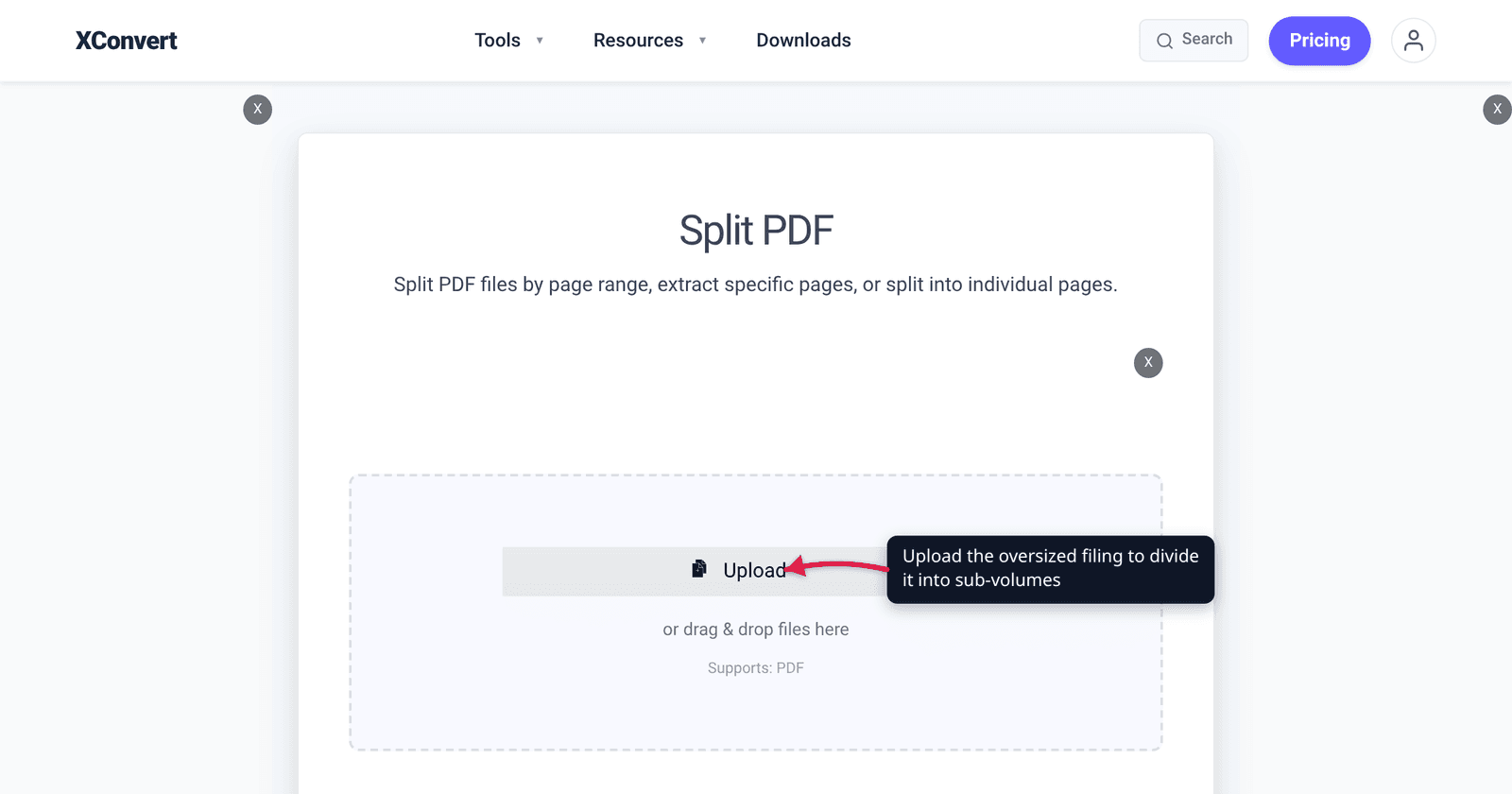
- Open xconvert.com/split-pdf and click Upload to add your PDF (from your computer, Google Drive, or Dropbox).
- Scroll to Advanced Options — the panel is already open on the page, there is nothing to click — and under Split, choose Pages by multi-range. (Pages by range, with a Start page and End page, gives a single output when you only need one volume; Page by page bursts every page into its own file, which is almost never what a filing needs.)
- In the Page ranges box, type every sub-volume comma-separated:
1-150, 151-300. Page numbers are 1-indexed and inclusive, and each range becomes its own PDF. - Click Split. A multi-part job downloads as a ZIP with one PDF per range; a single-range job downloads as a plain PDF.
- Check each part’s size against your court’s cap before filing. If one is over, re-run with the boundary moved — pages are copied, not re-rendered, so a second attempt costs nothing in quality.
Your file uploads over an encrypted connection, is processed on our servers, and is automatically deleted a few hours later. No sign-up and no watermark, which matters when the output goes on a docket. If you only need one section rather than a full set of volumes, how to split a PDF into separate pages or files covers the other modes.
FAQ
What is the file size limit for court e-filing?
There isn’t one — each court sets its own. The published per-document caps we verified span 10 MB (2d Circuit) to 100 MB (W.D. Washington, NYSCEF), with 35 MB common among federal district courts. For federal courts, use the PACER Court CM/ECF Lookup; for state courts, check that state’s e-filing portal. Never assume last month’s cap in another district applies here.
Can I split a PDF by file size instead of by page range?
Not with xconvert — the split modes are page-based (Page by page, Pages by range, Pages by multi-range). That is a smaller limitation than it sounds, because pages vary so much in weight that a byte-based split still needs checking afterwards. Estimate the ranges, split, weigh the parts, move a boundary if one lands over the cap.
Will splitting the PDF reduce the quality of my exhibits?
No. Pages are copied into the new documents rather than re-rendered, so scans keep their original resolution, text stays selectable and vector graphics stay sharp. In our test on a 46.69 MB scanned-profile PDF the two halves totalled 100.0% of the source bytes — nothing was recompressed. If you need the file smaller, that’s compression, and compression does cost quality. Bookmarks are the one thing you do lose: the splitter carries no outline into the parts.
Why are my two halves bigger than half the original file?
Shared resources get duplicated: a font or letterhead image stored once in the source has to be embedded in every part whose pages reference it. In our shared-graphic test — one image reused on all 100 pages — each half came back at 98.6% of the source and the two together totalled 197.2% of it. Scanned exhibits, where each page carries its own image, split almost exactly proportionally. Either way, aim each part at 80-85% of the cap.
Do I have to file each part as a separate docket entry?
That depends on the court and the filing event. Some CM/ECF events take a main document plus attachments, so sub-volumes go in under one entry; others expect separate entries. The Second Circuit caps attachments at ten per document, which forces a different approach for very large appendices. Check the court’s e-filing instructions or call the ECF help desk.
Should I compress or split first?
Compress first. One document is easier for the court to handle than three, and most oversized court PDFs are oversized because they contain high-DPI colour scans — exactly what compression fixes. PACER recommends scanning at 300 DPI in black and white. Split only when a legible, compressed file is still over the cap.
Sources
Last verified 2026-08-31.
- PACER — Is there a limit on the size of the PDF files which CM/ECF will accept? — “Each court sets a limit”; recommends breaking oversized documents into smaller documents; 300 DPI black-and-white scanning guidance.
- PACER — Court CM/ECF Lookup — the per-court lookup PACER directs filers to for file size limits.
- U.S. Court of Appeals, 2d Circuit — Dividing an oversized PDF — 10 MB per document, no more than 10 attachments each ≤ 10 MB.
- U.S. District Court, C.D. California — E-Filing FAQs — 35 MB cap, the exact CM/ECF error text, caption/cover-page requirement, and “divided into sub-volumes” (L.R. 5-4.3.1).
- U.S. District Court, W.D. Washington — maximum allowable file size — 100 MB per document/attachment and the “Exhibit 1 – Part 1” labelling convention.
- U.S. District Court, S.D. Florida — 50 MB per document — 50 MB limit and the recommendation to separate large files.
- U.S. Bankruptcy Court, N.D. Alabama — notice of PDF file size increase — increase from 5.0 MB to 35.0 MB.
- NYSCEF — Frequently Asked Questions — “Yes. 100 megabytes per PDF document.”
- Superior Court of California, County of San Bernardino — Civil eFiling requirements — 25 MB per document, 50 MB per submission, and the “Set 1 of 4; Pages 1-499” description convention.
- eFileTexas.gov — E-filing FAQ — recommends ≤ 5 MB per document and ≤ 25 MB per envelope.