 By James
You have a 2-hour 45-minute board meeting recording and a transcription service that hard-caps uploads at 25 MB. You drop the bitrate to 64 kbps. Still 79 MB. You go to 32 kbps mono and it sounds like a drive-through speaker — and it is still 39 MB. At some point the bitrate lever runs out, and the only variable left in the equation is how many seconds you are asking the encoder to store.
Quick answer: File size is just bitrate × duration, so when the bitrate is already at the floor your recording can tolerate, duration is the only lever left. Before you cut anything, spend the two cheaper levers first: switch to mono (halves the bitrate a stereo file needs) and switch the output format to Opus, which Xiph recommends at 24 kb/s mono for audiobooks and podcasts where MP3 at that rate is barely usable. If you are still over, trim. xconvert’s audio compressor carries Trim (Start time + Duration) and Specific file size on the same panel — but read the one-pass catch before you use both together, because the size solver works from the original duration.
Jump to a section
- The arithmetic: how much audio fits in 25 MB
- Where the bitrate lever actually runs out
- Two cheaper levers before you cut anything
- Trim and target size in one pass — and the catch
- Compress and trim audio on xconvert
- FAQ
The arithmetic: how much audio fits in 25 MB
There is exactly one equation and it has no hidden terms:
file size ≈ bitrate × duration
At a constant bitrate, a 25 MB ceiling buys you a fixed number of seconds. Two of the most common hard caps land on that same number: personal Gmail accounts limit attachments to 25 MB, and OpenAI’s Transcriptions API accepts audio files up to 25 MB, telling you to “use a compressed audio format or split the file into chunks of 25 MB or less.”
| Bitrate | Longest recording that fits in 25 MB | Realistic use |
|---|---|---|
| 8 kbps | ~6 h 56 m | Barely intelligible in MP3; usable in Opus narrowband |
| 16 kbps | ~3 h 28 m | Rough speech |
| 24 kbps | ~2 h 18 m | Xiph’s recommended Opus rate for audiobooks/podcasts (mono) |
| 32 kbps | ~1 h 44 m | Common floor for listenable mono MP3 speech |
| 48 kbps | ~1 h 09 m | Comfortable mono speech |
| 64 kbps | ~52 m | Good mono speech / acceptable stereo Opus |
| 96 kbps | ~35 m | Music starts sounding fine |
| 128 kbps | ~26 m | Standard stereo music |
| 192 kbps | ~17 m | High-quality stereo music |
(Decimal MB, before container and tag overhead. Leave a few percent of headroom — an ID3 tag with cover art can add hundreds of kilobytes on its own.)
Read that table the other way and the problem states itself: a 2 h 45 m recording needs 20 kbps to fit under 25 MB. No bitrate setting makes a three-hour stereo interview into a 25 MB file and keeps it worth listening to. Either you change what “the file” means — mono, a better codec — or you change how much of it you keep.
Where the bitrate lever actually runs out
Two things stop you from just typing a smaller number.
The codec has a floor. Opus is the most flexible option on the panel, and the Xiph wiki’s recommended-settings table puts the bottom of its range plainly: “Opus only supports bitrates down to 6 Kb/s.” (The codec’s own home page states the same range from the other end — “Bitrates from 6 kb/s to 510 kb/s.”) MP3 nominally reaches 8 kbps, but MP3 at 8-16 kbps mono is a very different experience from Opus at the same rate — MP3 was never designed for that end of the range. The bitrate dropdown runs 8, 16, 24, 32, 40, 48, 64 (preselected) and upward, so the floor is a visible stop.
You can’t encode above your source. Compression can’t restore data the original encoder discarded, so xconvert caps the encode at the source file’s own bitrate. If a voice memo arrived as 32 kbps mono, asking for 64 kbps produces a 32 kbps file. That is the moment the lever is genuinely spent, and it is more common than people expect: phone voice memos, WhatsApp voice notes and dictation apps often hand you something already near the floor.
There is a subtler trap. bitrate × duration predicts the audio stream, not the file, and containers differ. In xconvert’s own encoder measurements, one requested bitrate produced a file at 100.02% of the predicted size in MP3 and 100.70% in M4A, but only 72.45% in Opus and 63.61% in Ogg — and 143.56% in WMA. That is why a target-size job checks the finished file and re-encodes at a lower rate if it came out over. It does not re-encode when the file lands under, which matters in the next section.
Two cheaper levers before you cut anything
Trimming destroys content. Try these first, because they cost you far less.
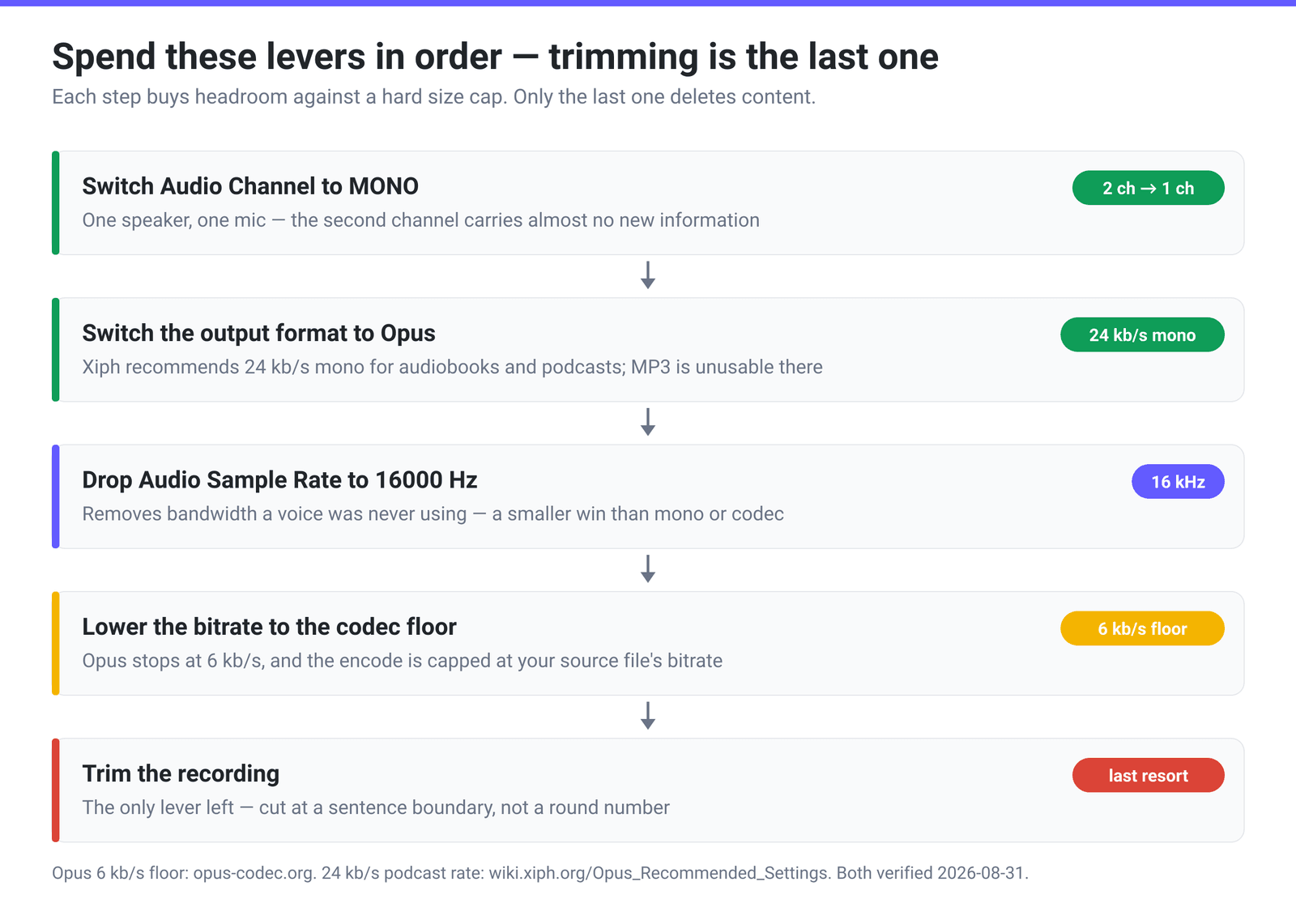
Mono. A stereo file spends its bitrate on two channels. For a lecture, an interview, a voice memo or a phone call — anything with one person and one microphone — the second channel carries almost no independent information. Setting Audio Channel to MONO roughly halves the bitrate needed for the same perceived quality: one full row of headroom on the table above, sometimes two. (Opus goes further, downmixing stereo to mono on its own at roughly 19 kb/s and below.)
A better codec. This is the lever most people never touch. The Audio File Extension dropdown changes the output format, and MP3 is not the efficient choice at low rates. Xiph’s own recommended-settings table puts the numbers plainly:
| Use case | Channels | Recommended Opus bitrate |
|---|---|---|
| VoIP | 1 (mono) | 10-24 kb/s |
| Audiobooks / podcasts | 1 (mono) | 24 kb/s |
| Audiobooks / podcasts | 2 (stereo) | 32 kb/s |
| Music streaming / radio | 2 (stereo) | 64-96 kb/s |
| Music storage | 2 (stereo) | 96-128 kb/s |
24 kb/s mono Opus for a podcast is a supported recommendation from the people who built the codec; 24 kbps mono MP3 is a punishment. Switching format alone can move a 2 h 18 m recording under 25 MB with no cut at all.
The honest caveat: check that the destination accepts Opus. The OpenAI Transcriptions API lists mp3, mp4, mpeg, mpga, m4a, wav, webm as its input formats — an .opus file is not on that list. Email attachments are format-agnostic; a portal, a DAW or an old car stereo may not be. When the destination is fussy, M4A (AAC) is the compromise. Our post on the best audio format for voice recordings covers that trade-off.
Sample rate is a third, smaller lever: dropping Audio Sample Rate to 16000 Hz for speech removes bandwidth the voice wasn’t using. It matters less than mono or codec choice, because a low-bitrate encoder already narrows the band on its own.
Trim and target size in one pass — and the catch
When those levers are spent, you cut. The useful thing about xconvert’s audio compressor is that Trim and Specific file size are separate groups on the same options panel, so one job can do both — no trim, download, re-upload, compress.
But there is a catch. When you enter a target size, the tool solves for a bitrate by dividing that target by the recording’s duration — and it reads the duration from the file you uploaded, not from the length that survives your trim. Trim a 60-minute recording to 20 minutes and ask for 25 MB in the same pass, and the bitrate is solved as “25 MB spread over 60 minutes”: you get roughly 8 MB, comfortably under the cap and a third of the quality you were entitled to. Because the verification step only re-encodes files that come out over target, nothing corrects it back up.
That gives you three honest recipes:
| Your priority | Recipe | Result |
|---|---|---|
| Guaranteed under the cap, simplest | One pass: set Trim and Specific file size together | Lands well under target; quality left on the table |
| Best quality at the cap | Two passes: trim first, download, then upload the trimmed file and set the target | The whole size budget goes to the audio you kept |
| One pass, full budget | Scale the target: ask for target × (original length ÷ kept length) | Right size in one job — with limits, below |
The scaling trick works because the target is only used to derive a bitrate: keeping 20 minutes of a 60-minute file under a 25 MB ceiling means asking for 75 MB. Two limits apply — on a compress job the target is clamped so it can’t exceed the uploaded file’s size, and the bitrate is still capped at the source bitrate. If the scaled number exceeds either, use the two-pass recipe.
Where you place the cut matters as much as its length. OpenAI’s chunking guidance is explicit: “Avoid splitting in the middle of a sentence, which can remove context and reduce accuracy.” The same applies to a human listener — trim to the end of an agenda item or an answer, not to a round number of minutes.
Compress and trim audio on xconvert
Both controls live on one page. Open the xconvert audio compressor:
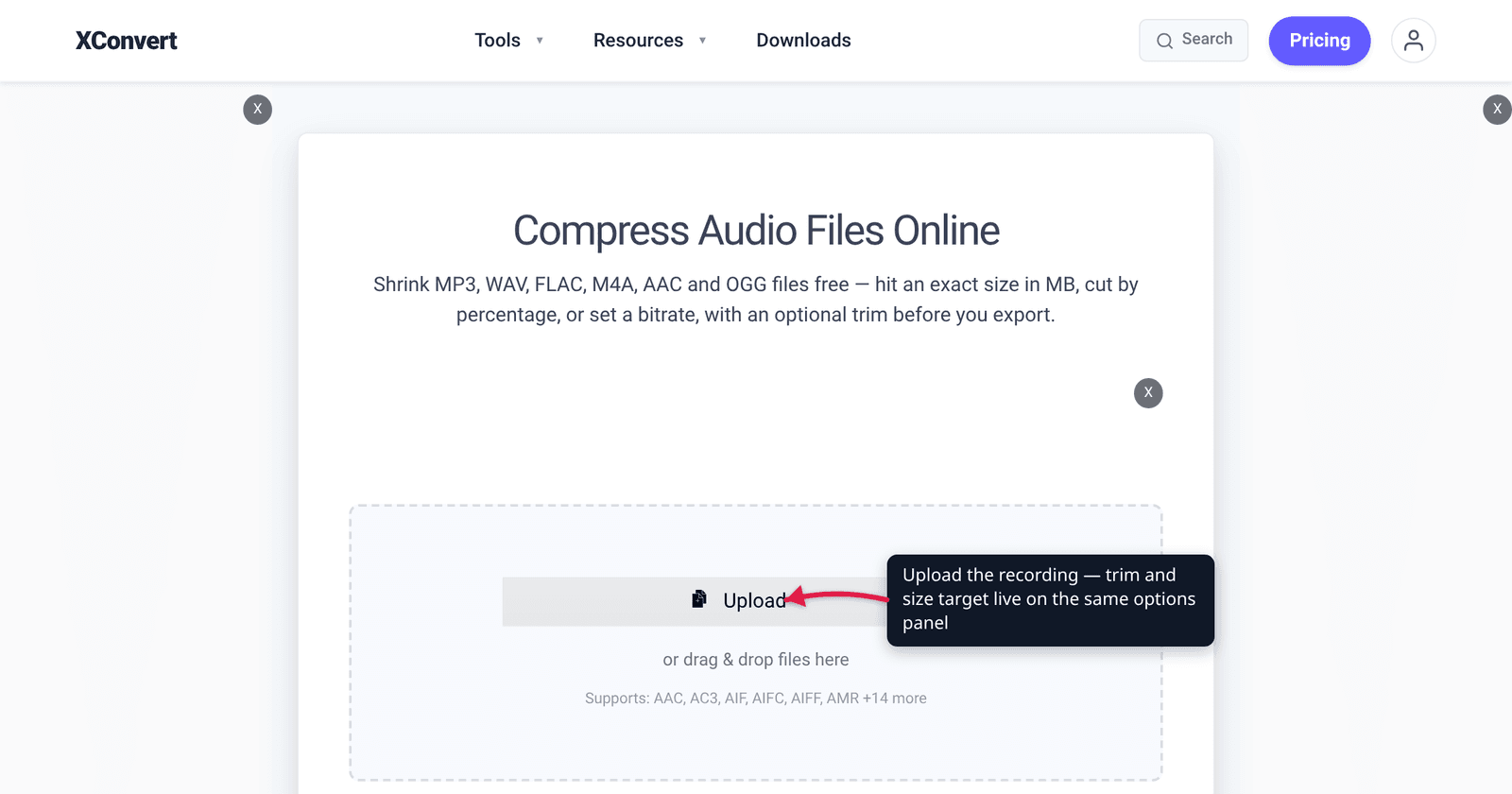
- Click Upload to add your file (from your computer, Google Drive, or Dropbox). MP3, WAV, FLAC, M4A, AAC, OGG, OPUS, WMA and AMR are among the accepted inputs.
- The Advanced Options panel is already on the page — no clicking required. Under Audio File Extension, pick your output — MP3 for universal playback, or OPUS when the destination accepts it and size is the binding constraint.
- Set Audio Channel to
MONOfor anything with one speaker, and optionally drop Audio Sample Rate to16000 HZfor speech. - Under File Compression, choose Specific file size and type your ceiling, picking
MBorKBfrom the unit dropdown beside the field. (The default, File Size Percentage, sits at 80%; Custom Bitrate and Constant Bitrate give you the rate directly.) - Under Trim, switch from
UnchangedtoTrimand fill in Start time and Duration. Each takes plain seconds orHH:MM:SS.sss, chosen from the dropdown beside it. - Click Compress and download. Remember the catch: if you trimmed, either scale the target up or run the two steps as separate jobs.
Files upload over an encrypted connection, are processed on our servers, and are automatically deleted a few hours later. No sign-up, no watermark.
If you only need the cut and not the compression, how to cut or trim an audio file online covers the dedicated trimmer, and how to compress audio to a target size covers the size-targeting side on its own.
FAQ
How do I make an audio file smaller when the bitrate is already as low as it goes?
Work down the list: switch stereo to mono, switch the output format to Opus (Xiph recommends 24 kb/s mono for podcasts, a rate MP3 can’t use well), drop the sample rate to 16000 Hz for speech, and only then trim. If the file is already mono Opus at the codec’s 6 kb/s floor, duration is the only variable left.
Why did my file come out much smaller than the size I asked for?
Almost always because you trimmed in the same pass. The target size is divided by the duration of the file you uploaded, not by the length left after the trim, so a job that keeps a third of the recording produces roughly a third of the target. Either run the trim as a separate job first, or scale your target by original length ÷ kept length.
Can I ask for a bigger file than the one I uploaded?
Not on a compress job — the target is clamped to the source file’s size, since a compression that grows the file isn’t a compression. The encode is also capped at the source’s own bitrate, so requesting 128 kbps for a 32 kbps recording gives you 32 kbps. Both limits stop the tool producing a bigger file that holds no more information.
Is 32 kbps enough for a voice recording?
For mono speech in MP3, 32 kbps is roughly the floor that stays comfortable over a long stretch — thin on sibilants but intelligible. In Opus, 24 kb/s is Xiph’s published recommendation for mono audiobooks and podcasts. If your destination accepts Opus, the codec change buys you more than another notch down the MP3 ladder.
Does trimming re-encode the audio and cost quality?
On the audio compressor, yes — a compress job re-encodes by definition, so the trim rides along with an encode you were doing anyway. If you only want a shorter clip with no quality change, use the dedicated trimmer and keep the output format the same as the input.
Where should I put the cut?
At a natural boundary, not a round number. OpenAI’s chunking guidance says to avoid splitting mid-sentence because it removes context and reduces accuracy — advice that holds whether the listener is a transcription model or a person.
Sources
Last verified 2026-08-31.
- Opus Interactive Audio Codec — opus-codec.org — “Bitrates from 6 kb/s to 510 kb/s”; sampling rates from 8 kHz narrowband to 48 kHz fullband. This page gives the range; the “only supports bitrates down to 6 Kb/s” phrasing quoted above is the Xiph wiki’s, not this one’s.
- Xiph wiki — Opus Recommended Settings — recommended bitrate table (VoIP mono 10-24 kb/s; audiobooks/podcasts mono 24 kb/s, stereo 32 kb/s; music streaming stereo 64-96 kb/s); note that Opus downmixes stereo to mono from roughly 19 kb/s down.
- Gmail Help — Send attachments with your Gmail message — 25 MB attachment limit for personal Gmail accounts; Workspace admins set their own.
- OpenAI — Speech to text guide — Transcriptions API accepts files up to 25 MB; supported inputs mp3, mp4, mpeg, mpga, m4a, wav, webm; guidance to avoid splitting mid-sentence.