 By Stephanie Taylor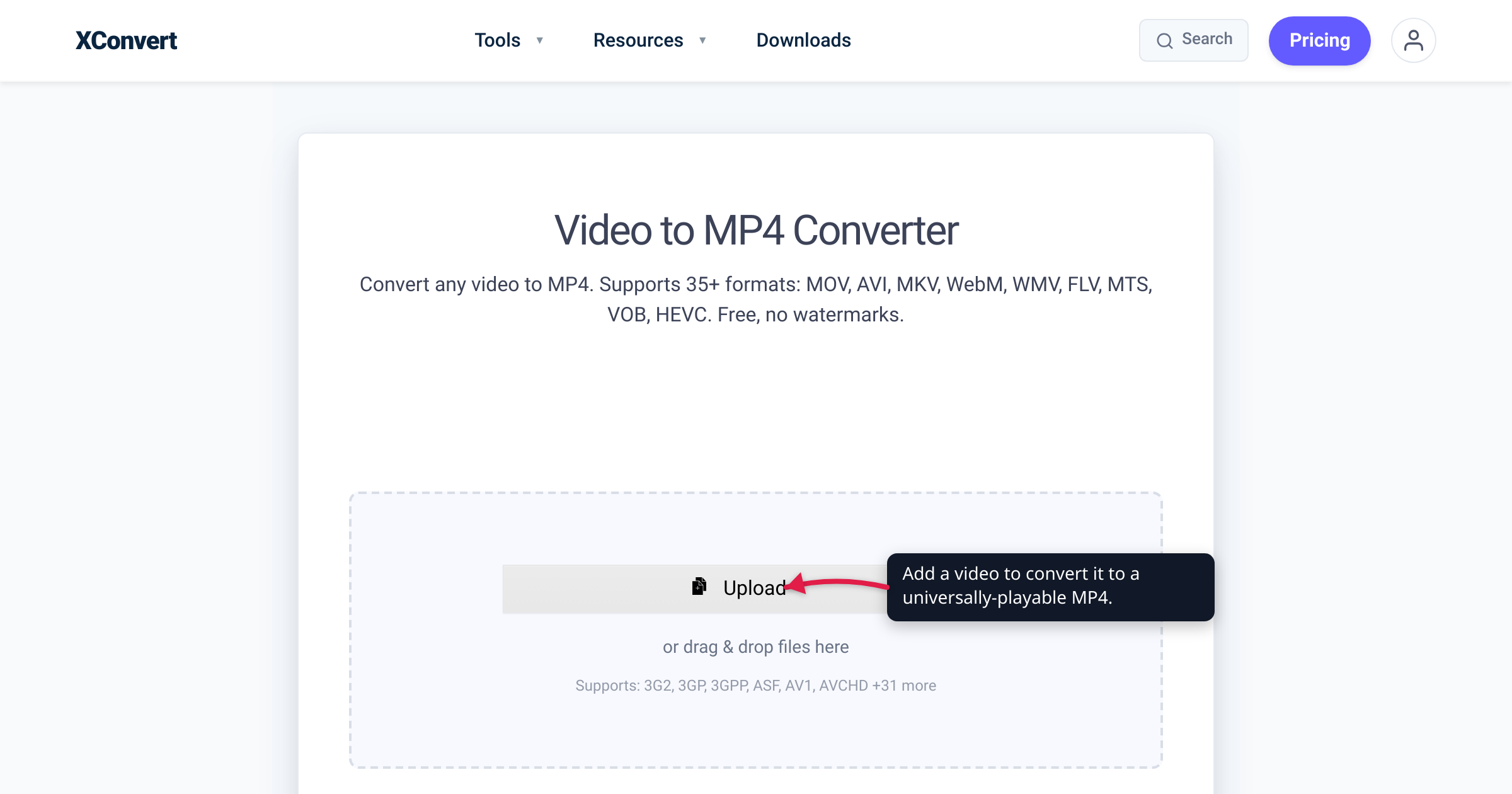
You download a video, double-click it, and Windows throws a “can’t play” error — or shows a black screen with sound. Search the problem and the top answer is the same one it has been for fifteen years: “Install the K-Lite Codec Pack.” Should you? In 2026, almost certainly not. We checked the two claims that decide this — what a modern free player decodes on its own, and what Windows and macOS handle natively — against VideoLAN, Microsoft, and MDN, and the codec-pack era is largely behind us.
Quick answer: Probably not. In 2026 you rarely need a system-wide codec pack like K-Lite or the old CCCP. Install VLC instead — VideoLAN says it “plays most codecs with no codec packs needed” — and it decodes virtually any file on its own. Windows and macOS already play the mainstream H.264 codec natively; on Windows, only HEVC/H.265 needs a one-time Microsoft Store extension. Microsoft itself strongly discourages installing codec packs, warning they can cause conflicts and even “system corruption.” K-Lite from its official site is legitimate — but you seldom need it, and if one stubborn app or editor still can’t read a file, the durable fix is to convert it to MP4 (H.264), the universal format, rather than installing anything system-wide.
Jump to a section
- Codec vs. container: what “install a codec” really means
- Why codec packs existed — and why that era is over
- What Windows and macOS decode on their own
- Are codec packs safe? The honest answer
- The two fixes that actually last: VLC or convert
- Convert to MP4 on xconvert
- FAQ
Codec vs. container: what “install a codec” really means
Almost every “install a codec” problem is really a codec-vs-container confusion. MDN defines a media container as “a file format that encapsulates one or more media streams (such as audio or video) along with metadata.” The extension — .mp4, .mkv, .mov, .avi — names the container, the wrapper. What has to be decoded is the codec of the stream inside it (H.264, HEVC, VP9, AAC, and so on).
That’s why an .mkv plays on one PC and fails on another though both are “the same format”: the container is identical, but the codec inside may not be one your player can decode. So “I need a codec” almost always means “my player can’t decode this particular stream” — not that the file is broken.
A codec is the decoder for one compression format; a codec pack installs many of them system-wide (as DirectShow filters) so every app — the old Windows Media Player especially — can read formats it couldn’t before. That reach is what made packs useful in 2008, and what makes them risky and redundant now.
Why codec packs existed — and why that era is over
Rewind to the Windows Media Player era. WMP shipped with a short, fixed list of decoders and no easy way to add more, so an MKV rip or a newer H.264 profile produced the infamous “Windows Media Player cannot play the file.” Packs like K-Lite, CCCP (the Combined Community Codec Pack), and Shark007’s codecs solved that by installing DirectShow filters at the OS level, so WMP — and everything else — could finally play those files. For its time, a genuinely good fix.
Two things ended that era:
- Modern media players bundle their own decoders. They don’t ask the operating system for a codec at all — they carry one. VLC is the clearest example (next section), and MPC-HC ships the open-source LAV Filters decoders built in, so it too plays common formats without any separate pack.
- Modern operating systems decode the mainstream codecs themselves. The formats that used to require a pack — above all H.264 — now play out of the box on both Windows and macOS.
Together, those gut the pack’s original job. The file that would have sent you to K-Lite in 2010 — an MKV — is the perfect illustration: today VLC just plays it, and if an app is fussy you convert it. (See MKV vs MP4 for why MKV trips up some players in the first place.)
What Windows and macOS decode on their own
Here’s what surprises people who last dealt with this a decade ago: your OS already plays the codec most video uses. Microsoft’s “Codecs in Media Player” documentation lists the formats supported out of the box, and H.264 (AVC) is on it (alongside VC-1, WMV, VP8, and others). H.264 is the codec inside the overwhelming majority of MP4 files, which is why a standard MP4 just plays on a clean Windows install with no pack at all.
| Codec | Windows (native) | macOS (native) | Needs anything? |
|---|---|---|---|
| H.264 / AVC | Yes — out of the box | Yes | No — the universal codec |
| HEVC / H.265 | No | Yes | Windows: a one-time HEVC Video Extension from the Store |
| Exotic/pro codecs (ProRes, etc.) | No | Partial | A capable player (VLC) or converting the file |
The one real gap on Windows is HEVC (H.265) — the codec modern iPhones and many 4K cameras record in. Windows doesn’t decode it natively; Microsoft’s documentation confirms the HEVC Video Extension “Adds support for the HEVC (H.265) video format” and must be installed separately from the Store (the publicly listed version is a low-cost add-on, listed at $0.99). Note what that is and isn’t: a single, official extension for one codec — not a sprawling third-party pack. macOS decodes both H.264 and HEVC natively, so Mac users rarely think about this at all. Either way, neither scenario calls for K-Lite.
Are codec packs safe? The honest answer
Let’s be fair rather than alarmist. K-Lite, from its official site (codecguide.com), is a long-standing, legitimate pack — not malware, and plenty of enthusiasts run it happily. The problem isn’t that it’s malicious; it’s that the whole category is riskier and less necessary than it used to be — and Microsoft says so directly.
Microsoft’s Codecs FAQ “strongly discourage[s]” installing codec packs and recommends removing ones you already have if you’re having trouble. Its reasoning is specific: these packs have “known compatibility issues” that “can trigger serious playback problems in Windows Media Player and other players, cause system corruption, and make it difficult for Microsoft Support to diagnose and troubleshoot playback issues.” Because a pack registers decoders system-wide, one bad filter can break playback for every app at once.
There’s a second, sharper risk that has nothing to do with reputable packs: the fake ones. Search “codec pack” or, worse, “VLC codec pack” and you’ll hit downloads that bundle adware, toolbars, or unwanted software. VideoLAN publishes no codec pack, so any “VLC codec pack” is third-party by definition — VLC needs none.
The honest bottom line: even the trustworthy packs are rarely necessary now — and installing decoders system-wide is more risk than a self-contained player. If you don’t need one, don’t install it.
The two fixes that actually last: VLC or convert
Skip the pack. Two approaches cover essentially every “won’t play” situation, depending on whether you just need to watch the file or need the file itself to work everywhere.
| Fix | Best when | What it does |
|---|---|---|
| Play it in VLC | You just want to watch it now, on your own PC | Plays the file as-is with its own bundled decoders — no system change |
| Convert to MP4 (H.264) | A specific app/editor rejects it, or you’ll share it | Rewrites the file to the universal codec so it plays everywhere, permanently |
Install VLC first. It’s free, open-source, cross-platform, and — in VideoLAN’s own words — “plays most codecs with no codec packs needed — MPEG-2, MPEG-4, H.264, MKV, WebM, WMV, MP3…”. Because it carries its own decoders, installing VLC is the clean alternative to system-wide codecs: one app, no OS-level filters, and it plays the stubborn file immediately.
But VLC only fixes playback in VLC. If a video editor, a specific app, or a website is what can’t read your file — or you’re sending the clip to someone whose device you don’t control — no player on your machine helps them. That’s when you convert the file to MP4 with H.264, the codec every OS, browser, and device already decodes: it replaces the unsupported stream instead of patching each machine that has to open it, which is why it’s the durable answer. (For the very common case of an iPhone .mov that won’t open on a PC, see why won’t my MOV play on Windows.)
Convert to MP4 on xconvert
When a codec pack is the wrong tool — because you want the file to work everywhere, not just on your PC — converting to MP4 (H.264) is the fix that sticks. The xconvert convert-video-to-MP4 tool does it in a few clicks:
- Open xconvert.com/convert-video-to-mp4 and click Upload to add your video (from your computer, Google Drive, or Dropbox).
- The output is MP4, which uses H.264 by default — the one codec Windows, macOS, browsers, and TVs all decode natively — so the standard settings already produce the universally-playable file you want.
- (Optional) Open Advanced Options (the gear icon) to fine-tune. Leave the Quality Preset at Very High (Recommended) to preserve quality, or choose Specific file size if you need it smaller for email.
- Click Convert, then download your MP4. It will now play in Windows Media Player, QuickTime, every modern browser, and virtually any device — no codec pack, no extension, no special player required.
Your file is uploaded over an encrypted connection, is processed on our servers, and is deleted automatically a few hours later — nothing is kept. The result is a plain H.264 MP4 that any player opens, so you never have to think about codec packs again.
FAQ
Do I really need to install a codec pack in 2026?
For almost everyone, no. Install VLC — its makers state it plays most codecs “with no codec packs needed” — and it decodes virtually any file on its own. Windows and macOS already play mainstream H.264 natively, so standard MP4s need nothing. Reach for a conversion, not a codec pack, if one specific app still can’t read the file.
Is the K-Lite Codec Pack safe?
K-Lite from its official site (codecguide.com) is legitimate — it isn’t malware. But Microsoft strongly discourages system-wide codec packs generally (warning they can cause serious playback problems and “system corruption”), and fake “codec packs” and “VLC codec packs” in search results often bundle adware. Since a modern player or a quick conversion covers most needs, you rarely need any pack at all.
Does VLC need codecs installed to play files?
No. VideoLAN says VLC “plays most codecs with no codec packs needed,” among them MPEG-2, MPEG-4, H.264, MKV, WebM, WMV, and MP3. It carries its own decoders instead of relying on system-wide codecs — which is exactly why installing VLC is the clean alternative to a codec pack.
Does Windows 11 need a codec pack to play videos?
Not for mainstream video. Microsoft’s own documentation lists H.264 (AVC) as supported out of the box, so ordinary MP4s just play. The single common gap is HEVC/H.265, which needs a one-time HEVC Video Extension from the Microsoft Store (listed at $0.99) — one targeted, official extension, not a sprawling third-party pack.
What’s the difference between a codec and a codec pack?
A codec is the decoder for a single compression format (like H.264 or HEVC). A codec pack bundles many decoders and installs them system-wide so every app can use them. Modern players bundle their own decoders and modern operating systems decode the popular codecs themselves, which makes the system-wide pack mostly redundant — and, per Microsoft, prone to conflicts.
My video won’t play in any player — now what?
That points to a genuinely unsupported or pro-grade codec, or a partly corrupt download. Re-download it first. If it still won’t open, convert it to MP4 (H.264) — that replaces the unsupported stream with the universal one every player and device understands, and it fixes the file for anyone you send it to, not just your own PC.
Sources
Last verified 2026-07-16.
- VideoLAN — VLC media player — VLC is a free, open-source, cross-platform player that “plays most multimedia files…”; it “plays most codecs with no codec packs needed — MPEG-2, MPEG-4, H.264, MKV, WebM, WMV, MP3…”.
- Microsoft Support — Codecs FAQ — Microsoft “strongly discourage[s]” installing codec packs, citing “serious playback problems,” conflicts, and “system corruption”; advises installing codecs only from trusted official sources.
- Microsoft Support — Codecs in Media Player — H.264 (AVC) is supported out of the box on Windows; the HEVC Video Extension “Adds support for the HEVC (H.265) video format” and installs separately from the Store.
- Microsoft Store — HEVC Video Extensions — the publicly listed HEVC extension for native HEVC/H.265 playback on Windows, listed at $0.99.
- MDN — Media container formats — a media container “encapsulates one or more media streams… along with metadata”; the container format is distinct from the audio/video codecs stored inside it.