 By Stephanie Taylor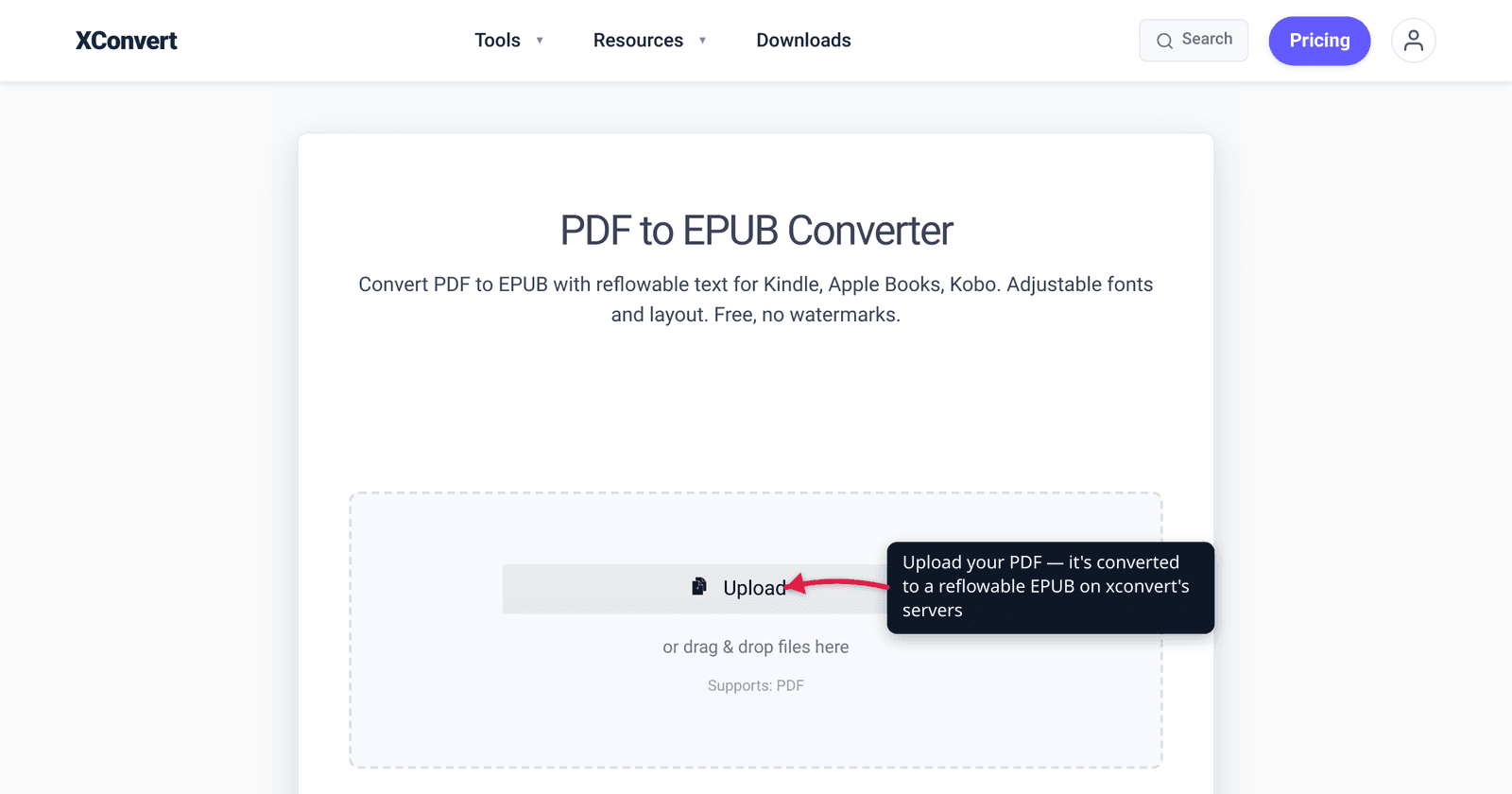
You bought (or downloaded) a PDF, loaded it onto your Kindle or Kobo, and the page is a postage-stamp of frozen text you have to pinch-zoom across line by line. That’s because a PDF is a fixed-layout document — every word is nailed to a coordinate on a printed-size page — while e-readers want reflowable text that re-wraps to the screen, font size, and orientation you choose. Converting PDF to EPUB (or MOBI) reflows the text so it actually behaves like a book. The catch, which most “convert in one click” pages won’t tell you, is that the result is only as good as the source PDF: a clean text-based PDF converts beautifully, while a scanned or complex multi-column PDF often comes out jumbled. We verified the formats, the current Kindle situation, and the conversion gotchas against the W3C EPUB spec and Amazon’s own support pages.
Quick answer: Convert to EPUB for almost every e-reader — it’s the open, W3C-standard reflowable ebook format that Kobo, Apple Books, Google Play Books, and modern Kindles all read. MOBI is Amazon’s older, now-retired format; Amazon stopped accepting MOBI uploads and stopped letting you send MOBI to a Kindle, so for a new Kindle file you want EPUB, which Amazon’s Send to Kindle converts for you. Conversion quality depends on the PDF: a text-based PDF reflows cleanly; a scanned or multi-column PDF often reflows badly. xconvert outputs EPUB and MOBI on separate tools.
Jump to a section
- Why PDF doesn’t reflow and EPUB/MOBI do
- EPUB vs MOBI: which format do you actually want?
- Will the conversion look good? It depends on the PDF
- Getting the file onto your e-reader
- Convert a PDF to EPUB or MOBI on xconvert
- FAQ
Why PDF doesn’t reflow and EPUB/MOBI do
A PDF describes a page the way a printer sees it: this glyph at these x/y coordinates, this image in that box, on a page of fixed physical dimensions. That’s perfect for printing and for documents that must look identical everywhere — and it’s exactly why PDFs are miserable on a 6-inch e-ink screen. There’s no “make the text bigger” that doesn’t also make you scroll sideways, because the layout can’t move.
EPUB and MOBI are the opposite. Under the hood, an EPUB file is essentially a ZIP archive of web files — XHTML for the content, CSS for styling, plus images, fonts, and metadata — which is why its text reflows to fit any screen, font size, or orientation, the same way a web page does. The W3C, which now maintains the standard, calls reflowable content the default EPUB layout model: it “automatically adjusts to fit available screen space.”
So “convert PDF to EPUB/MOBI” doesn’t just change a file extension — it re-interprets a fixed page into flowing text. When it works, you get a real book: adjustable fonts, working table of contents, no sideways scrolling. When the source fights it, you get the jumble we cover below.
EPUB vs MOBI: which format do you actually want?
For almost everyone in 2026, the answer is EPUB.
EPUB is the open, vendor-neutral ebook standard. It became an official standard of the International Digital Publishing Forum (IDPF) in 2007; the IDPF merged into the W3C in 2017, and the current specification, EPUB 3.3, became a W3C Recommendation on 25 May 2023 (with a maintenance update in 2025). Practically every e-reader except very old Kindles reads EPUB natively — Kobo, Apple Books, Google Play Books, Nook, and the major reading apps.
MOBI is the older format originally from Mobipocket, which Amazon adopted for early Kindles. It is being actively retired:
| EPUB | MOBI | |
|---|---|---|
| Standard owner | Open standard, maintained by W3C | Proprietary (Mobipocket → Amazon), now legacy |
| Read by Kobo / Apple Books / Google Play / Nook | Yes, natively | No |
| Kindle (modern) | Yes — Amazon converts EPUB on import | Old files still readable, but not for new sends |
| Amazon publishing (KDP) uploads | Accepted (EPUB, DOCX, KPF) | No longer accepted (reflowable since Aug 2021; all MOBI since 18 Mar 2025) |
| Send to Kindle (personal docs) | Supported | No longer accepted (since December 2023) |
| Best use today | Default for all e-readers | Only if a specific old device requires it |
The headline: Amazon itself has moved off MOBI. It stopped accepting MOBI for new publishing uploads, and it stopped letting you send MOBI files to your Kindle library via Send to Kindle in December 2023 — Amazon’s note is blunt that “MOBI is an older file format and won’t support the newest Kindle features for documents.” MOBI files you already have still open, but it’s a dead-end format for anything new. The only reason to still pick MOBI is a specific older e-reader or workflow that requires it; otherwise choose EPUB — including for Kindle, since Amazon now wants EPUB and converts it on its end (see getting it onto your e-reader).
Will the conversion look good? It depends on the PDF
This is the honest part that one-click converters skip. Because reflowing a fixed page means guessing the document’s structure — what’s a heading, what’s a paragraph, where an image belongs, what reading order the columns follow — the output quality tracks the input closely.
Converts well — text-based PDFs. If your PDF was generated from text (exported from Word, a typesetting tool, or a born-digital ebook/article), the text is real, selectable characters in a sensible order. Single-column novels, reports, and articles reflow cleanly into EPUB: real paragraphs, working font scaling, usually a usable table of contents.
Converts badly — scanned or image PDFs. If the PDF is scanned pages (the “text” is actually a photo of text, with no text layer), a straight conversion gives you a stack of images, not reflowable text — there’s nothing to reflow. To get a real ebook you first need OCR (optical character recognition) to turn the picture of words back into actual words, and OCR accuracy depends on scan quality. If your scanned PDF is also bloated, our guide on why scanned PDFs get so big explains what’s going on.
Converts unpredictably — complex layouts. Multi-column pages, text boxes, footnotes, sidebars, headers/footers, and heavy tables are the hard cases. When a two-column academic page is flattened into single-column reflow, the converter has to guess the reading order, and columns can interleave, paragraphs can run together, and tables can break apart. Magazine-style or design-heavy PDFs are the worst offenders.
The realistic expectation: a clean, single-column, text-based PDF → a genuinely good EPUB. A scanned or multi-column PDF → expect to clean it up, or accept imperfect formatting. No converter — ours or anyone’s — can perfectly rebuild semantic structure that the PDF never recorded. If formatting must be pixel-perfect, you may be better off just reading the PDF as-is, or keeping a PDF copy alongside the EPUB.
Getting the file onto your e-reader
Once you have an EPUB:
- Kobo, Nook, Apple Books, Google Play Books: EPUB is the native format. Transfer via USB, the device’s app, or the cloud library — no conversion needed.
- Kindle: Use Send to Kindle (web, the email-to-Kindle address, or the desktop/mobile apps). Amazon’s supported personal-document types include PDF, EPUB, DOCX, DOC, RTF, TXT, HTM/HTML and common image types — and Amazon converts the EPUB to its own Kindle format on import, so you don’t need MOBI or AZW3. Send to Kindle for Web accepts files up to 200 MB, per Amazon.
A useful nuance: you can email a PDF straight to your Kindle and skip conversion — but you’ll get the fixed-layout reading experience (tiny text, limited reflow). Converting to EPUB first is what gives you adjustable fonts and proper reflow on the device. (If the issue is just getting a big PDF off your computer and to someone, see how to email a large PDF file.)
Convert a PDF to EPUB or MOBI on xconvert
xconvert has a dedicated tool for each output. For an e-reader, use the EPUB one unless you specifically need MOBI:
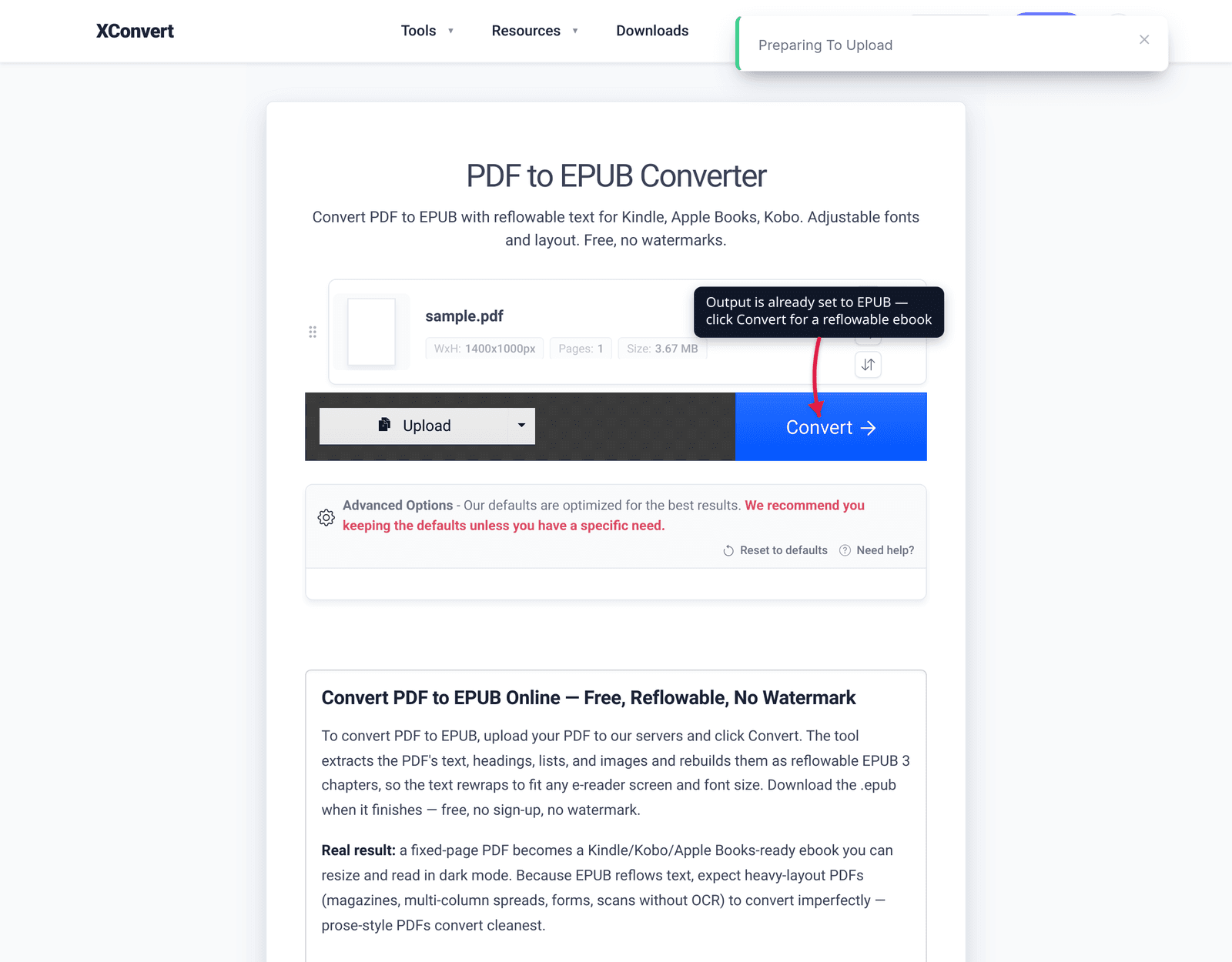
- Open the xconvert PDF to EPUB converter (or the PDF to MOBI converter if you need MOBI).
- Click + Add Files and choose your PDF — from your Computer, Google Drive, or Dropbox.
- The output format is already set (EPUB on the EPUB tool, MOBI on the MOBI tool). You can leave Advanced Options alone — the page notes the defaults are optimized for best results — or open the gear to adjust them.
- Click Convert, then download your ebook. The result is a reflowable file with text, headings, basic styling, lists, and embedded images.
- Side-load it onto your e-reader, or for Kindle send the EPUB through Send to Kindle and let Amazon convert it.
Your PDF is uploaded over an encrypted connection, converted on our servers, and deleted automatically a few hours later — nothing is kept. For the best output, start from a clean text-based PDF; if yours is scanned, expect to OCR or tidy it up first.
FAQ
Is EPUB or MOBI better for Kindle?
EPUB. Amazon retired MOBI: it stopped accepting MOBI for publishing and stopped letting you send MOBI to a Kindle via Send to Kindle in December 2023. Send Amazon an EPUB (or PDF/DOCX) and it converts the file to its own Kindle format on import. MOBI files you already have still open, but don’t make new ones.
Why does my PDF look messy after converting to EPUB?
Because the converter has to guess your document’s structure from a fixed-layout page. Scanned (image) PDFs have no real text to reflow and need OCR first; multi-column, footnoted, or design-heavy PDFs can come out with interleaved columns and run-together paragraphs. A clean, single-column, text-based PDF is what reflows cleanly.
Can I read a PDF on a Kindle without converting it?
Yes — Send to Kindle accepts PDF directly. But you’ll get the fixed-layout experience: small text, limited reflow, and sideways scrolling on a small screen. Converting to EPUB first gives you adjustable fonts and proper reflow, which is the whole point of an e-reader.
What’s the difference between EPUB and PDF?
PDF is fixed-layout — every element is locked to a coordinate on a print-size page, so it looks identical everywhere but can’t reflow. EPUB is reflowable — it’s built from XHTML and CSS (like a web page) and re-wraps text to any screen size, font, and orientation. EPUB is made for reading; PDF is made for printing.
Does converting a scanned PDF to EPUB work?
Not well, on its own. A scanned PDF is images of pages, so a direct conversion gives you pictures, not reflowable text. You first need OCR to recognize the text; the resulting accuracy depends on the scan quality. A born-digital (text-based) PDF doesn’t have this problem.
Is MOBI still supported anywhere?
MOBI files you already own still open on Kindle, but Amazon no longer accepts MOBI for new publishing uploads (reflowable since August 2021; all MOBI since March 18, 2025) and no longer lets you send MOBI via Send to Kindle. For anything new, use EPUB.
Will my table of contents and images carry over?
Usually yes for a clean text-based PDF — the conversion produces a reflowable ebook with text, headings, basic styling, lists, and embedded images, and can often build a working table of contents. Complex or scanned PDFs are where TOC detection and image placement get unreliable.
Sources
Last verified 2026-06-25.
- W3C — EPUB 3.3 (Recommendation, 25 May 2023) — current EPUB spec; reflowable as the default layout model; W3C now maintains the standard.
- W3C News — EPUB 3.3 becomes a W3C Recommendation — confirms the 25 May 2023 Recommendation date.
- Amazon KDP — MOBI Support for Reflowable eBooks FAQ — Amazon stopped accepting MOBI uploads (reflowable Aug 1 2021; all MOBI Mar 18 2025); recommends EPUB/DOCX/KPF.
- Amazon — Send PDF, EPUB and Other Files to Your Kindle — supported personal-document types (PDF, EPUB, DOCX, etc.); MOBI no longer accepted via Send to Kindle (since December 2023); 200 MB Send-to-Kindle-for-Web limit.
- Wikipedia — EPUB — EPUB as a ZIP of XHTML/CSS, IDPF→W3C history (cross-referenced against the W3C primary sources above).