 By James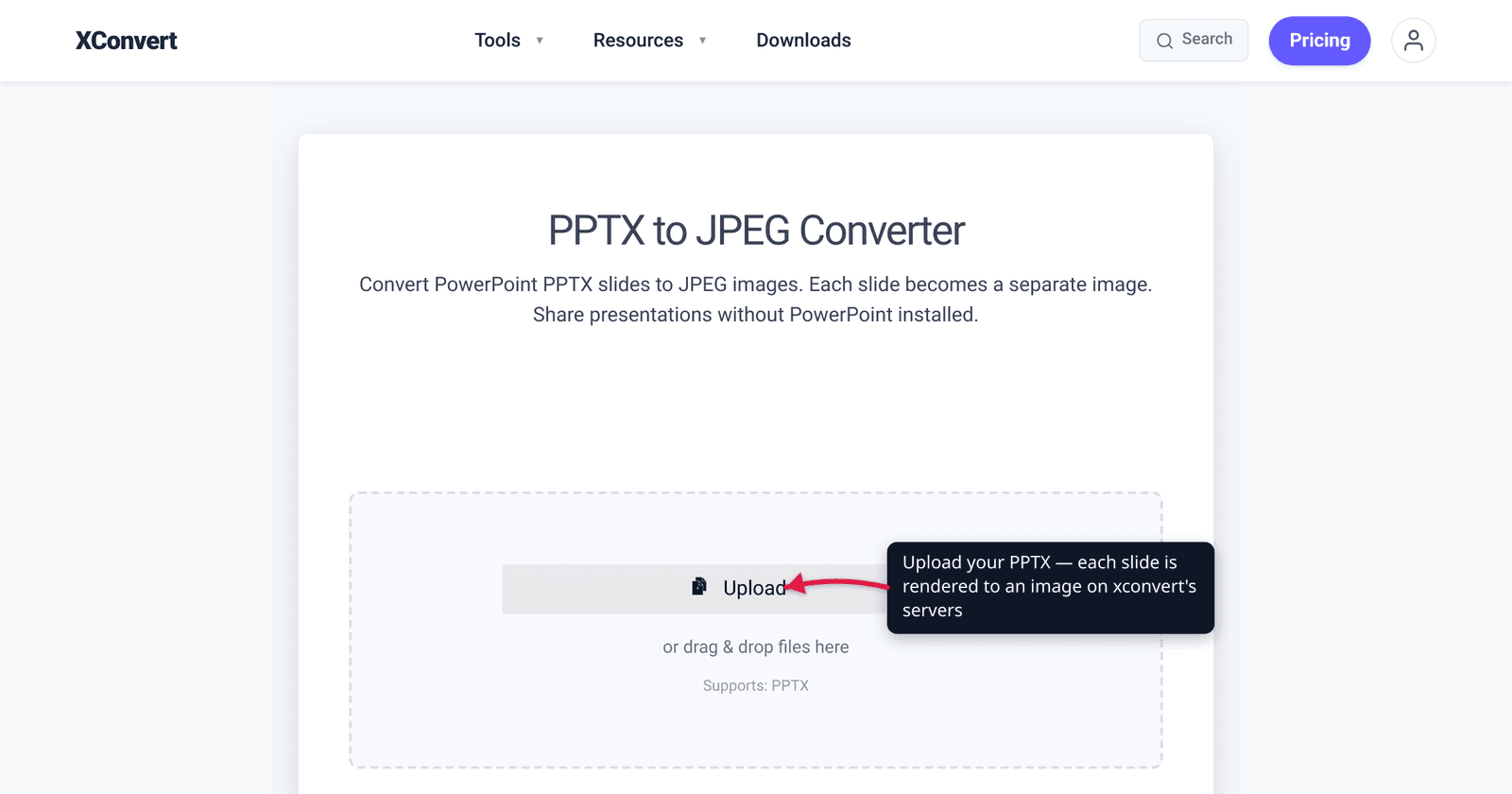
You built a deck in PowerPoint, but now you need the slides as plain images — to embed a key slide on a web page, drop a chart into an email that renders without an attachment, post a slide to social, or build a row of thumbnails. Exporting each slide as its own JPEG or PNG is the cleanest way to do it, and it works even for people who don’t have PowerPoint installed. This guide explains exactly what you get (one image per slide), what you lose (animations, transitions, speaker notes), and the one choice that actually matters for slides: JPEG or PNG. We verified the export behavior against Microsoft’s own documentation and the format tradeoffs against MDN.
Quick answer: Converting a .pptx produces one image per slide — a 12-slide deck becomes 12 separate image files. For slides, PNG is usually the better pick: it’s lossless and keeps text and chart edges crisp, and supports transparency. Choose JPEG only when you want the smallest files and the slides are photo-heavy. Either way, the export is a static snapshot — animations, transitions, and speaker notes are not carried over. On xconvert you can download the slides individually or grab the whole deck as a ZIP.
Jump to a section
- What “PPTX to images” actually does
- JPEG or PNG? The only choice that matters for slides
- What you lose: animations, transitions, and notes
- Resolution: getting sharp, usable images
- Convert PPTX to JPEG or PNG on xconvert
- FAQ
What “PPTX to images” actually does
A PowerPoint file is a container — multiple slides, plus animations, transitions, embedded objects, and speaker notes, all bundled together. Converting it “to images” renders each slide as its own flat picture file, one image per slide. This is the same thing PowerPoint itself does when you go File → Export → Change File Type → JPEG/PNG and choose All Slides — Microsoft’s documentation states plainly that this option saves “each slide in your presentation as an image. Each slide will be saved as a separate file.”
So a 12-slide deck gives you 12 image files. There is no way to put a multi-slide deck into a single JPEG or PNG, because those are single-image formats — if you need all slides in one file, that’s a PDF, not an image. On xconvert’s PPTX-to-JPEG converter you get every slide as a numbered image, and you can download them one at a time or as a single ZIP of the whole deck.
Why people do this instead of sharing the .pptx:
- Embedding a slide on a web page or in an email — an image renders inline everywhere; a
.pptxattachment doesn’t. - Sharing with people who don’t have PowerPoint — an image opens on any device, no Office, no Google Slides.
- Thumbnails and previews — a grid of slide images for a portfolio, a course page, or a “preview the deck” gallery.
- Locking the design — an image can’t be accidentally edited or reflowed the way an editable file can.
JPEG or PNG? The only choice that matters for slides
This is the one decision that affects how your slides look. The two formats compress in fundamentally different ways, and slides — which are mostly text, charts, logos, and sharp graphics — favor one of them.
| PNG | JPEG | |
|---|---|---|
| Compression | Lossless — no quality thrown away | Lossy — discards detail to shrink the file |
| Text & chart edges | Stays crisp | Can blur or show halos around edges |
| Transparency | Supported (alpha channel) | Not supported — fills with a solid background |
| File size | Larger | Smaller |
| Best for | Slides with text, charts, diagrams, screenshots | Photo-heavy slides where size matters most |
MDN’s image-format guide is direct on this: JPEG’s lossy compression is “particularly useful for photographs,” but “applying lossy compression to content requiring sharpness, like diagrams or charts, can produce unsatisfactory results.” For anything with text, MDN recommends a lossless format because “text easily becomes fuzzy and unclear under lossy compression. PNG is probably your best bet.” JPEG also flatly “does not support an alpha channel” — so a slide with a transparent or non-white background gets a solid fill in JPEG.
The practical rule for slides:
- Pick PNG when the slides are mostly text, tables, charts, logos, or line art — i.e. most business and academic decks. The edges stay sharp and the type stays readable.
- Pick JPEG when the slides are dominated by full-bleed photography and you specifically want the smallest possible files (for example, lots of slides going into an email or a size-limited upload). Use a high quality setting to limit the visible artifacts.
If you’re not sure, start with PNG — sharpness on text and graphics is what slides are made of. xconvert offers both: a PPTX-to-PNG converter and a PPTX-to-JPEG converter.
What you lose: animations, transitions, and notes
An image is a static snapshot of how the slide looks, so anything that isn’t part of that final still picture is dropped:
- Animations (objects that fly in, build, or reveal on click) — flattened to their end state.
- Slide transitions (the effect between slides) — gone; there’s nothing between two separate images to animate.
- Speaker notes — not part of the slide canvas, so they aren’t captured.
- Embedded video/audio and interactive elements — reduced to whatever poster frame or static placeholder is on the slide.
This isn’t a limitation of any one converter — it’s inherent to images. A JPEG or PNG can only store the visual appearance of one frame, not the presentation metadata. If you need to preserve motion or narration, an image export is the wrong target: convert the deck to video (which can play transitions and narrate notes) or keep the original .pptx. If you just need the content in one shareable, scrollable document, a PDF keeps all slides in a single file and stays selectable. But for embedding, thumbnails, and “just show me the slide,” static images are exactly right.
Resolution: getting sharp, usable images
Because the output is a raster image, resolution determines how sharp it is — and unlike the original vector-ish slide, you can’t zoom in past the rendered pixels without blur. A slide exported small and then blown up to fill a screen will look soft.
A good habit: render at the size you’ll actually display, or a little larger. On xconvert’s converter, Advanced Options exposes the controls that govern this:
- Quality Preset (defaults to Very High (Recommended)) — leave it high; this is the rendering quality, not a reason to shrink.
- Resolution Percentage with a Keep original option, plus Preset Resolutions, and explicit Width / Height fields (with Keep aspect ratio) — use these to target the exact pixel dimensions you need (e.g. matching a web column or a thumbnail grid).
If the images come out fuzzy, the usual cause is exporting too small and scaling up afterward, or — on the JPEG path — over-compressing text. Bump the resolution, and switch text-heavy slides to PNG. (For a deeper look at why lossy re-saving softens text, see why your JPEG looks blurry after saving.)
Convert PPTX to JPEG or PNG on xconvert
Use the xconvert PPTX-to-JPEG converter for JPEG output, or the PPTX-to-PNG converter for crisp, lossless PNGs. The steps are the same on both:
- Open the converter and click Upload (the Add files button) to add your
.pptx— From my Computer, From Google Drive, or From Dropbox. - Open Advanced Options (the gear icon) to reveal the settings.
- Confirm the File extension — JPEG/JPG on the JPEG tool, PNG on the PNG tool. (Pick PNG for text- and chart-heavy slides; JPEG for photo-heavy decks where size matters.)
- Set the image size under Resolution Percentage / Preset Resolutions, or type exact Width / Height values with Keep aspect ratio on. Leave Quality Preset at Very High (Recommended).
- Click Convert. Each slide is rendered as its own image, named with a slide index.
- Download the images individually, or grab the whole deck as a single ZIP.
Your file uploads over an encrypted connection, is processed on our servers, and is automatically deleted a few hours later. Nothing stays around.
Need all the slides in one shareable file instead of separate images? That’s a job for PDF — see convert PDF to JPG without losing quality for the reverse trip.
FAQ
Does converting a PPTX make one image per slide or one big image?
One image per slide. A 12-slide deck becomes 12 separate image files — this matches PowerPoint’s own All Slides export, which “saves each slide in your presentation as an image.” JPEG and PNG are single-image formats, so a multi-slide deck cannot be packed into one image. On xconvert you can download the slides individually or as a single ZIP of the whole deck.
Should I convert PowerPoint to JPEG or PNG?
For most slides, PNG — it’s lossless, so text, charts, and logos stay crisp, and it supports transparency. MDN notes that lossy JPEG compression on “diagrams or charts” can “produce unsatisfactory results,” and recommends PNG when there’s text. Choose JPEG only when slides are photo-heavy and you want the smallest files; keep the quality high to limit artifacts.
Will my animations and transitions survive the conversion?
No. An image is a static snapshot of the slide’s final appearance, so animations, transitions, embedded video, and speaker notes are dropped. If you need motion or narration preserved, convert the deck to video instead, or keep the original .pptx. For a single scrollable file with all slides, use PDF.
Why do my slide images look blurry?
Usually because they were rendered too small and then scaled up — raster images can’t gain detail past their pixels — or because text was over-compressed in JPEG. Export at the resolution you’ll actually display (use the Width/Height fields), keep the Quality Preset high, and switch text-heavy slides to PNG for sharp edges.
Can I convert PPTX to images without PowerPoint installed?
Yes. An online converter renders the slides on a server, so you don’t need PowerPoint, Office, or any app installed. Upload the .pptx, pick JPEG or PNG, and download the images — that’s also exactly why image export is handy for sharing slides with people who don’t have PowerPoint.
Does the converter keep the original slide layout and fonts?
It renders each slide as it appears, so the visual layout is preserved as a flat image — text positions, colors, and graphics match what you’d see on screen. Because it’s a picture, the text is no longer editable or selectable; if you need editable text or selectable copy, keep the .pptx or export to PDF rather than to images.
Sources
Last verified 2026-06-25.
- Microsoft Support — Save a slide as an image — confirms All Slides export “saves each slide … as a separate file”; lists JPEG/PNG/GIF/SVG (Windows) and JPEG/TIFF/PNG/BMP (macOS).
- MDN — Image file type and format guide — JPEG is lossy and weak on “diagrams or charts” and text; PNG is lossless with full alpha transparency and is the recommended choice for text/screenshots.
- xconvert — PPTX to JPEG converter — live UI labels (Upload/Add files, Advanced Options, Quality Preset, Resolution controls), one image per slide, individual or ZIP download.
- xconvert — PPTX to PNG converter — PNG output, one PNG per slide; PNG is a single-image format so slides can’t be bundled into one PNG.