 By Stephanie Taylor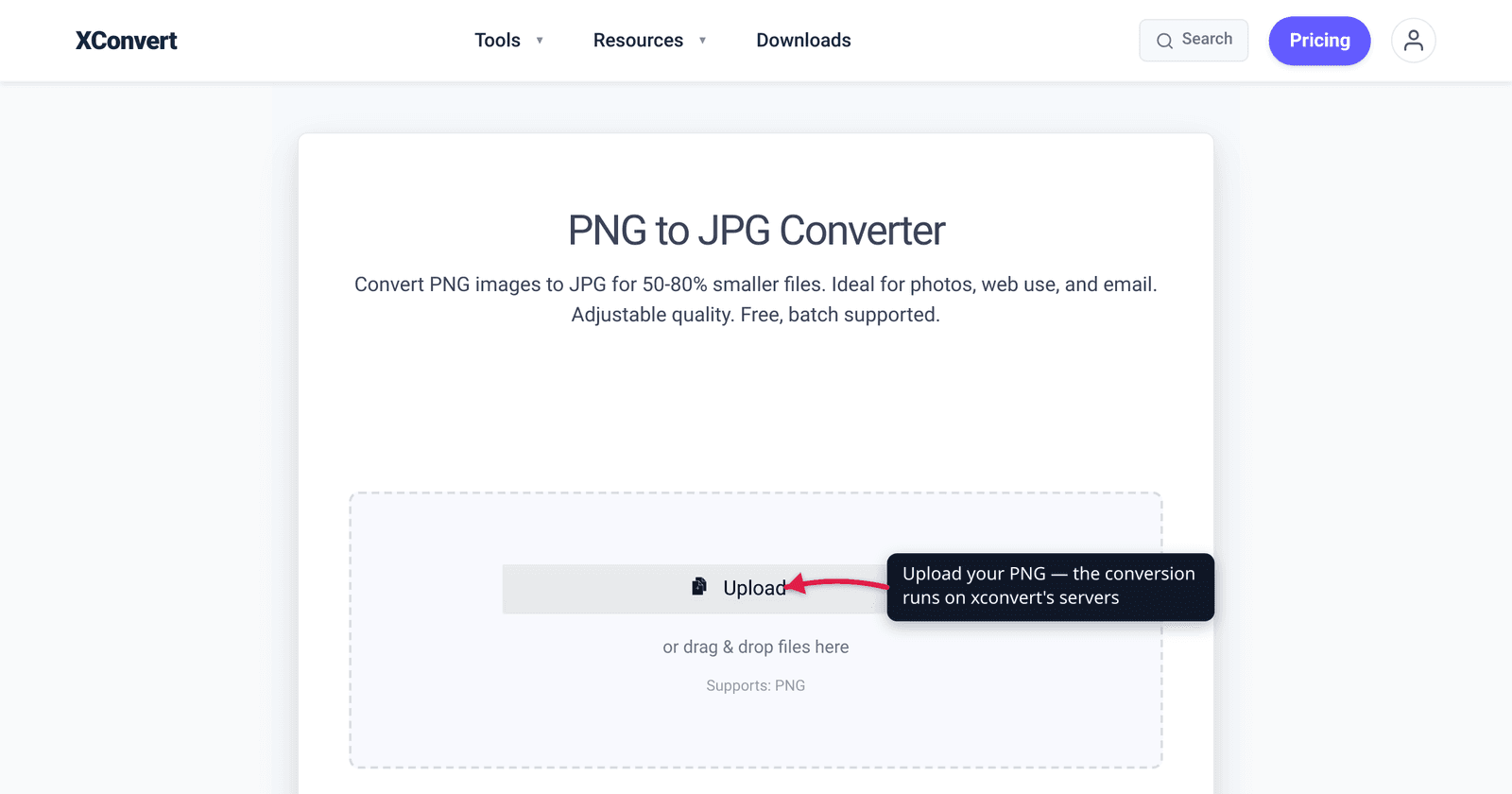
You exported a chart as PNG and the file is 8 MB; the same image as JPG would be a few hundred kilobytes. Converting PNG to JPG is the right call for photos and large detailed images — it can shrink them by 5–10×. But JPG throws away two things PNG keeps: transparency and pixel-perfect sharp edges. Convert the wrong image and your logo’s transparent background turns solid white, and the text in your screenshot grows fuzzy halos. This guide shows you how to convert PNG to JPG correctly — and, just as important, when you shouldn’t. We verified the format facts against MDN.
Quick answer: Convert photographs and large, detailed PNGs to JPG to save space — JPG is a lossy format that makes photos dramatically smaller. Don’t convert logos, icons, screenshots, or anything with transparency or sharp text/line art: JPG has no transparency (transparent areas become a solid background, usually white) and its lossy compression adds visible artifacts around crisp edges. When in doubt about a graphic, keep the PNG.
Jump to a section
- PNG vs JPG: what actually changes
- When to convert PNG to JPG
- When you should NOT convert
- What happens to transparency
- Convert PNG to JPG on xconvert
- FAQ
PNG vs JPG: what actually changes
PNG and JPG are both image formats, but they compress in opposite ways, and that single difference drives every decision here.
- PNG uses lossless compression. Per MDN, the PNG format “uses lossless compression” and features “full alpha transparency support.” Nothing is discarded — every pixel comes back exactly as you saved it — and it can store a transparent (alpha) channel. That fidelity is why PNG files are larger, and why PNG is “preferred over JPEG for more precise reproduction of source images, or when transparency is needed.”
- JPG (JPEG) uses lossy compression. MDN calls it “the most widely used lossy compression format for still images.” To shrink the file, the encoder permanently discards image data the eye is least likely to miss. Crucially, “JPEG does not support an alpha channel” — there is no transparency in a JPG, ever.
So converting PNG → JPG is a trade: you give up losslessness and transparency in exchange for a much smaller file. For a photograph, that’s a great deal. For a logo or a screenshot, it’s usually a bad one. The rest of this guide is just applying that trade correctly.
| PNG | JPG (JPEG) | |
|---|---|---|
| Compression | Lossless (no data lost) | Lossy (data permanently discarded) |
| Transparency | Yes — full alpha channel | No — none, ever |
| Best for | Logos, icons, screenshots, text, line art | Photographs, large detailed images |
| File size | Larger | Much smaller |
| Re-saving | Safe to re-save repeatedly | Quality degrades each lossy save |
When to convert PNG to JPG
Convert PNG → JPG when the image is photographic and you care about size. JPG was designed for exactly this case — continuous-tone images full of smooth gradients and subtle color, where the eye won’t notice the data the encoder drops.
Good candidates:
- Photos saved as PNG. A screenshot tool, a phone, or an editor sometimes hands you a photo in PNG. Re-saving it as JPG can cut the size 5–10× with no visible difference at a sensible quality setting.
- Large detailed images headed for email or the web, where the PNG is too heavy to attach or load quickly.
- Anything with no transparency and no crisp text or hard edges — a textured background, a scenic image, artwork without flat blocks of a single color.
At a high quality level (commonly the 85–95 range), the JPG version of a photo is usually indistinguishable from the PNG to the naked eye, while being a fraction of the size. That’s the whole reason the format exists.
When you should NOT convert
This is the part most “PNG to JPG” guides skip. JPG’s lossy compression and lack of transparency make it the wrong format for several common image types. Convert these and you’ll visibly damage them.
Don’t convert to JPG if the image has:
- Transparency. A logo, badge, sticker, or any cut-out PNG with a transparent background will lose it — the transparent area becomes a solid color (usually white). See what happens to transparency below.
- Sharp text or line art. JPG’s compression produces faint “halo” and blocky artifacts around hard edges. On a paragraph of text, a chart with thin lines, or a diagram, those artifacts are visible — the text looks fuzzy or fringed. PNG (lossless) keeps edges crisp. MDN specifically prefers PNG for “precise reproduction.”
- Screenshots. Most screenshots are UI: text, buttons, flat color regions, thin borders — exactly what JPG handles worst. Keep screenshots as PNG (or use them as-is).
- Icons and flat-color graphics. Few colors, hard edges, often transparency — all PNG’s strengths and JPG’s weaknesses.
- A master/original you’ll edit again. Every lossy JPG save discards a little more. For a working file, keep the lossless PNG and export a JPG only at the end.
Rule of thumb: photo → JPG is fine; graphic → JPG is usually a mistake. If the image is a logo, screenshot, icon, or has see-through areas, keep it as PNG — or, for the web, consider WebP, which keeps transparency and gets small. See PNG vs WebP vs JPG for that decision.
What happens to transparency
Because JPG has no alpha channel, the converter has to do something with the transparent pixels in your PNG — and the only option is to fill them with a solid color. By default that color is white: transparent areas are composited against a white background.
The practical consequences:
- A logo that looked clean on any page now sits on a white rectangle. Drop it on a dark website and the white box is glaringly obvious.
- A drop shadow or soft, semi-transparent edge gets blended into the fill color and can pick up a faint fringe.
- There’s no undo at the format level — once it’s a JPG, the transparency is gone. You’d have to go back to the original PNG.
If you genuinely need a smaller file and transparency, JPG can’t give you both. The right move is to keep the PNG, or convert to WebP, which is lossy-capable like JPG but, unlike JPG, supports transparency. Only convert a transparent PNG to JPG when you actually want a solid background — for example, flattening an image for a system that requires JPG.
Convert PNG to JPG on xconvert
The xconvert PNG to JPG converter does the conversion and lets you control the quality so you can keep photos crisp while still shrinking them:
- Open xconvert.com/convert-png-to-jpg and click + Add Files to upload your PNG (from your computer, Google Drive, or Dropbox).
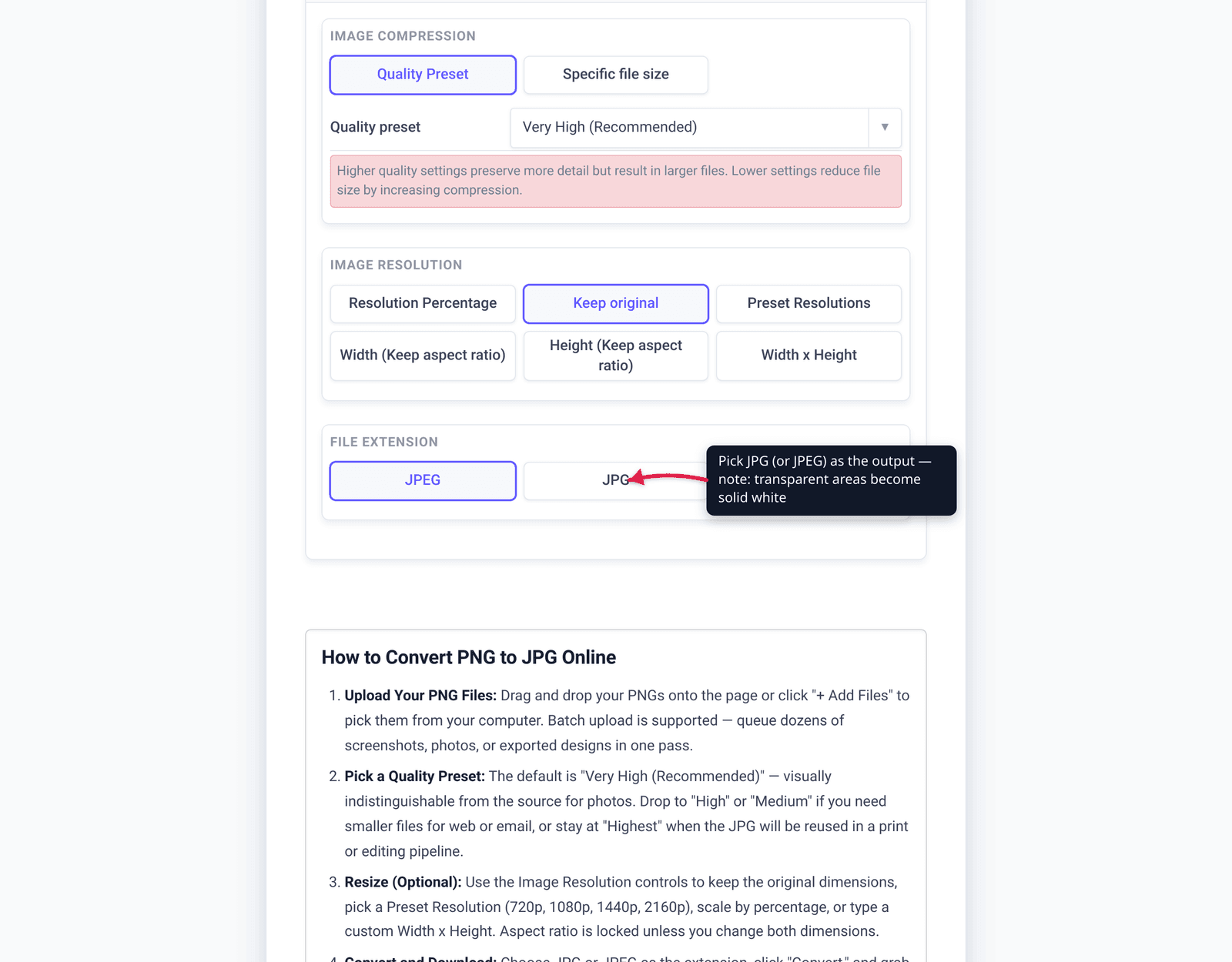
- Confirm the output extension — the file-extension dropdown lets you pick JPG or JPEG (same format, just the file ending).
- Open Advanced Options (the gear icon) to set the Quality Preset — it defaults to Very High (Recommended), with Highest, High, Medium, and Low also available. Higher preserves more detail at a larger size; for photos, Very High or High is usually plenty.
- (Optional) Use Resolution Percentage or the preset resolutions (720p / 1080p / 1440p / 2160p) to also scale the image down if you want it smaller still.
- Click Convert, then download each result individually or all of them as a ZIP.
Note: any transparent areas in your PNG are composited against white in the JPG output — expected behavior, since JPG can’t store transparency. Your file is uploaded over an encrypted connection, processed on our servers, and deleted automatically a few hours later.
For a single transparent logo or a screenshot, reconsider before converting — PNG vs WebP vs JPG covers when a different format keeps your image both small and intact.
FAQ
Does converting PNG to JPG reduce quality?
Yes — JPG is lossy, so some image data is permanently discarded. For photographs at a high quality setting (around 85–95), the loss is usually invisible to the eye while the file gets much smaller. But for images with sharp text, lines, or flat color — screenshots, logos, diagrams — the lossy compression adds visible artifacts around the edges. Convert photos freely; keep graphics as PNG.
What happens to transparency when I convert PNG to JPG?
It’s lost — JPG has no transparency. Per MDN, “JPEG does not support an alpha channel,” so any transparent areas are filled with a solid color, white by default. A transparent logo becomes a logo on a white box. If you need transparency and a small file, keep the PNG or convert to WebP instead.
Is PNG or JPG smaller?
JPG is much smaller for photographs — often 5–10× smaller than the equivalent PNG, because it discards data PNG keeps. For simple graphics with few colors (icons, flat logos), PNG can actually be smaller and lossless, so JPG isn’t automatically the size winner there.
Should I convert a screenshot from PNG to JPG?
Generally no. Screenshots are mostly text, UI elements, and flat color — exactly the content JPG compresses worst, producing fuzzy halos around text and edges. Keep screenshots as PNG (lossless) so the text stays sharp. Only convert if a system specifically requires JPG.
Is JPG and JPEG the same thing?
Yes — identical format, different file extension. .jpg and .jpeg refer to the same JPEG image format; the shorter .jpg exists because older systems limited file extensions to three letters. The xconvert converter lets you choose either ending.
Can I convert JPG back to PNG to restore quality?
No. Converting a JPG to PNG gives you a lossless copy of the already-degraded image — it cannot recover detail or transparency that the JPG conversion threw away. The only way back is the original PNG. Always keep your source PNG if you might need it later.
Sources
Last verified 2026-06-25.
- MDN — Image file type and format guide — PNG is lossless with full alpha transparency; JPEG is lossy and “does not support an alpha channel”; PNG preferred for precise reproduction and transparency, JPEG for photographs.
- xconvert — PNG vs WebP vs JPG (blog) — when WebP keeps transparency and small size where JPG can’t.
- xconvert — PNG to JPG converter — live tool UI (Add Files, Quality Preset, JPG/JPEG extension, transparency composited against white).