 By James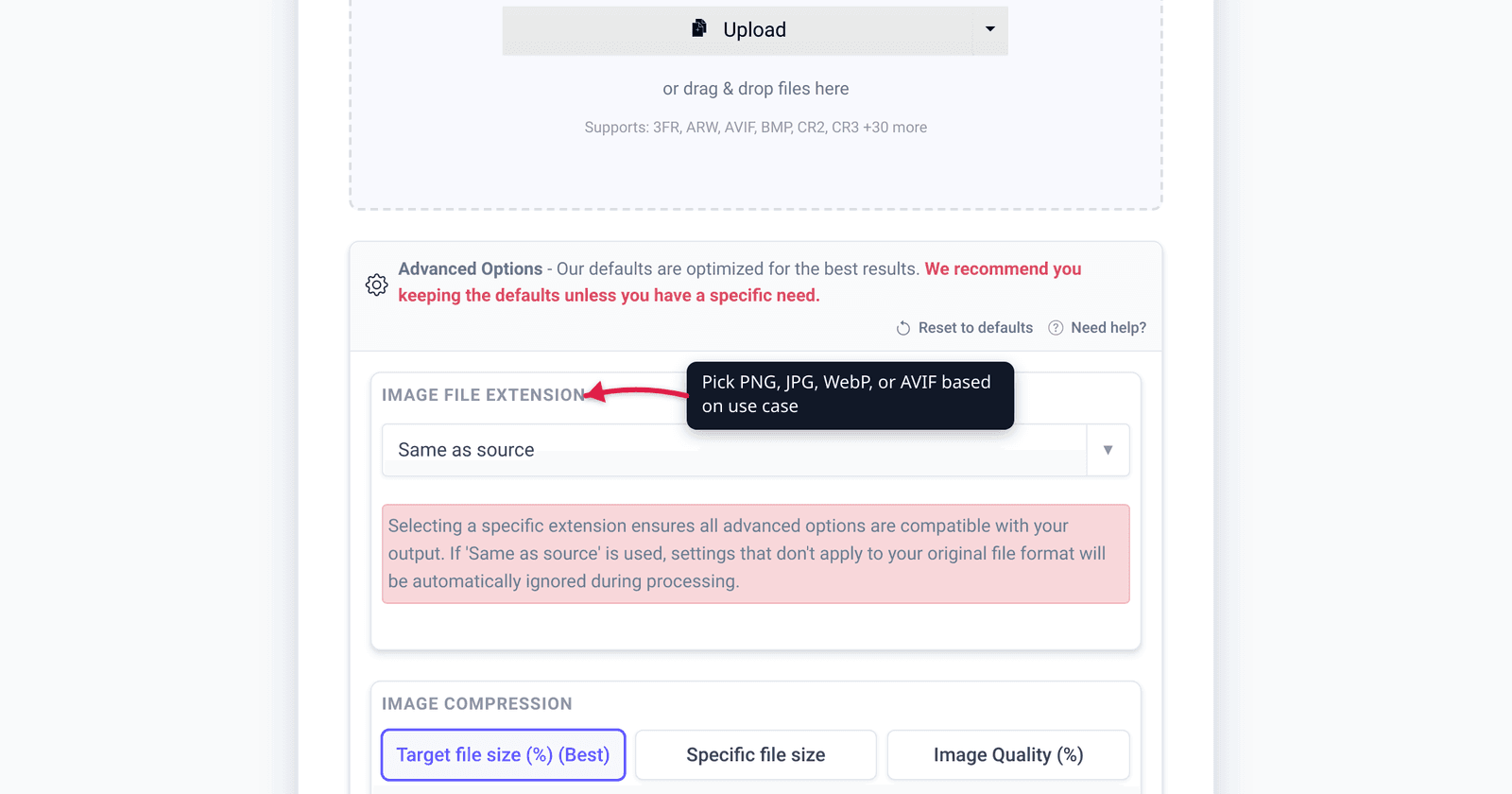
You downloaded a photo, went to attach it to a form or upload it to a website, and it came down as vacation.jfif instead of vacation.jpg — and now the form rejects it. Here’s the part nobody tells you: that .jfif file is a JPEG. Same compression, same pixels, same everything — it’s just wearing a different file extension. In most cases you can simply rename it to .jpg and move on, or run it through a converter if you’d rather not fiddle with extensions. This guide explains what JFIF actually is, why Windows and some browsers started handing you .jfif files, and the two clean ways to fix it. We verified the format definition against the ITU-T standard and the Windows behavior against Microsoft’s own forum.
Quick answer: JFIF stands for JPEG File Interchange Format — it’s the standard container that holds JPEG-compressed image data, so a .jfif file is just a JPEG with a different extension. It opens in every image viewer. If a website or form won’t accept it, you have two options: rename .jfif to .jpg (the bytes are identical, so it works), or convert it. Windows/Chrome/Edge save some JPEGs as .jfif because of a file-type registry association — the image itself is fine.
Jump to a section
- What a JFIF file actually is
- Why your JPEGs are saving as .jfif
- Rename vs. convert: which to pick
- JFIF to JPG (and JPG to JFIF) on xconvert
- FAQ
What a JFIF file actually is
JFIF is JPEG. More precisely, JFIF — the JPEG File Interchange Format — is the standard file format that wraps JPEG-compressed image data so it can be stored and shared. The JPEG standard (ITU-T T.81 | ISO/IEC 10918-1) defines how the image is compressed; JFIF defines how that compressed data is packaged into a file — color space, resolution, aspect ratio, and a few header fields. It was formalized as ITU-T Recommendation T.871 | ISO/IEC 10918-5, approved in May 2011, codifying the JFIF 1.02 spec that had been the de-facto standard since 1992.
The practical takeaway is the one that matters: a .jfif file and a .jpg file are the same kind of thing. When you save a photo as a “JPEG,” what you almost always get is a JFIF file — the .jpg, .jpeg, and .jfif extensions all point at the same underlying format. The bytes inside a .jfif you downloaded are, in the typical case, bit-for-bit a valid JPEG. That’s why:
- Every image viewer opens it — Windows Photos, Paint, macOS Preview, every browser. They read the file’s content, not its extension.
- The image is not damaged or lower quality. Nothing was re-compressed. It’s the exact same picture; only the three letters after the dot changed.
So the “problem” with a .jfif file is never the image. It’s that some software — upload forms, photo printers, older apps, automated pipelines — checks the file extension and rejects anything that isn’t on its allow-list (.jpg, .jpeg). The content would be perfectly acceptable; the label trips the gate.
Why your JPEGs are saving as .jfif
If you started seeing .jfif files only recently, you’re not imagining it, and you didn’t break anything. This is a well-known Windows behavior. When you right-click an image in Chrome, Edge, or another browser and choose Save image as…, Windows decides what extension to suggest by looking up the image’s MIME type (image/jpeg) in the registry. On many systems, that registry entry’s “preferred extension” for image/jpeg is set to .jfif instead of .jpg — so the browser dutifully saves your photo as vacation.jfif.
It traces back to a Windows update that changed (or exposed) that file-type association, and it’s surfaced across Microsoft’s own support channels for years. Microsoft’s community answer puts it plainly: a .jfif file is a JPG, and you “only need to change the file extension.” The image was always a JPEG; only the default extension your system applies on save flipped.
A few things worth knowing:
- It’s cosmetic, not corruption. The download is a normal JPEG. You can open, edit, and re-share it like any other.
- It can affect more than one browser. Because the trigger is a Windows registry association, any app that asks Windows “what extension should I use for
image/jpeg?” can inherit.jfif. - There’s a registry fix, but most people don’t need it. Editing the registry to make
image/jpegprefer.jpgagain is the permanent route, but it’s overkill if you just need this one file in the right format right now.
For everyday use, you don’t have to touch the registry at all. You have two faster options.
Rename vs. convert: which to pick
Because a .jfif file already is a JPEG, you don’t have to “convert” it in the re-encode-the-pixels sense. You’re really just choosing how to change the label.
Option 1 — Rename .jfif to .jpg (fastest, no quality change). Right-click the file → Rename → change the extension from .jfif to .jpg (or .jpeg) → confirm the “are you sure you want to change the extension?” warning. Done. Because the file’s content is unchanged — it was a valid JPEG all along — every program now treats it as the .jpg it always was. This is the right move when:
- You have one or a handful of files.
- You can see file extensions in your file manager (on Windows, enable File name extensions in File Explorer’s View menu so you can actually edit the
.jfifpart). - You just need the extension a form or app will accept.
Note: Renaming only swaps the extension; it does not re-encode or change quality. If a file is genuinely a different format and you merely rename it, it can break — but .jfif→.jpg is safe precisely because the two are the same format.
Option 2 — Convert it (cleaner for batches, awkward extensions, or quality/size control). Run the file through a converter and download a proper .jpg. This is the better choice when:
- You have many files and don’t want to rename each one by hand.
- You can’t easily edit extensions (some setups hide them, and renaming is fiddly on phones/Chromebooks).
- You also want to resize or compress the image while you’re at it.
- You want a guaranteed-clean
.jpgrather than relying on a rename you’re unsure about.
And the reverse happens too: occasionally you need a .jfif file — an app or workflow specifically expects that extension — and you have a .jpg to start from. That’s just the same operation in the other direction. A converter handles both ways without you thinking about registries or extensions at all.
JFIF to JPG (and JPG to JFIF) on xconvert
xconvert has a dedicated tool for each direction. To turn a .jfif into a standard .jpg, use the xconvert JFIF to JPG converter; to go the other way, use the JPG to JFIF converter. The steps are the same on both:
- Open the converter and click Upload — add your file From my Computer, From Google Drive, or From Dropbox (you can also drag and drop).
- (Optional) Open Advanced Options if you want to shrink the image. Under Image Compression, pick a Quality Preset (the default is Very High (Recommended)) or choose Specific file size to hit an exact target.
- (Optional) Under Image resolution, leave it on Keep original, or set a Resolution Percentage, Width / Height, or Width x Height to resize.
- Click Convert.
- Download your file — a clean
.jpg(or.jfif, depending on the tool), ready to upload anywhere.
Your file uploads over an encrypted connection, is processed on our servers, and is automatically deleted a few hours later. Nothing stays around.
If your converted JPEG looks soft afterward, that’s a separate JPEG quality issue — see why your JPEG looks blurry after saving. And if you came here from an iPhone-photo angle, HEIC vs. JPG covers a different but related “why is my photo in an unfamiliar format?” problem.
FAQ
Is a JFIF file the same as a JPG?
Yes. JFIF (JPEG File Interchange Format) is the standard container for JPEG-compressed image data, so a .jfif file holds the same kind of image as a .jpg — typically the exact same bytes with a different extension. Every image viewer opens both, and there is no quality difference between them.
How do I convert a JFIF to JPG?
Two ways. The fastest is to rename the file’s extension from .jfif to .jpg (the content is already a valid JPEG, so it just works). For batches, hidden extensions, or if you also want to resize/compress, convert it instead with a tool like the xconvert JFIF to JPG converter and download a .jpg.
Why are my downloads saving as .jfif instead of .jpg?
Because of a Windows file-type association: the registry’s preferred extension for the image/jpeg MIME type is set to .jfif on many systems, so browsers like Chrome and Edge suggest .jfif when you save an image. The picture is a normal JPEG — only the default extension changed. You can rename it, convert it, or edit the registry for a permanent fix.
Does renaming .jfif to .jpg lose quality?
No. Renaming changes only the extension, not the pixels — there’s no re-encoding, so nothing is lost. It works precisely because a .jfif file already is a JPEG. (Renaming is only risky when a file is genuinely a different format; .jfif→.jpg is safe because they’re the same format.)
Why won’t a website accept my .jfif file?
Many upload forms and apps check the file extension against an allow-list (.jpg, .jpeg) rather than reading the file’s actual content. A perfectly valid JPEG with a .jfif extension gets rejected by the label alone. Rename it to .jpg or convert it, and it’ll be accepted.
Can I open a JFIF file without converting it?
Yes. JFIF is just JPEG, so it opens in Windows Photos, Paint, macOS Preview, any web browser, and essentially every image editor without any conversion. You only need to rename or convert it when another program insists on a .jpg/.jpeg extension.
Sources
Last verified 2026-06-25.
- ITU-T Recommendation T.871 (05/2011) — JPEG File Interchange Format (JFIF), summary — official standard defining JFIF as the file format for interchange of JPEG-encoded images (also ISO/IEC 10918-5).
- Wikipedia — JPEG File Interchange Format — JFIF history, version 1.02 (1992), relationship to the JPEG (T.81 / ISO 10918-1) standard; cites the ITU-T/ISO primaries.
- Microsoft Q&A — “Why are images saved as jpegs now end up being in a jfif format?” — Microsoft community confirmation that a
.jfiffile is a JPG; you only need to change the extension. - The Windows Club — Windows saving JPG or JPEG as JFIF [Fix] — documents the registry file-association cause and the
.jpgextension fix. - PC Gamer — “You can just rename jfifs to jpegs” — independent confirmation that renaming works because the content is identical.